
How to Troubleshoot Common Internet Connection Issues


Ready to reclaim your time and conquer those frustrating daily struggles? Welcome to UltimateLifeHacks, your ultimate resource for practical tips and tricks to boost your productivity and streamline your life. We know how infuriating a slow internet connection can be – that's why we're diving deep into the most common issues and providing you with the solutions you need. Discover how to troubleshoot your connection and unlock a world of seamless online experiences. Let's get started!
- Understanding Your Internet Connection: Identifying the Source of Slowdowns
- Basic Troubleshooting Steps for Slow Internet: Quick Fixes
-
Advanced Troubleshooting Techniques for Persistent Slow Internet
- Investigating Router Settings: Optimizing Your Router for Maximum Speed
- Checking for Malware or Viruses: Removing Software That Might Be Hogging Bandwidth
- Updating Network Drivers: Ensuring Your System is Compatible with Your Network Hardware
- Running a Network Diagnostics Scan: Identifying Specific Network Problems
-
Troubleshooting Specific Internet Connection Problems: Addressing Specific Issues
- Fixing Wi-Fi Connectivity Problems: Troubleshooting Weak Signals and Disconnections
- Resolving Intermittent Internet Access: Addressing Occasional Drops in Connectivity
- Dealing with High Ping and Lag: Improving Online Game Performance and Streaming Quality
- Troubleshooting DNS Issues: Resolving Problems with Domain Name Resolution
- When to Contact Your Internet Service Provider (ISP): Escalating the Problem
- Optimizing Your Internet Usage for Better Performance: Preventative Measures
- Frequently Asked Questions
- Final Reflection: Reclaiming Your Digital Connection
- Unlock Your Super-Fast Internet: Take Control Now!
Understanding Your Internet Connection: Identifying the Source of Slowdowns
Experiencing frustratingly slow internet speeds? You're not alone. A sluggish connection can significantly impact productivity and enjoyment, whether you're streaming movies, working from home, or simply browsing the web. This guide will equip you with the knowledge and steps to effectively troubleshoot and fix slow internet connection problems, helping you reclaim your online experience and optimize your daily digital life.
We'll explore various diagnostic techniques and potential causes, from simple router checks to more complex ISP-related issues. By the end, you'll be better equipped to identify the root cause of your slow internet and implement effective solutions, significantly improving your overall online performance and boosting your digital productivity. Let's dive into the practical steps to diagnose and resolve those frustrating slowdowns and reclaim your fast and reliable internet connection. 🚀
Diagnosing Slow Internet Speed: Testing Your Connection Speed and Stability
Before diving into potential solutions, accurately diagnosing the problem is crucial. A reliable internet speed test provides a baseline measurement of your connection's performance. These tests measure your download and upload speeds, typically expressed in Mbps (Megabits per second). Consistent slow speeds across multiple tests indicate a genuine problem needing attention. However, inconsistent results might point to intermittent network issues.
Beyond speed, consider connection stability. Frequent drops or interruptions signify a different problem than consistently slow speeds. Tools that monitor ping (latency) and packet loss can identify these inconsistencies. High ping indicates delays in data transmission, while packet loss means data isn't reaching its destination, both resulting in a poor online experience. Regular speed tests, coupled with stability monitoring, provide a comprehensive picture of your internet health, allowing for more targeted troubleshooting. Remember to conduct these tests at different times of the day to account for potential network congestion fluctuations. 📊
Identifying Potential Causes: Router Issues, Network Congestion, or ISP Problems
Once you've established the extent of the slowdown, identifying its source is the next step. Several factors can contribute to slow internet:
- Router Problems: An outdated or malfunctioning router can significantly bottleneck your connection. Restarting your router is often the first step. If the problem persists, check for firmware updates. A congested Wi-Fi network, caused by too many devices connected or interference from neighboring networks, can also lead to slowdowns. Consider using a wired connection (Ethernet) for a more stable connection, especially for devices requiring high bandwidth.
- Network Congestion: High network traffic during peak hours (evenings and weekends) can reduce your speeds. This is particularly true if you share your internet connection with multiple users or devices. Consider implementing Quality of Service (QoS) settings on your router to prioritize bandwidth for critical applications.
- ISP Problems: Issues with your Internet Service Provider (ISP) can also be a significant factor. Contacting your ISP's technical support is crucial if you suspect this is the case, especially if you've ruled out other potential causes. They can check for outages, network congestion in your area, or other problems on their end. They may also have tools to diagnose the issue remotely.
Understanding these potential causes allows for a more systematic approach to troubleshooting, leading to a quicker resolution. 🤔
Checking Your Internet Plan: Ensuring You Have the Right Bandwidth for Your Needs
Finally, evaluate whether your current internet plan adequately meets your needs. If you've consistently experienced slow speeds despite troubleshooting, consider upgrading your plan to a higher bandwidth tier. Your internet usage patterns – streaming high-definition video, online gaming, or large file transfers – all impact the required bandwidth. A plan with insufficient bandwidth will always result in slowdowns, regardless of other factors.
Review your internet usage and compare it to your plan's advertised speeds. If your usage consistently exceeds your plan's capacity, an upgrade is likely necessary for optimal performance. Remember to check your contract for potential penalties or early termination fees before making any changes. ⬆️
Basic Troubleshooting Steps for Slow Internet: Quick Fixes
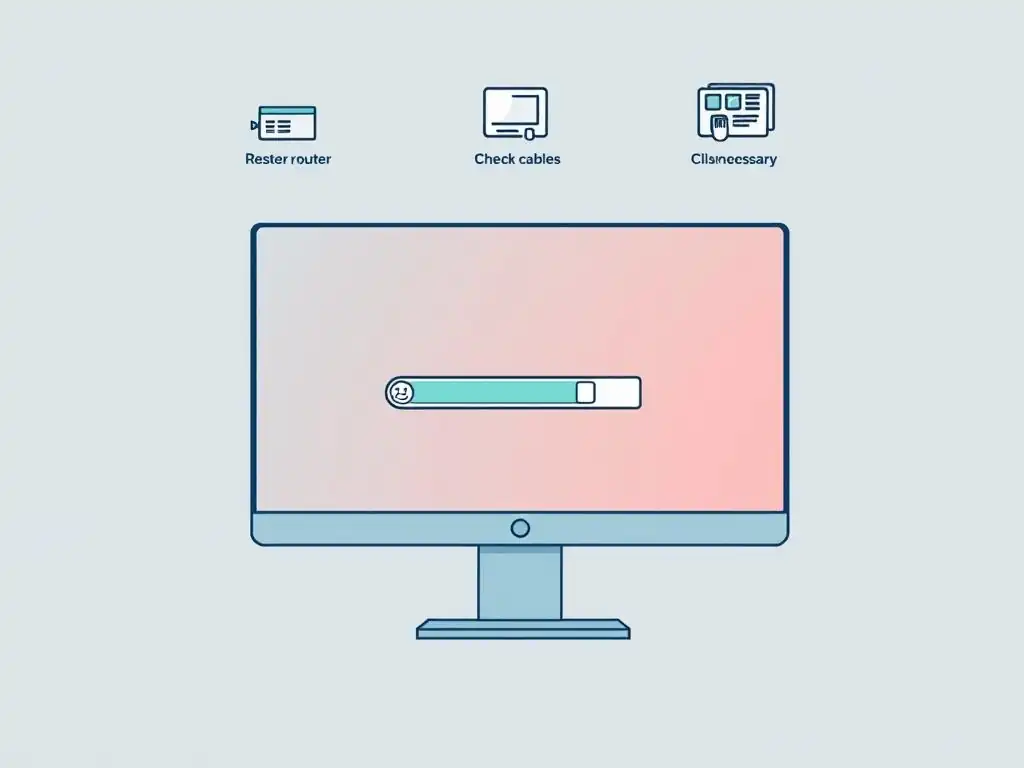
This section focuses on immediate actions you can take to address a slow internet connection. These are simple steps that often resolve minor issues quickly, saving you time and frustration before resorting to more complex solutions. Remember, a slow internet connection can stem from various sources, and these initial checks are crucial for efficient troubleshooting. The goal is to quickly identify and fix the problem, allowing you to get back online swiftly. Let's dive into the most common and effective starting points for fixing slow internet connection problems.
Restarting Your Modem and Router: The Simplest Solution for Many Problems
Often, the simplest solution is the most effective. A simple restart of your modem and router can resolve many temporary glitches that cause internet slowdown. Think of it as a digital reboot for your network. Many minor software bugs and temporary memory issues can be cleared by this process.
Here's a step-by-step guide:
- Unplug: Unplug the power cables from both your modem and your router. Wait for at least 30 seconds. This ensures a complete power cycle, not just a simple power button press.
- Plug in Modem: Plug the power cable back into your modem first. Allow it to fully power up and establish a connection with your internet service provider (ISP). This usually takes a few minutes; you'll see indicator lights change accordingly.
- Plug in Router: Once your modem is fully online, plug the power cable back into your router. Wait for it to fully boot up. Again, monitor the indicator lights for confirmation.
- Test your connection: After both devices are fully powered up, test your internet speed using a speed test website. Compare the results to your ISP's advertised speed. A significant improvement indicates that the restart solved the issue.
Checking Cable Connections: Ensuring Secure Connections for Optimal Performance
Loose or damaged cables are a surprisingly common cause of slow internet connections or complete outages. A seemingly minor imperfection can severely impact your network's performance. Therefore, a thorough cable inspection is a crucial step in your troubleshooting process.
This involves:
- Visual Inspection: Carefully examine all cables connecting your modem, router, and computer (or other devices). Look for any visible damage, such as fraying, kinks, or broken connectors. Replace any damaged cables immediately.
- Secure Connections: Ensure that all cables are firmly plugged into their respective ports. Gently wiggle each connection to make sure it’s secure. Sometimes a loose connection might appear secure at first glance, but a slight tug reveals its instability.
- Cable Type: Confirm that you are using the correct type of cable for each connection (e.g., coaxial cable for the modem, Ethernet cable for the router). Using the wrong cable type can lead to connectivity issues and significantly reduced speeds.
- Multiple Devices: If you have multiple devices connected to your network, check the cables for each device, especially if one device is experiencing significantly slower speeds than others.
Power Cycling Your Network Devices: A More Thorough Reset to Resolve Persistent Issues
Power cycling goes beyond a simple restart. It involves completely removing power from your network devices for a longer duration, allowing for a more thorough reset. This can resolve more persistent issues that a simple restart might not address. This is particularly useful if you've already tried restarting your devices and are still experiencing slow internet.
The procedure is similar to restarting, but with a crucial difference:
- Extended Power Down: Unplug the power cables from your modem and router. Wait for at least 5 minutes, ideally 10 minutes. This extended power-off period allows capacitors within the devices to fully discharge.
- Sequential Power Up: Plug your modem back in first, waiting for it to fully initialize. Then plug in your router. This ensures a clean boot sequence for your networking equipment.
- Check for Improvements: After the devices have fully rebooted, check your internet speed again. If the problem persists after this more thorough reset, it's time to consider more advanced troubleshooting steps. This could indicate a more serious issue with your internet service, your networking hardware, or your computer's configuration. Consider contacting your internet service provider or a qualified technician for further assistance.
Remember, patience and methodical troubleshooting are key to resolving slow internet connection problems. By systematically working through these steps, you significantly increase your chances of a quick fix.
Advanced Troubleshooting Techniques for Persistent Slow Internet
This section delves into more advanced troubleshooting steps for those persistent slow internet connection problems that simpler fixes haven't addressed. We'll explore deeper technical aspects to help you optimize your network and regain peak performance. Remember, a slow internet connection can stem from various sources, and a methodical approach is key to identifying the root cause. This section focuses on techniques to improve your internet speed significantly, addressing issues beyond the basic checks.
Investigating Router Settings: Optimizing Your Router for Maximum Speed
Your router is the central hub of your home network, and its configuration significantly impacts your internet speed. Incorrect settings or outdated firmware can lead to bottlenecks and slowdowns. Let's investigate key router settings to optimize performance and fix slow internet connection problems.
Several factors within your router settings can impact your connection speed. For example, the channel your Wi-Fi uses can be congested if many neighbors use the same channel. Using a Wi-Fi analyzer app (available for most smartphones) can help you identify less crowded channels. Switching to a less congested channel can dramatically improve your speed.
Furthermore, the router's Quality of Service (QoS) settings can prioritize certain types of traffic. If you're experiencing slowdowns while streaming, prioritizing video traffic in your QoS settings might improve performance. This feature allows you to allocate more bandwidth to specific applications or devices. However, improper configuration can also lead to problems, so understanding your router's QoS settings is crucial.
Finally, ensure your router's firmware is up-to-date. Outdated firmware can contain bugs that affect performance and security. Check your router manufacturer's website for the latest firmware updates and follow their instructions for updating your router. Regular firmware updates are crucial for improving your router's performance and security, ultimately leading to a faster and more stable internet connection.
Checking for Malware or Viruses: Removing Software That Might Be Hogging Bandwidth
Malware and viruses can secretly consume significant bandwidth in the background, leading to noticeably slower internet speeds. They often operate silently, making them difficult to detect without a thorough scan. This is a critical step in fixing slow internet connection problems that might be caused by malicious software.
A comprehensive scan with reputable antivirus and anti-malware software is essential. Run a full system scan, ensuring that all files and processes are checked. Many free options are available, but paid versions often offer more comprehensive protection and real-time monitoring. Remember to update your security software regularly to ensure it has the latest virus definitions.
Beyond antivirus software, consider using a dedicated anti-malware tool. These programs often detect different types of threats than traditional antivirus software, providing a more comprehensive layer of protection. These tools can identify and remove potentially unwanted programs (PUPs) that might be secretly consuming bandwidth.
After removing any identified threats, restart your computer to ensure all changes take effect. Monitor your internet speed after the scan to see if the problem has been resolved. If the slow internet connection persists, it indicates the problem likely lies elsewhere.
Updating Network Drivers: Ensuring Your System is Compatible with Your Network Hardware
Outdated or corrupted network drivers can significantly impact internet performance. Drivers are the software that allows your operating system to communicate with your network hardware (like your network adapter and Wi-Fi card). Outdated drivers might lack compatibility with your current hardware or operating system, leading to connectivity issues and slow speeds. Updating these drivers is a crucial step in fixing slow internet connection problems related to hardware compatibility.
To update your network drivers, you can visit the manufacturer's website for your network adapter or Wi-Fi card. Locate the "Support" or "Downloads" section, and find the latest drivers compatible with your operating system. Download and install the drivers, following the manufacturer's instructions. Always back up your system before installing new drivers as a precaution.
Alternatively, you can use your operating system's built-in driver update functionality. Windows, for example, provides a tool to automatically search for and install updates for your hardware. This is a convenient option, though manually checking the manufacturer's website ensures you get the very latest version.
After updating your drivers, restart your computer and test your internet speed. Improved speeds confirm that outdated drivers were the culprit. If the issue persists, further investigation into other potential causes is necessary. Remember to regularly check for driver updates to maintain optimal network performance.
Running a Network Diagnostics Scan: Identifying Specific Network Problems
Running a network diagnostics scan is crucial for pinpointing the exact cause of your slow internet connection. These scans analyze various aspects of your network, from the physical connection to the data packets traveling across it. The results provide valuable insights, often revealing problems invisible to the casual user. For example, a scan might highlight packet loss, indicating a problem with your router, modem, or even the cabling.
It could also reveal latency issues, which often stem from network congestion or distance from the server. Furthermore, the scan might identify specific devices on your network consuming excessive bandwidth, potentially causing slowdowns for other devices. Knowing this information allows for targeted troubleshooting, significantly improving the efficiency of your problem-solving efforts.
Different operating systems offer built-in diagnostic tools. Windows, for instance, provides the netsh command-line utility, which offers a variety of network diagnostics. You can use commands like netsh int ip show config to view your IP configuration and identify potential conflicts. MacOS also has its own network utility, accessible through the System Preferences. This utility provides information on your network connection, including signal strength (for Wi-Fi) and IP address. Beyond these operating system tools, numerous third-party network diagnostic applications offer more comprehensive scans and detailed analysis. These applications often provide user-friendly interfaces, making the results easier to understand, even for users without extensive technical knowledge. Remember to choose a reputable application from a trusted source to avoid downloading malware.
The interpretation of diagnostic scan results requires some understanding of networking basics. However, many tools offer explanations alongside their findings, simplifying the process. For instance, a high packet loss percentage clearly indicates a connection problem that needs attention. Similarly, consistently high latency can point towards a congested network or a problem with your internet service provider (ISP).
If you're unsure about interpreting the results, consider seeking assistance from a tech-savvy friend or professional. Don't hesitate to contact your internet service provider's technical support; they can often use the diagnostic data to identify and resolve the issue from their end. Remember, a thorough network diagnostics scan is a powerful tool for anyone looking to effectively fix slow internet connection problems. It transforms troubleshooting from a guessing game into a targeted, efficient process.
Troubleshooting Specific Internet Connection Problems: Addressing Specific Issues
This section delves into the specifics of common internet connection problems and provides practical, step-by-step solutions to help you fix slow internet connection problems and optimize your online experience. We'll move beyond general advice and address particular issues that plague many users. Remember, a methodical approach is key to efficient troubleshooting. Start with the simplest solutions and progress to more complex ones if necessary. Consistent application of these strategies will significantly improve your online performance and reduce frustration.
Fixing Wi-Fi Connectivity Problems: Troubleshooting Weak Signals and Disconnections
Weak Wi-Fi signals and intermittent disconnections are incredibly frustrating. They can significantly impact productivity and enjoyment of online activities. Let's explore some effective solutions to strengthen your Wi-Fi and eliminate these disruptions. The first step is identifying the root cause.
Several factors can contribute to poor Wi-Fi performance:
- Distance from the router: The further you are from your router, the weaker the signal. Consider moving closer or strategically positioning your router for better coverage. Optimal placement is often centrally located and elevated.
- Physical obstructions: Walls, furniture, and even appliances (microwaves, especially!) can interfere with Wi-Fi signals. Try rearranging your furniture or moving the router to a more open location.
- Network congestion: Too many devices connected to the same network can lead to slow speeds and disconnections. Consider prioritizing devices or limiting the number of simultaneous connections.
- Router interference: Other Wi-Fi networks operating on the same frequency can cause interference. You can use a Wi-Fi analyzer app to identify overlapping channels and change your router's channel to a less congested one. This is a more advanced technique, but can yield significant improvements.
- Outdated router firmware: Outdated firmware can contain bugs and vulnerabilities that affect performance. Regularly check for and install firmware updates from your router manufacturer.
- Hardware issues: A faulty router or network adapter can also cause problems. Try restarting your router and your computer. If the problem persists, consider replacing the faulty hardware.
Here's a suggested troubleshooting process:
- Restart your router and modem: This simple step often resolves temporary glitches. Unplug both devices, wait 30 seconds, and plug them back in.
- Check for physical obstructions: Identify and remove any obstacles between your devices and the router.
- Check your Wi-Fi channel: Use a Wi-Fi analyzer app to find a less congested channel.
- Update your router's firmware: Check your router manufacturer's website for the latest firmware updates.
- Check your device's network adapter: Ensure your computer's network adapter is functioning correctly.
Following these steps systematically will help you diagnose and resolve most Wi-Fi connectivity problems. Remember, patience and persistence are key! 📶
Resolving Intermittent Internet Access: Addressing Occasional Drops in Connectivity
Intermittent internet access, characterized by occasional drops in connectivity, can be incredibly disruptive. This issue often stems from problems outside your home network, but sometimes internal factors are to blame. Let's explore the common causes and solutions.
The causes of intermittent internet access are varied and can include:
- ISP-related issues: Problems with your Internet Service Provider (ISP) are a frequent culprit. These can range from planned maintenance to unexpected outages. Contacting your ISP is crucial in these cases.
- Network congestion: Similar to Wi-Fi congestion, high network traffic can lead to intermittent connectivity. This is especially true during peak usage times.
- DNS problems: Your Domain Name System (DNS) translates website addresses into IP addresses. Problems with your DNS settings can cause intermittent connectivity. Try using a public DNS server like Google Public DNS or Cloudflare DNS.
- Router issues: A malfunctioning router can cause intermittent drops. Consider restarting your router or, if necessary, replacing it.
- Power surges: Power fluctuations can disrupt your internet connection. A surge protector can help mitigate this issue.
Here's a troubleshooting plan for intermittent internet access:
- Check your ISP's status page: See if they're experiencing any outages in your area.
- Restart your modem and router: A simple reboot can often resolve temporary problems.
- Try a different DNS server: Change your DNS settings to use a public DNS server.
- Check for power issues: Ensure your modem and router are plugged into a stable power source, ideally a surge protector.
- Run a network diagnostic test: Your operating system likely has built-in tools to help diagnose network problems.
Addressing intermittent internet access requires a systematic approach. By following these steps, you can identify and resolve the root cause of the problem and enjoy a more stable internet connection.
Dealing with High Ping and Lag: Improving Online Game Performance and Streaming Quality
High ping (latency) and lag significantly impact online gaming and streaming experiences. These issues manifest as delays in responsiveness, slow loading times, and choppy video playback. Let's explore how to minimize these issues and improve your online performance.
High ping and lag are often caused by:
- Network congestion: High network traffic can increase latency. This is particularly noticeable during peak usage times.
- Distance to the server: The further you are from the server hosting the game or streaming content, the higher your ping will be.
- ISP throttling: Your ISP might intentionally slow down your connection during peak hours or when you consume a large amount of bandwidth.
- Router limitations: An outdated or underpowered router might struggle to handle the demands of online gaming or streaming.
- Background processes: Applications running in the background can consume bandwidth and increase latency.
To reduce ping and lag:
- Close unnecessary applications: Free up bandwidth by closing any applications you're not actively using.
- Connect via Ethernet: A wired connection is generally more stable and faster than Wi-Fi, resulting in lower ping.
- Optimize your router settings: Ensure your Quality of Service (QoS) settings prioritize gaming or streaming traffic.
- Use a VPN cautiously: While a VPN can sometimes improve your connection, it can also increase latency.
- Upgrade your internet plan: Consider upgrading to a faster internet plan if your current plan is insufficient for your needs.
By implementing these strategies, you can significantly reduce ping and lag, resulting in smoother online gaming and streaming experiences. Remember to systematically troubleshoot, starting with the simplest solutions and gradually progressing to more complex ones. Consistent application of these techniques will enhance your online enjoyment considerably.
Troubleshooting DNS Issues: Resolving Problems with Domain Name Resolution
DNS, or Domain Name System, is the phonebook of the internet. It translates human-readable website addresses (like ultimatelifehacks.com) into IP addresses (like 192.0.68.10) that computers understand. When your DNS is misconfigured or experiencing problems, you'll encounter difficulties accessing websites, even if your internet connection is otherwise working fine. Symptoms include slow loading times, intermittent connectivity, or the inability to reach certain sites altogether. This is a common cause of "fix slow internet connection problems" searches.
One of the first things to check when troubleshooting DNS is your DNS server settings. Most internet service providers (ISPs) automatically assign DNS servers, but these can sometimes be unreliable or slow. You can usually find these settings within your network adapter's properties in your operating system's control panel.
Consider switching to public DNS servers like Google Public DNS (8.8.8.8 and 8.8.4.4) or Cloudflare DNS (1.1.1.1 and 1.0.0.1) for potentially faster and more reliable resolution. These public DNS servers are known for their speed and security features, often outperforming ISP-provided options. Many users report significant improvements in website loading times after making this simple change.
Another potential problem lies within your router's DNS settings. Your router acts as a gateway to your network, and its DNS configuration can affect all devices connected to it. Accessing your router's administration interface (usually via a web browser) allows you to check and modify its DNS settings. Similar to your computer's settings, you might consider changing your router's DNS to a public DNS server for improved performance and stability. This is especially beneficial if multiple devices on your network are experiencing slow internet speeds or DNS-related issues.
Furthermore, DNS caching can sometimes cause problems. Your computer and router store frequently accessed DNS records in a cache to speed up future lookups. However, if a cached record becomes outdated or corrupted, it can lead to connection problems. Clearing your DNS cache is a straightforward process, with methods varying slightly depending on your operating system. A simple restart of your computer or router can often resolve temporary caching issues. For more persistent problems, a more thorough cache clearing might be necessary. This is a simple yet effective step in the process of fixing slow internet connection problems.
Finally, consider the possibility of a DNS server outage. While less frequent, DNS server failures can impact widespread access to websites. In such cases, switching to an alternative DNS server is your best bet until the problem is resolved by your ISP or the DNS provider.
Monitoring websites that track DNS server status can help you determine if a widespread outage is affecting your connectivity. This proactive approach can save you considerable time and frustration when trying to address slow internet connection problems. Remember to check your ISP's status page as well, as network issues on their end can manifest as DNS problems.
When to Contact Your Internet Service Provider (ISP): Escalating the Problem
Troubleshooting internet connection problems often involves a series of self-help steps. However, sometimes the issue lies beyond your home network's configuration. Knowing when to contact your Internet Service Provider (ISP) is crucial for efficient problem resolution and minimizing downtime. This section will help you identify situations requiring professional intervention and guide you through the process of contacting your ISP effectively. Successfully fixing slow internet connection problems often hinges on this crucial step.
Identifying whether the problem originates from your internal network or your ISP's infrastructure is the first step. Several telltale signs indicate the need to contact your ISP:
- Widespread outages: If your neighbors or colleagues are experiencing similar internet connectivity issues simultaneously, it strongly suggests a broader problem with your ISP's service. This is a clear indicator that the issue is external to your home network and requires professional attention.
- Consistent slow speeds: While occasional slowdowns can be attributed to various factors, consistently slow speeds across all devices, even when wired directly to the modem, point towards an ISP-related problem. This is especially true if speed tests consistently fall far below your subscribed plan's advertised speeds.
- Complete internet loss: If you experience a complete absence of internet connectivity across all devices, and you've already checked your modem, router, and cables (as detailed in previous sections), contacting your ISP is paramount. This signifies a potential service disruption on their end.
- Error messages pointing to ISP issues: Some error messages explicitly indicate problems with the ISP's DNS servers or network infrastructure. These messages often provide clues to the nature of the problem, which can be helpful when contacting your ISP's support team.
- Intermittent connectivity: Frequent drops in connectivity, where your internet connection repeatedly cuts out and then reconnects, points towards instability within the ISP's network. This can significantly impact productivity and online activities.
Preparing for Contact with Your ISP: Gathering Necessary Information for Efficient Troubleshooting
Before contacting your ISP, gather the following information to expedite the troubleshooting process and ensure a smoother resolution:
- Your account number: This is essential for the ISP to quickly identify your account and access your service details.
- The exact nature of the problem: Be specific about the issue you're experiencing. Instead of saying "My internet is slow," describe the symptoms: "My download speeds are consistently below 10 Mbps, even when using a wired connection, and speed tests confirm this."
- The time the problem started: This helps the ISP pinpoint potential causes and narrow down the investigation.
- The devices affected: Specify which devices (computers, smartphones, smart TVs) are experiencing the problem and which are not. This helps determine if the issue is device-specific or network-wide.
- Troubleshooting steps already taken: Briefly outline the steps you've already taken to troubleshoot the problem, such as restarting your modem and router, checking cables, and running speed tests. This demonstrates proactive problem-solving and saves the ISP representative time.
| Information Type | Example | Importance |
|---|---|---|
| Account Number | 1234567890 | Essential for account identification. |
| Problem Description | "Download speeds consistently below 10 Mbps" | Provides clear context for the support representative. |
| Problem Start Time | 2:00 PM, October 26, 2024 | Helps pinpoint potential causes. |
| Affected Devices | Laptop, Smartphone, Smart TV | Helps determine if the issue is device-specific or network-wide. |
| Troubleshooting Steps Taken | "Restarted modem and router, checked cables" | Shows proactive problem-solving and saves the ISP representative time. |
By being prepared and providing detailed information, you'll significantly improve your chances of a quick and efficient resolution to your slow internet connection problems. Remember, clear communication is key to a successful interaction with your ISP's technical support team.
Optimizing Your Internet Usage for Better Performance: Preventative Measures
Addressing "fix slow internet connection problems" often involves proactive strategies as much as reactive troubleshooting. Optimizing your internet usage is key to preventing slowdowns before they even begin. This section focuses on preventative measures you can implement to keep your internet running smoothly. By understanding how your online activities impact your connection speed, you can significantly improve your overall experience.
Managing Bandwidth-Intensive Applications: Prioritizing Important Tasks and Limiting Background Processes
Many applications consume significant bandwidth in the background, silently competing with your primary internet tasks. Streaming services like Netflix, Spotify, and online gaming platforms are notorious bandwidth hogs. To address "fix slow internet connection problems" related to bandwidth overuse, prioritize your activities. If you're working on a time-sensitive project requiring a stable internet connection, close unnecessary applications.
Consider these steps:
- Identify bandwidth-intensive apps: Use your operating system's task manager or resource monitor to identify applications consuming the most bandwidth. Look for unexpected high usage from programs you aren't actively using.
- Prioritize active tasks: Focus on the most important tasks requiring internet access. Pause or close less critical applications while working on something demanding bandwidth.
- Limit background processes: Many applications automatically update or sync data in the background. Disable these features for applications you don't need constantly updated, especially during periods when you require maximum bandwidth. This significantly contributes to fixing slow internet connection problems.
- Use bandwidth-limiting features: Some applications and operating systems offer bandwidth-limiting features. Experiment with these to allocate specific bandwidth amounts to individual applications.
For example, if you're video conferencing for work, close all other applications that might be streaming video or downloading large files. This simple step can dramatically improve your video call quality and prevent frustrating interruptions. This directly addresses the core issue of "fix slow internet connection problems" by managing resource allocation effectively.
Limiting the Number of Devices Connected to Your Network: Reducing Congestion for Faster Speeds
Multiple devices simultaneously streaming, downloading, or uploading data can significantly saturate your internet bandwidth, leading to slowdowns for all connected devices. This is a common cause of the frustrating "fix slow internet connection problems" search. Reducing the number of active devices, especially those performing bandwidth-intensive tasks, can significantly improve overall speeds.
Think of your home network like a highway: the more cars (devices) on the road, the slower the traffic (internet speed) becomes.
Here's how to effectively manage connected devices:
- Disconnect unused devices: Power down or disconnect devices you're not actively using. This includes smart TVs, game consoles, and other IoT devices that might be constantly communicating with the internet.
- Prioritize devices: Identify the devices that require the most bandwidth (laptops for work, streaming devices for entertainment) and give them priority when possible.
- Use guest networks: Many routers offer guest networks that provide separate access points with limited bandwidth. This is ideal for visitors who don't need full access to your home network.
- Regularly review connected devices: Periodically check your router's connected devices list to identify any unknown or unauthorized devices.
By actively managing the number of connected devices, you directly address the problem of network congestion and contribute significantly to fixing slow internet connection problems.
Regularly Updating Your Router's Firmware: Maintaining Optimal Performance and Security
Outdated router firmware can lead to various performance issues, including slow internet speeds and security vulnerabilities. Regularly updating your router's firmware is crucial for maintaining optimal performance and addressing potential "fix slow internet connection problems" scenarios. Manufacturers frequently release firmware updates that include bug fixes, performance improvements, and enhanced security features.
Here's how to update your router's firmware:
- Access your router's admin interface: Find your router's IP address (usually found in your router's manual or by checking your network settings), and enter it into your web browser. Log in using your router's admin username and password.
- Check for firmware updates: Look for a section labeled "Firmware Update," "System Update," or something similar.
- Download and install the update: Follow the instructions provided by your router's manufacturer to download and install the latest firmware. Note: During the update process, do not disconnect your router from the power.
Failing to update your router's firmware can lead to decreased performance, security risks, and ultimately contribute to the need to search for solutions to "fix slow internet connection problems". Regular updates are a simple yet effective preventative measure.
Frequently Asked Questions
What are the most common causes of slow internet connection speeds?
Slow internet can be caused by several factors, including network congestion, faulty hardware (like your modem or router), interference from other devices, or outdated software. Troubleshooting should address each possibility.
How can I speed up my Wi-Fi connection?
Try restarting your modem and router, moving closer to the router, checking for interference from other electronic devices, and updating your router's firmware. Consider upgrading to a newer router for better performance.
My internet keeps disconnecting. What should I do?
Intermittent disconnections could be due to a weak signal, problems with your internet service provider (ISP), or a faulty network cable. Check your cables, contact your ISP, and consider a Wi-Fi extender if necessary.
Is there a way to test my internet speed?
Yes, many free online speed tests are available. Simply search for "internet speed test" on your browser and follow the instructions. This will give you a baseline measurement of your connection's performance.
What should I do if I've tried everything and my internet is still slow?
If basic troubleshooting fails, contact your internet service provider (ISP). They can check for issues on their end, such as outages or network problems. They may also be able to help diagnose more complex issues.
Final Reflection: Reclaiming Your Digital Connection
The frustrating crawl of a slow internet connection is a modern-day plague, impacting everything from work productivity to simple leisure activities. This pervasive issue, far from being a minor inconvenience, significantly impacts our daily lives, hindering communication, education, and entertainment. The solutions, however, are often simpler than we imagine.
This article explored common internet connection problems, highlighting the importance of systematic troubleshooting. The sheer reliance we place on a stable internet connection underscores its critical role in our interconnected world. The internet is not just a tool; it's the nervous system of our society.
This quote, while not directly about troubleshooting, perfectly captures the significance of a smoothly functioning digital connection. Understanding the basics of troubleshooting empowers us to take control of our online experience, reducing frustration and reclaiming valuable time.
Now, consider your own digital landscape. What small steps can you take today to ensure a more reliable and efficient internet connection? Perhaps it's time to run a speed test, check your router's placement, or even contact your internet service provider. Take the knowledge gained here and transform your digital frustration into empowered action. A stable connection isn't just about faster downloads; it's about unlocking the full potential of the online world and connecting with the opportunities it offers.
Unlock Your Super-Fast Internet: Take Control Now!
Congratulations on taking the time to learn how to resolve frustrating internet connection issues! You now have the skills to troubleshoot like a pro. Ready to put your new knowledge to the test?
- Share your success: Tell us in the comments below what worked best for you—was it a simple router reset, or something more complex? Let's build a community of internet troubleshooting experts!
- Try another troubleshooting technique: Did you skip over some of the other tips? Now's your chance to master your internet connection!
- Share this article: Help your friends and family avoid internet woes.
What's your biggest internet challenge, and how will you approach it next time?