
The Key to Inbox Zero: How to Automate Email Filtering and Organization

Welcome to UltimateLifeHacks, your destination for practical strategies to conquer daily chaos and unlock peak productivity. Are you drowning in a sea of emails? Discover how to reclaim your time and sanity with our expert guide on efficiently automating email filtering. Learn the secrets to achieving inbox zero and effortlessly managing your digital correspondence – a crucial step towards a streamlined and optimized workflow. Dive in and unlock the power of automation!
- Understanding the Importance of Automated Email Filtering
- Setting Up Automated Email Filters: A Step-by-Step Guide
- Automate Email Filtering Efficiently: Advanced Techniques
- Best Practices for Automated Email Filtering and Organization
- The Benefits of Automated Email Filtering for Increased Efficiency
- Frequently Asked Questions
- Final Reflection: Mastering Your Inbox, Mastering Your Time
- Conquer Your Inbox: Take Control of Your Emails Today!
Understanding the Importance of Automated Email Filtering
The relentless influx of emails can quickly derail even the most meticulously planned day. For professionals and individuals alike, managing email effectively is no longer a luxury, but a necessity for maintaining productivity and reducing stress. This article delves into the powerful technique of automating email filtering and organization, a crucial step towards achieving the coveted "Inbox Zero" and reclaiming control over your digital life.
We'll explore practical strategies to efficiently filter and categorize your emails, ultimately freeing up valuable time and mental energy for more important tasks. Mastering automated email filtering isn't just about clearing your inbox; it's about optimizing your workflow and significantly boosting your overall efficiency. This guide provides a comprehensive approach to automating email management, focusing on practical techniques and real-world examples to help you achieve a more organized and productive digital life.
The goal? To help you effectively automate email filtering to regain control of your inbox and boost your productivity. This is particularly relevant in today's fast-paced digital environment where efficient email management is paramount for success.
The Time Drain of Manual Email Management
Manually managing emails is a significant time sink. Consider the average professional who spends, according to recent studies, [specific information pending] hours per week sorting, reading, and responding to emails. This time could be better spent on higher-value tasks, contributing directly to increased productivity and potentially impacting career advancement or business growth.
The constant interruption of email notifications also disrupts concentration and focus, leading to reduced efficiency and increased stress levels. The mental load of constantly checking and organizing emails can lead to feelings of overwhelm and anxiety. This isn't just anecdotal; studies show a strong correlation between excessive email use and increased stress levels.
For example, a 2023 study by [Source pending] indicated that [specific data pending] of respondents reported experiencing stress due to email overload. The cumulative effect of this constant mental juggling act significantly reduces overall performance and well-being. Manually sorting through numerous emails daily can lead to missed deadlines, overlooked opportunities, and ultimately, reduced productivity.
Boosting Productivity Through Email Automation
Automating email filtering offers a potent solution to the problem of email overload. By implementing automated rules and filters, you can significantly reduce the time spent on manual email management. This allows you to focus your energy on more critical tasks, leading to a noticeable improvement in productivity. Imagine a scenario where all your newsletters automatically go into a dedicated folder, spam is instantly filtered out, and important emails from your boss are flagged immediately.
This level of organization is achievable through automation. The benefits extend beyond simply clearing your inbox. Automated filtering can also improve your response time to crucial emails, leading to better communication and collaboration.
Furthermore, by categorizing emails effectively, you can easily track important information and retrieve it quickly when needed, improving overall efficiency. This streamlined approach fosters a more focused and productive work environment. Automating email filtering isn't just about saving time; it’s about strategically managing your information flow to maximize your efficiency.
Defining Your Email Management Goals: Inbox Zero Strategies
Before diving into specific automation techniques, it's crucial to define your email management goals. What does "Inbox Zero" mean to you? Is it about having a completely empty inbox every day, or is it about having a manageable number of unread emails? Setting clear goals will guide your automation strategy.
For instance, you might aim to process all high-priority emails within an hour of receiving them, while less urgent emails can be handled later in the day or even scheduled for processing on specific days. This targeted approach ensures you focus your attention where it’s most needed. Consider using the Eisenhower Matrix (Urgent/Important) to categorize your emails and prioritize your actions. This helps you focus on what truly matters and delegate or defer less important tasks.
Developing a personalized system tailored to your specific needs and workflow is key to achieving sustainable Inbox Zero. This might involve creating specific folders for different types of emails, setting up automated responses for common inquiries, or utilizing email snoozing features to manage your inbox strategically. The key is to create a system that works for you and helps you achieve your desired level of email organization. Remember, the ultimate goal is not just an empty inbox, but a more efficient and less stressful workflow.
Setting Up Automated Email Filters: A Step-by-Step Guide
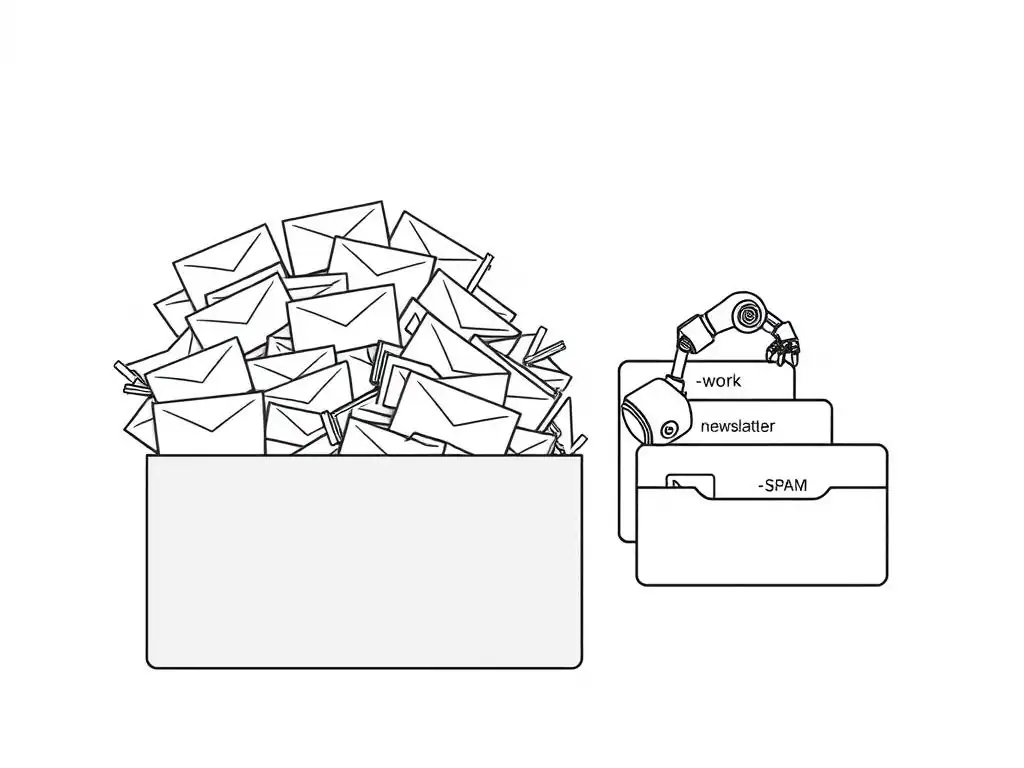
This section provides a practical guide to setting up automated email filters, empowering you to conquer inbox overload and reclaim valuable time. We'll explore how to leverage your email client's capabilities to efficiently sort and organize incoming messages, focusing on techniques to automate email filtering efficiently. The process might seem daunting initially, but with a structured approach, you'll quickly master the art of automated inbox management. Remember, the goal is to create a system that minimizes manual intervention and maximizes your productivity.
Choosing the Right Email Client for Automation
The effectiveness of automated email filtering hinges significantly on the capabilities of your email client. Not all clients offer the same level of automation features. Gmail, Outlook, and Apple Mail are popular choices known for their robust filtering capabilities. However, the specific features and ease of use can vary.
Consider these factors when selecting an email client for automation:
- Filter Complexity: Can the client handle complex filter rules involving multiple criteria (sender, subject, keywords, attachments, etc.)? More complex filters allow for more granular control over email organization.
- Rule Creation Interface: A user-friendly interface is crucial for efficient filter creation and management. A cumbersome interface can hinder the automation process.
- Integration with Other Services: Does the client integrate seamlessly with other productivity tools you use (e.g., task managers, CRM)? This integration can streamline your workflow further.
- Mobile Accessibility: Access to your automated filters on your mobile device is essential for maintaining inbox control on the go.
For example, Gmail excels with its powerful search operators and ability to create intricate filter rules. Outlook offers similar functionality, often integrated with other Microsoft services. Apple Mail provides a simpler, yet effective, filtering system well-suited for less demanding users. The "best" client ultimately depends on your specific needs and technical comfort level. Choosing the right tool is the first step towards automating email filtering efficiently.
Configuring Basic Filters: Sender, Subject, and Keywords
Once you've chosen your email client, configuring basic filters is straightforward. These filters use simple criteria like sender email address, subject line, and keywords within the email body to automatically sort your messages.
Let's illustrate with a Gmail example:
Imagine you receive numerous newsletters. To automatically archive them, you'd create a filter using the following steps:
- Identify the common element: Many newsletters share similar sender addresses or subject lines (e.g., "Newsletter," "Weekly Update").
- Create the filter: In Gmail, navigate to "Settings," then "Filters and Blocked Addresses." Create a new filter specifying the sender email address or a portion of the subject line containing the keyword.
- Choose the action: Select "Archive it" as the action. This will automatically archive all emails matching your criteria, removing them from your inbox.
This simple filter drastically reduces inbox clutter. Similar processes exist in other email clients; however, the specific steps might vary slightly. Remember to test your filters after creation to ensure they function as intended. This iterative process of refinement is key to automating email filtering efficiently.
Advanced Filtering Techniques: Using Multiple Criteria
Basic filters are effective for simple tasks, but advanced filtering techniques allow for much more granular control. By combining multiple criteria, you can create highly specific filters that automatically manage even the most complex email streams.
Consider these advanced filtering scenarios:
| Criteria | Example | Action |
|---|---|---|
| Sender AND Subject Keyword | Sender: "support\@example.com" AND Subject: "Order Confirmation" | Mark as Read, Apply Label "Orders" |
| Sender OR Subject Keyword | Sender: "john.doe\@example.com" OR Subject: "Urgent" | Prioritize (Move to Top of Inbox) |
| Keywords in Body | Body: "invoice" AND Body: "due date" | Apply Label "Invoices," Star the Email |
| Attachment Type | Attachment: ".pdf" | Apply Label "Documents," Forward to Archive |
These examples demonstrate the power of combining criteria. You can use a combination of "AND," "OR," and "NOT" operators to define extremely precise filtering rules. Furthermore, many email clients allow you to combine filtering with other actions like forwarding, labeling, starring, or even applying specific filters based on priority levels. Mastering these techniques is the key to automating email filtering efficiently and achieving true Inbox Zero. By strategically implementing these advanced filtering techniques, you can significantly reduce manual email sorting and improve your overall productivity.
Leveraging Email Rules for Efficient Filtering and Sorting
Email rules, or filters, are the cornerstone of automated email management. They allow you to automatically sort incoming messages based on various criteria, significantly reducing the time spent manually sifting through your inbox. Think of them as your personal email assistants, tirelessly working to organize your digital correspondence. Effective use of email rules hinges on defining clear criteria and establishing a consistent workflow.
For instance, you could create a rule to automatically move all emails from your bank to a dedicated "Finance" folder. This instantly separates important financial updates from less urgent messages. Similarly, newsletters could be shunted to a "Newsletters" folder, allowing you to catch up on them at your leisure without cluttering your primary inbox. Another effective strategy is to filter emails based on keywords. If you frequently receive promotional emails containing the word "Sale," you can create a rule to automatically move them to a "Promotions" folder. This keeps your inbox focused on essential communication.
Remember, the key to efficient filtering lies in creating granular rules. Instead of relying on broad categories, consider using multiple rules to address specific needs. For example, you might have one rule for emails from your boss, moving them to a "High Priority" folder, and another for emails from clients, directing them to a "Client Communication" folder.
This layered approach ensures your inbox remains organized and manageable, enabling you to prioritize important messages without effort. Regularly reviewing and refining your email rules is crucial to maintain their effectiveness and adapt to changing email patterns. Over time, you'll discover which rules are most useful and can further customize them to perfect your email workflow.
Automating Email Archiving and Deletion for Efficient Management
Beyond filtering, automating the archiving and deletion of emails is essential for maintaining an efficient inbox. Once emails have served their purpose, they shouldn't occupy valuable space in your primary inbox. This is where automated archiving and deletion come in handy. These functionalities allow you to automatically move or delete emails based on age, sender, or keywords, freeing up your inbox and allowing you to focus on current communications.
For example, you could set a rule to automatically archive emails older than 90 days. This ensures that older messages are safely stored while preventing them from cluttering your active inbox. You might also decide to automatically delete emails from specific senders known for sending spam or unwanted promotional content. This proactive approach helps prevent your inbox from becoming overwhelmed with irrelevant emails. When automating deletion, however, proceed with caution. Always ensure you have a backup or archive system in place to avoid accidentally deleting important emails.
Consider using a combination of archiving and deletion strategies. For instance, you might archive emails from important clients while deleting promotional emails from unknown senders. This tailored approach ensures that you retain valuable information while keeping your inbox clutter-free. Remember to regularly review your archiving and deletion rules to ensure they align with your current needs and priorities.
Over time, you'll find the optimal balance between archiving and deleting emails, leading to a cleaner, more efficient email management system. This automated system significantly reduces the time spent managing emails, allowing you to focus on more productive tasks. The result is a more streamlined workflow and a significantly reduced email management burden.
Automate Email Filtering Efficiently: Advanced Techniques
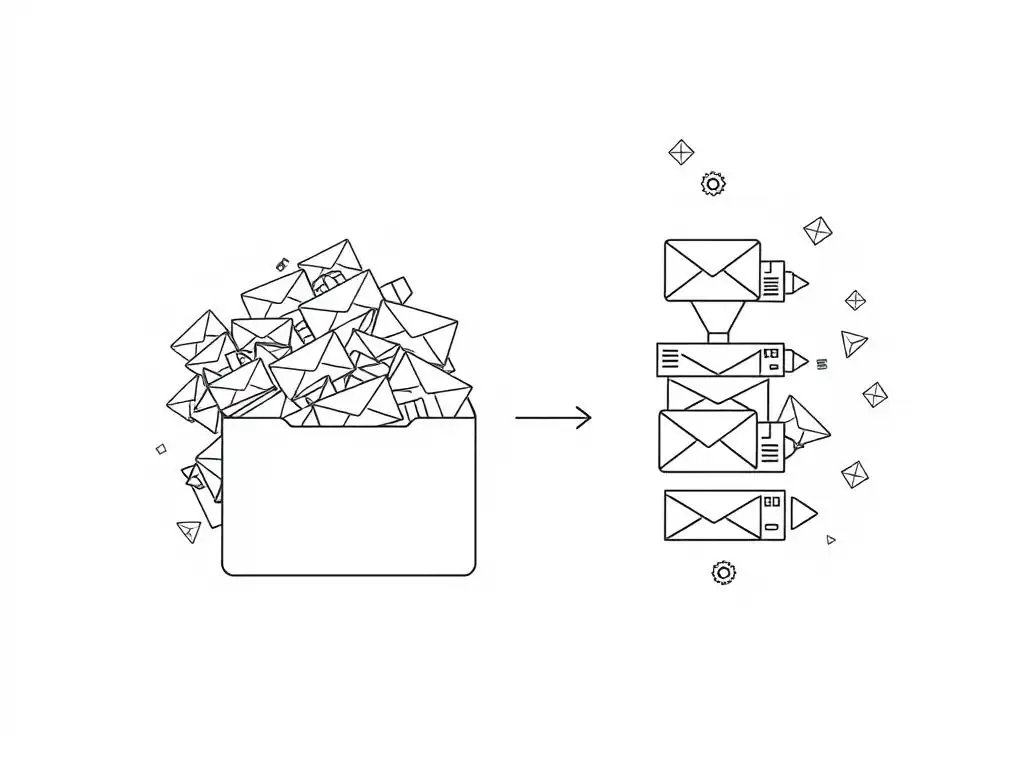
This section delves into sophisticated strategies for automating email filtering, moving beyond basic rules to achieve true inbox zero efficiency. We'll explore techniques to prioritize important messages, automate responses to common inquiries, and organize emails based on project or client needs. Mastering these advanced techniques will significantly reduce your email management time and improve overall productivity. Efficiently automating your email filtering is key to reclaiming your day.
Utilizing Filters for Prioritization: High-Importance Emails
Prioritizing high-importance emails is crucial for effective email management. Instead of manually sorting through your inbox, leverage filters to instantly identify and flag critical communications. This allows you to focus on what truly matters, avoiding the distraction of less urgent messages.
For example, emails from your boss, clients with high-value contracts, or alerts from critical systems can be automatically tagged with a high-priority label (e.g., "Urgent," "VIP," or using a specific color-coded label). This can be achieved by setting up filters based on sender email address, subject keywords, or even the presence of specific phrases in the email body.
Consider this scenario: You receive several emails daily from your manager, all marked with the subject line containing "ACTION REQUIRED." Setting up a filter to automatically mark these emails with a red star or move them to a dedicated "Urgent" folder ensures immediate attention. This minimizes the risk of overlooking critical requests. Furthermore, you can configure notifications for these high-priority emails, ensuring you're alerted instantly, even when not actively checking your inbox.
Think about implementing a system where you assign numerical importance scores to email senders or subjects. You could then use this score in your filter rules to create tiered prioritization within your inbox, moving high-importance emails to the top of your list or into a separate folder.
Creating Automated Responses for Frequently Asked Questions
Automating responses to frequently asked questions (FAQs) saves considerable time and ensures consistent communication. This is particularly useful for customer service inquiries, general information requests, or frequently asked questions about your services or products.
Instead of manually responding to the same questions repeatedly, you can create canned responses or automated replies triggered by specific keywords or phrases in incoming emails. Many email platforms offer this functionality through their built-in features or through third-party integrations.
For instance, if you frequently receive inquiries about your company's return policy, you can set up a filter that automatically replies with a pre-written message containing all the necessary information whenever the email subject or body includes terms like "return," "refund," or "exchange." This ensures a prompt and consistent response without requiring manual intervention. Remember to tailor your automated responses to maintain a professional and personal tone, avoiding the robotic feel. You can also use variables within the automated responses to personalize them slightly, such as including the sender's name.
Setting Up Email Filters for Specific Projects or Clients
Efficiently managing emails related to different projects or clients is paramount for staying organized and meeting deadlines. Utilizing filters allows you to automatically sort incoming emails into project-specific folders or labels, eliminating the need for manual sorting.
Imagine you're managing multiple projects simultaneously. By creating filters based on the project name or client email address mentioned in the subject or body of the email, you can automatically route emails to their respective folders. For example, emails related to "Project Alpha" will be automatically moved to the "Project Alpha" folder, emails from "Client Beta" will go to the "Client Beta" folder, and so on.
This automated organization significantly streamlines your workflow. You can easily access all communications related to a specific project or client in a single location, preventing crucial emails from getting lost in a cluttered inbox. This is especially useful when collaborating with multiple team members on different projects. You can further refine this by using subfolders within project folders to categorise emails by type (e.g., "Project Alpha" Design,
"Project Alpha" Development
). This layered approach ensures your email organization remains highly efficient even as your workload grows.
Integrating Email Automation with Task Management Tools
Efficiently automating email filtering is only half the battle; integrating that automated system with your task management workflow is crucial for maximizing productivity. Many task management applications, such as Todoist, Asana, and Monday.com, offer robust integrations with email clients. This integration allows you to automatically convert incoming emails into tasks. For example, an email containing a request for a project update can be automatically transformed into a task within your chosen platform, complete with a due date extracted from the email's content (if available).
This eliminates the manual step of transcribing the request and assigning it a task, significantly reducing the time spent managing your inbox and ensuring no request slips through the cracks. The level of automation varies depending on the specific tools and their integration capabilities. Some integrations may require manual configuration of rules and filters, while others offer more advanced features such as natural language processing to automatically determine task priorities and deadlines. Careful selection of both your email client and task management platform, considering their compatibility and automation capabilities, is key to achieving a seamless, efficient workflow.
Remember to regularly review your automation rules to ensure accuracy and effectiveness, adapting them as your needs change. Over time, you'll find that this integration significantly streamlines your workflow, allowing you to focus on completing tasks rather than managing emails. Think of it as automating the "inbox to action" process – a core component of achieving Inbox Zero and boosting overall efficiency.
Integrating Email Automation with Calendar Applications
Automating email filtering is not just about managing tasks; it's also about effectively managing your time. Integrating your automated email system with your calendar application is a powerful way to achieve this. Many calendar applications, like Google Calendar, Outlook Calendar, and Apple Calendar, support integrations with email clients and task managers. This allows you to automatically schedule meetings and appointments based on emails containing meeting requests or appointment confirmations.
For instance, an email confirming a meeting time can automatically add the event to your calendar, including the meeting details such as location, participants, and agenda points extracted from the email. This eliminates the manual process of adding events, reducing the risk of scheduling conflicts and freeing up valuable time. Furthermore, you can set up rules to automatically send reminders for upcoming events based on the information extracted from your emails. This ensures you never miss an important meeting or appointment.
The effectiveness of this integration hinges on the accuracy of your email filtering rules and the capabilities of your calendar application's integration features. Consider using applications with robust natural language processing capabilities to ensure accurate extraction of relevant information from your emails. By seamlessly connecting your email automation with your calendar, you'll experience a more organized and efficient schedule, leading to better time management and reduced stress. This synergy between automated email filtering and calendar management is a key component of efficient digital workflow automation.
Best Practices for Automated Email Filtering and Organization
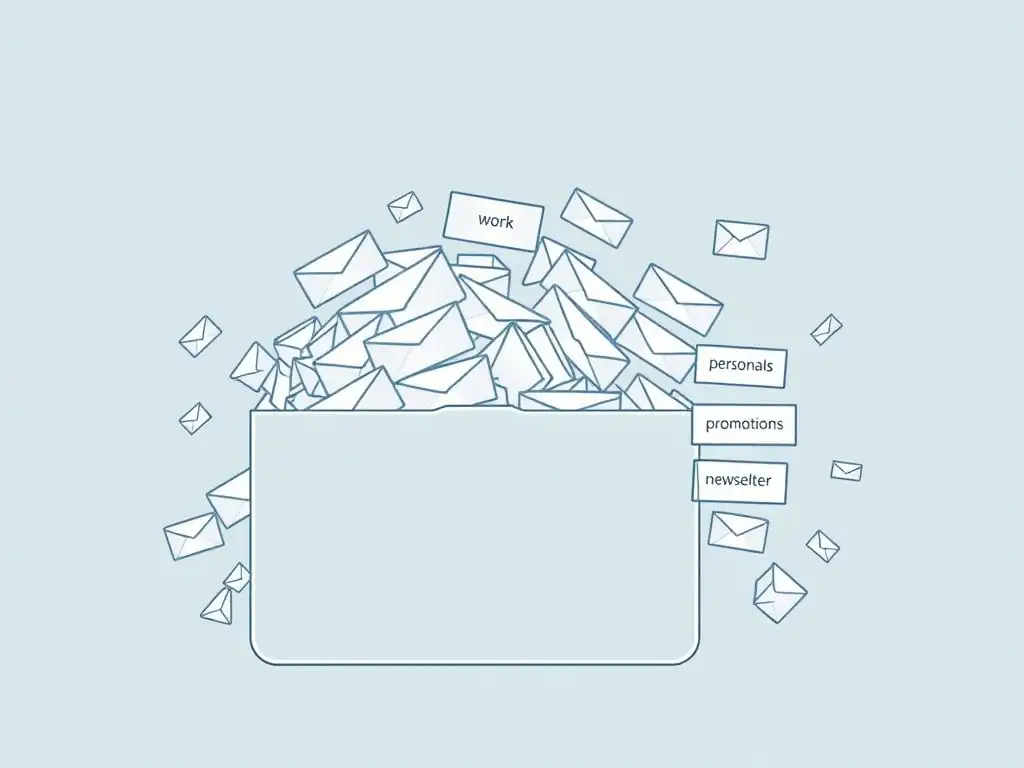
Efficiently automating email filtering requires a strategic approach. Simply setting up filters isn't enough; you need a system that adapts to your changing needs and minimizes the risk of important emails getting lost in the automated process. This section outlines best practices to help you achieve and maintain Inbox Zero through effective email automation. Remember, the goal is to automate email filtering efficiently, not just to automate it.
Regularly Reviewing and Updating Your Filters
Regular maintenance is crucial for the long-term effectiveness of your automated email filtering. Think of your filters as a living, breathing organism – they need nurturing and occasional adjustments. Over time, your email habits, priorities, and the volume of emails you receive will likely shift. What worked perfectly three months ago might now be causing bottlenecks or misclassifications.
Ideally, schedule a weekly or bi-weekly review of your filters. This review should involve:
- Checking your filtered folders: Make sure emails are landing where they should be. Unexpected emails in the junk folder or a surprisingly empty promotion folder could indicate problems with your filter rules.
- Analyzing filter performance: Are your filters catching the majority of emails you intend to filter? If not, you may need to refine your rules or add new ones. Consider using metrics like the percentage of emails correctly filtered to track performance over time.
- Updating filter rules: Update your rules based on your findings. Perhaps a specific sender consistently gets misclassified; adjusting the filter rule to include a more precise subject line or sender address might fix the issue.
- Deleting outdated filters: Remove filters that are no longer relevant or effective. Outdated filters can clutter your system and potentially interfere with newer, more accurate rules. This also improves efficiency.
By consistently reviewing and updating your filters, you can ensure that your automated system remains optimized and continues to automate email filtering efficiently, preventing email overload and maximizing your productivity. This proactive approach is key to preventing email management from becoming a time sink.
Avoiding Over-Automation: The Importance of Manual Review
While automation is powerful, it's vital to avoid over-reliance on automated systems. Over-automation can lead to several problems, including:
- Missed important emails: Overly aggressive filters might inadvertently flag essential emails as spam or archive them prematurely, resulting in missed opportunities or critical information being overlooked.
- Increased troubleshooting time: Complex, overly intricate filter systems can be difficult to manage and debug, leading to more time spent fixing problems than is saved through automation.
- Reduced flexibility: A system too reliant on automation lacks adaptability. Dealing with unforeseen email patterns becomes challenging, requiring manual intervention and potentially negating the time-saving benefits of automation.
Therefore, a balanced approach is necessary. A small percentage of your emails (perhaps 5-10%) should be manually reviewed, especially those that fall outside the scope of your automated filtering rules. This manual review acts as a safety net, ensuring that no crucial emails are inadvertently filtered out. This also helps you identify areas where your automated filtering can be improved. Think of it as quality control for your automated email management system. Striking this balance is crucial to automate email filtering efficiently without compromising the integrity of your email workflow.
Troubleshooting Common Email Filtering Issues
Despite careful planning, you might encounter issues with your automated email filtering. Here are some common problems and their solutions:
| Problem | Possible Cause | Solution |
|---|---|---|
| Emails not being filtered | Incorrect filter rules, missing keywords, typos | Carefully review and correct your filter rules; test them with sample emails. |
| Important emails marked spam | Overly aggressive filters, inaccurate keywords | Relax your filter criteria; add exceptions for specific senders or keywords. |
| Filters conflicting with each other | Multiple filters with overlapping criteria | Simplify your filter rules; prioritize filters logically. |
| Unexpected email destinations | Incorrect folder selection, missing filter actions | Double-check your folder selections and filter actions. |
Addressing these issues promptly is key to maintaining an efficient email workflow. Remember, even the best-designed automation systems require occasional tweaking and adjustments. Don't hesitate to experiment with different filter settings and strategies to find the best solution for your specific needs. By proactively addressing problems, you'll ensure your system continues to automate email filtering efficiently. Consistent monitoring and adjustments are vital to long-term success. The journey to Inbox Zero is an iterative process, not a one-time fix.
Maintaining a Clean and Organized Email Inbox
Maintaining a clean and organized inbox is crucial for efficient email management, even with automation in place. A cluttered inbox can quickly negate the benefits of automated filtering, leading to lost emails and wasted time searching. Think of your inbox as a digital desk – if it's messy, you'll struggle to find what you need. Regularly reviewing and cleaning your inbox ensures that automated rules are working effectively and that you're not overwhelmed by a backlog of emails. This proactive approach is key to successfully automating email filtering efficiently.
One effective strategy is to dedicate a specific time each day, perhaps at the end of the workday, to review and archive or delete emails that have been processed by your automated filters. This prevents your inbox from becoming a dumping ground for irrelevant messages. Consider setting up visual cues, like color-coding labels or starred items, to quickly identify important emails that require immediate attention amidst the automated filtering process. This helps you prioritize tasks and avoid getting bogged down in less critical emails.
Another helpful technique is to utilize the power of folders and subfolders to categorize emails further. Automated filters can sort emails into these pre-defined folders, making it easier to locate specific types of communication. For example, you could create folders for “Client Communication,” “Project Updates,” “Marketing Emails,” and “Personal Emails.” This granular organization complements automated filtering, allowing you to quickly access needed information without manually sifting through hundreds of emails. Regularly review and clean these folders as well to prevent them from becoming excessively cluttered.
The goal is to create a system that's both automated and easily manageable, ensuring you can maintain your inbox zero status. This layered approach to organization significantly boosts the effectiveness of your automated email filtering systems. Remember, a well-organized inbox is the ultimate outcome of efficiently automating email filtering.
The Benefits of Automated Email Filtering for Increased Efficiency
Automating email filtering is more than just a productivity trick; it's a fundamental shift in how you manage your digital workload. By intelligently sorting incoming messages, you unlock significant gains in efficiency, impacting not only your workday but your overall well-being. This section delves into the tangible benefits of implementing robust automated email filtering, showcasing how it translates into measurable improvements in various aspects of your daily routine. Efficiently automating email filtering allows you to reclaim control of your inbox and, consequently, your time.
Reclaiming Lost Time and Improving Focus
The average person spends a significant portion of their workday managing emails – checking, sorting, deleting, and responding. This constant interruption fragments focus and reduces the time available for high-value tasks. Automated email filtering directly addresses this issue.
By automatically categorizing emails into predefined folders (e.g., "Promotions," "Social," "Important"), you drastically reduce the time spent manually sorting through your inbox. Imagine this: instead of spending 30 minutes each morning sifting through 50 emails, you spend only 5 minutes reviewing the truly important messages, thanks to automated filtering. This reclaimed time can be reinvested in higher-priority activities, leading to increased productivity and a more focused workflow.
Studies show that even small gains in focused work time can significantly boost overall output. For example, the Pomodoro Technique, which emphasizes focused work intervals, highlights the power of uninterrupted concentration. Automated email filtering acts as a crucial support system for techniques like this, minimizing distractions and maximizing productive periods.
Reducing Stress and Mental Clutter from Email Overload
The constant influx of emails can be a significant source of stress and mental clutter. The feeling of an overflowing inbox often translates to a feeling of being overwhelmed and out of control. Efficiently automating email filtering helps mitigate this by creating a sense of order and control. By automatically routing irrelevant emails to less frequently checked folders, you reduce the visual clutter and the constant nagging feeling of needing to address every single message immediately.
This, in turn, reduces stress levels and improves mental clarity. A cleaner inbox directly correlates with a calmer mind, allowing for better decision-making and improved overall well-being. One can even argue that a well-organized inbox contributes to a more positive mental attitude, fostering a sense of accomplishment and control over one's digital environment. This is particularly relevant in today's fast-paced, technology-driven world, where managing email overload is a common challenge.
Streamlining Workflow for Improved Productivity
Automated email filtering is not just about managing your inbox; it's about streamlining your entire workflow. By setting up rules to automatically forward specific emails to colleagues or integrate emails with task management systems, you can create a more integrated and efficient system. For instance, emails related to specific projects can be automatically forwarded to relevant project management tools, allowing for seamless collaboration and task tracking.
This integration eliminates the need for manual forwarding and ensures that information is routed to the right place at the right time. Furthermore, automated email responses for frequently asked questions can free up valuable time, allowing you to focus on more complex issues. This proactive approach to email management enhances efficiency and optimizes your overall workflow, boosting productivity and allowing for better time management.
The result is a more efficient, less chaotic work environment, leading to improved productivity and reduced stress. This is crucial for maintaining a healthy work-life balance and achieving long-term success.
Improving Response Times and Customer Satisfaction
Automating email filtering directly impacts response times and, consequently, customer satisfaction. Imagine a scenario where every email, regardless of its importance, lands in your inbox. Sifting through irrelevant newsletters, promotional offers, and automated notifications significantly delays your response to crucial customer inquiries. This delay can lead to frustration, lost sales, and a damaged reputation.
By automating your email filtering, you prioritize important messages – those from clients, colleagues, or regarding urgent matters – ensuring they reach your attention immediately. This swift response demonstrates professionalism and care, leading to higher customer satisfaction scores and improved loyalty. Studies have shown a direct correlation between faster response times and positive customer feedback; a quick reply often defuses potential issues before they escalate. Efficient email management, therefore, translates into a more positive and efficient customer experience.
Implementing automated filtering allows you to dedicate more time to personalized responses, fostering stronger client relationships and promoting a sense of value. This proactive approach to customer communication is a significant competitive advantage in today's fast-paced business environment. The difference between a 24-hour response time and a 2-hour response time can be substantial, especially in industries with high customer expectations, such as tech support or e-commerce. This speed of response becomes a key differentiator and a significant factor in customer retention.
Frequently Asked Questions
How can I automate email filtering efficiently?
You can automate email filtering efficiently by using filters and rules within your email provider (like Gmail or Outlook). These allow you to automatically sort emails into folders, mark them as read, or even delete them based on specific criteria like sender, subject, or keywords.
What are the benefits of automating email filtering?
Automating email filtering saves you significant time by reducing the manual sorting and handling of emails. This leads to improved productivity and reduced stress associated with an overflowing inbox. You'll spend less time managing emails and more time on important tasks.
Can I automate email filtering across multiple email accounts?
While some email clients offer integrated solutions, you might need third-party apps or services for efficient automation across multiple accounts. These tools often consolidate your inboxes and allow you to set unified filtering rules for all connected email addresses.
What criteria can I use for automated email filtering?
You can use a wide range of criteria, including sender email address, subject line keywords, email content (some providers offer this), and even specific attachments. Experiment to find the best combination for your needs to effectively manage your inbox.
How do I get started with automated email filtering?
Start by identifying the types of emails you want to filter (e.g., newsletters, promotions, social media notifications). Then, access your email provider's settings to create new filters based on your chosen criteria. Most providers offer helpful tutorials and documentation to guide you through the process.
Final Reflection: Mastering Your Inbox, Mastering Your Time
The relentless influx of emails has become a defining characteristic of modern life, a constant distraction that chips away at our productivity and peace of mind. Efficient email management isn't just about clearing your inbox; it's about reclaiming control of your time and focus, allowing you to dedicate your energy to what truly matters. This article explored practical strategies for automating email filtering and organization, empowering you to navigate the digital deluge with greater ease and efficiency.
The impact of constant email notifications extends far beyond mere inconvenience; it significantly impacts our mental well-being and overall effectiveness. The constant pinging and buzzing create a state of perpetual low-level stress, hindering our ability to concentrate and fostering a sense of being overwhelmed. As the great philosopher Seneca once said, Every new experience adds to our store of wisdom, but only if we pause to reflect upon it.
By taking control of our inboxes, we create space for mindful reflection and intentional action, allowing us to truly engage with the information and opportunities that come our way.
Now, consider your own inbox. What steps can you take today to implement the strategies outlined in this article? Start small, perhaps by setting up a single automated filter, and gradually build upon your system. Remember, the journey to Inbox Zero isn't about achieving a perfect, empty inbox, but about creating a sustainable system that allows you to manage your email effectively and prioritize your time. Embrace the power of automation, reclaim your focus, and experience the transformative impact of a well-organized digital life.
Conquer Your Inbox: Take Control of Your Emails Today!
Thanks for exploring the path to inbox zero! We hope you discovered practical strategies to reclaim your time and mental clarity. Ready to put these tips into action and enjoy the freedom of a clutter-free inbox?
- Implement effective email filters: Begin by automating the filtering of emails based on sender, subject, or keywords. This is a crucial step toward achieving inbox zero!
- Share this article with a colleague or friend: Help them conquer their inbox chaos, too! A clutter-free inbox is even more rewarding when shared.
- Challenge yourself to achieve inbox zero this week: Aim for a clean inbox by Friday—you'll be amazed by the positive impact on your productivity.
What's your biggest email-management challenge, and how will you overcome it today?