
Master Your Mobile: Advanced Smartphone Settings You're Probably Ignoring

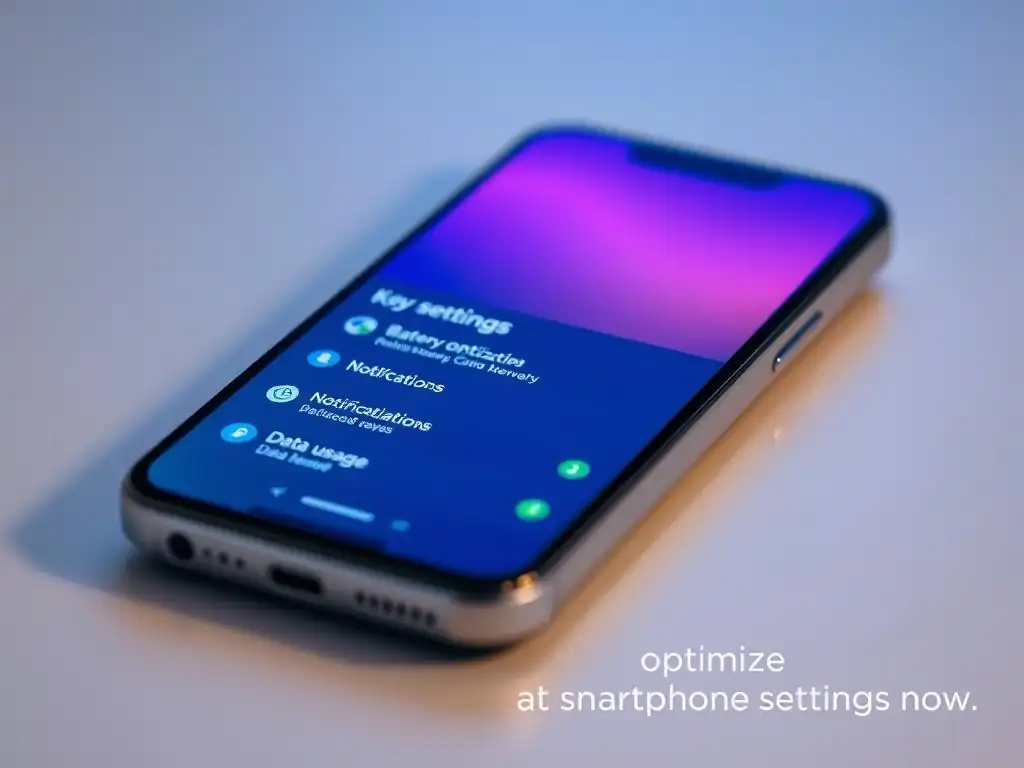
Ready to reclaim your time and unlock the hidden potential of your smartphone? At UltimateLifeHacks, we're dedicated to providing practical strategies for a more efficient and fulfilling life. Discover how seemingly minor adjustments can dramatically impact your daily routine. This article on Optimizing smartphone settings now reveals advanced settings you’re likely overlooking – prepare to be amazed by the difference! Dive in and transform your mobile experience.
- Optimize Smartphone Settings Now: Unveiling Hidden Features for Enhanced Productivity
- Customize Your Notifications: Mastering Alerts and Sounds for Focused Work
- Optimize Smartphone Settings Now: Enhance Your Mobile Photography
- Optimize Smartphone Settings Now: Personalized Accessibility Features
- Optimize Smartphone Settings Now: Data Management and Usage
- Optimize Smartphone Settings Now: Staying Secure Online
- Frequently Asked Questions
- Final Reflection: Reclaiming Control of Your Digital Life
- Unlock Your Phone's Hidden Potential
Are you truly maximizing the potential of your smartphone? Beyond the everyday apps and functions, lies a treasure trove of hidden settings that can dramatically improve your device's performance, security, and battery life. This article delves into advanced smartphone settings often overlooked, empowering you to optimize your mobile experience and reclaim valuable time and energy.
We'll explore practical strategies to boost battery life, enhance performance, and bolster security, transforming your smartphone from a simple tool into a highly efficient productivity powerhouse. Mastering these settings isn't just about technical prowess; it's about reclaiming control over your digital life and optimizing your daily routine for peak efficiency. Let's dive into the specifics and discover how you can truly optimize smartphone settings now and unlock the full potential of your device.
Boost Battery Life: Power Saving Modes and App Management
Smartphones are energy-intensive devices, and battery life is often a major concern. However, several built-in features can significantly extend your device's runtime. Activating power-saving modes is a simple yet effective first step. Most smartphones offer various power-saving options, ranging from mild restrictions to aggressive modes that limit background activity and reduce screen brightness. Experiment with different levels to find the optimal balance between battery life and functionality.
Beyond power-saving modes, managing your apps is crucial. Many apps run in the background, consuming battery even when not actively used. Review your app list and identify those you rarely use. Consider uninstalling unnecessary apps or disabling background activity for apps you use less frequently. Regularly clearing your app cache can also free up space and improve performance, indirectly contributing to better battery life. This process varies slightly depending on your device's operating system, but generally involves navigating to your device's settings and locating the app management section.
Enhance Performance: Optimize RAM Usage and Storage Space
A sluggish smartphone can be incredibly frustrating. Optimizing RAM usage and storage space is key to maintaining peak performance. RAM (Random Access Memory) is the short-term memory of your phone. Too many apps running simultaneously can lead to slowdowns. Closing unnecessary apps and limiting background processes can free up RAM and significantly improve responsiveness. Many smartphones offer built-in tools to manage running apps, allowing you to easily close those you aren't actively using.
Storage space is equally important. A full storage drive can severely impact performance. Regularly delete unused files, photos, and videos. Consider using cloud storage services to back up important data and free up space on your device. You can also uninstall rarely used apps to reclaim space. The improved performance will translate to a smoother, more responsive user experience, ultimately saving you time and frustration. Remember to check your phone's storage regularly to maintain optimal performance. Consider using a file manager app to help you identify and delete large files.
Improve Security: Advanced Privacy Settings and Data Protection
Protecting your personal data is paramount in today's digital landscape. Your smartphone holds a wealth of sensitive information, making robust security measures essential. Explore your device's advanced privacy settings. This includes reviewing app permissions, enabling two-factor authentication wherever possible, and regularly updating your software. Many apps request access to various features, such as location, contacts, and camera. Carefully review these permissions and revoke access to anything unnecessary.
Enabling two-factor authentication adds an extra layer of security, making it significantly harder for unauthorized users to access your accounts. Regular software updates are crucial for patching security vulnerabilities. Ensure automatic updates are enabled to keep your device protected against the latest threats. Regularly backing up your data to a secure location is also a critical step in data protection. This ensures you won't lose important information in case of device loss or damage. By implementing these strategies, you'll significantly enhance your smartphone's security posture and protect your valuable data.
Customize Your Notifications: Mastering Alerts and Sounds for Focused Work

Optimizing your smartphone's notification system is crucial for improving focus and productivity. Many users leave their notification settings at default, leading to constant interruptions. By carefully customizing these settings, you can significantly reduce distractions and reclaim your attention. This section explores effective strategies to transform your phone from a source of constant alerts into a tool that supports your workflow. Let's dive into the specifics of optimizing your notification settings now to improve your daily efficiency.
Prioritize Important Notifications: Filtering and Categorization Techniques
Effective notification management begins with prioritization. Not all notifications deserve equal attention. Learn to distinguish between truly urgent alerts and those that can wait. Many smartphones offer built-in features to categorize notifications based on their source or importance. For example, you can create separate notification channels for emails, messages, and social media. This allows you to customize the alert style (sound, vibration, banner) for each category.
Imagine having a separate, high-priority channel for calls from your family, with a distinct ringtone and vibration pattern that immediately grabs your attention. Meanwhile, notifications from social media apps could be relegated to a lower-priority channel, with a muted sound or only a subtle visual notification. This layered approach allows you to stay informed about vital communications while minimizing interruptions from less crucial information. This is a key aspect of optimizing your smartphone settings now for enhanced productivity.
Consider using the built-in features of your operating system to create these custom notification channels. Experiment with different settings to find the balance that works best for you. The goal is to create a system that allows you to quickly assess the importance of a notification without having to unlock your phone and investigate.
Silence Distracting Notifications: Customizing App-Specific Settings
Beyond general notification categories, delve into the settings of individual apps to fine-tune your alert preferences. Many apps offer granular control over notification types. You can often disable notifications entirely for less important apps, or customize them to only receive alerts for specific events. For example, you might want to turn off all notifications for games unless you have in-app achievements, or only receive notifications from your banking app for high-value transactions.
This granular control is essential for reclaiming your focus. Think of the time wasted checking notifications that ultimately hold little value. By silencing these distractions, you can reclaim those moments and dedicate them to more productive tasks. This level of customization is essential to optimize smartphone settings now and experience a noticeable increase in productivity.
Consider creating a checklist to review each app's notification settings regularly. This proactive approach ensures that as apps update or your priorities shift, you maintain control over your notifications.
Schedule Do Not Disturb: Optimizing Focus Time for Peak Productivity
Scheduling "Do Not Disturb" periods is a powerful technique for maximizing focus. Most smartphones allow you to schedule specific times when notifications are silenced or significantly reduced. This is especially beneficial during periods of deep work or focused concentration. For example, you might schedule Do Not Disturb from 9 am to 5 pm on weekdays, allowing for uninterrupted work sessions.
The benefit extends beyond just silencing notifications. The scheduled Do Not Disturb mode signals to your brain that this is a time for focused activity, helping you to enter a state of deep concentration more easily. This mindful approach is integral to optimizing smartphone settings now for peak productivity.
Remember to configure exceptions for crucial contacts or apps during your scheduled Do Not Disturb periods. Perhaps allow calls from your manager or family members to break through, ensuring you don't miss critical communications while still maintaining focused work sessions. This careful balance is key to harnessing the power of Do Not Disturb for amplified productivity.
Optimize Smartphone Settings Now: Enhance Your Mobile Photography
This section focuses on optimizing your smartphone's camera settings to dramatically improve the quality of your photos. Many overlook these settings, resulting in missed opportunities to capture stunning images. By understanding and adjusting these parameters, you can transform your mobile photography game. Let's dive into the specifics of optimizing your smartphone for better picture-taking. Remember, the goal is to optimize smartphone settings now for superior results.
Improve Image Quality: Exploring Camera Settings for Professional Results
Smartphone cameras, while incredibly advanced, often default to settings that prioritize speed and ease of use over image quality. Taking control of these settings allows you to capture sharper, more vibrant, and more detailed photographs. Here's how:
- Resolution: Most smartphones offer options for different resolutions (e.g., 12MP, 48MP). Higher resolutions generally lead to larger file sizes but offer greater detail and flexibility for cropping and editing. Choose the highest resolution your phone supports for optimal image quality. However, be mindful of storage space!
- Aspect Ratio: Experiment with different aspect ratios (e.g., 4:3, 16:9). A 4:3 ratio is often preferred for landscape photography, while 16:9 is better suited for social media posts.
- HDR (High Dynamic Range): HDR mode helps capture a wider range of tones and colors, especially in scenes with high contrast (bright sunlight and dark shadows). While it can sometimes take longer to process, the results are frequently superior, particularly in challenging lighting conditions. Experiment to see if you prefer HDR on or off for different situations.
- ISO: ISO controls the camera's sensitivity to light. Lower ISO values (e.g., 50, 100) are ideal in well-lit conditions for minimizing noise (graininess). Higher ISO values (e.g., 800, 1600) are necessary in low-light situations, but they increase noise. Understanding this trade-off is crucial for optimizing your low-light photography.
- Shutter Speed: While not always directly adjustable on smartphones, understanding shutter speed is vital. A faster shutter speed freezes motion, while a slower shutter speed can create motion blur. This is especially relevant for action shots. Many smartphones offer "sports mode" or similar settings that automatically adjust shutter speed for optimal results.
- White Balance: White balance corrects color casts caused by different light sources (e.g., sunlight, tungsten). Auto white balance usually works well, but manually adjusting it can yield better results in specific lighting scenarios. Experiment with different presets (e.g., daylight, cloudy, fluorescent) to see the effects.
Master Lighting and Composition: Unlocking the Potential of Your Smartphone Camera
Even with the best camera settings, a poorly lit or composed photo will never reach its full potential. Mastering lighting and composition is key to taking truly exceptional mobile photos.
Understanding lighting is paramount. Natural light, especially during the golden hour (sunrise and sunset), is generally the most flattering. Avoid harsh midday sun, which often creates harsh shadows. Experiment with backlighting, side lighting, and front lighting to see how they affect the mood and feel of your photos.
Composition is equally important. The rule of thirds is a fundamental guideline: imagine dividing your frame into nine equal parts using two horizontal and two vertical lines. Placing key elements along these lines or at their intersections often creates more visually appealing images. Leading lines, symmetry, and patterns are other compositional techniques to explore.
Consider the background of your photos – a cluttered background can distract from your subject. Simplify your composition by focusing on your subject and minimizing distracting elements in the background.
By mastering these aspects of lighting and composition, you'll significantly enhance the impact and visual appeal of your smartphone photos. Remember, practice makes perfect! Consistent experimentation with different settings, lighting conditions, and compositions will lead to dramatic improvements in your mobile photography skills. Optimize smartphone settings now and see the difference!
Optimize Smartphone Settings Now: Personalized Accessibility Features
This section dives deep into often-overlooked smartphone settings that significantly boost accessibility and personalize your mobile experience. Optimizing these settings isn't just about convenience; it's about creating a more comfortable and efficient interaction with your device, allowing you to truly optimize smartphone settings now. We'll explore how small tweaks can dramatically improve your daily usage.
Improve Text Readability: Adjusting Font Size and Display Settings
Many users struggle with small text on their smartphone screens. Fortunately, most operating systems offer extensive customization options to improve readability. Let's look at how to optimize this crucial aspect of your mobile experience.
First, locate your phone's display settings. This is usually found in the "Settings" app, often under a section labeled "Display," "Screen," or "Display & Brightness." Within these settings, look for options to adjust font size. Most systems allow you to select from several pre-set sizes, ranging from small to extra-large. Experiment to find what's most comfortable for your eyesight.
Beyond font size, consider adjusting the display's contrast and brightness. Increased contrast can make text stand out more clearly against the background, reducing eye strain. Similarly, adjusting brightness based on your environment—brighter in sunlight, dimmer in low light—helps preserve your vision. Some smartphones even offer "dark mode," which inverts the screen's colors, making it easier on the eyes, especially in low-light conditions. Don't underestimate the impact of these simple adjustments; optimizing these settings can significantly reduce eye fatigue and improve your overall reading experience.
Think of it this way: a poorly optimized display is like reading a book in dim light – it's not impossible, but it's certainly not ideal. By adjusting font size, contrast, and brightness, you're essentially providing your eyes with the optimal lighting and magnification for a comfortable reading experience. This directly contributes to a more efficient and enjoyable smartphone usage.
Enhance Audio Clarity: Customizing Sound and Volume Controls
Hearing your phone clearly is essential, whether you're taking a call, listening to music, or watching a video. Understanding and optimizing your smartphone's audio settings can dramatically improve your auditory experience.
The journey to better sound begins, again, in your phone's "Settings" app. Look for options related to "Sound," "Audio," or "Notifications." Here you'll find several crucial adjustments. First, explore the volume controls. Make sure you understand the different volume levels for media, ringtones, notifications, and calls. Adjusting these independently ensures you won't miss important calls while listening to music at a lower volume.
Next, investigate any equalizer settings. Many phones offer pre-set audio profiles (e.g., "Bass Boost," "Treble Boost," "Vocal Boost") or even custom equalizer adjustments. Experiment to find the sound profile that best suits your preferences and the type of audio content you consume. A well-tuned equalizer can significantly improve the clarity and richness of your audio.
Finally, some phones offer features like "mono audio" or "hearing aid compatibility mode." These features can be particularly beneficial for users with hearing impairments. Explore these options if you have any specific auditory needs. By taking the time to understand and adjust these settings, you’ll experience a noticeable improvement in your audio quality, making your smartphone interactions far more satisfying.
Explore Assistive Touch Features: Improving One-Handed Usability
Modern smartphones are large, and one-handed operation can be challenging. Fortunately, assistive touch features can make a world of difference. These features, typically found within the "Accessibility" settings, offer customizable on-screen controls that simplify many common actions.
AssistiveTouch, for example, creates a floating button on your screen. This button provides quick access to various functions, like Home, Back, Volume control, and even custom shortcuts. You can easily reposition this button to suit your hand's natural position. This makes accessing these functions much simpler, even when using your phone with one hand.
Consider also exploring other accessibility features like "One-handed mode," which shrinks the screen's usable area, making it easier to reach the top of the screen with your thumb. These seemingly small tweaks can have a massive impact on your daily phone usage, enhancing productivity and comfort. Remember, optimizing your smartphone isn’t just about speed; it’s also about making the experience comfortable and practical for your individual needs. By exploring and implementing these features, you truly optimize smartphone settings now, leading to a much more enjoyable and efficient mobile experience.
Optimize Smartphone Settings Now: Data Management and Usage
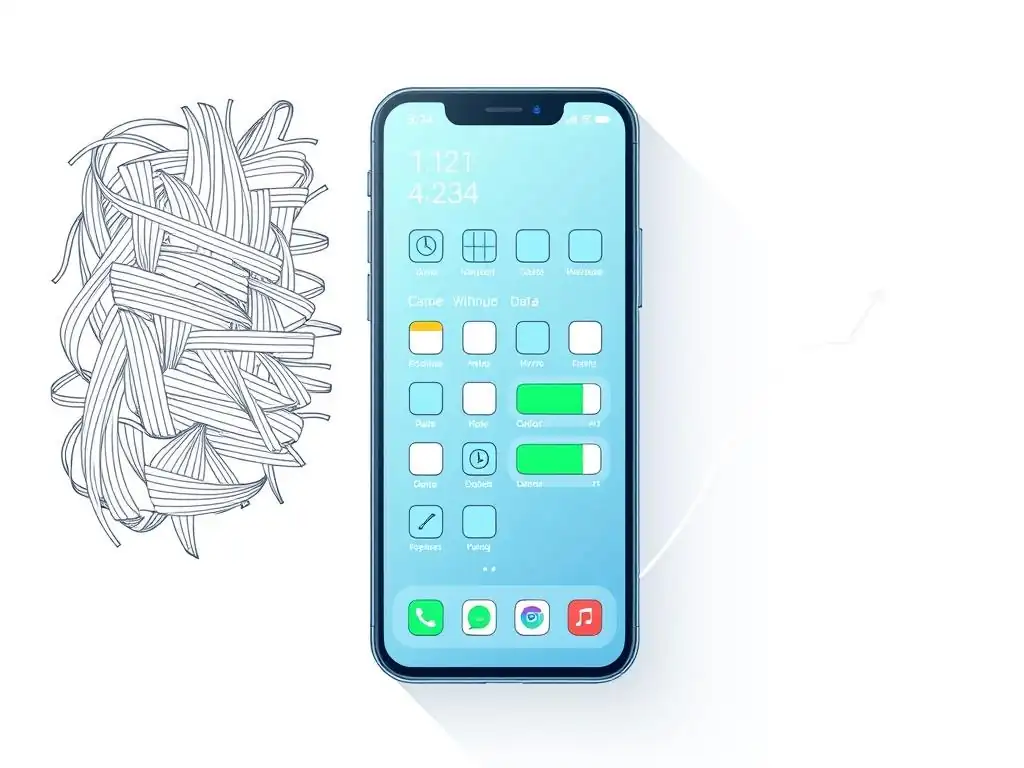
This section focuses on mastering your mobile device's data management capabilities, a crucial aspect of optimizing your smartphone for peak performance and efficiency. Ignoring these settings can lead to unexpected data overages, sluggish performance, and a generally frustrating user experience. Let's delve into strategies to reclaim control of your data usage and ensure a smooth, data-efficient mobile experience.
Monitor Data Consumption: Tracking App Data Usage and Setting Limits
Understanding where your mobile data goes is the first step towards optimizing its usage. Most modern smartphones offer built-in tools to monitor app-level data consumption. This allows for granular control, identifying data-hungry apps and setting appropriate limits.
For example, consider a typical user who might find that their social media apps consume a disproportionate amount of data – perhaps 50% or more of their monthly allowance. By actively monitoring data usage through the built-in settings, they can quickly identify these culprits. This data-driven approach allows for informed decisions.
Many operating systems provide detailed breakdowns, showing data usage for both foreground (active use) and background (passive processes) activity. This differentiation is critical because some apps consume significant data even when not actively in use. By observing this breakdown, users can make informed choices about limiting background data for specific apps or entirely disabling it where appropriate.
Let's illustrate with a table:
| App Category | Average Data Usage (GB/month) | Potential Optimization Strategies |
|---|---|---|
| Social Media | 10-15 | Reduce video autoplay, limit background data, use Wi-Fi more often |
| Streaming Services | 20-30 | Download content offline, adjust video quality settings |
| Gaming Apps | 5-10 | Limit in-app purchases, reduce graphics settings |
| Navigation Apps | 2-5 | Use offline maps when available |
Implementing data limits per app is a powerful tool. This feature allows you to set a maximum data allowance for each application, preventing unexpected overages. Once an app reaches its limit, it will either stop using mobile data or prompt the user for confirmation before exceeding the set limit. This proactive approach prevents surprise bills and ensures consistent performance.
Manage Cellular Data: Optimizing Network Settings for Seamless Connectivity
Beyond monitoring app usage, optimizing your cellular data settings directly impacts your overall smartphone experience. Poor network settings can lead to slow speeds, dropped calls, and increased data consumption. Therefore, understanding and adjusting these settings is crucial.
First, ensure your phone is using the correct network mode. While LTE or 5G offer faster speeds, they may not always be available, and switching to a lower mode (like 3G or 2G) can help maintain connectivity in areas with weak signals. Constantly switching between networks can consume extra battery and data.
Second, consider using Wi-Fi whenever possible. This is a simple but highly effective way to conserve mobile data. Most smartphones automatically connect to known Wi-Fi networks, but manually selecting a network when available further optimizes data usage. Enabling Wi-Fi calling can also improve call quality and reduce dropped calls, especially in areas with poor cellular coverage.
Third, investigate your carrier's data optimization features. Many carriers offer apps and settings designed to manage data usage more efficiently. These often include features like data compression, which reduces the size of web pages and other data, leading to lower consumption. These tools often work in the background, requiring minimal user intervention. Exploring these carrier-specific features can yield significant improvements in data management. The specific features will vary depending on your carrier, so it's essential to check your carrier's support documentation for details. This proactive approach to exploring these features can lead to significant savings.
Optimize Smartphone Settings Now: Staying Secure Online
This section focuses on enhancing your smartphone's security through optimal settings adjustments. Ignoring these crucial settings leaves your personal data vulnerable. Let's dive into practical steps to bolster your digital defenses and optimize your smartphone settings now for improved security and performance.
Secure Your Device with Biometrics: Enhancing Smartphone Security
Biometric authentication offers a significant layer of security beyond simple passcodes. Features like fingerprint scanning and facial recognition provide a more convenient and secure way to access your device. However, it's crucial to understand the strengths and limitations. While offering robust protection against casual access, sophisticated attacks might still be possible. Therefore, combining biometrics with a strong passcode acts as a critical backup. Consider these points:
- Fingerprint Security: Ensure your fingerprint sensor is properly configured and regularly updated. Avoid registering damaged or worn fingerprints for optimal accuracy. Many modern devices allow for multiple fingerprint registrations, enhancing convenience and resilience.
- Facial Recognition: While convenient, facial recognition can be vulnerable to spoofing. Utilize features like "attention detection" which requires your eyes to be open for unlocking. Always set a backup PIN or password in case facial recognition fails.
- Security Trade-offs: While convenient, biometrics aren't foolproof. Consider the potential trade-offs between convenience and security based on your personal risk assessment. For highly sensitive data, a robust password remains a vital component of a layered security approach.
Two-factor authentication (2FA) adds an extra layer of security to your online accounts, significantly reducing the risk of unauthorized access. Even if someone gains your password, they'll still need a second verification code usually sent to your phone via SMS, email, or a dedicated authentication app. Optimizing your smartphone settings now to include 2FA is a crucial step in online security. Here's how to maximize its effectiveness:
- Enable 2FA Everywhere: Actively enable 2FA for all important accounts, including email, banking, social media, and online shopping platforms.
- Authentication App Preference: Consider using an authenticator app (like Google Authenticator or Authy) instead of SMS-based 2FA. Authenticator apps are generally more secure and less susceptible to SIM swapping attacks.
- Backup Codes: Always save your backup codes in a secure location, offline and separate from your phone. These codes are crucial if you lose access to your authentication app or change devices.
Regularly Update Software: Maintaining Optimal Security and Performance
Regular software updates are paramount for maintaining optimal security and performance on your smartphone. These updates frequently include critical security patches that address vulnerabilities exploited by malicious actors. Ignoring updates leaves your device exposed to potential threats. Here's a breakdown of the importance of timely updates:
- Security Patches: Updates often contain critical security patches that fix known vulnerabilities. These patches are vital in preventing malware infections and data breaches.
- Performance Enhancements: In addition to security improvements, updates often include performance optimizations, bug fixes, and new features that improve the overall user experience.
- Automatic Updates: Enable automatic software updates to ensure your device is always running the latest and most secure version of the operating system and apps. This eliminates the risk of forgetting to update manually.
| Feature | Importance | Action |
|---|---|---|
| Software Updates | Critical for security and performance | Enable automatic updates |
| Biometric Security | Adds a layer of protection | Register multiple fingerprints/faces |
| Two-Factor Auth | Prevents unauthorized access even with stolen password | Enable on all important accounts |
By implementing these strategies, you significantly strengthen your smartphone's security posture and optimize your smartphone settings now for a safer and more efficient digital experience. Remember, proactive security measures are crucial in today's interconnected world. 🛡️
Frequently Asked Questions
What are some advanced smartphone settings I'm likely overlooking?
Many users ignore settings like adaptive brightness, focus mode/Do Not Disturb, and app permissions. Optimizing these can significantly improve battery life, reduce distractions, and enhance privacy.
How can I optimize my smartphone's battery life?
Reduce screen brightness, enable battery saving mode, and limit background app activity. Consider turning off features you rarely use, like location services when unnecessary.
Will optimizing my smartphone settings slow down my phone?
No, properly optimizing your settings should actually improve performance. Removing unnecessary background processes and disabling unused features often leads to a smoother, faster experience.
How do I control which apps have access to my location data?
Go to your phone's settings and find the "Location" or "Privacy" section. You can then individually manage which apps have permission to access your location data, choosing to allow "always," "while using the app," or "never."
What is the best way to reduce smartphone distractions?
Utilize focus mode or Do Not Disturb features to silence notifications during work or study periods. Consider using app timers to limit the time spent on social media and other distracting apps.
Final Reflection: Reclaiming Control of Your Digital Life
Mastering your mobile device isn't just about knowing the latest apps; it's about reclaiming control over your digital life and optimizing your personal experience. The seemingly small tweaks and adjustments discussed in this article—from battery optimization to notification management—collectively contribute to a significantly improved user experience, a more efficient workflow, and a healthier relationship with technology. Ignoring these settings means surrendering a degree of control over your own time and attention.
The impact of constant connectivity and the relentless barrage of notifications is undeniable. Our smartphones, while incredibly powerful tools, can easily become sources of distraction and anxiety if not managed effectively. The real problem is not whether machines think but whether men do.
- B.F. Skinner. This quote, while seemingly unrelated at first glance, highlights the crucial point: we must remain the masters of our technology, not its slaves. The subtle shifts in our daily routines, brought about by consciously optimizing our smartphone settings, demonstrate a reclaiming of that mastery.
Now, consider your own digital habits. What settings are you overlooking? Which notifications drain your energy and focus? Take a moment to explore your phone's settings menu—it's a powerful tool waiting to be harnessed. By actively engaging with these often-ignored features, you are not only improving your technological experience but also cultivating a more mindful and intentional relationship with your digital world. Take charge, optimize your settings, and reclaim your time.
Congratulations on exploring the world of smartphone optimization! You've learned powerful techniques to master your mobile device and boost your productivity. Now, let's put that knowledge into practice.
- Start with one key setting: Choose the most impactful setting from the article—perhaps improving battery life, enhancing security, or customizing notifications—and implement it today. You'll immediately notice the difference!
- Share your knowledge: Tell a friend or family member about a setting that impressed you. Help them unlock their phone's potential too.
- Explore further: Don't stop here! Delve deeper into your phone's settings menu. You might discover hidden features to personalize your experience.
What's the first setting you're eager to try? Let us know in the comments!