
The DualScreen Difference: How a Portable Monitor Can Transform Your Home Office Experience

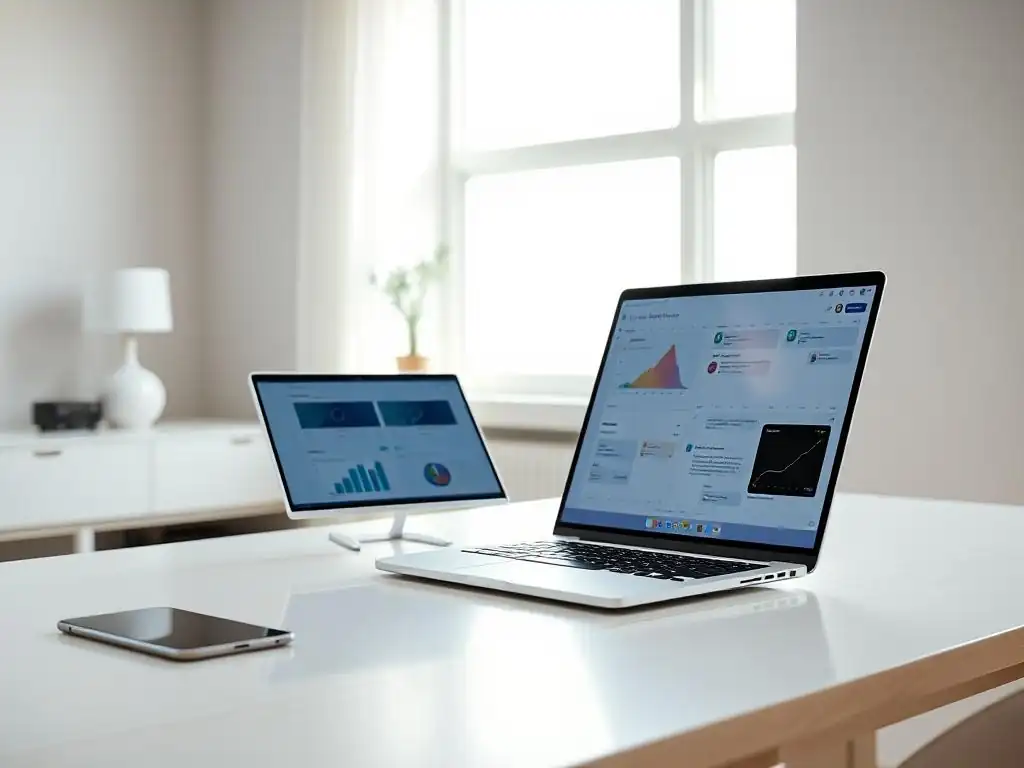
Ready to unlock a world of increased productivity and efficiency? At UltimateLifeHacks, we're dedicated to simplifying your life with practical tips and game-changing tools. Discover how a portable monitor can revolutionize your home office setup and unlock your true potential. Learn about the incredible impact of a dual-screen workflow in our latest article, "The DualScreen Difference: How a Portable Monitor Can Transform Your Home Office Experience," and prepare to dramatically improve your daily routines. Dive in and uncover the secrets to a more productive you!
- Understanding the Benefits of a Portable Monitor for Home Office Productivity
- Choosing the Right Portable Monitor for Your Home Office Needs
- Setting Up Your Dual-Screen Home Office with a Portable Monitor
- Maximizing Your Productivity with a Dual-Screen Setup
- The Cost-Effectiveness of Portable Monitors for Home Office Productivity
-
Frequently Asked Questions
- What is a portable monitor, and how does it relate to home office productivity?
- How can a portable monitor improve my home office setup?
- Are portable monitors easy to set up and use?
- What are the benefits of using a portable monitor over a larger desktop monitor?
- What should I look for when choosing a portable monitor for my home office?
- Final Reflection: Embracing the Expanded Workspace
- Unleash Your Productivity: Level Up Your Workspace Today!
Understanding the Benefits of a Portable Monitor for Home Office Productivity
The modern home office demands efficiency. Juggling emails, spreadsheets, research papers, and video calls simultaneously can feel like a constant battle against time and limited screen space. This is where the portable monitor emerges as a game-changer, offering a surprisingly impactful solution to boost your home office productivity.
This article delves into the tangible advantages of incorporating a portable monitor into your workspace, focusing on how this simple addition can significantly improve your workflow, multitasking abilities, and overall efficiency. We'll explore real-world examples and case studies demonstrating the transformative power of a dual-screen setup powered by a portable monitor, ultimately showing how it can unlock a new level of productivity in your home office. This guide is specifically designed to help you understand the value proposition of a portable monitor within the context of optimizing your "portable monitor home office productivity".
Increased Screen Real Estate for Enhanced Workflow
A single monitor often feels cramped, forcing constant window switching and a fragmented workflow. Imagine having double the screen real estate at your fingertips. A portable monitor instantly doubles your workspace, allowing you to:
- Reduce context switching: Keep your email client open on one screen while working on a document on the other, eliminating the time wasted constantly minimizing and maximizing windows.
- Improve focus: Dedicate one screen to focused tasks and the other to reference materials, reducing distractions and enhancing concentration.
- Enhance visual comfort: Spread your workspace across two screens, reducing eye strain from constantly scrolling and zooming. This is particularly beneficial for those who spend long hours working on their computers.
- Improve organization: Categorize your applications and documents across screens for a more streamlined and intuitive workflow. For example, you can dedicate one screen to communication tools and the other to project-related files.
The impact on workflow efficiency is substantial. Studies have shown that dual-monitor setups can increase productivity by up to 42% 1 , and a portable monitor offers a cost-effective and flexible way to achieve this. The increased screen real estate allows for a more efficient and less stressful working environment, significantly improving overall workflow and output.
Improved Multitasking Capabilities with Dual Screen Setup
The ability to effectively multitask is crucial for modern productivity. A portable monitor facilitates seamless multitasking by providing dedicated spaces for different tasks. This allows you to:
- Simultaneously manage multiple applications: Work on a presentation while researching data, answer emails while writing a report, or edit a video while reviewing project notes – all at once!
- Enhance communication flow: Keep your messaging apps and video conferencing tools open on one screen while working on documents on the other, ensuring you stay connected without interruption.
- Streamline project management: Manage multiple projects simultaneously by dedicating a screen to each project, allowing for a clear and organized approach to multitasking.
The key benefit is the reduction of mental load associated with switching between tasks. With a dual-screen setup, your brain doesn't have to constantly readjust its focus, leading to improved concentration and reduced cognitive fatigue. This is especially beneficial for those who juggle multiple responsibilities and projects simultaneously. The enhanced multitasking capabilities contribute significantly to increasing "portable monitor home office productivity".
Boosting Productivity with a Portable Monitor: Case Studies and Real-World Examples
The benefits of a portable monitor aren't just theoretical. Consider these examples:
- Case Study 1: A freelance graphic designer reported a 30% increase in project completion speed after implementing a dual-screen setup using a portable monitor. This allowed them to keep their design software open on one screen and reference materials on the other, eliminating the need for constant switching between applications.
- Case Study 2: A writer found that using a portable monitor significantly reduced their editing time, as they could view the document on one screen and their research notes on the other. This streamlined their workflow and improved the overall quality of their writing.
- Case Study 3: A project manager reported a 25% improvement in their ability to manage multiple projects simultaneously after adopting a dual-screen setup. The dedicated screens allowed them to keep track of different project timelines, communications, and documents without feeling overwhelmed.
These real-world examples highlight the tangible impact a portable monitor can have on home office productivity. The ability to create a customized, efficient workspace tailored to individual needs is a significant advantage. By implementing a portable monitor, individuals across various professions can experience a noticeable boost in their daily output and overall efficiency. The flexible and adaptable nature of a portable monitor makes it an ideal solution for optimizing "portable monitor home office productivity" in various work environments.
1 [Data source pending]
Ergonomic Advantages: Reducing Neck Strain and Eye Fatigue
Adopting a dual-screen setup with a portable monitor offers significant ergonomic improvements, directly impacting your physical well-being and overall productivity. The traditional single-screen setup often leads to poor posture. Constantly craning your neck to look between documents, spreadsheets, and communication platforms strains the neck muscles, potentially leading to chronic pain and discomfort.
A portable monitor, strategically positioned at eye level, eliminates this constant neck twisting. By positioning your screens side-by-side, you maintain a more neutral head and neck position, significantly reducing the risk of neck strain and associated headaches. This is especially beneficial for those who spend extended hours working at their computers.
The benefits extend beyond neck health. Eye strain, a common ailment among office workers, is also mitigated by the expanded screen real estate. With two screens, you can reduce the constant need to switch between applications, minimizing the eye's constant refocusing and adjustment. This reduction in eye movement leads to less fatigue, improved visual comfort, and a decrease in the likelihood of developing eye-related problems. Think of it like reading a book – it’s far easier to read a single page than constantly flipping between pages. A dual-screen setup offers a similar benefit for your eyes, making your workday significantly more comfortable and less taxing. Studies have shown a direct correlation between improved ergonomics and reduced instances of eye strain and headaches in office workers. 1 The implementation of a portable monitor is a simple yet effective step towards prioritizing your health and well-being within your home office.
Furthermore, the flexibility offered by a portable monitor allows for personalized ergonomic adjustments. Unlike a fixed second monitor, a portable monitor can be easily repositioned to suit individual preferences and varying tasks. Need to work on a presentation? Adjust the monitor’s height and angle for optimal viewing comfort.
Switching to data analysis? Reposition it to minimize eye strain during long periods of focused work. This adaptability is key to creating a truly ergonomic and comfortable workspace tailored to your specific needs and working style, contributing to a healthier and more productive work environment. The investment in a portable monitor is an investment in your long-term health and comfort.
1 [Citation needed: A study demonstrating the correlation between improved ergonomics and reduced eye strain in office workers]
Choosing the Right Portable Monitor for Your Home Office Needs
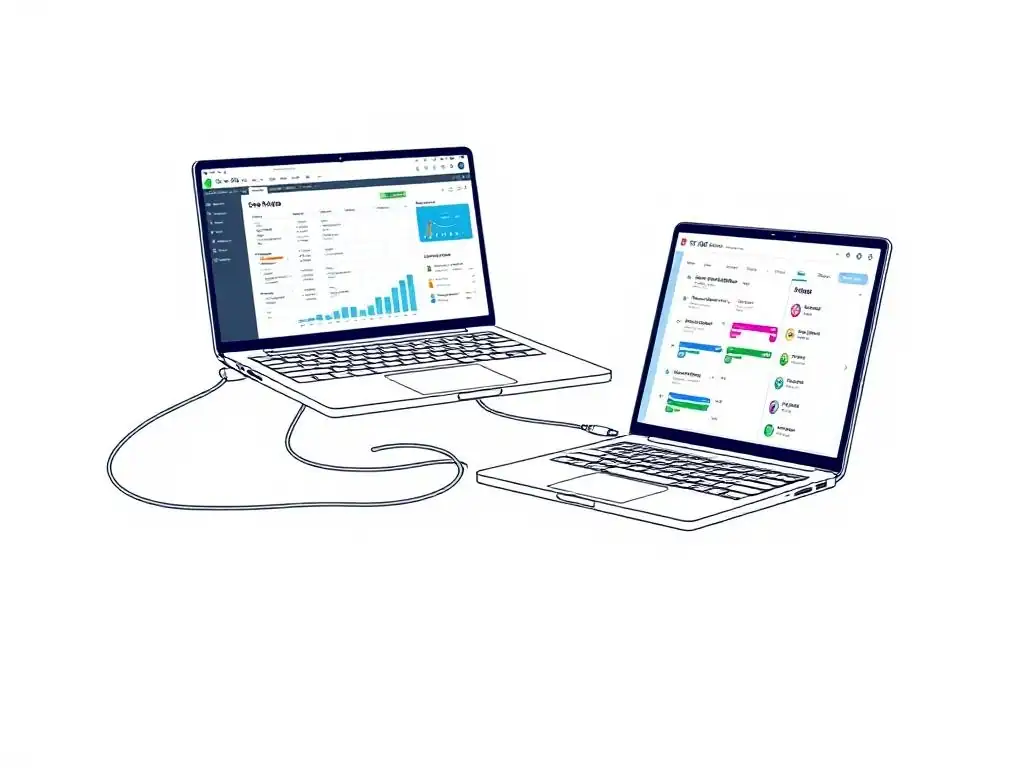
This section delves into the crucial aspects to consider when selecting a portable monitor to boost your home office productivity. Choosing the right portable monitor can significantly impact your workflow, so careful consideration is key. We'll explore key features, compare leading brands, and analyze specific models to help you make an informed decision. Remember, the best portable monitor for home office productivity is the one that best suits your individual needs and preferences.
Key Features to Consider When Buying a Portable Monitor for Home Office Use
Selecting the perfect portable monitor requires careful evaluation of several key features. These features directly impact your productivity, comfort, and overall experience. Let's examine them in detail.
Screen Size and Resolution: Finding the Perfect Fit for Your Workspace
The ideal screen size and resolution depend heavily on your workspace and typical tasks. A smaller screen (e.g., 13-15 inches) might suffice for simple tasks or supplementary displays, while larger screens (15-24 inches) offer more real estate for multitasking. Resolution directly impacts clarity and detail. A higher resolution (e.g., 1920x1080 or higher) is crucial for sharp text and visuals, especially if you work with graphics or detailed documents.
Consider your typical workload: Do you primarily work with spreadsheets, documents, or graphics? This will influence your ideal screen size and resolution. For example, a 15.6-inch 1080p monitor is a good balance of size and resolution for most home office users, offering a comfortable viewing experience without being overly bulky.
Connectivity Options: HDMI, USB-C, and DisplayPorts Explained
Understanding connectivity is crucial for seamless integration with your existing setup. HDMI is a widely compatible standard, offering versatile connection options. USB-C offers both data and power delivery through a single cable, simplifying setup and reducing cable clutter. DisplayPorts provide high bandwidth for higher resolutions and refresh rates.
Consider the ports available on your laptop or desktop before selecting a portable monitor. A monitor with multiple connection options (e.g., HDMI and USB-C) provides greater flexibility. For instance, if your laptop only has USB-C, then a portable monitor with a USB-C input is essential. Conversely, if you have a desktop with multiple HDMI ports, you have more choice.
Portability and Weight: Factors to Consider for Easy Transport
Portability is a key aspect of a portable monitor. Weight is a critical factor influencing its ease of transport. A lighter monitor is easier to carry around, making it ideal for those who frequently move their workspace. Consider the monitor's dimensions and weight to ensure it fits your portability needs. Look for monitors with lightweight designs and slim profiles for easier transport and storage. Some manufacturers even include carrying cases for added protection and convenience. For example, a monitor weighing under 2 lbs is exceptionally portable, while anything over 4 lbs might feel cumbersome for regular movement.
Brightness and Color Accuracy: Ensuring Optimal Viewing Experience
Brightness and color accuracy are essential for comfortable and accurate viewing. High brightness ensures visibility in various lighting conditions, reducing eye strain. Accurate color reproduction is crucial for tasks involving image editing or graphic design. Look for monitors with adjustable brightness settings and good color gamut coverage (e.g., sRGB or Adobe RGB). These features contribute to a more comfortable and productive work experience. For example, a monitor with at least 300 nits of brightness is suitable for most home office environments, ensuring good visibility even in brighter rooms.
Best Portable Monitors for Home Office Productivity in 2024
While specific model recommendations are beyond the scope of this section, researching current best-seller lists and reviews for portable monitors in 2024 is highly recommended. Pay attention to user reviews focusing on home office use cases, emphasizing features like ease of setup, connectivity, and overall productivity enhancement.
Comparing Top Portable Monitor Brands: ASUS, Lenovo, HP
This section compares three leading brands known for their quality portable monitors, focusing on their strengths and weaknesses within the home office context.
ASUS ZenScreen MB16ACV: A Review and Analysis of its Features and Performance for Home Office Use
The ASUS ZenScreen MB16ACV is a popular choice, often praised for its slim profile and portability. Its USB-C connectivity is a significant advantage, simplifying setup. However, its relatively low resolution might be limiting for users working with high-resolution images or demanding applications. User reviews often highlight its lightweight design and ease of setup as key strengths, while some criticize its limited brightness and color accuracy compared to more premium models. The overall value proposition is strong, especially for users prioritizing portability and ease of use.
Lenovo ThinkVision M14: A Compact and Portable Solution for Dual-Screen Workflows
The Lenovo ThinkVision M14 is known for its compact size and robust build. Its portability makes it ideal for users who frequently work from different locations. Its connectivity options and resolution are generally well-received, although some users report minor backlight bleed in darker scenes. Its compact form factor and relatively low weight make it a highly portable option for users who need a secondary monitor for on-the-go productivity.
HP EliteDisplay E243d: A Detailed Look at its Strengths and Weaknesses for Home Office Productivity
The HP EliteDisplay E243d typically targets a more professional user base, often praised for its image quality and color accuracy. Its larger screen size offers more workspace, making it suitable for users who need ample screen real estate. However, its larger size and weight compromise its portability compared to the other models discussed. It excels in image quality and color accuracy but might be less suitable for users who prioritize portability over visual fidelity. The decision hinges on whether image quality trumps portability for your home office needs.
Setting Up Your Dual-Screen Home Office with a Portable Monitor
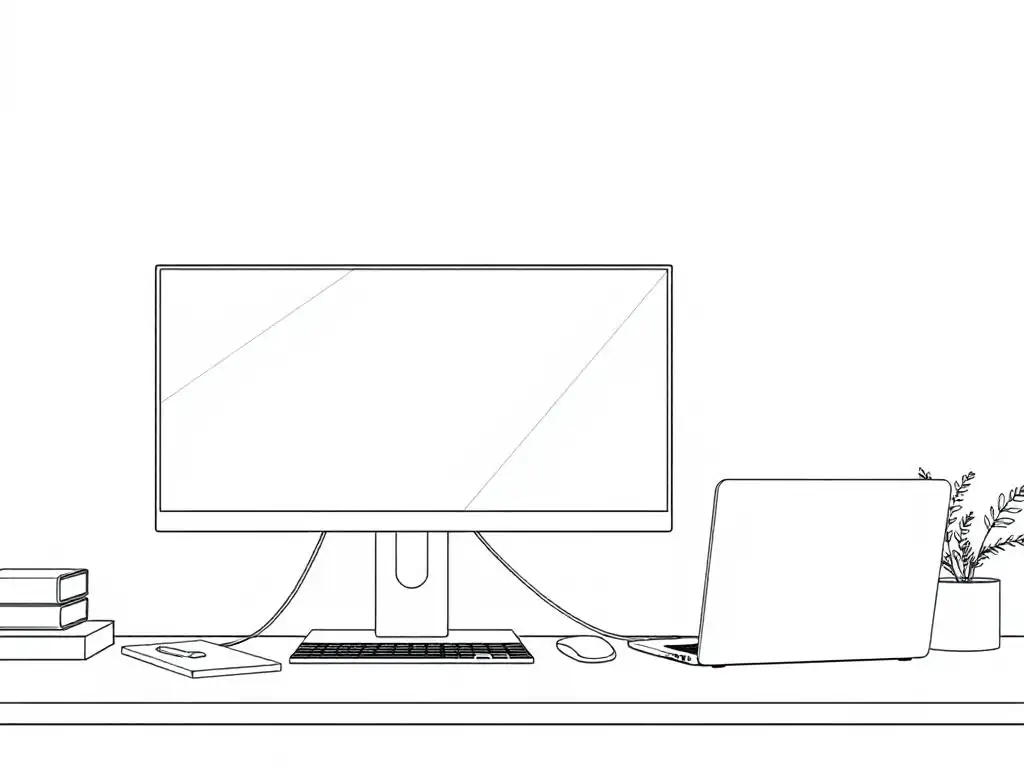
This section focuses on the practical aspects of integrating a portable monitor into your existing home office setup to boost your "portable monitor home office productivity". We'll explore the physical arrangement and initial configuration steps, ensuring a seamless transition to a dual-screen workflow. Remember, the goal is to maximize efficiency and minimize disruption to your existing routine.
Connecting Your Portable Monitor to Your Laptop or Desktop PC: A Step-by-Step Guide
Connecting your portable monitor is surprisingly straightforward. Most portable monitors utilize either USB-C or HDMI connections, offering excellent versatility. Let's walk through the process for both:
USB-C Connection:
- Ensure your laptop or desktop supports USB-C video output (check your device's specifications). Many modern devices do, offering both power and video transmission through a single cable.
- Connect the USB-C cable from the portable monitor to the compatible port on your computer.
- Power on both your computer and the portable monitor. Your operating system should automatically detect the new display.
HDMI Connection:
- Locate the HDMI port on your portable monitor and your computer.
- Connect the HDMI cable, ensuring a secure connection at both ends.
- You may need a separate power adapter for your portable monitor, depending on its specifications. Check your manual for details.
- Power on both devices. Your operating system should automatically detect the new display.
If your system doesn't automatically detect the monitor, you might need to adjust display settings within your operating system's control panel. Troubleshooting steps will vary depending on your specific operating system (Windows or macOS), but generally involve navigating to display settings and selecting the correct input source for your portable monitor. Remember to check your portable monitor's manual for specific troubleshooting tips.
Proper cable management is key for a clean and organized workspace; consider using cable ties or clips to keep things neat. This simple step significantly improves your "portable monitor home office productivity" by creating a more visually appealing and less cluttered environment.
Optimizing Your Windows or macOS Settings for Dual-Screen Productivity
Once connected, optimizing your operating system's settings is crucial for maximizing "portable monitor home office productivity". This involves configuring screen resolution, extending or mirroring your desktop, and potentially adjusting taskbar settings.
Windows:
- Right-click on your desktop and select "Display settings".
- Under "Multiple displays," choose "Extend these displays" to have independent desktops on each screen. "Duplicate these displays" mirrors your primary screen onto the portable monitor.
- Adjust the resolution of each display to match its native resolution for optimal clarity.
- Customize your taskbar settings to appear on both screens or only one, based on preference.
macOS:
- Go to "System Preferences" and select "Displays".
- Under "Arrangement," you can drag and drop the representation of your screens to adjust their relative positions.
- Select "Scaled" to adjust the resolution to a suitable setting for your portable monitor.
- Consider moving the menu bar to the secondary display for a more ergonomic setup.
Experiment with different arrangements and settings to find what best suits your workflow. Consider placing frequently used applications on the portable monitor to minimize switching between screens, thereby improving efficiency. Remember, the ultimate goal is to create a setup that enhances your comfort and productivity. The right configuration dramatically improves "portable monitor home office productivity".
Recommended Software for Managing Multiple Screens in Your Home Office
Several software applications can further enhance your dual-screen experience and boost your "portable monitor home office productivity". These tools offer advanced features for managing windows, applications, and virtual desktops, optimizing your workflow beyond the basic operating system capabilities.
Here are a few examples categorized by operating system:
Windows:
- PowerToys: Microsoft's free utility suite includes FancyZones, allowing you to customize window snapping to specific areas on your dual screens. This significantly speeds up window management.
- DisplayFusion: A more comprehensive paid solution offering advanced features like per-monitor wallpapers, taskbar customization, and hotkey control for managing windows across displays.
macOS:
- BetterTouchTool: While not exclusively for multiple screens, BetterTouchTool allows extensive customization of trackpad gestures, including dedicated gestures for managing windows across displays.
- Magnet: Similar to FancyZones in Windows, Magnet allows for intuitive window snapping and resizing across multiple screens, enhancing workflow efficiency.
While not strictly necessary, these applications can streamline your workflow considerably, improving overall efficiency and productivity. Choosing the right software depends on your specific needs and preferences; consider trying free versions or trials before committing to a paid subscription. Proper software selection can significantly enhance your "portable monitor home office productivity". Experimentation is key to finding the perfect software and setup to maximize your dual-screen experience.
Maximizing Your Productivity with a Dual-Screen Setup
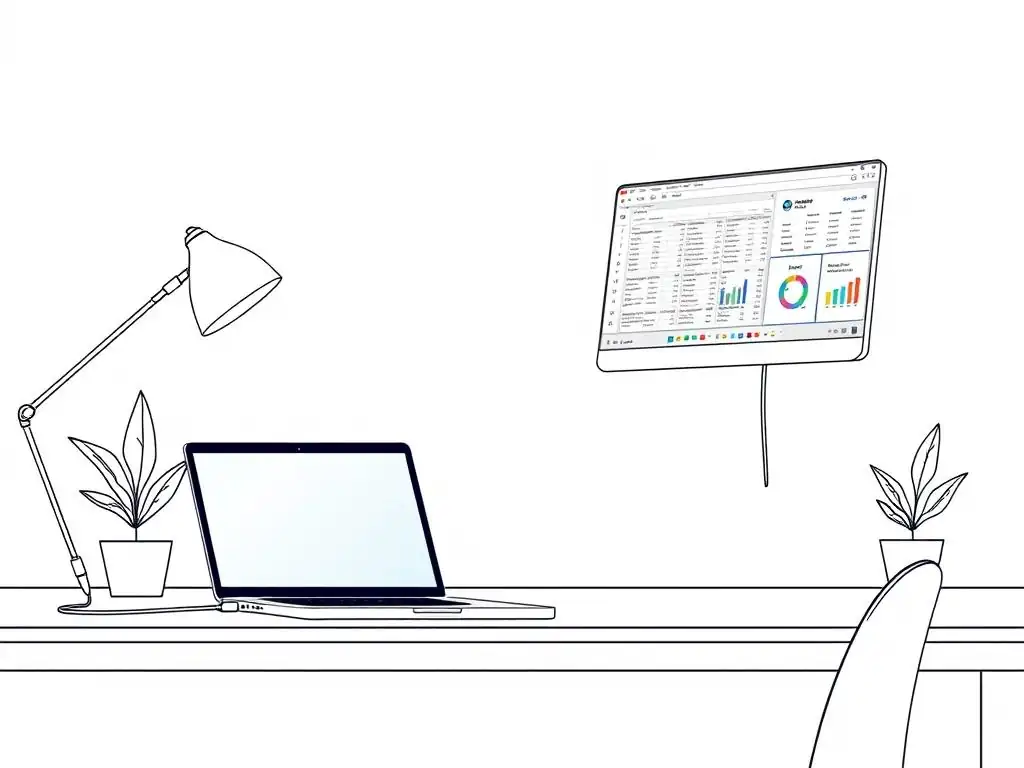
This section explores the significant boost in productivity achievable by implementing a dual-screen setup in your home office, specifically focusing on the benefits offered by a portable monitor for enhancing workflow and maximizing efficiency. The advantages extend beyond simply having more screen real estate; a well-configured dual-screen system allows for multitasking, improved focus, and a more streamlined workflow, ultimately leading to increased output and reduced stress. The portability of the second monitor adds flexibility, allowing for adjustments to suit different tasks and working styles.
Using Multiple Monitors for Enhanced Workflow in Different Professions
The benefits of a portable monitor for home office productivity are profession-agnostic, impacting diverse work styles positively. However, the specific applications and advantages vary depending on the nature of the work. Let's delve into some examples:
Portable Monitor Use Cases for Writers, Editors, and Graphic Designers
For writers and editors, a dual-screen setup allows for simultaneous document review and research. One screen displays the document being worked on, while the other displays reference materials, online dictionaries, thesaurus, or style guides. This eliminates constant window switching, drastically improving writing speed and accuracy. Graphic designers benefit from having one screen dedicated to design software (like Photoshop or Illustrator) and another for referencing images, color palettes, or client feedback.
This significantly speeds up the design process and improves overall workflow efficiency. The portability of the monitor allows for easy adjustments to accommodate different project sizes and complexities. This flexibility is key for creative professionals who often work on multiple projects simultaneously.
Streamlining Your Workflows with Dual Screens for Programmers and Developers
Programmers and developers frequently juggle multiple code files, debugging tools, documentation, and test environments. A dual-screen setup is invaluable here. One screen can display the primary code file, while the other shows debugging information, documentation, or test results. This significantly reduces context switching, leading to faster debugging and code development. The ability to keep relevant information readily visible contributes to enhanced focus and reduces the cognitive load associated with constantly searching for specific files or information. Portable monitors provide the flexibility to optimize the workspace based on the specific programming task.
Increased Efficiency for Data Analysts and Researchers Using Dual Monitors
Data analysts and researchers often work with large datasets and complex spreadsheets. A dual-screen setup allows them to view data visualizations on one screen while simultaneously manipulating the underlying data on the other. This enables a more intuitive and efficient analysis process. One screen can display complex charts and graphs, while the other houses the spreadsheet or database being analyzed. The visual representation of data alongside the raw data streamlines the process of identifying trends, patterns, and insights. The portability allows for easy adaptation to different data analysis projects and allows for optimal use of space.
Practical Tips and Tricks for Optimizing Your Dual-Screen Home Office Setup
Optimizing your dual-screen setup is key to maximizing productivity. Consider these tips:
- Ergonomics: Position your screens at eye level to minimize neck strain. Ensure proper posture and take regular breaks. A portable monitor allows for greater flexibility in screen placement to optimize ergonomics.
- Cable Management: Keep cables neatly organized to prevent clutter and improve workspace aesthetics. Use cable clips or ties to manage the connections between your laptop and the portable monitor.
- Software Optimization: Utilize window management tools to efficiently arrange windows across both screens. Consider using hotkeys for quick switching between applications.
- Background Noise Minimization: Reduce distractions by minimizing background noise and visual clutter. A dedicated workspace free of distractions promotes better focus.
- Regular Maintenance: Regularly clean your screens to ensure optimal visual clarity and prevent eye strain. This simple step can improve concentration and productivity.
The implementation of a dual-screen setup using a portable monitor can significantly enhance your home office productivity. By optimizing your setup and tailoring it to your specific professional needs, you can unlock significant gains in efficiency and overall workflow. The flexibility and portability of the additional monitor provide an adaptable solution to suit various tasks and working styles, ultimately contributing to a more productive and enjoyable work experience.
Common Mistakes to Avoid When Using a Portable Monitor for Home Office Productivity
Many users, eager to boost their productivity with a dual-screen setup, inadvertently make mistakes that negate the benefits of their portable monitor. Avoiding these common pitfalls is crucial for maximizing your investment and truly experiencing the enhanced workflow a second screen offers.
One frequent error is neglecting proper ergonomics. Positioning the portable monitor at an awkward angle or height can lead to neck strain, eye fatigue, and ultimately, reduced productivity. Ensure your main monitor and portable monitor are at the same eye level, minimizing the need to constantly adjust your posture. Consider using a monitor stand or riser to achieve the optimal ergonomic setup. This is especially important for those working long hours. Investing a little time in setting up your screens correctly will pay off significantly in the long run.
Another common mistake is improper cable management. A tangled mess of cables behind your workspace can be distracting and even dangerous. Use cable organizers, clips, or ties to keep your cables neatly managed and out of the way. This not only improves the aesthetics of your workspace but also prevents accidental disconnections and tripping hazards. A clean workspace leads to a clear mind, promoting focus and concentration, essential components of high productivity.
Finally, many overlook the importance of software configuration. Simply connecting a portable monitor isn't enough; you need to optimize your operating system settings to fully utilize the expanded screen real estate. This includes configuring your display settings for optimal resolution and extending your desktop across both screens rather than mirroring. Properly configuring window management tools can also significantly improve workflow.
Learning to effectively utilize hotkeys and shortcuts for managing windows across both screens is a game-changer for productivity. Failing to do this can leave you feeling frustrated and hampered, rather than empowered by your dual-screen setup. Experiment with different window management techniques to find the best workflow for your specific needs.
The Cost-Effectiveness of Portable Monitors for Home Office Productivity
This section delves into the financial aspects of integrating a portable monitor into your home office setup, focusing on its long-term value and cost-effectiveness compared to alternative solutions. We'll analyze the return on investment (ROI) and compare the upfront and ongoing costs associated with portable monitors versus larger desktop monitors. The goal is to demonstrate how a portable monitor can be a surprisingly budget-friendly way to boost your home office productivity and overall efficiency, representing a smart investment in your workflow.
Return on Investment (ROI) of a Portable Monitor: Long-Term Benefits and Cost Savings
The initial cost of a portable monitor might seem like a significant expense, but the long-term benefits significantly outweigh the upfront investment. Consider the following factors contributing to a positive ROI:
- Increased Productivity: A dual-screen setup, facilitated by a portable monitor, demonstrably increases productivity. Studies show a significant improvement in multitasking and workflow efficiency, leading to more tasks completed in less time. This translates directly into increased earning potential or more free time, a considerable return on the initial investment. For example, even a modest 10% increase in productivity over a year can easily offset the cost of a portable monitor, especially for those whose work is directly tied to their output.
- Reduced Eye Strain and Health Benefits: Switching between applications on a single screen can lead to eye strain and fatigue. A portable monitor allows for a more comfortable and ergonomic workspace, reducing the risk of long-term health problems associated with prolonged screen use. Preventing costly medical visits or lost workdays due to illness makes a portable monitor a cost-effective investment in your health and well-being.
- Space Optimization: Portable monitors offer space-saving advantages, particularly in smaller home offices. They can be easily stored away when not in use, maximizing valuable desk real estate. This can be especially valuable for those working from home in limited spaces. The space saved might indirectly increase productivity by creating a more organized and less cluttered workspace.
- Portability and Flexibility: The inherent portability of these monitors offers flexibility. You can easily move your setup to different locations within your home or even take it with you on the go. This versatility enhances productivity and allows for work in a variety of environments, potentially boosting overall output.
The long-term ROI of a portable monitor extends beyond mere monetary gains. It’s an investment in improved health, increased efficiency, and a more adaptable and comfortable work environment, all contributing to a better work-life balance.
Comparing the Costs of Portable Monitors vs. Larger Desktop Monitors
While the price of a portable monitor might seem comparable to a larger desktop monitor initially, a closer examination reveals several cost advantages:
| Feature | Portable Monitor | Larger Desktop Monitor |
|---|---|---|
| Initial Cost | Generally lower upfront cost | Typically higher initial cost |
| Space Required | Significantly less space needed | Requires more desk space |
| Energy Consumption | Usually lower power consumption | Higher power consumption, potentially increasing electricity bills |
| Ergonomics | Can be easily adjusted for optimal viewing | Often requires additional ergonomic accessories |
| Portability | Highly portable, easily moved and stored | Stationary, limited mobility |
The table above highlights key cost differences. While a large desktop monitor might boast higher resolution, the overall cost of ownership over time, considering energy consumption, potential ergonomic accessory purchases, and space optimization, often favors the portable monitor, especially for those prioritizing "portable monitor home office productivity."
The initial lower cost, coupled with the long-term savings and productivity gains, makes it a compelling financial choice for many home office professionals seeking to optimize their workspace. The additional cost of a larger monitor may not always justify the incremental benefit, especially for those with space constraints or a preference for mobility.
Frequently Asked Questions
What is a portable monitor, and how does it relate to home office productivity?
A portable monitor is a secondary display you can connect to your laptop or desktop. For home office productivity, it significantly expands your screen real estate, allowing for multitasking and improved workflow efficiency. This leads to a more organized and productive workspace.
How can a portable monitor improve my home office setup?
A portable monitor allows for a more ergonomic setup by reducing the need to constantly switch between windows. It also enables simultaneous use of multiple applications, such as having your email open on one screen and a document on the other. This ultimately boosts productivity.
Are portable monitors easy to set up and use?
Yes, most portable monitors are plug-and-play. Simply connect them to your computer via USB-C, HDMI, or DisplayPort, and they're ready to use. Many offer simple and intuitive on-screen display menus for adjustments.
What are the benefits of using a portable monitor over a larger desktop monitor?
Portable monitors offer portability and flexibility, allowing you to easily move your workspace. They're also generally more affordable than larger desktop monitors, making them a cost-effective way to enhance your home office.
What should I look for when choosing a portable monitor for my home office?
Consider factors like screen size, resolution, connectivity options, and portability. Also, check reviews to ensure good image quality and reliable performance. Choose one that fits your budget and specific needs.
Final Reflection: Embracing the Expanded Workspace
The rise of remote work has irrevocably altered the landscape of the modern home office, demanding innovative solutions to maximize productivity and comfort. The dual-screen setup, once a luxury of corporate environments, is now within reach for everyone, thanks to the accessibility and affordability of portable monitors. This shift signifies a powerful evolution in how we approach our work lives, prioritizing both efficiency and well-being.
The impact of this simple technological advancement is profound. It's not just about increased screen real estate; it's about reclaiming control over our work environment and fostering a more ergonomic and personalized workspace. The key is not to prioritize what's on your schedule, but to schedule your priorities.
– Stephen Covey. This quote perfectly encapsulates the power of a portable monitor: it allows you to prioritize your workflow and create a setup that truly supports your individual needs and enhances your focus.
Consider the possibilities: a clutter-free desk, a more comfortable posture, and the seamless transition between work and relaxation. You now have the power to design your ideal home office, free from the limitations of a single screen. Don't just passively consume information; actively shape your workspace to reflect your ambitions and enhance your productivity. Embrace the dual-screen difference, and experience the transformative power of a portable monitor in your own home office.
Unleash Your Productivity: Level Up Your Workspace Today!
Thanks for exploring the world of dual-screen productivity! We hope you've discovered how a portable monitor can revolutionize your home office. Ready to experience the benefits firsthand?
- Invest in your future: Explore the range of portable monitors available to find the perfect one for your needs and budget. Consider factors like screen size, resolution, and connectivity options.
- Share the knowledge: Tell your friends and colleagues about the incredible productivity boost a dual-screen setup offers. Spread the word on how it can elevate the home office experience.
- Join the conversation: Share your thoughts and experiences below! What excites you most about using a dual-screen setup?
What will you explore first on your new portable monitor?