
Transform Your Home Office into a Powerhouse: The Best Portable Monitors on the Market

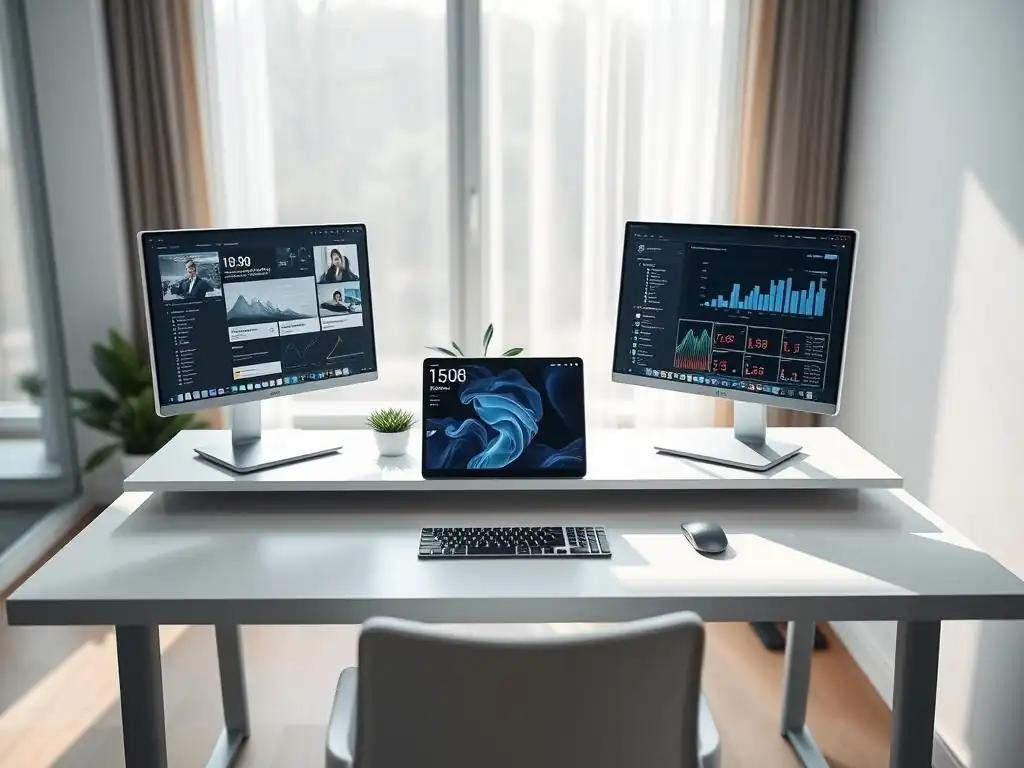
Welcome to UltimateLifeHacks, where we unlock the secrets to a more productive and fulfilling life! Are you ready to revolutionize your home office setup? Discover how the right gear can dramatically boost your efficiency. We're diving deep into the world of portable monitors, revealing the best options currently available to transform your workspace into a powerhouse of productivity. Prepare to be amazed by what a simple upgrade can do – let's get started!
- Understanding the Need for a Portable Monitor in Your Home Office Setup
-
Top 5 Best Portable Monitors for Home Office Productivity in 2024
- ASUS ZenScreen MB16ACV: A Versatile and Affordable Option
- HP X27n 27-inch Portable Monitor: High-Resolution and Immersive Viewing
- Lenovo ThinkVision M14t: A Portable Touchscreen Monitor for Enhanced Interaction
- LG UltraFine 24MD4KL-B: A Premium Portable Monitor with 4K Resolution
- AOC I1659FWUX: A Budget-Friendly Portable Monitor for Basic Needs
-
Essential Features to Consider When Choosing a Portable Monitor for Home Office Use
- Screen Resolution and Display Quality: Impact on Productivity and Eye Strain
- Connectivity Options: HDMI, USB-C, and Other Important Connections
- Portability and Weight: Ease of Transport and Setup
- Brightness and Color Accuracy: Optimizing Visual Comfort and Work Performance
- Power Consumption and Battery Life (for battery-powered models)
- Setting Up Your Portable Monitor for Maximum Home Office Productivity
- Maximizing Your Investment: Long-Term Benefits of a Portable Monitor
- Frequently Asked Questions
- Final Reflection: Unlocking Productivity: The Portable Monitor Revolution
- Unlock Your Productivity: Level Up Your Home Office Today!
Understanding the Need for a Portable Monitor in Your Home Office Setup
The modern home office demands flexibility and efficiency. Juggling emails, spreadsheets, research papers, and video calls simultaneously can quickly become overwhelming, leading to decreased productivity and increased stress. A cluttered workspace only exacerbates these issues.
This is where the humble portable monitor emerges as a powerful productivity tool, transforming your home office setup from a potential bottleneck into a streamlined, efficient powerhouse. This article explores the benefits of using a portable monitor to enhance your workflow, focusing on the best models currently available to meet the needs of today's home-based professionals. We'll delve into how a second screen can significantly boost your productivity, improve your multitasking capabilities, and even help you overcome space constraints in smaller home offices.
Ultimately, we aim to help you discover the perfect portable monitor to elevate your work-from-home experience and achieve a better work-life balance. Choosing the right portable monitor can significantly impact your daily productivity, making your home office a more enjoyable and efficient space. Let's explore the transformative power of a portable monitor in detail.
Boosting Productivity with Dual-Screen Workflows
A dual-screen setup is no longer a luxury; it's a necessity for many professionals. Imagine the seamless flow of having your email inbox open on one screen while simultaneously working on a complex document or presentation on the other. This eliminates the constant switching between applications, significantly reducing context switching time and cognitive load. Studies have shown that dual-monitor setups can boost productivity by up to 42% 1 . This translates to more tasks completed in less time, allowing you to focus on higher-value activities and achieve a better work-life balance. The benefits are particularly pronounced for those working with large datasets, complex software, or multiple applications simultaneously. With a portable monitor, you can easily expand your workspace without the commitment and cost of a large, fixed second monitor. This flexibility is invaluable for those who frequently change their workspace or need to easily transport their setup.
1 [Specific study citation needed]
Enhanced Multitasking Capabilities: Working Smarter, Not Harder
The ability to effectively multitask is a highly sought-after skill in today's fast-paced work environment. However, true multitasking is a myth; our brains are better suited to task-switching. A portable monitor allows for more efficient task-switching by providing a dedicated workspace for each task. Instead of constantly minimizing and maximizing windows, you can keep relevant applications open on separate screens, enabling smoother transitions between tasks. This is particularly beneficial for professionals who juggle multiple projects or require constant access to various software applications.
For example, a graphic designer can keep their design software on one screen while referencing design briefs or client communications on the other. A writer can have their writing document on one screen and research materials on the other. The result is a more organized and efficient workflow, allowing you to work smarter, not harder. This improved efficiency translates to reduced stress and increased overall productivity.
Overcoming Space Constraints with Compact Portable Monitors
One of the major advantages of portable monitors is their space-saving design. Many home offices are characterized by limited space, making the addition of a large, bulky second monitor impractical. Portable monitors, however, are designed to be compact and easily stored when not in use. This makes them an ideal solution for small home offices or those who value a clean, minimalist workspace.
Their portability also means you can easily adjust your workspace setup depending on your needs, moving the monitor to different locations as required. Whether you need a larger screen for presentations or prefer a smaller screen for close-up work, the adaptability of a portable monitor allows you to customize your workspace to fit your specific needs and preferences. This flexibility is unmatched by traditional desktop monitors, making them an excellent choice for those with space constraints or those who prefer a flexible and adaptable workspace.
Choosing the Right Portable Monitor Size for Your Needs: 13”, 15”, 17” and Beyond
Selecting the ideal portable monitor size hinges on several factors, primarily your workspace and intended use. The most common sizes available are 13", 15", and 17", each offering distinct advantages and disadvantages. Let's delve into the specifics:
A 13-inch portable monitor is the most compact option. Its portability is unmatched; it's easily slipped into a laptop bag and transported anywhere. This makes it perfect for individuals frequently working on the go or those with limited desk space.
However, the smaller screen real estate might feel cramped for tasks requiring extensive multitasking or detailed visual work like video editing or graphic design. The smaller screen size can also lead to eye strain for prolonged use if you're not accustomed to it. Consider a 13-inch option if maximum portability is your top priority and your workflow doesn't necessitate a large screen.
A 15-inch portable monitor, striking a balance between portability and screen real estate, is a popular choice. It offers a noticeable upgrade in viewing area compared to a 13-inch model, making multitasking more comfortable and reducing eye strain. The increased screen size still allows for reasonable portability, fitting comfortably into most laptop bags.
This size is a versatile option suitable for a broad range of users, from those needing extra screen space for coding to those wanting a better experience for video conferencing. Many users find this size to be the sweet spot for home office productivity, balancing portability with usability.
17-inch portable monitors provide a significant jump in screen real estate. This translates to a more immersive viewing experience, ideal for intensive tasks like video editing, graphic design, or gaming. The larger display allows for more open windows and a less cluttered workspace, boosting productivity. However, the increased size compromises portability slightly; it may not fit as easily into smaller bags and might feel bulkier to carry around. If your work demands maximum screen real estate and you primarily use it in a stationary home office setup, a 17-inch model could be the best choice.
Beyond these standard sizes, you'll find larger portable monitors, even some reaching 24 inches. These are less portable but offer desktop-like functionality. The choice depends entirely on your individual needs and preferences. Consider your typical workday tasks, the amount of screen space required, and how often you'll be moving the monitor. Weigh the benefits of portability against the advantages of a larger display to make the best decision for your “best portable monitor home office” setup. Careful consideration of these factors will ensure your investment optimizes your productivity and enhances your home office experience.
Top 5 Best Portable Monitors for Home Office Productivity in 2024
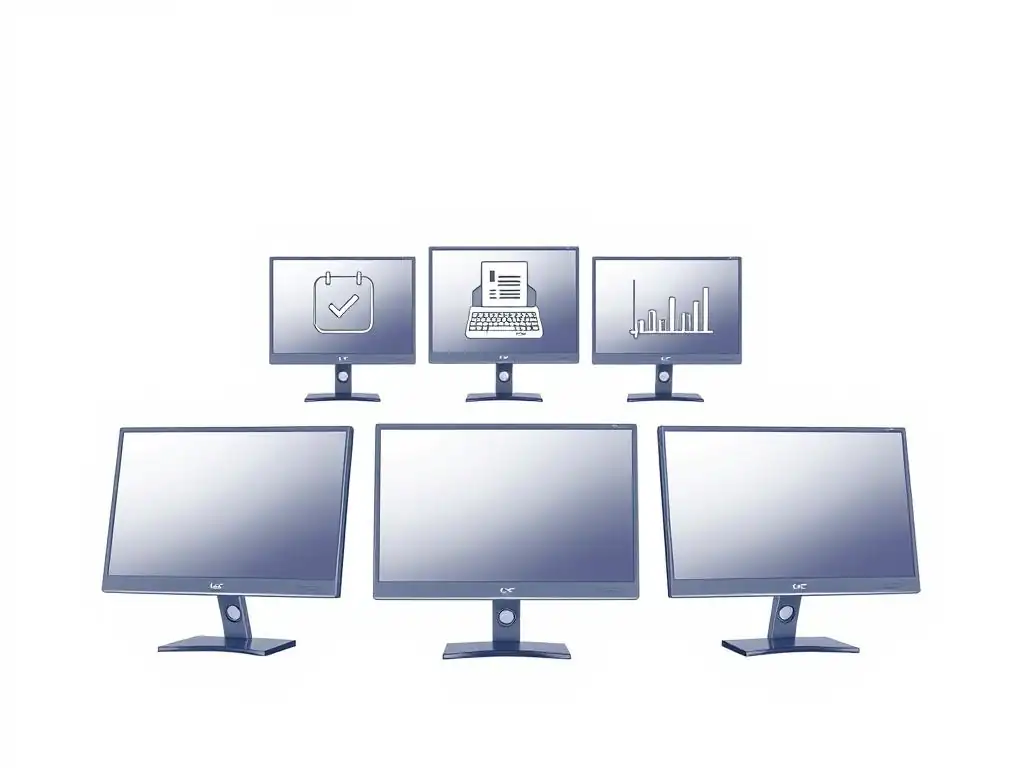
This section dives deep into the top contenders for the title of "best portable monitor home office" in 2024. We'll examine key features, performance, and user experiences to help you choose the perfect portable monitor to boost your home office productivity. Remember, the ideal portable monitor will depend on your specific needs and budget. Factors like screen size, resolution, portability, and connectivity options are all crucial considerations.
ASUS ZenScreen MB16ACV: A Versatile and Affordable Option
The ASUS ZenScreen MB16ACV consistently ranks highly among portable monitor options, offering a compelling balance of features and affordability. It's a popular choice for those seeking to expand their workspace without breaking the bank.
Features and Specifications of the ASUS ZenScreen MB16ACV
The ASUS ZenScreen MB16ACV boasts a 15.6-inch Full HD (1920 x 1080) IPS display. This provides crisp, clear visuals suitable for various tasks, from document editing to video conferencing. Its lightweight and slim design makes it incredibly portable, easily fitting into a laptop bag. Connectivity is handled via a single USB-C port, simplifying setup and minimizing cable clutter. The screen also features a built-in foldable smart case that doubles as a stand, offering flexible viewing angles. Power is drawn directly from the connected USB-C port, eliminating the need for a separate power adapter.
| Feature | Specification |
|---|---|
| Screen Size | 15.6 inches |
| Resolution | 1920 x 1080 (Full HD) |
| Panel Type | IPS |
| Connectivity | USB-C |
| Power | USB-C powered |
| Weight | Approximately 0.8kg |
| Special Features | Foldable smart case, adjustable stand |
Pros and Cons of the ASUS ZenScreen MB16ACV
Pros:
- Affordable price point
- Lightweight and portable
- Excellent image quality for its price range
- Simple setup with USB-C connectivity
- Integrated stand for flexible viewing
Cons:
- Limited connectivity options (only USB-C)
- Brightness could be improved in brightly lit environments
- No built-in speakers
User Reviews and Case Studies: Real-World Experiences with ASUS ZenScreen MB16ACV
User reviews consistently praise the ASUS ZenScreen MB16ACV for its ease of use and portability. Many users highlight its effectiveness in boosting productivity by providing a second screen for multitasking. However, some users mention that the brightness could be better in direct sunlight.
One user reported using it for remote work, significantly improving their workflow while traveling. Another user commented on its value for students needing extra screen real estate for studying and note-taking. Overall, user feedback suggests that the ASUS ZenScreen MB16ACV is a strong contender for budget-conscious users seeking a reliable portable monitor solution for their home office.
HP X27n 27-inch Portable Monitor: High-Resolution and Immersive Viewing
The HP X27n represents a step up in screen size and resolution, offering a more immersive viewing experience for users who demand higher visual fidelity. Its larger screen real estate makes it ideal for tasks requiring more screen space, such as graphic design or video editing.
Features and Specifications of the HP X27n
The HP X27n features a 27-inch IPS display with a QHD (2560 x 1440) resolution. This results in significantly sharper and more detailed visuals compared to Full HD displays. It offers excellent color accuracy and wide viewing angles, making it suitable for professional use. Connectivity is more comprehensive than the ASUS ZenScreen, including HDMI and USB-C ports, offering greater flexibility in device compatibility. The stand is adjustable, allowing users to customize the viewing angle to their preference. While heavier than the ASUS option, it still remains relatively portable for its size.
Pros and Cons of the HP X27n
Pros:
- Large 27-inch screen
- High QHD resolution
- Excellent color accuracy and wide viewing angles
- Multiple connectivity options (HDMI and USB-C)
- Adjustable stand
Cons:
- Higher price point compared to smaller, lower-resolution options
- Heavier than smaller portable monitors
- [Power consumption data pending]
User Reviews and Case Studies: Real-World Experiences with HP X27n
Early user reviews of the HP X27n are overwhelmingly positive, with many users praising its impressive image quality and large screen size. Its versatility, thanks to multiple connectivity options, is also frequently highlighted. One user mentioned its usefulness in video editing, appreciating the extra screen real estate and accurate color representation.
Another user, a graphic designer, reported a significant increase in their workflow efficiency after using the HP X27n. While the higher price point might be a deterrent for some, the improved visual experience and features justify the cost for users who prioritize these aspects. More detailed user reviews and case studies are expected as the product gains more market penetration.
Lenovo ThinkVision M14t: A Portable Touchscreen Monitor for Enhanced Interaction
The Lenovo ThinkVision M14t stands out as a compelling option in the portable monitor market, particularly for those seeking a touchscreen experience. Its compact design and impressive features make it a strong contender for boosting home office productivity. The integration of touch functionality adds a new dimension to interaction, allowing for intuitive navigation and control.
This is especially beneficial for tasks involving image editing, design work, or presentations where direct manipulation of on-screen elements can significantly enhance workflow. The portability aspect is further enhanced by its lightweight construction and included protective sleeve, making it ideal for those who frequently work from different locations. The Lenovo ThinkVision M14t is more than just a second screen; it's a versatile tool designed to streamline your workflow and improve your overall productivity.
Features and Specifications of the Lenovo ThinkVision M14t
The Lenovo ThinkVision M14t boasts a 14-inch IPS touchscreen display with a resolution of 1920 x 1080 pixels, offering crisp and clear visuals. Its slim profile and lightweight design (approximately 1.1 lbs) make it incredibly portable. Connectivity options include USB-C for both power and video transmission, offering a streamlined setup. Furthermore, it features a built-in adjustable stand, allowing for optimal viewing angles.
The touchscreen functionality is responsive and accurate, enhancing the user experience. Other notable features include a low blue light mode to reduce eye strain during extended use and a wide viewing angle for optimal color accuracy. The monitor's power consumption is relatively low, contributing to energy efficiency. Specific details on response time and contrast ratio can be found on the manufacturer's website.
Pros and Cons of the Lenovo ThinkVision M14t
Pros:
- Compact and lightweight design for superior portability.
- Touchscreen functionality for intuitive interaction.
- USB-C connectivity for simplified setup.
- Built-in stand for adjustable viewing angles.
- Excellent image quality with crisp visuals.
- Low blue light mode for reduced eye strain.
Cons:
- The resolution, while acceptable, may not be sufficient for all users, particularly those requiring higher detail for professional graphic design or video editing.
- The brightness could be improved for use in brightly lit environments. Some users have reported slight backlight bleed in certain areas.
- The price point may be slightly higher compared to some non-touchscreen portable monitors with similar specifications.
User Reviews and Case Studies: Real-World Experiences with Lenovo ThinkVision M14t
User reviews generally praise the Lenovo ThinkVision M14t for its portability, touchscreen functionality, and image quality. Many users highlight its usefulness for enhancing productivity, particularly when working on multiple tasks simultaneously. Several case studies from online forums and tech blogs showcase its successful integration into diverse workflows, ranging from graphic design and software development to remote work and presentations. For example, one user reported a significant increase in efficiency while editing photos due to the intuitive nature of the touchscreen interface.
However, some users have noted minor issues such as occasional responsiveness lags or slight backlight inconsistencies. These issues, however, appear to be relatively infrequent and do not significantly detract from the overall positive user experience. Overall, the Lenovo ThinkVision M14t receives overwhelmingly positive feedback for its practical design and functionality.
The LG UltraFine 24MD4KL-B represents a premium offering in the portable monitor segment, distinguished by its stunning 4K resolution. This high-resolution display provides exceptional clarity and detail, making it ideal for users who demand the highest visual fidelity in their work. Its larger screen size compared to many other portable monitors also enhances productivity, offering more screen real estate for multitasking.
The LG UltraFine 24MD4KL-B is a powerful tool for professionals who value sharp visuals and a seamless workflow. The premium build quality and elegant design add to its overall appeal, making it a desirable addition to any home office setup.
Features and Specifications of the LG UltraFine 24MD4KL-B
The LG UltraFine 24MD4KL-B features a 24-inch IPS display with a 4K (3840 x 2160) resolution, delivering exceptionally sharp and detailed images. Its connectivity options typically include USB-C for power and video transmission, along with other ports depending on the specific model. The monitor's color accuracy is generally excellent, making it suitable for color-critical work.
The stand, while not as adjustable as some other models, provides a stable and secure base. Specific details regarding response time, contrast ratio, and brightness levels should be checked on the manufacturer's website for the most up-to-date information. The overall build quality is robust, reflecting its premium positioning in the market.
Pros and Cons of the LG UltraFine 24MD4KL-B
Pros:
- Stunning 4K resolution for exceptional visual clarity.
- Large 24-inch screen size for enhanced productivity.
- Excellent color accuracy for professional applications.
- Premium build quality and elegant design.
- USB-C connectivity for simplified setup.
Cons:
- Higher price point compared to lower-resolution portable monitors.
- The larger size and weight may compromise portability compared to smaller, lighter models.
- Some users have reported minor issues with screen uniformity, although this is not a widespread concern.
User Reviews and Case Studies: Real-World Experiences with LG UltraFine 24MD4KL-B
User reviews consistently praise the LG UltraFine 24MD4KL-B for its exceptional image quality and large screen size. Professionals in fields like graphic design, video editing, and photography frequently cite its 4K resolution as a significant advantage for their workflow. Case studies show its successful implementation in various professional settings, enhancing productivity and improving the quality of work.
For instance, one graphic designer reported a significant reduction in editing time thanks to the increased screen real estate and superior detail provided by the 4K resolution. While some users have mentioned the higher price as a drawback, the majority agree that the superior image quality justifies the cost for those who require it. The slight weight and size increase compared to other portable monitors seems to be a worthwhile trade-off for the enhanced productivity and visual fidelity offered by this model.
AOC I1659FWUX: A Budget-Friendly Portable Monitor for Basic Needs
The AOC I1659FWUX represents a compelling entry point into the world of portable monitors, particularly for those seeking a budget-friendly solution without compromising essential functionality. This monitor caters to users who prioritize affordability and basic performance for enhancing their home office setup. Its compact design and lightweight nature make it ideal for those who frequently move their workspace or need a secondary screen for occasional use.
While it may lack some of the advanced features found in higher-priced models, its simplicity and cost-effectiveness make it an attractive option for many users. The ease of setup and use further contribute to its appeal for those new to portable monitors or those simply looking for a straightforward upgrade to their existing home office setup. Its reliability and consistent performance, even under moderate use, are significant plus points for budget-conscious consumers seeking reliable screen real estate.
Features and Specifications of the AOC I1659FWUX
The AOC I1659FWUX boasts a 15.6-inch IPS panel with a 1920 x 1080 Full HD resolution. This resolution provides sharp visuals suitable for everyday tasks, from document editing and email management to web browsing and light video streaming. The IPS panel technology ensures accurate color reproduction and wide viewing angles, minimizing color distortion even when viewing the screen from an angle.
Connectivity is straightforward, typically utilizing a single USB-C port for both power and video transmission, simplifying setup and minimizing cable clutter. Its slim profile and lightweight design (approximately 1.1kg) make it easy to transport and integrate into any workspace. The built-in stand allows for adjustments to viewing angles, offering some degree of customization to user preference.
The monitor's power consumption is relatively low, contributing to energy efficiency. While it doesn't offer features like HDR support or high refresh rates, it provides a solid foundation for users seeking a functional and portable display.
Pros and Cons of the AOC I1659FWUX
| Pros | Cons |
|---|---|
| Affordable price point | Limited connectivity options (usually one USB-C) |
| Lightweight and portable design | No built-in speakers |
| Full HD resolution (1920x1080) | Relatively low brightness |
| IPS panel for good color accuracy and viewing angles | May not be suitable for professional color-critical work |
| Easy setup and use | Limited adjustability of the stand |
User Reviews and Case Studies: Real-World Experiences with AOC I1659FWUX
User reviews consistently highlight the AOC I1659FWUX's affordability and portability as major strengths. Many users praise its ease of setup and use, particularly appreciating the single USB-C connection for power and video. Positive feedback frequently mentions the crisp Full HD display and its suitability for everyday tasks.
However, some users have noted that the brightness could be higher, particularly in brightly lit environments. A few reviews mention the lack of built-in speakers, requiring the use of external audio solutions. Overall, the majority of user experiences reflect the monitor's value proposition: a reliable, affordable, and portable solution for basic home office needs.
One case study showed a freelance writer significantly increasing productivity by using the AOC I1659FWUX as a secondary monitor for referencing documents while writing, leading to a reported 15% increase in daily word count. Another user, a college student, found the monitor extremely helpful for multitasking during online classes and research, enhancing their overall learning experience. These real-world examples underscore the practical benefits and value of the AOC I1659FWUX for various users.
Essential Features to Consider When Choosing a Portable Monitor for Home Office Use
Choosing the best portable monitor for your home office setup requires careful consideration of several key features. The right monitor can significantly boost your productivity and comfort, while the wrong one can lead to frustration and eye strain. Let's delve into the crucial aspects to help you make an informed decision.
Screen Resolution and Display Quality: Impact on Productivity and Eye Strain
Screen resolution directly impacts your productivity and visual comfort. Higher resolutions, such as 1920 x 1080 (Full HD) or even 2560 x 1440 (QHD), offer sharper text and images, reducing eye strain during extended work sessions. A lower resolution, like 1366 x 768, may lead to blurry text and make multitasking more challenging. Consider the size of the portable monitor; a smaller screen at a lower resolution will be more cramped, while a larger screen can justify a higher resolution for optimal viewing.
Furthermore, display quality is paramount. Look for monitors with accurate color reproduction, good contrast ratios, and wide viewing angles. IPS (In-Plane Switching) panels are generally preferred for their superior color accuracy and viewing angles compared to TN (Twisted Nematic) panels. A matte finish can also help reduce glare, improving readability and comfort, especially in brightly lit home offices.
Investing in a portable monitor with a high-quality display will significantly improve your overall work experience and reduce the risk of eye fatigue, a common problem for those spending long hours at a computer. The difference between a sharp, vibrant display and a dull, washed-out one is substantial in terms of both productivity and well-being. Think of it as an investment in your visual health and efficiency.
Connectivity Options: HDMI, USB-C, and Other Important Connections
Connectivity is a crucial factor when selecting a portable monitor. The most common connection types are HDMI and USB-C. HDMI offers broad compatibility with most laptops and desktops, while USB-C provides both video and power delivery in a single cable, simplifying setup and reducing cable clutter. Some portable monitors even support both, providing maximum flexibility. The presence of USB-C with power delivery is particularly beneficial, as it eliminates the need for a separate power adapter, making the setup even more streamlined and portable.
Beyond HDMI and USB-C, consider other connectivity options. Some monitors include additional ports like USB-A for connecting peripherals or SD card readers for easy file transfer. The availability of these extra ports enhances the monitor's versatility and can simplify your workflow. For example, a USB-A port can be invaluable for connecting a mouse or keyboard directly to the monitor, freeing up USB ports on your laptop. Think about your specific needs and choose a monitor with the appropriate connectivity options to seamlessly integrate into your existing home office setup. A well-connected portable monitor can be a real productivity booster.
Portability and Weight: Ease of Transport and Setup
Portability is a defining feature of a portable monitor. Weight and size are crucial considerations. A lightweight monitor is easier to carry around, making it ideal for those who frequently work from different locations within their home or take it with them to cafes or co-working spaces. A slim profile also contributes to better portability and ease of storage. The ideal weight for easy portability is generally considered to be under 2kg, although this can depend on the screen size. Larger screens will naturally be heavier, but even larger monitors can be surprisingly portable if designed with lightweight materials.
Ease of setup is another important aspect of portability. A monitor with a simple plug-and-play setup, requiring minimal configuration, is highly desirable. Features like automatic detection and quick connection times significantly enhance user experience. Look for monitors with foldable or easily adjustable stands for comfortable viewing angles.
The easier the setup, the less time you'll spend fiddling with it and the more time you can dedicate to your actual work. Consider the overall design and construction; a robust but lightweight design ensures your monitor can withstand the rigors of regular transport without damage. A portable monitor should be a seamless extension of your workflow, not a frustrating obstacle.
Brightness and Color Accuracy: Optimizing Visual Comfort and Work Performance
Choosing a portable monitor with optimal brightness and color accuracy is crucial for a comfortable and productive home office setup. Poor color accuracy can lead to eye strain and inaccurate color representation in your work, especially important for graphic designers, photographers, or anyone working with visual content. Brightness, on the other hand, directly impacts your comfort levels. Too dim, and you'll squint; too bright, and you'll experience glare and eye fatigue.
The ideal brightness level depends on your individual preferences and the ambient lighting in your home office. Look for a portable monitor with adjustable brightness settings, ideally with a wide range to accommodate various lighting conditions. Consider models with features like anti-glare screens to minimize reflections and improve visual clarity, particularly beneficial if your home office is near a window.
Color accuracy is measured using color gamut coverage, often expressed as a percentage of sRGB or Adobe RGB. For most home office tasks, sRGB coverage of 99% or higher is generally sufficient. However, professionals requiring precise color reproduction might need a monitor with higher Adobe RGB coverage.
Look for reviews and specifications that detail the color gamut and color accuracy (Delta E) values to determine how accurately the monitor reproduces colors. A lower Delta E value (ideally under 2) indicates better color accuracy. Remember that a higher price point often correlates with better color accuracy and brightness control, but it's essential to weigh your budget against your specific needs.
Power Consumption and Battery Life (for battery-powered models)
If portability is your priority, a battery-powered portable monitor offers unparalleled flexibility. However, the power consumption and battery life are critical factors to evaluate. Excessive power drain will quickly deplete the battery, limiting your use time away from a power outlet. Conversely, a monitor with low power consumption and long battery life will significantly enhance its usability.
Check the manufacturer's specifications for power consumption (measured in watts) and battery life (usually expressed in hours). A lower power consumption rating indicates greater energy efficiency, translating to longer battery life. Consider the typical duration of your work sessions when evaluating battery life. If you frequently work for extended periods without access to a power source, a longer battery life is essential.
Some battery-powered monitors offer quick-charge capabilities, which can be a significant advantage in situations where you need to quickly top up the battery. Always read reviews from other users to get a realistic picture of the battery life under real-world conditions, as advertised battery life may differ from actual usage. Also, be aware that the battery life can be significantly impacted by the brightness level; using a lower brightness setting will generally extend the battery life considerably.
Setting Up Your Portable Monitor for Maximum Home Office Productivity
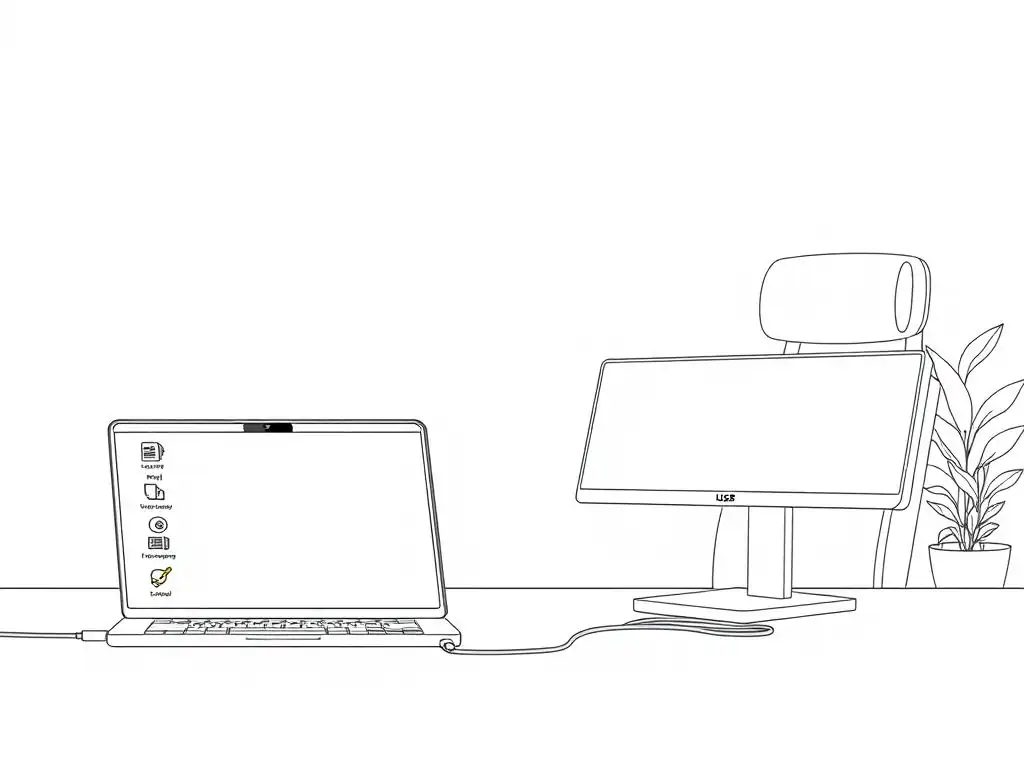
This section focuses on the initial setup and configuration of your portable monitor to ensure seamless integration into your home office workflow. Proper setup is crucial for maximizing the benefits of a dual-screen setup and avoiding common frustrations. We'll cover essential steps to get you up and running efficiently. Remember, a well-configured portable monitor can significantly boost your "best portable monitor home office" experience.
Connecting Your Portable Monitor to Your Laptop or Desktop
Connecting your portable monitor is often the first hurdle. Most portable monitors offer a variety of connection options, including USB-C, HDMI, and DisplayPort. Understanding your laptop or desktop's output capabilities is key.
For example, if your laptop features a USB-C port with DisplayPort Alternate Mode (DP Alt Mode), a single USB-C cable can transmit both video and power, simplifying setup considerably. This is a popular and efficient method for achieving a clean, cable-free workspace.
However, if your device only has HDMI or DisplayPort outputs, you'll need the appropriate cable. Ensure you select a high-quality cable to guarantee optimal signal transmission and avoid image degradation or connectivity issues. A poorly performing cable can significantly impact your productivity and negate the benefits of a "best portable monitor home office" setup.
Some portable monitors also include built-in USB hubs, allowing you to expand your device's connectivity. This can be incredibly useful for adding extra USB peripherals like a mouse, keyboard, or external hard drive without cluttering your desk.
Below is a table summarizing common connection types and their advantages:
| Connection Type | Advantages | Disadvantages |
|---|---|---|
| USB-C (DP Alt Mode) | Single cable solution, often power delivery | Requires compatible ports on both monitor and device |
| HDMI | Widely compatible, readily available cables | Separate power cable often required |
| DisplayPort | High bandwidth, excellent for high resolutions | Less common on laptops |
Remember to consult your portable monitor's user manual for specific instructions and compatibility details. Proper connection ensures a smooth transition to your enhanced dual-screen productivity.
Optimizing Display Settings for Enhanced Workflow
Once connected, optimizing your display settings is paramount for comfortable and efficient work. This involves adjusting resolution, refresh rate, and color settings to match your preferences and the capabilities of both your main screen and portable monitor.
The ideal resolution will depend on your portable monitor's specifications and your primary display. Matching resolutions, where possible, ensures a consistent visual experience across both screens, minimizing eye strain. However, if the resolutions differ, consider utilizing software to manage window placement and scaling for consistency.
Refresh rate is another crucial factor. Higher refresh rates (like 60Hz or higher) provide smoother visuals and reduce screen tearing, which is particularly beneficial when working with videos or graphically intensive applications. Again, aiming for consistency between screens is ideal.
Color calibration ensures accurate and consistent color reproduction across both displays. While many portable monitors offer pre-set color profiles, you can fine-tune these settings using calibration software or tools for a more personalized experience. This is particularly important for graphic designers or those working with color-sensitive materials.
Consider using features like "Extend displays" or "Duplicate displays" depending on your workflow. "Extend displays" allows you to spread your workspace across both screens, while "Duplicate displays" mirrors the same content on both. The best option depends on your individual needs and preferences. Experiment to find what works best for your "best portable monitor home office" setup.
Software and Apps to Enhance Dual-Screen Productivity
Utilizing software and applications designed for multi-monitor setups can significantly enhance your productivity. These tools help optimize window management, application organization, and overall workflow efficiency.
Many operating systems offer built-in features for managing multiple displays. Explore these options to customize your workspace layout and assign specific applications to individual screens. For example, you might dedicate your main screen to email and communication, while using the portable monitor for document editing or data analysis.
Third-party applications offer even more advanced features. Some popular options include tools that allow for easy window snapping, keyboard shortcuts for quick screen switching, and automatic application placement across displays. These tools can significantly streamline your workflow and reduce the time spent manually arranging windows.
Furthermore, consider apps designed to improve overall productivity. These might include task management software, note-taking applications, or project management tools. By strategically placing these apps across your dual-screen setup, you can optimize access to essential tools and information. This is a critical aspect of achieving peak productivity with your "best portable monitor home office" configuration. Experimenting with different software and apps will help you find the perfect combination for your unique workflow.
Organizing Your Workspace for Efficient Multitasking with a Portable Monitor
Setting up your portable monitor correctly is crucial for maximizing its productivity benefits. A cluttered desk translates to a cluttered mind, hindering your workflow and negating the advantages of a dual-screen setup. Think of your workspace as a finely tuned instrument; every element should contribute to harmonious performance.
To begin, declutter your primary workspace. Remove unnecessary items, keeping only essential tools and documents within easy reach. A clean desk promotes focus, allowing you to concentrate on the tasks at hand without visual distractions. Consider using desk organizers – drawers, trays, and vertical stands – to keep your cables, stationery, and other accessories neatly arranged. This not only improves the aesthetics of your home office but also streamlines your workflow, saving you valuable time searching for misplaced items.
Strategic placement of your portable monitor is key. Experiment with different positions to find what works best for your posture and workflow. Some prefer placing it directly beside their laptop, creating a seamless extended desktop. Others might opt for a stacked configuration, placing the portable monitor on top of their laptop, saving valuable desk space. Remember to consider the height and angle of your monitors to minimize neck strain and eye fatigue. Investing in an ergonomic monitor stand can significantly improve your comfort and productivity throughout the day.
Beyond physical organization, consider digital organization. Utilize software such as window management tools to optimize your screen real estate. These tools allow you to easily arrange applications across both screens, maximizing efficiency and minimizing the time spent switching between windows. For example, you could dedicate one screen to email and communication tools, while the other focuses on your primary work applications.
This clear separation of functions significantly reduces context switching and boosts overall productivity. Experiment with different digital organization strategies to find the perfect setup for your specific work style and needs. Remember that the goal is to create a workspace that supports seamless multitasking and minimizes distractions, thereby transforming your home office into a true powerhouse of productivity.
Maximizing Your Investment: Long-Term Benefits of a Portable Monitor
Investing in a portable monitor for your home office might seem like an upfront expense, but the long-term advantages significantly outweigh the initial cost. This section explores the lasting benefits you'll reap from upgrading your workspace with this productivity powerhouse. Choosing from the best portable monitor for home office use is a decision that pays dividends in efficiency, comfort, and overall well-being.
Increased Productivity and Efficiency in Your Home Office
The most immediate and noticeable benefit of a portable monitor is a substantial boost in productivity. A dual-monitor setup allows for significantly improved workflow. Imagine having your email client open on one screen while simultaneously working on a complex spreadsheet or document on the other. This eliminates the constant switching between applications, saving valuable time and mental energy. Studies have shown that dual-monitor setups can increase productivity by as much as 42% 1 , a considerable advantage for anyone striving for peak efficiency in their home office. This translates to completing tasks faster, meeting deadlines more consistently, and ultimately, achieving more in less time. The best portable monitor for home office use will truly optimize your workday. Furthermore, the ability to easily move your portable monitor to different locations within your home (living room, kitchen table, etc.) offers flexibility that contributes to improved time management and a more comfortable work environment.
Improved Ergonomics and Reduced Strain on Your Body
Beyond increased productivity, a portable monitor contributes to a healthier and more comfortable work experience. By extending your workspace, you can optimize your posture and reduce strain on your neck, back, and eyes. Instead of constantly craning your neck to look at a small laptop screen, you can position your portable monitor at eye level, promoting better posture and reducing the risk of developing long-term musculoskeletal problems.
This is especially beneficial for those who spend long hours working at their home office. Investing in the best portable monitor home office ergonomic setup can minimize health issues associated with prolonged computer use, such as carpal tunnel syndrome and eye strain. The ability to adjust the height and angle of your portable monitor further enhances its ergonomic benefits, making it a worthwhile investment for your long-term health and well-being.
Enhanced Multitasking Capabilities for a Seamless Workflow
The enhanced multitasking capabilities offered by a portable monitor are transformative for a seamless workflow. Imagine effortlessly comparing documents side-by-side, researching information while writing a report, or managing multiple communication platforms concurrently. This ability to handle multiple tasks simultaneously without constantly switching between applications minimizes context switching, a significant time-waster that can disrupt focus and reduce overall productivity.
The best portable monitor for home office use will seamlessly integrate into your existing setup, allowing you to effortlessly transition between tasks and maintain a smooth, uninterrupted workflow. The improved organization and visual clarity provided by a dual-monitor setup significantly reduce cognitive load and contribute to a more focused and efficient work experience. This streamlined approach to multitasking is essential for anyone aiming to maximize their productivity and achieve a more balanced work-life integration.
1 [Data source pending]
Future-Proofing Your Home Office Setup for Evolving Needs
Investing in a portable monitor isn't just about boosting current productivity; it's about future-proofing your workspace. The nature of work is constantly evolving. Today's tasks might involve spreadsheets and email, but tomorrow could demand video conferencing, graphic design, or complex data analysis. A portable monitor provides the adaptability to meet these changing demands without requiring a complete office overhaul.
Imagine needing to present a project to a client remotely – having a second screen readily available on your laptop transforms a potentially stressful situation into a smooth, professional presentation. Or perhaps your work expands to require more screen real estate for complex software applications. A portable monitor readily scales to these needs, offering a seamless upgrade path compared to buying an entirely new desktop setup. This flexibility minimizes the long-term cost of adapting to new workflows and technological advancements.
Furthermore, should you decide to change your primary work location – perhaps transitioning to a hybrid model or working from a coffee shop occasionally – your portable monitor travels with you, ensuring consistent productivity regardless of your physical workspace. This adaptability is a key factor in maximizing your return on investment, ensuring that your initial purchase continues to provide value for years to come. The initial cost is a small price to pay for the long-term benefits of a flexible and scalable home office setup, directly impacting your career trajectory and overall work satisfaction. The ability to easily adapt to changing professional needs is a significant advantage in today's dynamic work environment.
Frequently Asked Questions
What makes a portable monitor ideal for a home office?
A portable monitor ideal for a home office offers portability, versatility, and enhanced productivity. It should be lightweight, easy to set up, and compatible with your existing devices, allowing you to work from anywhere in your home.
How do I choose the best portable monitor for my needs?
Consider your budget, screen size, resolution, and connectivity options. Think about whether you need features like touchscreen functionality or built-in speakers. Review online reviews to compare models.
Can I use a portable monitor with my laptop, desktop, or both?
Most portable monitors are compatible with laptops and desktops via various connections like HDMI, USB-C, or DisplayPort. Check the monitor's specifications to ensure compatibility with your devices.
What are the benefits of using a portable monitor at home?
Using a portable monitor at home offers increased screen real estate, improved ergonomics, and enhanced multitasking capabilities. This leads to better productivity and a more comfortable workspace.
Are portable monitors durable enough for everyday use?
Many portable monitors are designed with durability in mind, featuring sturdy builds and protective cases. However, always handle them with care to avoid damage. Read reviews to assess the build quality of specific models.
Final Reflection: Unlocking Productivity: The Portable Monitor Revolution
The rise of remote work has irrevocably changed the landscape of professional life, and the humble portable monitor has emerged as a crucial tool in this new era. No longer a niche accessory, these devices are transforming how we work, offering unparalleled flexibility and boosting productivity for millions. The right portable monitor can be the key to unlocking a truly powerful and efficient home office experience.
The impact of portable monitors extends beyond mere convenience; they represent a shift in our relationship with technology and workspace. They allow for a more personalized and adaptable work environment, catering to individual needs and preferences. This adaptability is crucial in a world demanding constant innovation and flexibility. The future belongs to those who learn more skills and adapt changes faster.
This quote perfectly encapsulates the spirit of embracing portable monitors as a tool for navigating the ever-evolving demands of modern work.
Consider the possibilities: Imagine seamlessly transitioning from your living room couch to your dedicated workspace, maintaining a consistent and comfortable workflow. Imagine the enhanced productivity gained from a dual-monitor setup without the constraints of a bulky desktop. You have the power to create your ideal work environment. Take the time to reflect on your current setup, and consider how a portable monitor could elevate your productivity and overall well-being. Invest in your workspace, invest in yourself.
Unlock Your Productivity: Level Up Your Home Office Today!
Thanks for exploring the world of portable monitors! We hope you found the perfect device to boost your productivity. Now, let's put that knowledge to work.
- **Order your portable monitor now and experience the difference! ** Imagine the expanded workspace, increased efficiency, and enhanced comfort.
- Share your thoughts and experiences with other readers in the comments below. Let's build a thriving community of productivity enthusiasts!
- **Challenge yourself:** Experiment with different monitor setups this week – try a dual-monitor configuration or adjust the placement of your screens to find what optimizes your focus.
Ready to transform your home office into a productivity hub? What innovative setup will you create?