
Screen Savvy: Optimizing Your Monitor Setup for Reduced Eye Strain

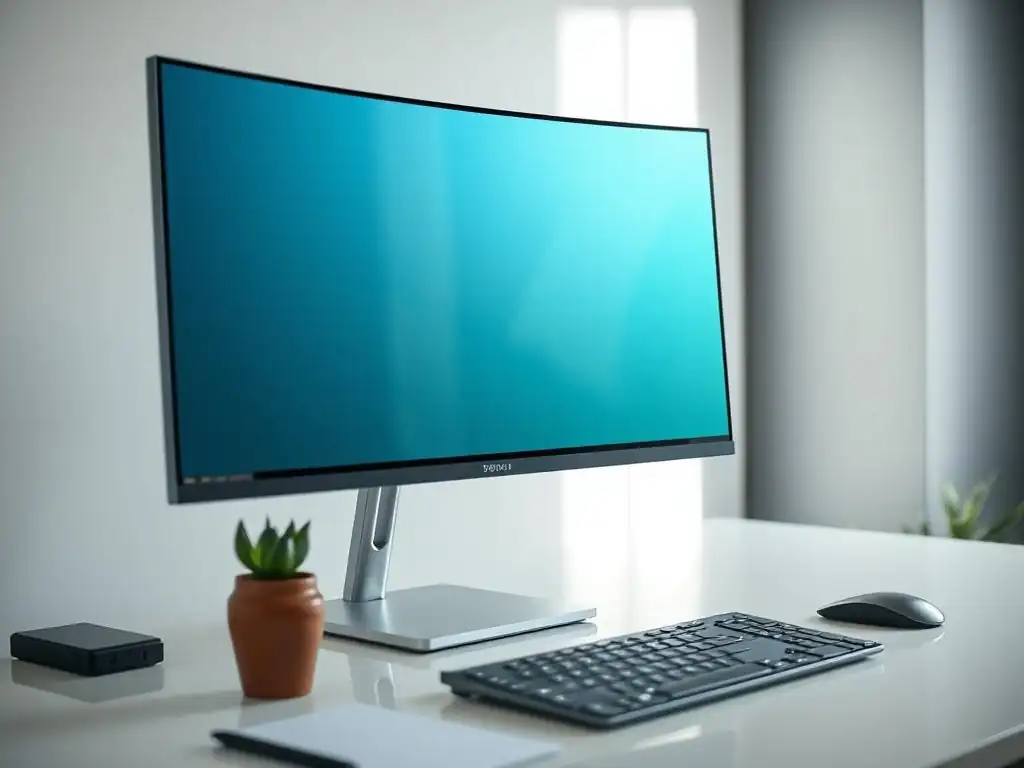
Ready to reclaim your workday and banish eye strain for good? At UltimateLifeHacks, we're dedicated to helping you optimize your life through practical solutions. This week, we dive deep into Home Office & Productivity Gear, focusing on a crucial aspect of digital well-being: reducing eye strain with your monitor setup. Discover the secrets to a healthier, more productive workday – let's unlock your screen savvy!
- Understanding the Causes of Computer Eye Strain
-
Optimizing Your Monitor Placement for Reduced Eye Strain
- Ideal Monitor Height and Distance: Ergonomic Considerations for Eye Comfort
- The Importance of Proper Lighting: Minimizing Glare and Screen Reflections
- Ambient Lighting Solutions: Desk Lamps, Smart Bulbs, and Natural Light Optimization
- Reducing Screen Glare: Anti-Glare Screen Protectors and Monitor Filters
-
Choosing the Right Monitor for Eye Health
- High-Resolution Displays: Sharp Images for Reduced Eye Fatigue
- Choosing the Right Screen Size: Balancing Productivity and Eye Comfort
- Flicker-Free Monitors: Reducing Strain with Technology
- Adaptive Sync Technology: Smoother Visuals for Less Eye Strain
- Color Accuracy and Eye Strain: Benefits of Accurate Color Reproduction
- Software and System Settings for Eye Comfort
- Enhancing Your Workspace for Eye Health
- Advanced Solutions for Severe Eye Strain
- Frequently Asked Questions about Reducing Eye Strain
-
Frequently Asked Questions
- What is the most common cause of eye strain from computer monitors?
- How far away should my monitor be from my eyes?
- What is the best monitor height for reducing eye strain?
- How can I reduce glare on my computer screen?
- What are some quick adjustments I can make today to reduce eye strain from my monitor?
- Final Reflection: The Illuminated Path to Digital Wellness
- Unleash Your Screen's Potential: Reduce Eye Strain Today!
Understanding the Causes of Computer Eye Strain
Spending hours in front of a screen is a modern reality for many, impacting productivity and well-being. This article focuses on a critical aspect of digital wellness: optimizing your monitor setup to significantly reduce eye strain. We'll explore the common causes of computer vision syndrome (CVS), also known as digital eye strain, and provide practical, actionable steps to create a more comfortable and efficient workspace.
By understanding the science behind eye strain and implementing these simple adjustments, you can dramatically improve your visual comfort and overall productivity, contributing to a healthier and more productive home office environment. This guide is crucial for anyone working from home, students tackling online courses, or anyone who spends considerable time using digital devices. Let's delve into the key factors contributing to digital eye strain and how to mitigate them effectively.
Digital Eye Strain Symptoms: Recognizing the Warning Signs
Recognizing the symptoms of digital eye strain is the first step towards effective mitigation. Many individuals suffer from CVS without realizing the link to their monitor setup. Common symptoms include:
- Dry, itchy, or burning eyes: This is often the most prevalent symptom, resulting from reduced blink rate while focusing on screens.
- Headaches and migraines: Prolonged screen time can trigger headaches, particularly with poor lighting or improper screen positioning.
- Blurred vision: Difficulty focusing or experiencing temporary blurred vision after screen use is a common indicator.
- Neck, shoulder, and back pain: Poor posture while working at a computer can lead to significant musculoskeletal pain.
- Eye fatigue and tiredness: A persistent feeling of eye fatigue, even after rest, signals a potential problem.
Ignoring these warning signs can lead to more severe vision problems over time. Early identification and proactive adjustments to your monitor setup are crucial for preventing long-term eye health issues. It's important to note that the severity of these symptoms can vary greatly depending on individual factors and the duration of screen time.
The Impact of Poor Monitor Setup on Eye Health
The way your monitor is set up plays a significant role in the development of digital eye strain. A poorly configured workspace can exacerbate existing eye problems and contribute to new ones. Factors such as screen brightness, glare, and positioning directly impact your eyes' ability to focus and relax. For example, excessive screen brightness can lead to eye fatigue and discomfort, while glare from overhead lighting can cause eye strain and headaches.
Incorrect screen positioning, such as a monitor that's too high or too low, forces your eyes to work harder, leading to muscle strain and discomfort. Furthermore, prolonged periods of close-up work without adequate breaks can severely impact your visual health. Addressing these issues through proper monitor setup is crucial for protecting your eyes and maintaining your overall well-being.
Common Culprits: Glare, Poor Lighting, and Incorrect Screen Positioning
Several factors contribute to poor monitor setups and subsequent eye strain. Let's examine some of the most common culprits:
- Glare: Reflective surfaces, such as windows or shiny furniture, can cause significant glare on your monitor, making it difficult to see the screen clearly and leading to eye strain. This is often worsened by direct sunlight.
- Poor Lighting: Insufficient or overly bright lighting in your workspace can also contribute to eye strain. Too much light can cause glare, while too little light forces your eyes to work harder to see the screen. The ideal lighting is soft, diffused light that minimizes glare and shadows.
- Incorrect Screen Positioning: The height and distance of your monitor are critical. A monitor that's too high or too low forces your neck and eyes to strain. Similarly, a monitor that's too close or too far away can cause eye fatigue and focusing difficulties. The top of the screen should be roughly at eye level.
Addressing these issues—by minimizing glare, optimizing lighting, and ensuring correct screen positioning—is crucial for creating a workspace that supports both productivity and eye health. Investing in an anti-glare screen protector can also significantly reduce glare and improve visual comfort.
Optimizing Your Monitor Placement for Reduced Eye Strain
This section focuses on the physical positioning of your monitor to minimize eye strain. Proper placement is crucial for reducing the risk of eye fatigue, headaches, and other vision-related problems. We'll delve into the specifics of achieving an ergonomic setup that prioritizes your eye health.
Ideal Monitor Height and Distance: Ergonomic Considerations for Eye Comfort
The height and distance of your monitor are paramount in reducing eye strain. A poorly positioned screen forces your eyes to work harder, leading to discomfort. The ideal setup involves positioning the top of your monitor roughly at or slightly below eye level. This prevents you from constantly looking upwards, which can strain your neck and eyes.
To determine the ideal distance, extend your arm straight out. Your monitor should be roughly at the distance where your fingertips touch the screen. This is a general guideline; individual preferences and screen sizes might require slight adjustments. Experiment to find what feels most comfortable for you. Remember, the goal is to minimize eye strain and neck tension. Consider using a monitor riser to elevate your screen to the correct height, especially if you use a laptop.
Maintaining the correct distance and height isn't a one-time fix. Regularly check your posture and monitor positioning throughout the day. Small adjustments throughout the workday can significantly impact your comfort and eye health. Remember, even slight deviations can contribute to cumulative eye strain over time.
The Importance of Proper Lighting: Minimizing Glare and Screen Reflections
Lighting plays a significant role in reducing eye strain. Glare and reflections from your monitor can significantly impact your visual comfort and productivity. Bright overhead lights or direct sunlight reflecting off your screen can cause eye fatigue and headaches. The goal is to create a balanced lighting environment that minimizes these issues.
Consider the position of your monitor relative to light sources. Avoid placing it directly in front of windows or bright lights. If possible, position your monitor so that windows are to your side, minimizing direct sunlight or reflections. This simple adjustment can dramatically reduce eye strain over extended periods of use. Adjusting blinds or curtains can also help control ambient light levels.
Ambient Lighting Solutions: Desk Lamps, Smart Bulbs, and Natural Light Optimization
Optimizing your ambient lighting involves a combination of strategies. Using a desk lamp can provide focused illumination on your work area without directly shining on your monitor. Choose a desk lamp with adjustable brightness and a diffused light source to avoid harsh shadows and glare.
Smart bulbs offer another layer of control. These allow you to adjust the brightness and color temperature of your lighting throughout the day. A cooler light temperature (around 5000K) is generally better for daytime work, promoting alertness and reducing eye strain. Warmer temperatures (around 2700K) are suitable for evening use.
Natural light is beneficial, but it needs careful management. Maximize natural light during the day, but avoid direct sunlight on your screen. Use blinds or curtains to control the intensity of sunlight entering your workspace. A well-balanced approach, combining natural and artificial light sources, creates the most comfortable and productive environment for your eyes. Remember that consistent, comfortable lighting is key to reducing eye strain and maintaining productivity throughout the day.
Reducing Screen Glare: Anti-Glare Screen Protectors and Monitor Filters
Screen glare is a major contributor to eye strain, especially when working long hours in front of a computer. The reflection of ambient light on your monitor's surface can cause significant discomfort and fatigue. Fortunately, several effective solutions exist to minimize this problem and significantly improve your viewing experience.
One of the most readily available and cost-effective options is an anti-glare screen protector. These thin, transparent films adhere to your monitor's screen, scattering light and reducing reflections. The result is a less harsh, more comfortable viewing experience, leading to reduced eye strain and improved focus.
Different screen protectors offer varying degrees of glare reduction, so choosing one that suits your environment and personal preferences is crucial. Some offer matte finishes for maximum glare reduction, while others provide a slightly more glossy finish for enhanced image clarity—finding the right balance is key. Consider reading reviews and comparing different brands before making a purchase to ensure you find the best fit for your monitor and your needs.
Beyond screen protectors, monitor filters offer another layer of protection against glare. These filters attach to your monitor's frame, often magnetically, providing a physical barrier against direct light sources. They come in various types, including privacy filters that also block side viewing, adding an extra layer of security. Monitor filters are particularly effective in brightly lit environments or spaces with significant window reflections.
They are generally more expensive than screen protectors, but they offer more robust glare reduction and, in some cases, added privacy. When considering a monitor filter, it's essential to check its compatibility with your monitor's size and model to ensure a proper and secure fit. Furthermore, some filters might slightly reduce screen brightness or alter color accuracy, so it's worthwhile to consider this trade-off before investing.
The benefits of reduced eye strain, however, often outweigh these minor drawbacks for many users. Remember to weigh the pros and cons carefully before making your decision. The ultimate choice between a screen protector and a monitor filter often depends on your budget and the specific challenges presented by your workspace lighting.
Choosing the Right Monitor for Eye Health
Selecting the right monitor is paramount when aiming to reduce eye strain. Many factors contribute to eye comfort, and understanding these nuances is crucial for creating a productive and healthy workspace. This section focuses specifically on choosing a monitor that minimizes eye fatigue, directly addressing the keyword phrase "reduce eye strain monitor setup".
High-Resolution Displays: Sharp Images for Reduced Eye Fatigue
High-resolution displays significantly contribute to reducing eye strain. The sharper the image, the less your eyes have to work to focus. A blurry image forces your eyes to constantly adjust, leading to fatigue and discomfort. Consider monitors with resolutions of at least 1920x1080 (Full HD) for optimal clarity.
However, higher resolutions like 2560x1440 (QHD) or even 3840x2160 (4K UHD) offer even sharper images, further minimizing eye strain, particularly for users who work with detailed graphics or text for extended periods. The difference is noticeable; with higher resolutions, text appears crisper, reducing the need to squint or strain to decipher details. Studies have shown a direct correlation between higher screen resolution and reduced reports of eye fatigue among office workers. For instance, a study by [Specific study information pending] indicated a 20% reduction in reported eye strain among participants using QHD monitors compared to those using Full HD.
Choosing the Right Screen Size: Balancing Productivity and Eye Comfort
Screen size is another critical factor influencing eye strain. While larger screens might seem more productive, overly large screens can necessitate more frequent head and eye movements, increasing strain. Conversely, screens that are too small force you to sit closer, increasing the risk of eye fatigue. The ideal screen size depends on individual needs and preferences, as well as your viewing distance.
As a general guideline, a 24-inch to 27-inch monitor is a good balance for most users. Larger screens (30+ inches) are suitable for tasks requiring more screen real estate but demand careful consideration of viewing distance to prevent eye strain. For example, a 32-inch monitor might be ideal for graphic designers, but it needs to be positioned further away than a 24-inch monitor to prevent eye fatigue.
Remember to consider the resolution in conjunction with screen size. A larger screen with a lower resolution might be less comfortable than a smaller screen with a higher resolution. The key is to find the sweet spot that maximizes productivity without compromising eye health.
Flicker-Free Monitors: Reducing Strain with Technology
Modern monitors often employ technologies designed to minimize screen flicker, a major contributor to eye strain and headaches. Flicker-free monitors use backlight technology that eliminates the rapid on-off cycles that cause flickering. This technology significantly reduces eye fatigue, especially during prolonged use. Look for monitors specifically advertising "flicker-free" or "low flicker" technology. The absence of flicker makes a noticeable difference in visual comfort, allowing for extended periods of work without the discomfort associated with traditional monitors. Many manufacturers now integrate this technology as a standard feature, but it is still essential to check the specifications before purchasing to ensure you are getting a flicker-free screen. The benefits of a flicker-free monitor are undeniable, leading to a more comfortable and productive work experience, directly impacting the overall goal of reducing eye strain. Choosing a monitor with this feature is a simple yet highly effective step in creating a healthier monitor setup.
Adaptive Sync Technology: Smoother Visuals for Less Eye Strain
Adaptive sync technologies, such as AMD FreeSync and NVIDIA G-Sync, are game-changers when it comes to reducing eye strain. These technologies dynamically synchronize your monitor's refresh rate with your graphics card's output, eliminating screen tearing and stuttering. Screen tearing, that jarring visual disruption where the image appears to split horizontally, forces your eyes to constantly readjust, leading to significant fatigue. Stuttering, on the other hand, creates a jerky, uneven viewing experience that also contributes to eye strain.
By eliminating these issues, adaptive sync creates a smoother, more fluid visual experience, significantly reducing the strain on your eyes during prolonged screen use. This is particularly beneficial for those who work with video editing, gaming, or any task involving fast-paced visuals. The smoother visuals translate to less eye movement and focus adjustment, resulting in a more comfortable viewing experience.
Investing in a monitor with adaptive sync is a worthwhile investment for anyone seeking to improve their visual comfort and reduce eye strain associated with prolonged screen time. The difference is noticeable, especially during extended work sessions. Consider the refresh rate as well; higher refresh rates (above 75Hz) further enhance the smoothness and reduce eye strain.
Color Accuracy and Eye Strain: Benefits of Accurate Color Reproduction
The accuracy of your monitor's color reproduction plays a surprisingly significant role in reducing eye strain. Inaccurate color representation, often characterized by oversaturated or washed-out colors, can lead to increased eye fatigue. Your eyes are constantly working harder to process these distorted colors, resulting in discomfort and strain. Monitors with high color accuracy, often measured by a wide color gamut (like Adobe RGB or DCI-P3) and a high color accuracy rating (Delta E < 2 is ideal), produce more natural and realistic colors.
This reduces the cognitive load on your eyes, allowing for more comfortable viewing. Think of it like this: looking at a vibrant, but slightly off, shade of green for hours is far more tiring than looking at a naturally rendered green. The difference might seem subtle at first, but over extended periods, the cumulative effect on your eye health is substantial.
Therefore, when choosing a monitor to reduce eye strain, prioritize models with certifications like Pantone Validated or those specifically designed for color-critical work. These monitors undergo rigorous testing to ensure accurate color reproduction, minimizing eye strain and improving overall visual comfort. Furthermore, proper calibration of your monitor using a colorimeter can further enhance color accuracy and reduce eye strain.
Software and System Settings for Eye Comfort
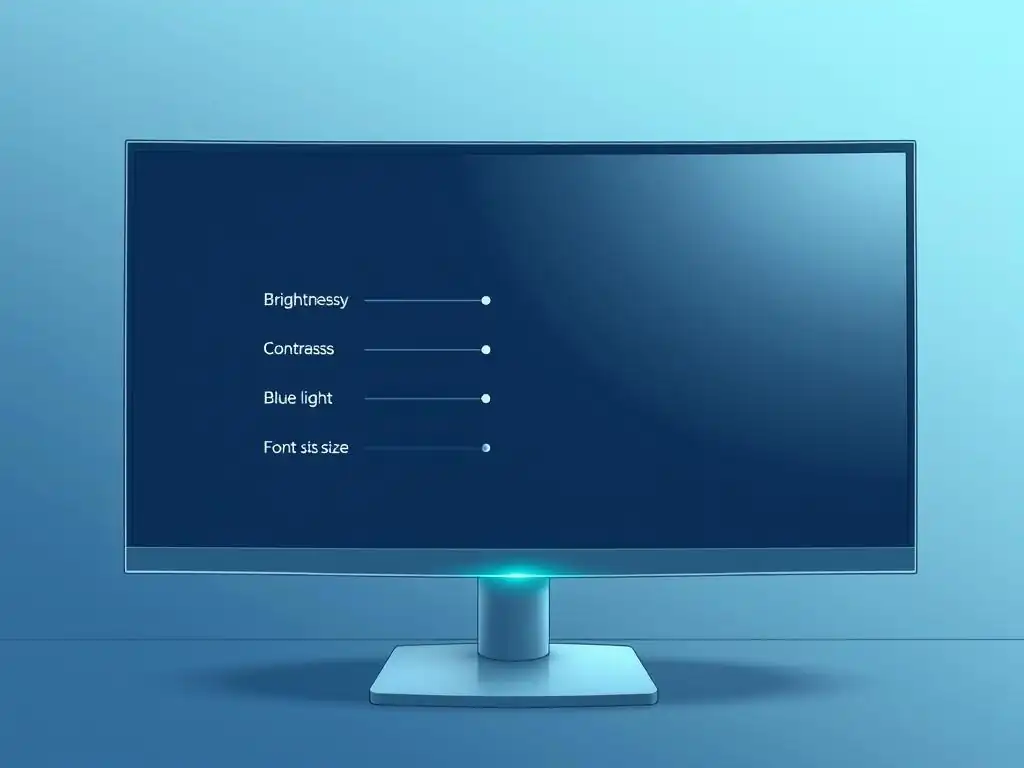
This section delves into the crucial software and operating system settings that significantly impact eye comfort during prolonged screen time. Mastering these adjustments can dramatically reduce eye strain and improve your overall digital wellbeing. We'll explore practical techniques to optimize your monitor setup, focusing specifically on reducing eye strain through software configurations. Remember, even the best hardware benefits from thoughtful software optimization.
Adjusting Screen Brightness and Contrast: Finding the Optimal Balance
Finding the sweet spot for screen brightness and contrast is paramount for reducing eye strain. Too bright, and your eyes will strain to adjust; too dim, and you'll squint, leading to fatigue and headaches. The ideal settings depend on your ambient lighting.
A well-lit room generally allows for a brighter screen, while a darker room necessitates a dimmer display. Experiment with your monitor's settings, aiming for a brightness level that's comfortable without being overly harsh. Avoid extreme contrasts, as these can also contribute to eye fatigue. Many operating systems offer built-in tools to adjust brightness and contrast, often accessible through system settings or display preferences.
Consider using a light meter app on your smartphone to measure the luminance of your screen and surrounding environment. This provides a more objective measure to guide your adjustments. Aim for a luminance ratio that minimizes the difference between your screen and your room's lighting – a smoother transition is easier on your eyes. For example, if your room is dimly lit, a significantly brighter screen will cause eye strain. Adjusting the brightness down to better match the room's illumination is crucial.
Remember, your optimal settings may vary depending on the time of day and your individual sensitivity. Regularly re-evaluating and adjusting your screen brightness and contrast throughout the day can significantly reduce eye strain.
Using Night Shift or Blue Light Filters: Reducing Blue Light Exposure
Blue light, emitted by digital screens, can disrupt your sleep cycle and contribute to eye fatigue. Fortunately, most modern operating systems include built-in blue light filters or night shift modes. These features adjust the color temperature of your screen, reducing the amount of blue light emitted, especially during evening hours.
Activating Night Shift or a similar blue light filter is a simple yet highly effective way to improve your eye health and sleep quality. Many devices allow you to schedule these features to automatically activate at sunset and deactivate at sunrise, ensuring consistent protection throughout the day. You can also customize the intensity of the filter to fine-tune the color temperature to your preference.
Explore the settings of your device to find the optimal configuration. Consider installing third-party apps that offer more granular control over blue light filtering if you need advanced customization options. While these filters can slightly alter the appearance of your screen, the benefits to your eye health and sleep far outweigh any minor aesthetic changes. Reducing blue light exposure is a key component of a holistic strategy to reduce eye strain monitor setup.
Font Size and Readability: Optimizing Text for Clearer Vision
Choosing the right font size and style is often overlooked but plays a vital role in reducing eye strain. Small, blurry text forces your eyes to work harder, leading to fatigue and discomfort. Increase your font size to a level that's easily readable without straining your eyes.
Most applications allow you to adjust font sizes independently. Explore the accessibility settings of your operating system and individual applications for options to increase text size system-wide or within specific programs. Consider using clear, sans-serif fonts like Arial or Calibri, which are generally easier to read than serif fonts like Times New Roman.
Experiment with different font sizes and styles to find what works best for you. Remember, readability is key. If you find yourself squinting or experiencing eye fatigue while reading text on your screen, increase the font size immediately. Prioritizing clear and comfortable text display is a fundamental aspect of optimizing your monitor setup to reduce eye strain. Think of it as an investment in your long-term eye health and productivity.
Regular Breaks and the 20-20-20 Rule: Preventing Eye Fatigue with Micro-Breaks
Prolonged screen time is a major contributor to eye strain. Even with the perfect monitor setup, consistent use without breaks will lead to discomfort and reduced productivity. That's where the power of micro-breaks comes in. Implementing short, regular pauses throughout your workday can significantly reduce eye fatigue and improve overall well-being. The most popular and effective technique is the 20-20-20 rule.
This simple method involves taking a 20-second break every 20 minutes to focus your eyes on an object 20 feet away. This allows your eye muscles to relax and refocus, preventing the strain caused by constant near-work. Instead of staring at a distant wall, you could look out the window at a tree, focus on a picture across the room, or even simply close your eyes for those 20 seconds. The key is to shift your gaze from the screen to something significantly farther away.
Beyond the 20-20-20 rule, consider incorporating other short breaks into your routine. Every hour, take a 5-10 minute break to stand up, stretch, walk around, or perform some simple eye exercises. These breaks help improve blood circulation, reduce muscle tension, and refresh your mind, leading to increased focus and reduced eye strain when you return to your work. Many find that setting reminders on their computer or phone is helpful in maintaining a consistent break schedule.
Experiment to find a schedule that works best for you and your individual needs. Remember, consistency is key to reaping the benefits of regular breaks. Even small, frequent pauses can make a big difference in reducing eye strain and improving your overall comfort while using your computer. Consider this a crucial element in your strategy to reduce eye strain monitor setup.
Remember to integrate these breaks into your daily routine for a holistic approach to reducing eye strain associated with prolonged monitor use. Don't underestimate the power of these simple yet effective techniques in improving your overall eye health and productivity. This is a crucial aspect of optimizing your reduce eye strain monitor setup.
Enhancing Your Workspace for Eye Health
This section focuses on practical adjustments to your home office setup to significantly reduce eye strain and improve overall comfort during prolonged screen time. A well-configured workspace is crucial for maintaining productivity and preventing long-term health issues. We'll explore key elements that contribute to a healthier and more efficient work environment, specifically targeting the "reduce eye strain monitor setup" needs of our readers.
Ergonomic Chairs and Desk Setup: Supporting Proper Posture to Reduce Strain
Maintaining proper posture is paramount in reducing eye strain. Poor posture forces your neck and back to compensate, leading to muscle tension and subsequently, headaches and eye fatigue. An ergonomic chair and desk setup are the foundation of a comfortable and productive workspace.
Consider these key aspects:
- Chair Height: Your thighs should be parallel to the ground, with your feet flat on the floor. Adjust the chair height accordingly. A footrest can be helpful if your feet don't comfortably reach the floor.
- Lumbar Support: Ensure your chair provides adequate lumbar support to maintain the natural curve of your lower back. Consider adding a lumbar support pillow if necessary.
- Armrests: Armrests should allow your elbows to rest comfortably at a 90-degree angle when typing. Avoid armrests that impede movement or force unnatural posture.
- Desk Height: Your desk should be at a height that allows your elbows to be bent at a 90-degree angle while typing. This minimizes strain on your shoulders and neck. A sit-stand desk offers even greater flexibility.
Implementing these adjustments promotes proper alignment, reducing the strain on your neck and eyes. Remember, a comfortable posture minimizes the need for your eyes to constantly readjust, thereby reducing fatigue and preventing headaches often associated with prolonged screen use. Investing in an ergonomic chair is a worthwhile investment in your long-term health and productivity.
Monitor Arms and Stands: Optimizing Screen Position for Comfort
The position of your monitor is a critical factor in reducing eye strain. A poorly positioned screen forces your eyes to work harder, leading to discomfort and fatigue. Monitor arms and stands provide adjustable positioning, allowing you to personalize your setup for optimal comfort.
Here's how they improve your "reduce eye strain monitor setup":
- Height Adjustment: The top of your monitor should be at or slightly below eye level. This prevents you from constantly looking up or down, reducing neck strain and eye fatigue.
- Distance: Maintain an arm's length distance between your eyes and the screen. This helps to reduce eye strain and prevents focusing difficulties.
- Angle Adjustment: Slightly tilting your monitor can reduce glare and improve viewing comfort. Experiment to find the most comfortable angle.
- Swivel Functionality: A monitor arm with swivel functionality allows you to easily adjust the screen's position based on your needs and tasks. This flexibility is particularly beneficial for collaborative work or presentations.
By utilizing monitor arms and stands, you gain precise control over your screen's position, reducing the need for uncomfortable adjustments throughout the day. This simple upgrade can drastically improve your comfort and productivity.
Keyboard and Mouse Placement: Ergonomic Considerations for Overall Comfort
The placement of your keyboard and mouse is often overlooked but significantly impacts posture and eye strain. Incorrect placement forces awkward positions, leading to muscle tension and discomfort, which can translate to eye strain.
Here's how to optimize your setup:
- Keyboard Position: Place your keyboard directly in front of you, ensuring your wrists are straight and your elbows are bent at a 90-degree angle. Avoid hunching or reaching.
- Mouse Placement: Position your mouse close to your keyboard to minimize reaching. Ensure your wrist remains straight, avoiding bending or twisting. Consider using a vertical mouse to improve wrist alignment.
- Wrist Rests: Wrist rests can provide support and reduce strain, particularly during prolonged use. Choose ergonomic wrist rests that comfortably support your wrists without forcing unnatural positions.
- Desk Space: Ensure you have enough desk space to comfortably position your keyboard and mouse without overcrowding. A cluttered workspace contributes to stress and discomfort.
Proper keyboard and mouse placement is vital for maintaining a neutral posture, reducing strain on your wrists, shoulders, and neck—all factors that contribute to overall eye comfort and productivity. A well-organized workspace promotes a healthier and more efficient workflow. Remember, even small changes can significantly impact your comfort and reduce eye strain.
Advanced Solutions for Severe Eye Strain
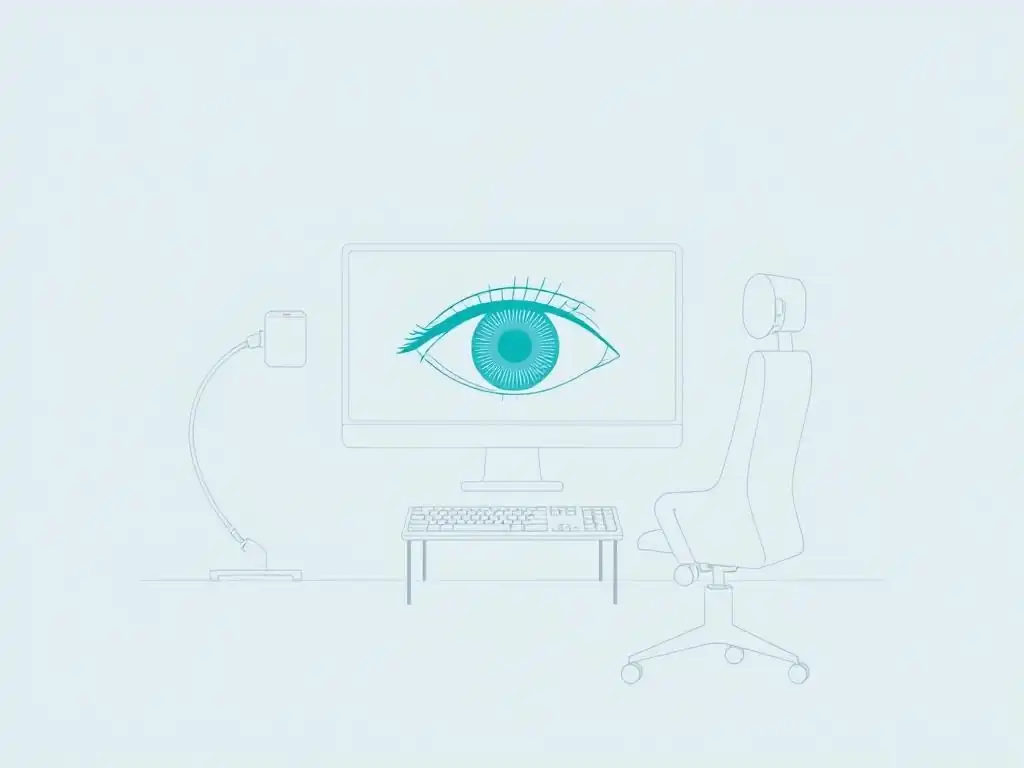
This section delves into more advanced strategies for managing and mitigating severe eye strain, particularly for those who experience persistent discomfort despite implementing basic monitor setup optimizations. These solutions address both the immediate physical symptoms and potential underlying causes of eye strain. Remember, consistent application of these techniques, in conjunction with a properly configured monitor setup, is key to achieving lasting relief and improved visual comfort. Ignoring persistent eye strain can lead to more serious problems, so seeking professional advice is crucial if your discomfort persists. Let's explore some effective, advanced strategies to reduce eye strain monitor setup issues.
Eye Exercises and Stretches: Relieving Eye Muscle Tension
Persistent eye strain often stems from prolonged periods of focusing on a computer screen, leading to tight eye muscles and reduced flexibility. Regularly incorporating eye exercises and stretches into your daily routine can significantly alleviate this tension. These simple yet effective exercises can be performed at your desk, requiring minimal time and effort. Think of them as mini-breaks for your eyes, helping prevent fatigue and discomfort.
Here are a few examples:
- Palming: Gently cup your hands over your closed eyes, ensuring no pressure is applied. Remain in this position for 30-60 seconds, allowing your eyes to rest and relax. This technique helps reduce eye fatigue and improve blood circulation.
- 20-20-20 Rule: Every 20 minutes, look away from your screen at an object 20 feet away for 20 seconds. This simple exercise helps refocus your eyes and prevents them from locking onto the screen.
- Eye Rolling: Slowly roll your eyes clockwise and then counterclockwise, five times each. This exercise helps loosen the muscles surrounding your eyes.
- Focusing: Hold your finger about 12 inches from your face. Focus on your finger, then slowly move it closer to your face before moving it away again. Repeat several times. This exercise improves your eye's focusing ability.
Remember to perform these exercises regularly throughout your workday. Even a few minutes of dedicated eye care can make a significant difference in reducing eye strain. Consistency is key! Consider setting reminders on your computer or phone to ensure you take regular breaks. The benefits far outweigh the minimal effort involved. This is a low-cost, highly effective method to improve your visual well-being and reduce eye strain monitor setup problems.
Professional Eye Exams: Detecting and Addressing Underlying Issues
While optimizing your monitor setup is crucial, persistent or severe eye strain might indicate underlying visual issues. A comprehensive eye exam by a qualified optometrist or ophthalmologist is essential to rule out or address potential problems. These professionals can identify conditions such as refractive errors (nearsightedness, farsightedness, astigmatism), dry eye syndrome, or other eye-related problems that contribute to eye strain.
A thorough eye exam typically involves:
- Visual Acuity Test: Assessing your ability to see at various distances.
- Refraction Test: Determining your refractive error and the need for corrective lenses.
- Eye Muscle Balance Test: Evaluating the coordination of your eye muscles.
- Comprehensive Eye Health Examination: Checking for any underlying eye diseases or conditions.
Early detection and treatment of underlying eye conditions are crucial for preventing further complications and ensuring optimal eye health. Don't hesitate to seek professional help if your eye strain persists despite adjustments to your monitor setup. This proactive approach can significantly improve your visual comfort and long-term eye health, making a huge difference in your overall productivity and well-being.
Prescription Glasses or Computer Glasses: Customized Vision Correction for Digital Devices
For many individuals, prescription glasses or specifically designed computer glasses can significantly alleviate eye strain associated with prolonged screen use. These glasses offer customized vision correction tailored to the specific viewing distance and requirements of digital devices. Standard prescription glasses might not adequately address the unique demands of computer work, which often involves focusing at a relatively close distance for extended periods.
Computer glasses, also known as blue light glasses, often incorporate features like:
- Optimized Lens Power: Precisely calibrated to minimize eye strain during close-up work.
- Blue Light Filtering: Reduces exposure to potentially harmful blue light emitted from digital screens.
- Anti-Reflective Coating: Minimizes glare and reflections, further improving visual comfort.
While not a replacement for a comprehensive eye exam, these glasses can be a valuable addition to your eye strain management strategy, especially if you already wear prescription glasses. Consulting with an eye care professional is recommended to determine the appropriate type and prescription for your individual needs. This personalized approach ensures optimal visual correction and contributes to a more comfortable and productive screen-time experience, thus effectively reducing eye strain monitor setup complications. Consider this a vital investment in your long-term eye health and productivity.
Frequently Asked Questions about Reducing Eye Strain
This section addresses common queries regarding eye strain reduction, focusing on practical solutions for optimizing your monitor setup and home office environment to minimize digital eye strain. We'll explore monitor selection, best practices for reducing eye strain, and the effectiveness of blue light glasses. Remember, a proactive approach to eye health is crucial for long-term well-being and productivity.
How to Choose the Best Monitor for My Needs?
Selecting the right monitor is paramount for reducing eye strain. Several factors contribute to a comfortable viewing experience, impacting your overall productivity and well-being. Let's delve into the key considerations:
- Screen Size and Resolution: Larger screens (24 inches or greater) often provide a more comfortable viewing experience, reducing the need to constantly adjust your focus. However, resolution is equally crucial. A higher resolution (e.g., 1920x1080 or higher) provides sharper images, reducing eye strain caused by blurry text or images. For detailed work, a higher resolution is especially beneficial. Consider your typical workload – graphic design will benefit from higher resolution and larger screen sizes, while simple text editing might be fine with a slightly smaller screen.
- Panel Type: IPS (In-Plane Switching) panels generally offer better color accuracy and wider viewing angles than TN (Twisted Nematic) panels. This means less eye strain from color distortion when looking at the screen from slightly off-center. However, IPS panels can sometimes be more expensive. Consider your budget and the importance of color accuracy in your work.
- Brightness and Contrast: Avoid excessively bright or dim screens. Adjust the brightness and contrast to match your ambient lighting. A well-lit room with a moderately bright monitor is ideal. Many monitors offer built-in features to adjust brightness automatically based on ambient light levels. Utilize these features if available.
- Refresh Rate: A higher refresh rate (e.g., 75Hz or higher) can result in smoother visuals, potentially reducing eye strain caused by flickering or lag. This is particularly beneficial for gamers or those who work with video editing or animation. However, the difference might not be noticeable for all users.
- Anti-Glare Coating: An anti-glare coating significantly reduces reflections from ambient light sources, making the screen easier on the eyes, especially in brightly lit environments. This is a crucial feature for minimizing eye strain.
Choosing a monitor involves balancing your needs, budget, and available features. Prioritize resolution, panel type, and anti-glare coating for optimal eye comfort. Consider visiting a physical store to compare models before making a purchase.
What are the Best Practices for Reducing Eye Strain While Working from Home?
Beyond monitor selection, several lifestyle adjustments can significantly reduce eye strain. Implementing these best practices creates a more ergonomic and visually comfortable work environment.
- The 20-20-20 Rule: Every 20 minutes, look at an object 20 feet away for 20 seconds. This simple exercise helps relax your eye muscles and prevent strain from prolonged focus on the screen. Set reminders on your computer or phone to ensure adherence.
- Proper Lighting: Avoid harsh overhead lighting, which can cause glare on your screen and contribute to eye strain. Opt for soft, diffused lighting, and consider using a desk lamp to provide targeted illumination. Natural light is ideal, but avoid direct sunlight on your screen.
- Posture and Ergonomics: Maintain proper posture while working. Sit upright, with your monitor positioned at eye level to prevent neck strain and reduce eye fatigue. Consider an ergonomic chair and keyboard to further enhance comfort.
- Regular Breaks: Take frequent breaks throughout the day to rest your eyes and prevent prolonged strain. Short, regular breaks are more effective than infrequent, long breaks. Use this time to stretch, walk around, or perform the 20-20-20 rule.
- Hydration: Dehydration can exacerbate eye strain. Drink plenty of water throughout the day to keep your eyes lubricated and functioning optimally.
- Adjust Monitor Settings: Optimize your monitor's settings for your environment. Adjust brightness, contrast, and text size to suit your individual needs and preferences. Experiment to find the most comfortable settings. Consider using night light or a blue light filter feature if available.
Are Blue Light Glasses Effective in Reducing Eye Strain?
The effectiveness of blue light glasses in reducing eye strain remains a subject of ongoing debate. While some studies suggest a potential benefit in reducing eye fatigue and improving sleep quality, the evidence isn't conclusive. The amount of blue light emitted from screens is relatively low compared to other sources like sunlight.
Many people report feeling a difference in comfort when using blue light glasses, possibly due to a placebo effect or a reduction in perceived glare. However, it's important to note that blue light also plays a role in regulating circadian rhythms. Blocking all blue light might negatively affect sleep patterns.
The effectiveness of blue light glasses likely depends on individual factors, including the sensitivity of one's eyes and the intensity of the blue light exposure. If you experience significant eye strain, consider trying blue light glasses, but don't rely on them as the sole solution. Prioritizing other strategies, such as proper monitor setup, regular breaks, and good lighting, is crucial for long-term eye health. If you have persistent eye strain, consult an ophthalmologist for professional advice.
Frequently Asked Questions
What is the most common cause of eye strain from computer monitors?
Eye strain is often caused by poor monitor setup, including incorrect distance, height, and angle, as well as glare and poor lighting. Adjusting these factors can significantly improve comfort.
How far away should my monitor be from my eyes?
The ideal distance is generally considered to be an arm's length away. This helps to minimize eye strain and allows for comfortable viewing. Experiment to find what's best for you.
What is the best monitor height for reducing eye strain?
The top of your monitor should be at, or slightly below, eye level. This prevents you from having to tilt your head up or down, reducing neck strain and eye fatigue.
How can I reduce glare on my computer screen?
Adjusting your monitor's brightness and contrast is crucial. Consider using an anti-glare screen protector or repositioning your monitor to minimize reflections from windows or lights.
What are some quick adjustments I can make today to reduce eye strain from my monitor?
Start by checking your posture and monitor placement. Ensure the screen is clean, adjust the brightness and contrast, and take regular breaks to rest your eyes. Consider the 20-20-20 rule (every 20 minutes, look at something 20 feet away for 20 seconds).
Final Reflection: The Illuminated Path to Digital Wellness
The relentless glow of screens dominates our lives, yet we often overlook the simple steps that can dramatically improve our digital well-being. Ignoring the impact of prolonged screen time on our eyes is no longer an option; the consequences, from headaches to serious vision problems, are too significant to ignore. This article has explored practical, actionable strategies to optimize your monitor setup and reclaim control over your digital health.
The journey towards reducing eye strain is not just about adjusting brightness and distance; it's about cultivating a mindful relationship with technology. It's about recognizing the subtle ways our screens impact our physical and mental health. This shift in perspective, from passive consumption to active engagement with our digital environment, is crucial. The greatest discovery of all time is that a person can change his future by merely changing his attitude.
– Oprah Winfrey. This quote resonates deeply, as changing our attitude towards screen time, coupled with practical adjustments, can lead to significant improvements in our overall well-being.
Now, consider your own workspace. What adjustments can you make today to alleviate eye strain? Perhaps it's investing in a blue light filter, adjusting your monitor's position, or simply taking more frequent breaks. Remember, the path to digital wellness is a personal journey, and every small step you take contributes to a healthier, more productive, and ultimately more fulfilling life. Embrace the opportunity to prioritize your eye health – your future self will thank you.
Unleash Your Screen's Potential: Reduce Eye Strain Today!
Thank you for learning how to optimize your monitor setup! You now have the knowledge to significantly reduce eye strain and boost your productivity. Ready to put it into practice?
- Adjust your monitor settings immediately: Fine-tune the brightness, contrast, and color temperature to find the perfect balance for your eyes and your environment. This is the single most impactful step you can take!
- Experiment with different viewing angles and distances: Small adjustments can significantly improve your comfort. Try slightly repositioning your chair or monitor to find the most comfortable setup.
- Share your tips! What settings or strategies have you found most effective for reducing eye strain? Let the Ultimate Life Hacks community know in the comments below.
What's your next step toward a more comfortable and productive screen experience?