
How to Diagnose and Fix the Root Cause of Your Computer's Slowdown

Tired of a sluggish computer dragging down your productivity? At UltimateLifeHacks, we're dedicated to helping you reclaim your time and efficiency. This website is your arsenal of practical tips and tricks for a smoother, more productive life. Discover the root cause of your computer's slowdown and learn how to conquer it – dive into our insightful article, "How to Diagnose and Fix the Root Cause of Your Computer's Slowdown," and unlock a world of effortless speed. Let's optimize your digital life, together.
- Identifying the Root Cause of Your Slow Computer: A Troubleshooting Guide
-
Effective Strategies to Speed Up Your Computer: Fix Slow Computer Root Cause
- Optimize Windows Settings for Enhanced Performance
- Uninstall Unnecessary Programs and Applications
- Manage Startup Programs for Faster Boot Times
- Defragment or Optimize Your Hard Drive for Improved Access Times
- Upgrade Your RAM for a Significant Performance Boost
- Consider an SSD Upgrade for Dramatic Speed Improvements
- Advanced Troubleshooting for Persistent Slowdowns: Fix Slow Computer Root Cause
- Preventing Future Slowdowns: Maintaining a Fast and Efficient Computer
-
Frequently Asked Questions
- What are the common root causes of a slow computer?
- How can I identify the specific root cause of my computer's slowness?
- Is it necessary to reinstall my operating system to fix a slow computer?
- How can I prevent my computer from slowing down in the future?
- What should I do if I've tried everything and my computer is still slow?
- Final Reflection: Unlocking the True Potential of Your Digital Life
- Unlock Your Computer's Full Potential!
Identifying the Root Cause of Your Slow Computer: A Troubleshooting Guide
A sluggish computer can significantly impact productivity and overall user experience. Instead of resorting to quick fixes that often mask the underlying problem, diagnosing and addressing the root cause of your computer's slowdown is crucial for long-term performance optimization. This comprehensive guide will walk you through a systematic approach to identifying and resolving the issues hindering your computer's speed, ultimately helping you reclaim your digital workflow.
We'll explore common software and hardware problems, as well as the impact of insufficient disk space, equipping you with the knowledge to effectively "fix slow computer root cause" issues. This guide focuses on practical solutions, providing actionable steps for both novice and experienced users. Let's dive in and get your computer running smoothly again!
Common Culprits Behind a Sluggish PC: Software Issues
Many performance issues stem from software problems rather than hardware failures. Identifying and addressing these software bottlenecks is often the first step towards a faster computer. Here are some of the most frequent offenders:
- Outdated Operating System: An outdated OS lacks the latest performance enhancements and security patches, leading to slower speeds and increased vulnerability. Regular updates are essential for optimal performance. Consider upgrading to the latest version if possible.
- Excessive Startup Programs: Numerous programs automatically launching at startup consume valuable system resources, slowing down the boot process and overall performance. Managing startup applications is a simple yet highly effective way to improve speed.
- Malware and Viruses: Malicious software secretly runs in the background, consuming resources and potentially damaging your system. Regularly scanning your computer with updated antivirus software is paramount.
- Bloated Software: Over time, applications accumulate temporary files and unnecessary data. Regularly uninstalling unused programs and cleaning up temporary files can significantly improve performance.
- Browser Extensions: While convenient, too many browser extensions can significantly slow down your browsing experience. Review your installed extensions and disable or uninstall any unnecessary ones.
The table below summarizes the impact of these software issues:
| Software Issue | Impact on Performance | Solution |
|---|---|---|
| Outdated Operating System | Slower speeds, security vulnerabilities | Update to the latest version |
| Excessive Startup Programs | Slow boot times, reduced system resources | Manage startup applications |
| Malware and Viruses | Significant slowdown, system instability, data loss | Run a full system scan with updated antivirus |
| Bloated Software | Reduced disk space, slower application loading | Uninstall unused programs, clean temporary files |
| Browser Extensions | Slow browsing, increased resource consumption | Disable or uninstall unnecessary extensions |
Hardware Bottlenecks: Identifying Performance Limitations
While software issues are common, hardware limitations can also significantly impact your computer's speed. Understanding potential bottlenecks is crucial for effective troubleshooting.
- Insufficient RAM: Random Access Memory (RAM) is essential for multitasking. If your computer has insufficient RAM, it will struggle to handle multiple applications simultaneously, resulting in noticeable slowdowns and freezes. Consider upgrading your RAM if it's below the recommended amount for your operating system and applications.
- Slow Hard Drive: Traditional hard disk drives (HDDs) are significantly slower than solid-state drives (SSDs). If your computer relies on a slow HDD, upgrading to an SSD can dramatically improve boot times, application loading speeds, and overall responsiveness.
- Overheating: Excessive heat can cause your computer components to throttle performance to prevent damage. Ensure adequate cooling by cleaning dust from vents and fans.
- Outdated CPU: The central processing unit (CPU) is the "brain" of your computer. An outdated CPU may struggle to keep up with modern applications and tasks. While upgrading the CPU might be more complex, consider it if other solutions are ineffective.
Addressing hardware limitations often requires upgrades, but the resulting performance boost can be substantial.
Disk Space Issues: Impact on System Speed and How to Resolve Them
Insufficient disk space is a surprisingly common cause of computer slowdowns. When your hard drive is nearly full, the system struggles to perform even basic operations efficiently.
- System Files and Temporary Files: Over time, your system accumulates numerous temporary files, log files, and other data that consume valuable disk space. Regularly cleaning up these files can free up significant space.
- Large Files and Unused Data: Identify and delete large files you no longer need. Consider external storage options for archiving less frequently used data.
- System Restore Points: While useful for recovery, numerous restore points can take up considerable disk space. Review and delete older restore points if necessary.
Maintaining sufficient free disk space is crucial for optimal computer performance. A general rule of thumb is to keep at least 15-20% of your hard drive free. Regularly monitoring and managing your disk space will significantly contribute to a faster and more responsive computer. Remember, optimizing your computer involves a holistic approach, addressing both software and hardware aspects. By systematically tackling these issues, you can significantly improve your computer's performance and boost your productivity. 🥂
Malware and Viruses: Stealthy Performance Drainers and Their Removal
Malware and viruses are notorious culprits behind sluggish computer performance. These malicious programs often operate in the background, consuming significant system resources without your knowledge. They can achieve this through various methods, including:
- Resource Hogging: Many viruses and malware actively consume CPU cycles, RAM, and hard drive space, leaving less available for your legitimate applications. This leads to noticeable slowdowns, especially during demanding tasks like video editing or gaming. You might observe your CPU usage constantly hovering near 100%, even when you're not running resource-intensive programs.
- Background Processes: Malware often installs itself as a persistent background process, running continuously even when seemingly inactive. This constant activity drains resources, impacting overall system responsiveness and boot times. You may find numerous unfamiliar processes running in your Task Manager, consuming large amounts of memory or CPU.
- Data Corruption: Some malware can corrupt system files, leading to instability and performance issues. This corruption can manifest as frequent crashes, application errors, or significantly slower loading times for programs and the operating system itself.
- Network Interference: Certain malware types can consume significant bandwidth, slowing down your internet connection and impacting the speed of online applications. This can make web browsing, streaming, and file downloads frustratingly slow.
Identifying and removing malware is crucial for restoring your computer's speed. A robust antivirus program is the first line of defense. Ensure yours is up-to-date and perform a full system scan. Consider using multiple reputable antivirus solutions for a more comprehensive scan, as different programs may detect different threats.
Remember to regularly update your antivirus software to ensure it has the latest virus definitions and can effectively combat emerging threats. If your antivirus software finds and quarantines malware, promptly remove the malicious files and consider running a second scan to ensure complete removal. In severe cases, a complete system reinstallation might be necessary to completely eradicate deeply embedded malware.
This is a more drastic measure but ensures a fresh start, free from hidden threats. Remember to back up your important data before performing a system reinstallation. Proactive measures, such as regularly updating your software and avoiding suspicious websites and downloads, can significantly reduce the risk of malware infection and keep your computer running smoothly.
Effective Strategies to Speed Up Your Computer: Fix Slow Computer Root Cause
This section dives deep into practical solutions to address the root cause of your computer's sluggish performance. We'll move beyond simple surface-level fixes and explore effective strategies to significantly boost your computer's speed and responsiveness. Remember, identifying the root cause is key to achieving lasting improvements, and not just temporary band-aids. This means we'll be tackling the underlying issues causing your "Fix slow computer root cause" search in the first place.
Optimize Windows Settings for Enhanced Performance
Windows, while powerful, can become resource-intensive if not properly configured. Many settings are enabled by default that consume significant processing power and memory, ultimately slowing down your system. Optimizing these settings can yield dramatic performance gains. Let's explore some key areas:
Several options exist within Windows to adjust performance based on your needs. For example, disabling visual effects can free up considerable processing power. You can access these settings by searching for "Adjust the appearance and performance of Windows" in the Start Menu. This will open a window where you can choose between "Adjust for best performance" and "Let Windows choose what's best for my computer". Choosing the former prioritizes speed over visual appeal.
Another crucial setting is the virtual memory, which uses your hard drive space as an extension of your RAM. If your RAM is low, Windows will heavily rely on the virtual memory, leading to significant slowdowns. You can adjust the size of the virtual memory (page file) in the System Properties window (accessible by searching "System Properties" in the Start Menu). Ensure you have enough physical RAM; adding more RAM is often the most effective upgrade for older computers. For optimal performance, aim for at least 8GB of RAM.
Finally, consider turning off automatic updates during peak usage times. While crucial for security, large updates can significantly impact performance. Schedule these updates for overnight or times when your computer is idle. This prevents interruptions and ensures smoother operation during work hours.
Uninstall Unnecessary Programs and Applications
Over time, you likely accumulate numerous programs and applications, many of which go unused. These programs, even when idle, consume disk space and system resources. Removing unnecessary software can significantly improve your computer's speed and efficiency. This is a crucial step in addressing the "Fix slow computer root cause" question.
Before uninstalling, create a restore point. This way, if you accidentally remove something crucial, you can easily revert your system to its previous state. You can create a restore point through the Control Panel's System and Security section.
To uninstall programs, navigate to the "Settings" app, then "Apps" and then "Apps & features". Here, you'll see a list of all installed applications. Review the list carefully, identifying programs you no longer use or need. Select the program and click "Uninstall." This will remove the application and its associated files from your system. Be cautious when uninstalling system components you don't fully understand.
Manage Startup Programs for Faster Boot Times
Many applications automatically launch when you start your computer. These startup programs, while convenient, can significantly prolong boot times and consume system resources from the moment you turn your machine on. Managing startup programs is a simple yet powerful way to improve boot times and overall performance. This is another important aspect of addressing the root cause of a slow computer, directly impacting the "Fix slow computer root cause" search query.
To manage startup programs in Windows 10/11, open the Task Manager (Ctrl+Shift+Esc). Navigate to the "Startup" tab. You'll see a list of all programs configured to launch at startup, along with their startup impact. This impact is rated as Low, Medium, or High, indicating the program's resource consumption during startup. Prioritize disabling programs with a High impact.
Remember, disabling a startup program might affect the functionality of that application; exercise caution and only disable programs you are certain you don't need to run automatically. A reboot is necessary to see the effects of these changes. Regularly reviewing and adjusting your startup programs is a proactive strategy to ensure consistent optimal performance. This helps you definitively "Fix slow computer root cause" issues related to boot times.
Defragment or Optimize Your Hard Drive for Improved Access Times
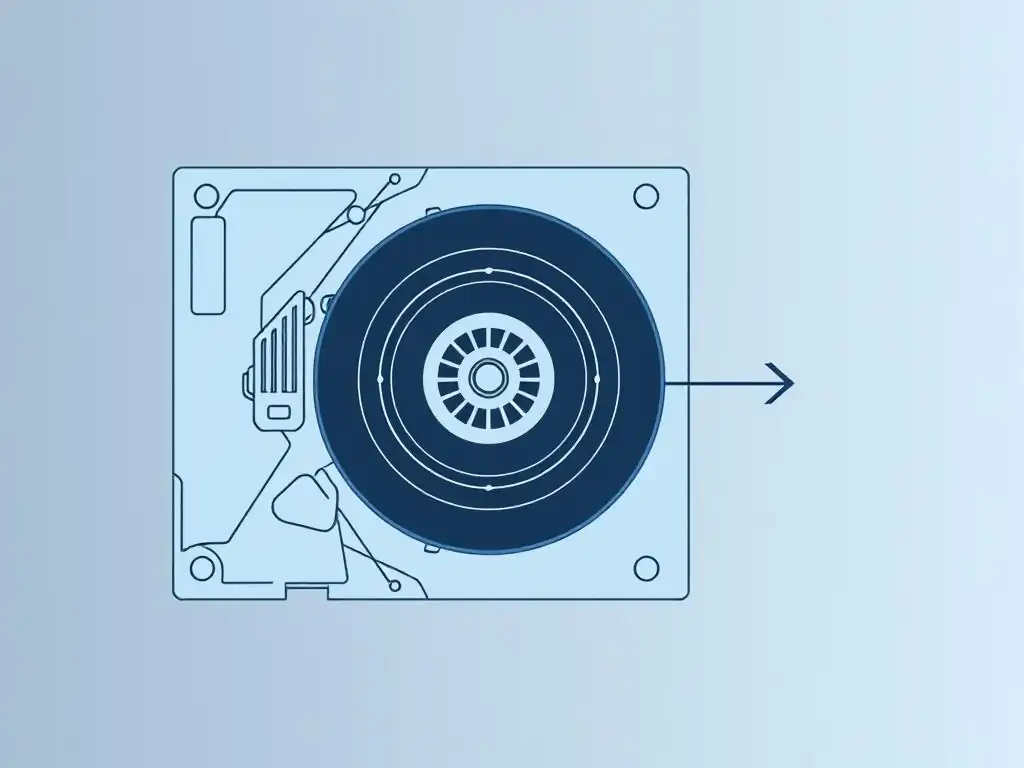
Hard drives, especially traditional HDDs (Hard Disk Drives), store data in non-contiguous locations. Over time, this fragmentation leads to the read/write heads having to jump around the disk to assemble files, significantly slowing down access times. This is a major contributor to a slow computer, especially when dealing with large files or many applications running simultaneously. Defragmentation rearranges the data to minimize these jumps, resulting in faster loading times and improved overall system responsiveness.
The process involves consolidating fragmented files onto contiguous sectors of the hard drive. For Windows users, the built-in Disk Defragmenter utility can be used, though its relevance has diminished with the prevalence of SSDs. For those still using HDDs, running this utility regularly (e.g., once a month) can noticeably improve performance. The frequency depends on the usage intensity; a heavily used computer may benefit from more frequent defragmentation.
Remember to back up your data before performing any disk optimization, as unforeseen issues can occur. Furthermore, consider using disk cleanup utilities to remove unnecessary temporary files and system junk, freeing up valuable space and further enhancing performance. This combination of defragmentation and cleanup is a powerful duo in the fight against a slow computer. The noticeable improvement in application load times and overall system responsiveness is a testament to the effectiveness of this simple yet impactful technique.
Upgrade Your RAM for a Significant Performance Boost
Random Access Memory (RAM) is your computer's short-term memory. It's where the operating system and currently used applications store data for quick access. Insufficient RAM forces the system to use the much slower hard drive (or SSD) as virtual memory, leading to significant performance bottlenecks. This is a common root cause of slowdowns, especially when multitasking or running demanding applications like video editing or gaming.
Symptoms include sluggishness, frequent freezes, and application crashes. Upgrading your RAM is often a cost-effective solution that yields dramatic improvements. Determine your computer's maximum RAM capacity (check your motherboard specifications) and choose a compatible RAM module. Adding more RAM allows your computer to handle more programs and data simultaneously without resorting to the slower hard drive, resulting in quicker loading times, smoother multitasking, and a more responsive system overall.
For example, upgrading from 4GB to 8GB or 16GB can significantly improve the performance of a computer struggling with limited memory. This simple upgrade often offers the most noticeable performance boost at a relatively low cost, making it a top recommendation for fixing a slow computer. Before upgrading, always verify compatibility with your motherboard and operating system to avoid issues.
Consider an SSD Upgrade for Dramatic Speed Improvements
Solid State Drives (SSDs) use flash memory, offering significantly faster read and write speeds compared to traditional HDDs. This speed difference is monumental when it comes to system boot times, application loading, and overall system responsiveness. Switching from an HDD to an SSD is one of the most effective ways to rejuvenate an aging computer and dramatically reduce boot times, application launch times, and overall system responsiveness. The difference is often measured in seconds versus minutes.
For instance, a system that takes several minutes to boot up with an HDD might boot in under 20 seconds with an SSD. This is because the SSD’s flash memory allows for almost instantaneous access to data, eliminating the mechanical delays inherent in HDDs. The impact extends beyond just boot times; application loading speeds, file transfers, and even the overall feel of the system become noticeably snappier.
While SSDs are generally more expensive than HDDs of comparable storage capacity, the performance gains are well worth the investment for anyone looking to drastically improve their computer's speed and responsiveness. Consider the size carefully; a larger SSD will hold more applications and files, but costs more. Upgrading to an SSD is a significant investment that addresses the root cause of many computer slowdowns, offering a transformative improvement in overall performance.
Advanced Troubleshooting for Persistent Slowdowns: Fix Slow Computer Root Cause
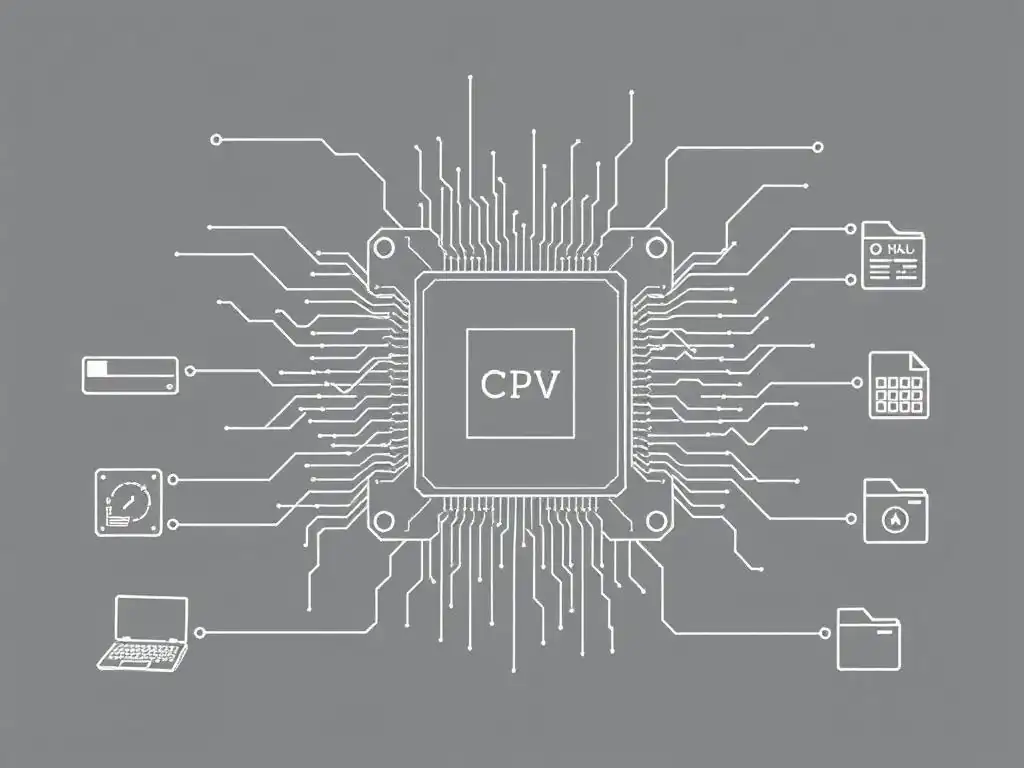
This section delves into advanced troubleshooting techniques to pinpoint and resolve the root cause of persistent computer slowdowns. We'll move beyond basic solutions and explore more in-depth diagnostic methods to effectively address even the most stubborn performance issues. Remember, identifying the root cause is crucial for a lasting fix; simply treating the symptoms often leads to recurring problems. This guide will help you effectively diagnose and fix your slow computer, targeting the underlying issues that impact performance.
Analyzing System Resource Usage with Task Manager
Task Manager is a built-in Windows utility that provides a real-time view of your system's resource usage. Understanding how your CPU, memory (RAM), disk, and network are being utilized can reveal the culprit behind your slow computer. Let's explore how to effectively use Task Manager for diagnosis:
First, open Task Manager (Ctrl+Shift+Esc). Navigate to the "Processes" tab. This displays all running applications and their resource consumption. Pay close attention to the following columns:
- CPU: Shows the percentage of processor time each process is using. High CPU usage (consistently above 80-90%) by a single process often indicates a resource-intensive program or a malware infection.
- Memory: Displays the amount of RAM each process is using. High memory usage (approaching or exceeding available RAM) can lead to excessive paging to the hard drive, significantly slowing down your system. This is a common cause of "fix slow computer root cause" searches.
- Disk: Shows the disk I/O activity for each process. High disk usage consistently suggests a hard drive bottleneck, possibly due to a failing drive or excessive disk fragmentation.
- Network: Indicates network activity. High network usage might point to a background process constantly uploading or downloading data, impacting overall system performance.
By carefully observing these metrics, you can identify processes consuming excessive resources. If you find a specific program consistently using a disproportionate amount of resources, consider closing it or investigating potential issues within that application. For example, a poorly coded application might cause high CPU usage, while a virus could lead to high disk and network activity, both needing a "fix slow computer root cause" approach.
Identifying Bottlenecks Using Performance Monitoring Tools
While Task Manager offers a basic overview, more sophisticated performance monitoring tools provide a deeper analysis. These tools offer detailed insights into system behavior, allowing you to pinpoint bottlenecks more accurately. These tools often provide graphical representations of resource utilization over time, making it easier to identify trends and patterns.
For Windows, the Resource Monitor (accessible through Task Manager) provides more detailed information than the basic Task Manager view. It offers a granular view of CPU, memory, disk, and network usage, allowing you to pinpoint processes and files responsible for high resource consumption.
For a more comprehensive analysis, consider using third-party performance monitoring tools. These tools often provide advanced features such as detailed hardware monitoring, real-time performance graphs, and bottleneck identification reports. While many are paid, several free options are available for basic diagnostics.
Remember that interpreting the data from these tools requires some technical knowledge. Understanding the relationships between different system components and their impact on overall performance is essential for effective diagnosis. Focusing on consistent high resource usage across multiple components often points to a more systemic issue needing a "fix slow computer root cause" strategy.
Checking for Hardware Failures: Diagnosing Potential Problems
Hardware failures can significantly impact computer performance. A failing hard drive, for instance, can cause extremely slow boot times, application crashes, and general sluggishness. This is a critical aspect of any "fix slow computer root cause" strategy. Here's how to check for potential hardware problems:
- Hard Drive: Listen for unusual noises (clicking, grinding, whirring) emanating from your computer. These sounds often indicate a failing hard drive. Use tools like CrystalDiskInfo (Windows) or SMART utility (macOS) to check the health of your hard drive. These tools monitor the drive's SMART (Self-Monitoring, Analysis, and Reporting Technology) attributes, which provide information about its overall health and potential failures. Consistent errors or warnings here are serious indicators needing immediate action.
- RAM: Memory errors can lead to system instability and slowdowns. Use Windows Memory Diagnostic tool to check for RAM errors. This tool will perform a memory test and report any detected errors. Replace faulty RAM modules if necessary.
- CPU: CPU failure is less common but can manifest as system freezes or crashes. Monitor your CPU temperature using monitoring software. Overheating can damage the CPU and significantly impact performance. Ensure adequate cooling is present.
- Other Components: Other components like the power supply, motherboard, and graphics card can also cause performance issues. If you suspect a hardware problem, consider consulting a computer repair professional for a more detailed diagnosis. Often, a professional assessment is the best way to complete a "fix slow computer root cause" process.
By systematically investigating these areas, you significantly increase your chances of identifying the root cause of your computer's slow performance and implementing a lasting solution. Remember, proactive maintenance is key to preventing future slowdowns.
Reinstalling Windows as a Last Resort: A Clean Slate for Optimal Performance
Reinstalling Windows can be a drastic measure, but for persistent slowdowns that have resisted all other troubleshooting efforts, it often proves to be the most effective solution to truly fix slow computer root cause. Think of it as giving your computer a complete digital detox – a fresh start free from accumulated bloatware, corrupted files, and lingering registry issues. Before you proceed, however, understand that this process is time-consuming and requires backing up all your important data. Failure to do so will result in irreversible data loss. Therefore, consider this option only after exhausting all other troubleshooting avenues.
The process itself involves several steps. First, you'll need a Windows installation media (USB drive or DVD). You can create this using the Media Creation Tool provided by Microsoft. Then, boot your computer from the installation media, following the on-screen instructions. This will initiate the installation process, which will erase all existing data on your hard drive (unless you opt for a custom installation, which allows you to preserve some data). Therefore, again, we stress the importance of backing up your files before proceeding.
After the installation is complete, you will need to reinstall all your applications and restore your data from your backup. This is a significant time investment, potentially taking several hours or even a full day depending on the size of your data and the number of applications you use. However, the result is often a noticeably faster and more responsive system, effectively addressing the root cause of the slowdown.
The performance boost comes from eliminating the accumulated baggage that can weigh down a system over time, resulting in a clean, optimized environment. This is why reinstalling Windows is sometimes necessary to truly fix slow computer root cause.
Consider this a nuclear option, only to be deployed when all other attempts to improve performance have failed. Remember to meticulously back up your data before starting the process. The improved performance after a clean Windows installation often justifies the effort, giving your computer a new lease on life and providing a significant upgrade in speed and responsiveness.
However, it's crucial to remember that this is a last resort—a powerful tool that should only be used after a thorough investigation and attempts at less destructive solutions. It’s vital to diagnose the problem accurately before resorting to this extreme measure. Otherwise, you’ll have wasted a significant amount of time and effort on a solution that may not have been necessary.
Preventing Future Slowdowns: Maintaining a Fast and Efficient Computer
Once you've addressed the immediate cause of your slow computer, the next crucial step is to implement preventative measures to avoid similar issues in the future. Proactive maintenance is key to keeping your computer running smoothly and efficiently. This involves a multi-pronged approach focusing on software updates, malware prevention, and regular disk cleanup. Ignoring these steps can lead to a gradual decline in performance, eventually mirroring the slowdowns you've just overcome. Let's delve into the specifics.
Regular Software Updates: Security and Performance Patches
Regular software updates are not just about security; they often include performance enhancements and bug fixes that directly impact your computer's speed. Operating system updates, for example, frequently incorporate optimizations for resource management and system processes. Similarly, application updates often address performance bottlenecks and improve efficiency.
Think of it like this: your computer's software is a complex machine with many moving parts. Updates are like regular tune-ups, ensuring all parts work in harmony and at peak efficiency. Neglecting updates is akin to ignoring a car's maintenance schedule – minor issues accumulate, eventually leading to major problems and significant performance degradation.
Consider this scenario: an outdated browser might be significantly slower than its updated counterpart, leading to noticeable lag while browsing. Similarly, an outdated graphics driver can result in poor video performance and system instability. Staying current with updates is crucial for maintaining optimal speed and stability. Prioritize installing updates for your operating system, web browser, antivirus software, and frequently used applications. Enable automatic updates whenever possible to streamline the process and ensure you're always running the latest versions.
Proactive Malware Scanning and Removal
Malware, including viruses, spyware, and adware, is a significant contributor to computer slowdowns. These malicious programs consume system resources, often running silently in the background, hogging CPU cycles and memory. This can lead to noticeable lag, freezing, and overall sluggish performance. Furthermore, some malware actively hinders system processes, further exacerbating the slowdown.
Implementing a proactive approach to malware prevention is vital. This involves regularly scanning your system with a reputable antivirus program. Ensure your antivirus software is up-to-date, as new malware threats emerge constantly. Consider scheduling automatic scans on a weekly or monthly basis to catch any potential threats early. Additionally, be cautious about downloading files from untrusted sources and avoid clicking on suspicious links. Remember that even seemingly harmless attachments can harbor malicious code.
Consider the impact: a single virus can significantly impact your computer's performance. It might cause your browser to freeze, applications to crash, or your system to slow down noticeably. Proactive scanning minimizes this risk and prevents the significant performance degradation caused by malware infections. A clean system is a fast system.
Scheduled Disk Cleanup and Optimization
Over time, your hard drive accumulates unnecessary files, temporary data, and system junk that can significantly slow down your computer. These files consume disk space and hinder efficient data access, resulting in slower boot times, application loading times, and overall system responsiveness. Regular disk cleanup is therefore essential for maintaining optimal performance.
Think of your hard drive as a filing cabinet. Over time, it becomes cluttered with unnecessary papers and files. Regularly clearing out these unnecessary items makes it easier to find what you need and ensures the cabinet (your hard drive) functions efficiently.
You can utilize built-in operating system tools to remove temporary files, uninstall unused programs, and defragment your hard drive (if using a traditional HDD, not an SSD). Consider using dedicated disk cleanup utilities to identify and remove even more unnecessary files. Regularly performing these tasks will help keep your hard drive organized and free up valuable space, leading to a noticeable improvement in your computer's speed and responsiveness. Scheduling these tasks, perhaps monthly or quarterly, will ensure consistent maintenance and prevent performance degradation. A clean and organized hard drive is vital for maintaining a fast computer.
Good File Management Practices: Organization for Efficiency
Maintaining a well-organized file system is crucial for preventing future computer slowdowns. A cluttered hard drive forces your computer to work harder to locate and access files, significantly impacting performance. Think of it like searching for a specific tool in a messy toolbox versus a neatly organized one – the latter is far more efficient. This principle directly translates to your computer's operating system.
One effective strategy is to adopt a consistent file naming convention. Instead of using random names like "document1.docx" or "image.jpg," use descriptive names that clearly indicate the file's content and date. For example, "2024-10-27_ProjectProposal.docx" or "Product_Image_October2024.jpg." This makes finding specific files much easier, reducing the time your computer spends searching.
Regularly deleting unnecessary files is another key aspect of good file management. Temporary files, old downloads, and unused programs accumulate over time, consuming valuable disk space and slowing down your system. Utilize the built-in disk cleanup utility in your operating system to automatically remove temporary files. Manually review your downloads folder and delete anything you no longer need. Consider using a dedicated file management application to assist in identifying large or redundant files for removal. Remember that even seemingly small files, when accumulated over time, can significantly impact your computer's performance. Regular purging is essential for maintaining optimal speed.
Consider utilizing folders and subfolders to categorize your files logically. Group related documents into project folders, organize images by date or event, and create dedicated folders for downloads, documents, and other file types. This hierarchical structure facilitates quick and easy access to files, reducing the search time and improving overall system responsiveness.
A well-structured file system is not just aesthetically pleasing; it's a critical component of a fast and efficient computer. Investing time in organizing your files will pay off in improved performance and reduced frustration. The time saved in searching for files will quickly outweigh the initial effort invested in organizing them.
Frequently Asked Questions
What are the common root causes of a slow computer?
A slow computer can be caused by several factors, including low RAM, a cluttered hard drive, malware, outdated software, and too many startup programs. Addressing these issues is key to speeding up your system.
How can I identify the specific root cause of my computer's slowness?
Use the Task Manager (Windows) or Activity Monitor (Mac) to see which processes are consuming the most resources. Check your hard drive space and run a malware scan. Consider using a system performance analyzer tool.
Is it necessary to reinstall my operating system to fix a slow computer?
Reinstalling your OS is a last resort. Often, simpler solutions like cleaning up your hard drive, updating software, and removing unnecessary programs will resolve performance issues. Try less drastic methods first.
How can I prevent my computer from slowing down in the future?
Regularly clean your hard drive, update your software, run malware scans, and limit startup programs. Consider upgrading your RAM if necessary and defragmenting your hard drive (HDD only).
What should I do if I've tried everything and my computer is still slow?
If basic troubleshooting doesn't work, consider seeking professional help. A technician can diagnose more complex issues like hardware failure or driver problems that may require specialized tools or expertise.
Final Reflection: Unlocking the True Potential of Your Digital Life
The relentless pursuit of speed in our digital age demands we understand not just the symptoms, but the root causes of our technological frustrations. A slow computer isn't just an inconvenience; it's a barrier to productivity, creativity, and connection. This article has explored the multifaceted nature of computer slowdown, offering practical solutions to address the underlying issues, from bloated hard drives to outdated software.
The impact of a consistently sluggish machine extends far beyond individual frustration. It affects our ability to participate fully in the digital world, hindering work, education, and social interaction. Technology is best when it brings people together.
This quote, while seemingly simple, highlights the importance of a smoothly functioning computer as a gateway to connection and opportunity. The struggle to overcome technical hurdles can be isolating, and the relief of a revitalized system is a powerful reminder of technology's potential to empower, not impede.
Now, consider your own digital experience. What are the subtle ways a slow computer impacts your daily life? Take the time to diagnose your own system, not just with the tools and techniques outlined in this article, but also with a mindful awareness of your own digital well-being. Invest the time to optimize your machine, and you will unlock a smoother, more efficient, and ultimately more fulfilling digital life. The journey to a faster computer is a journey to a more productive and connected you.
Unlock Your Computer's Full Potential!
Thank you for learning how to diagnose and fix your computer's slow performance! You've gained valuable skills to boost your productivity and enjoy frustration-free computing. Ready to put your new knowledge into practice?
- Prioritize and implement the most impactful solutions from the article—you'll be amazed at the difference even a small change can make!
- Share your successes (and challenges!) with the UltimateLifeHacks community in the comments below. Let's help each other optimize our digital lives!
- Consider exploring the more advanced troubleshooting techniques mentioned—you might discover a hidden performance boost!
Which solution from the article are you most excited to try first?