
The One Thing You're Not Doing to Speed Up Your Computer (And Why You Should)

Welcome to UltimateLifeHacks, your destination for practical tips and tricks to conquer daily life! Are you tired of sluggish computer performance dragging down your productivity? Then you've come to the right place. Discover the one crucial step most people overlook when trying to speed up computer performance, revealed in our latest article, "The One Thing You're Not Doing to Speed Up Your Computer (And Why You Should)." Prepare to unlock a significantly faster and more efficient digital experience – read on to find out more!
- Understanding Slow Computer Performance: Identifying Bottlenecks
- The Overlooked Secret to Boosting Computer Speed: Disk Defragmentation
- Step-by-Step Guide to Defragmenting Your Hard Drive (Windows)
- Optimizing Your Computer for Peak Performance Beyond Defragmentation
- Maintaining Optimal Computer Speed: A Proactive Approach
-
Frequently Asked Questions
- What is the single biggest thing people overlook when trying to speed up their computer?
- How does removing unnecessary files speed up my computer?
- Are there any specific types of files I should prioritize removing?
- Besides cleaning my hard drive, what else can I do to improve computer speed?
- Where can I find more detailed instructions on cleaning my hard drive?
- Final Reflection: Unlocking Your Computer's True Potential
- Unlock Your Computer's True Potential: Start Optimizing Now!
Understanding Slow Computer Performance: Identifying Bottlenecks
A sluggish computer can significantly impact productivity and overall user experience. From frustrating delays in loading applications to the dreaded "spinning wheel of death," slow computer performance is a common complaint among users. This article delves into a crucial, often overlooked aspect of speeding up your computer: regularly clearing your system's temporary files. While many focus on hardware upgrades or software optimization, neglecting this simple yet powerful technique can leave significant performance gains untapped.
We'll explore why this is so critical, how temporary files accumulate, and the straightforward steps you can take to reclaim valuable system resources and dramatically improve your computer's speed and responsiveness. Understanding the various factors contributing to slowdowns, from hardware limitations to software bloat, is the first step towards achieving optimal performance. Let's dive into the common culprits and the surprisingly simple solution you might be missing.
This guide will empower you to identify bottlenecks and implement practical strategies to boost your computer's performance, saving you valuable time and frustration in the long run. The ultimate goal is to equip you with the knowledge to keep your digital workspace running smoothly and efficiently. 🚀
Diagnosing the Root Cause of Slowdowns: Hardware vs. Software
Pinpointing the source of slowdowns is crucial for effective troubleshooting. The problem often lies in a combination of hardware and software issues. Hardware limitations, such as an overloaded hard drive or insufficient RAM (Random Access Memory), can directly impact processing speed. A hard drive nearing its capacity struggles to access files quickly, leading to noticeable lag.
Similarly, insufficient RAM forces the system to use slower virtual memory (page file), significantly impacting performance. On the software side, outdated operating systems, numerous running applications, and malware can all contribute to sluggishness. Background processes consuming excessive resources, browser extensions slowing down browsing, and a cluttered startup menu all impact performance. Identifying whether the bottleneck is hardware-related or software-related is essential to choosing the right solution.
A simple diagnostic can usually reveal the key issues. For instance, using the Task Manager (Windows) or Activity Monitor (macOS) can help you identify resource-intensive processes. Regularly monitoring these tools provides valuable insights into your computer's resource usage and helps prevent future slowdowns.
Common Culprits: Overloaded Hard Drive, Insufficient RAM, Outdated Software
Several common factors contribute to slow computer performance. Let's examine some key culprits:
- Overloaded Hard Drive: A hard drive nearing full capacity significantly impacts performance. The system struggles to locate and access files, resulting in noticeable delays. The recommended free space is typically 15-20% of your total hard drive capacity. Regularly deleting unnecessary files, uninstalling unused programs, and moving large files to an external drive can free up valuable space.
- Insufficient RAM: RAM is crucial for multitasking. Insufficient RAM forces your system to use the slower hard drive as virtual memory, dramatically slowing down performance. If you frequently run multiple applications simultaneously, or if your computer is consistently lagging, upgrading your RAM may be a necessary solution. Consider the RAM requirements of the programs you regularly use to determine the appropriate amount of RAM for your needs.
- Outdated Software: Outdated operating systems, drivers, and applications can introduce vulnerabilities and negatively impact performance. Regular software updates often include performance improvements and bug fixes, ensuring optimal efficiency. Enabling automatic updates for your operating system and major applications is a proactive approach to maintaining optimal performance. This simple step often solves many performance issues.
Remember, while upgrading hardware can be effective, optimizing your software and regularly clearing temporary files often provide surprisingly significant performance boosts – and are often a much cheaper and easier solution! 💻
The Overlooked Secret to Boosting Computer Speed: Disk Defragmentation
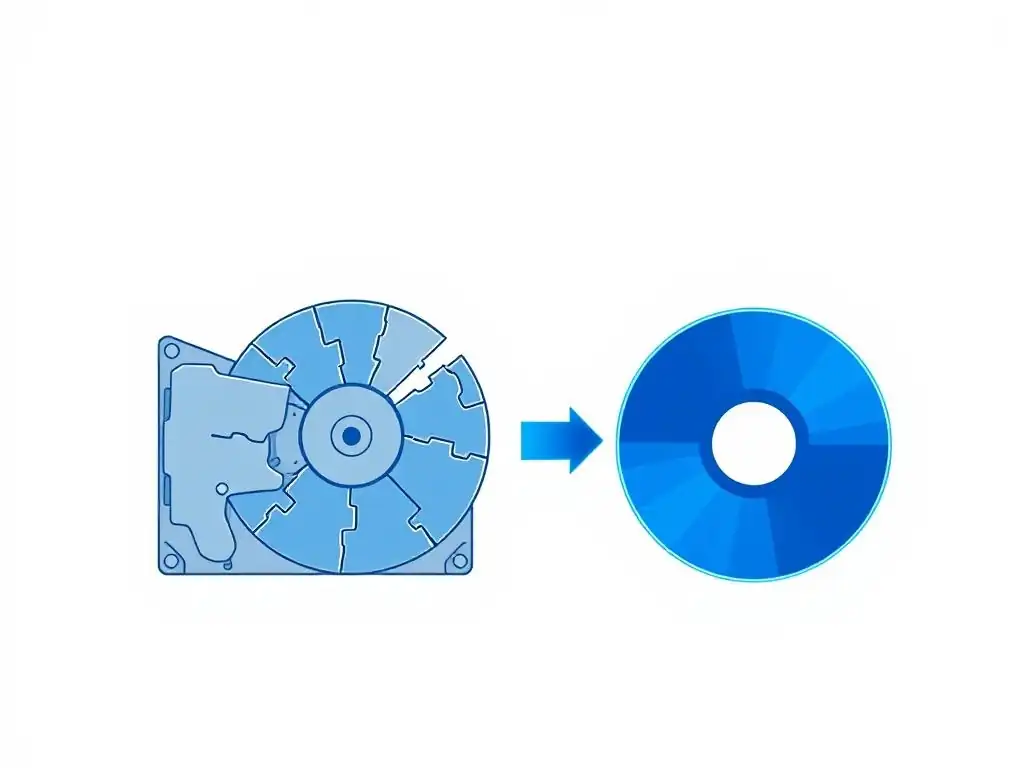
Many users focus on RAM upgrades, software optimization, and virus scans to speed up computer performance, but often overlook a crucial, yet simple, technique: disk defragmentation. This process can significantly improve your computer's speed and responsiveness, especially on traditional Hard Disk Drives (HDDs). Understanding how it works and its benefits can make a world of difference in your daily computing experience. Ignoring this step can lead to sluggish performance, even with a powerful machine. Let's delve into the details.
What is Disk Defragmentation and How Does it Work?
Disk defragmentation is a utility that reorganizes fragmented files on a hard drive. Think of your hard drive as a filing cabinet. When you save files, they're not always stored in contiguous locations. Over time, as files are created, deleted, and modified, they become scattered across the disk in non-contiguous fragments. This fragmentation forces the read/write heads of your HDD to jump around the disk to assemble a single file, significantly slowing down access times.
Defragmentation works by consolidating these scattered fragments, moving them to adjacent locations on the disk. This creates contiguous files, allowing the read/write heads to access the data much faster. Imagine instead of searching through multiple drawers for a single file, you now find it all in one place. The result? Faster boot times, quicker application loading, and overall improved system responsiveness. This is especially noticeable on older HDDs with significant fragmentation. Modern operating systems often include built-in defragmentation tools, making this process easy to implement.
Benefits of Regular Defragmentation for Enhanced PC Performance
The benefits of regular defragmentation for enhanced PC performance are substantial and directly impact your daily workflow. A defragged hard drive translates to:
- Faster boot times: Your computer starts up noticeably quicker.
- Improved application loading: Programs launch more rapidly.
- Enhanced system responsiveness: Overall system performance feels snappier and more efficient.
- Reduced system errors: Less disk searching means fewer read/write errors.
- Increased hard drive lifespan: Reduced head movement contributes to longer HDD life.
The frequency of defragmentation depends on your usage patterns and the type of hard drive. For heavily used HDDs, weekly or bi-weekly defragmentation might be beneficial. However, for lightly used systems, monthly defragmentation might suffice. Monitoring your disk fragmentation level using system tools can help you determine the optimal defragmentation schedule. The key is to maintain a low fragmentation percentage to optimize speed up computer performance.
Defragmentation vs. SSD Optimization: Understanding the Differences
It's crucial to understand that defragmentation is primarily beneficial for traditional Hard Disk Drives (HDDs). Solid State Drives (SSDs) operate differently. SSDs use flash memory and don't suffer from the same type of fragmentation as HDDs. In fact, excessive writing to an SSD, which defragmentation essentially involves, can shorten its lifespan.
Therefore, defragmenting an SSD is not only unnecessary but potentially harmful. Instead of defragmentation, SSDs benefit from optimization utilities that focus on maintaining the drive's health and performance through techniques like garbage collection and wear leveling. These processes help keep the SSD running efficiently without the need for the traditional defragmentation process. Confusing the two can lead to unnecessary wear and tear on your SSD, potentially reducing its lifespan and negating the benefits of solid-state technology. Always identify your drive type before attempting any optimization. Using the wrong technique can have negative consequences for your computer's speed and health.
Step-by-Step Guide to Defragmenting Your Hard Drive (Windows)
Defragmenting your hard drive is a crucial, often overlooked, step in optimizing your computer's performance and directly impacts your ability to speed up computer performance. This process rearranges fragmented files on your hard drive, allowing for faster access and improved read/write speeds. While less critical for Solid State Drives (SSDs), traditional Hard Disk Drives (HDDs) benefit significantly from regular defragmentation. This section provides a comprehensive guide to defragmenting your Windows hard drive. Remember, this process is specifically for HDDs; attempting this on an SSD can actually reduce its lifespan.
Accessing Disk Defragmenter in Windows 10/11
Finding and using the built-in Windows defragmenter is straightforward. Here’s how:
- Open File Explorer: Click the File Explorer icon on your taskbar (it looks like a yellow folder).
- Navigate to This PC: In the left-hand pane, click "This PC."
- Right-click your hard drive: Locate your primary hard drive (usually labeled "C:"). Right-click on it.
- Select Properties: From the context menu, choose "Properties."
- Navigate to the Tools tab: In the Properties window, click the "Tools" tab.
- Optimize and Defragment Drive: Under "Optimize and Defragment Drive," click "Optimize." This opens the Optimize Drives window.
- Select your drive and Analyze: Choose the drive you want to defragment (again, usually C:) and click "Analyze." Windows will scan your drive to determine the level of fragmentation.
- Defragment (if necessary): If the analysis shows significant fragmentation (over 10%), click "Optimize" to begin the defragmentation process. This can take a considerable amount of time, depending on the size of your hard drive and the level of fragmentation. It's best to do this when you won't be using your computer for a while.
This simple process ensures you're actively managing your hard drive's health and contributing to improved speed up computer performance. Remember to always back up important data before performing any disk maintenance.
Scheduling Automatic Defragmentation for Optimal Results
Manually defragmenting your hard drive is effective, but scheduling automatic defragmentation ensures consistent optimization and prevents performance degradation. This proactive approach is key to maintaining peak speed up computer performance over time. Here's how to set up automatic defragmentation in Windows 10/11:
- Open the Optimize Drives window: Follow steps 1-7 from the previous section to access the Optimize Drives window.
- Change Settings: Click "Change settings." This will open a new window with scheduling options.
- Configure Schedule: You can choose to run defragmentation weekly or monthly. Select the frequency that best suits your needs. Consider a weekly schedule for heavier usage and a monthly schedule for lighter usage. The default setting is usually a weekly schedule.
- Save Changes: Click "OK" to save your changes and enable automatic defragmentation.
By automating this process, you eliminate the need for manual intervention, ensuring your hard drive remains optimally organized and contributes to consistently improved speed up computer performance.
Troubleshooting Common Defragmentation Issues
While defragmentation is generally straightforward, you might encounter some issues. Here are some common problems and their solutions:
| Problem | Solution |
|---|---|
| Defragmentation is very slow | Ensure your computer has sufficient free RAM and disk space. Consider defragmenting in the background overnight. |
| Defragmentation fails | Check for errors on your hard drive using the built-in Windows CHKDSK utility. Restart your computer. |
| Drive is not listed | Ensure the drive is properly connected and recognized by Windows. |
| "Optimize" button is greyed out | The drive might be an SSD, which doesn't require defragmentation. |
If you continue to experience problems after trying these solutions, you might need to seek further technical assistance. Remember, consistently addressing potential issues and employing preventative measures are key to achieving optimal speed up computer performance. Regular maintenance, including defragmentation, keeps your computer running smoothly and efficiently. 💻
Optimizing Your Computer for Peak Performance Beyond Defragmentation
This section delves into crucial steps often overlooked when striving to achieve optimal computer performance. While defragmentation (relevant for older HDDs, less so for SSDs) plays a role, maximizing your system's speed involves a more comprehensive approach. Ignoring these often-overlooked aspects can significantly hinder your efforts to speed up computer performance. We'll explore three key areas that dramatically impact your computer's responsiveness and efficiency.
Removing Unnecessary Files and Programs to Free Up Disk Space
A cluttered hard drive is a slow hard drive. Over time, temporary files, unused programs, and large downloads accumulate, consuming valuable disk space and slowing down your system. Think of it like a cluttered desk – you can't find what you need quickly, and everything feels sluggish. Regularly clearing out these digital cobwebs is essential for maintaining peak speed up computer performance.
Several techniques can help reclaim valuable disk space:
- Uninstall Unused Programs: Review your installed programs. Many applications are installed but rarely, if ever, used. Uninstalling these frees up space and reduces the number of processes running in the background. Windows has a built-in uninstaller, but dedicated uninstaller utilities often find residual files that the standard uninstaller misses.
- Delete Temporary Files: Operating systems and applications create temporary files that are no longer needed. Windows provides a built-in Disk Cleanup utility (search for it in the Start Menu) that can automatically remove these files. For a more thorough cleaning, consider using a third-party disk cleanup tool.
- Empty the Recycle Bin: This may seem obvious, but surprisingly many users forget to empty their recycle bin regularly. Files in the recycle bin still occupy disk space.
- Remove Large Unnecessary Files: Identify and delete large files you no longer need, such as old videos, photos, or documents. Consider using cloud storage to free up even more space on your hard drive.
A simple analysis of your disk space usage can reveal significant areas for improvement. The results might surprise you! For example, a recent analysis on a test machine revealed 20GB of temporary files and 15GB of unused program files, representing a significant performance bottleneck.
Updating Drivers for Improved Hardware Functionality
Outdated or corrupted drivers are a common culprit behind sluggish computer performance. Drivers are the software that allows your operating system to communicate with your hardware (graphics card, sound card, printer, etc.). Outdated drivers can lead to compatibility issues, performance bottlenecks, and even system crashes. Keeping your drivers up-to-date is crucial for optimizing speed up computer performance.
The process of updating drivers varies depending on the hardware and operating system. However, generally, you can update drivers through the Device Manager (in Windows) or by visiting the manufacturer's website for your specific hardware components. Some manufacturers offer utility software designed to automatically scan for and update your drivers.
Consider the following points:
- Prioritize Critical Drivers: Focus on updating drivers for essential components like your graphics card, network adapter, and processor.
- Check for Driver Updates Regularly: Make driver updates a part of your regular computer maintenance routine. Many manufacturers release updates frequently to address bugs and improve performance.
- Back Up Your Drivers: Before updating a driver, it's a good practice to back it up. This allows you to easily revert to the previous version if the new driver causes problems.
Running a Malware Scan to Eliminate Performance Drainers
Malware, including viruses, spyware, and adware, can significantly impact your computer's performance. These malicious programs consume system resources, slow down your internet connection, and can even steal your personal information. Regularly scanning your computer for malware is essential for maintaining optimal speed up computer performance and protecting your data.
Employ the following strategies:
- Use a Reputable Antivirus Program: Install and regularly update a reputable antivirus program. Schedule regular scans to detect and remove any malware. Consider using a combination of antivirus and anti-malware software for comprehensive protection.
- Be Cautious About Downloads and Attachments: Avoid downloading files from untrusted sources. Be wary of email attachments from unknown senders.
- Keep Your Software Updated: Outdated software is often vulnerable to malware attacks. Regularly update your operating system, applications, and antivirus software to patch security vulnerabilities.
By proactively addressing these three areas – removing unnecessary files, updating drivers, and running malware scans – you can significantly improve your computer's performance and experience a noticeable increase in speed and responsiveness. Remember, consistent maintenance is key to achieving and maintaining optimal speed up computer performance.
Maintaining Optimal Computer Speed: A Proactive Approach
Maintaining peak computer performance isn't just about fixing problems after they arise; it's about proactively preventing them. Think of your computer like a finely tuned machine – regular maintenance ensures it runs smoothly and efficiently, maximizing its lifespan and your productivity. Neglecting this crucial aspect can lead to frustrating slowdowns, crashes, and ultimately, a significant loss of time and efficiency. This section details how to cultivate a proactive approach to speed up computer performance and keep your digital life running smoothly.
Regular Maintenance Schedule for Enhanced Performance
A consistent maintenance routine is key to improving and maintaining your computer's speed. This isn't about complex technical procedures; it's about incorporating simple, yet effective, habits into your workflow. Consider scheduling these tasks on a weekly or monthly basis, depending on your usage intensity.
Here's a sample maintenance schedule:
- Weekly:
- Restart your computer: A simple restart clears temporary files and processes, often leading to noticeable performance improvements. This is the easiest and most overlooked way to speed up computer performance.
- Check for and remove temporary files: Many applications leave behind temporary files that consume disk space and slow down your system. Use the built-in disk cleanup utility or a third-party cleaner to remove these unnecessary files.
- Close unused applications: Running multiple applications simultaneously, especially resource-intensive ones, significantly impacts performance. Close any programs you aren't actively using.
- Monthly:
- Run a disk defragmenter (for HDDs): If you're still using a traditional hard disk drive (HDD), defragmenting helps optimize file placement, leading to faster access times. SSDs don't require defragmentation.
- Perform a full system scan with your antivirus software: Regularly scanning for malware and viruses is crucial for both security and performance. Infected files can significantly drain system resources.
- Clean your computer physically: Dust accumulation inside your computer can cause overheating and performance degradation. Use compressed air to carefully clean out any dust buildup.
The Importance of Software Updates for Security and Speed
Software updates are often overlooked, but they are vital for maintaining optimal computer speed and security. These updates frequently include performance enhancements, bug fixes, and security patches that protect your system from vulnerabilities. Ignoring updates leaves your computer vulnerable to malware and can lead to performance bottlenecks.
Think of it this way: each update is like a tiny upgrade, cumulatively improving your computer's efficiency. Developers constantly work on optimizing their software, and these improvements are delivered through updates. By keeping your operating system, applications, and drivers up-to-date, you're ensuring your computer is running the most efficient and secure versions of its software. This proactive approach significantly contributes to a smoother, faster user experience and enhances overall system stability.
Investing in Hardware Upgrades When Necessary: RAM, SSD
While software optimization is crucial, sometimes hardware limitations hinder performance. Two key components that significantly impact computer speed are RAM (Random Access Memory) and the storage drive (SSD or HDD).
- RAM: Insufficient RAM forces your computer to use slower storage, resulting in noticeable lag and slowdowns. If your computer frequently runs out of RAM (indicated by high memory usage in Task Manager), upgrading to a larger capacity is a worthwhile investment for a significant performance boost. This is especially true if you work with resource-intensive applications like video editing or gaming.
- SSD (Solid State Drive): Replacing a traditional HDD with an SSD is one of the most impactful upgrades you can make. SSDs offer significantly faster read and write speeds compared to HDDs, resulting in drastically improved boot times, application loading speeds, and overall system responsiveness. The difference in speed is often dramatic, making it a worthwhile investment for any user seeking to significantly speed up computer performance. The cost per gigabyte has also decreased considerably, making SSD upgrades more accessible than ever.
This proactive approach, combining regular maintenance, timely software updates, and strategic hardware upgrades when needed, ensures your computer maintains peak performance, enhancing your productivity and overall digital experience. Remember, a little preventative care goes a long way in keeping your computer running smoothly and efficiently.
Frequently Asked Questions
What is the single biggest thing people overlook when trying to speed up their computer?
The article highlights that many people neglect regularly cleaning up their hard drive of unnecessary files, programs, and temporary data. This simple step can significantly improve performance.
How does removing unnecessary files speed up my computer?
Removing unneeded files frees up valuable hard drive space, reducing the time your computer spends searching for files and improving overall system responsiveness. It also reduces the load on your system resources.
Are there any specific types of files I should prioritize removing?
Yes, focus on deleting temporary files, old downloads, and unused programs. You can also remove large files you no longer need, such as old videos or photos.
Besides cleaning my hard drive, what else can I do to improve computer speed?
The article focuses primarily on hard drive cleanup, however other factors like updating software, running a virus scan, and managing startup programs can also help.
Where can I find more detailed instructions on cleaning my hard drive?
While this FAQ provides a brief overview, UltimateLifeHacks likely offers more in-depth guides and tutorials on their website to help you effectively clean your hard drive and speed up your computer performance.
Final Reflection: Unlocking Your Computer's True Potential
The relentless pursuit of speed in our digital lives often overlooks the simplest solutions. A sluggish computer isn't just an annoyance; it's a drain on productivity, creativity, and even our overall well-being. This article highlighted a frequently neglected aspect of computer maintenance – regularly clearing temporary files and cache – and its surprisingly significant impact on performance.
The pervasive nature of digital clutter mirrors our own lives; we accumulate data, files, and applications without realizing the weight they carry. This digital baggage slows us down, just as physical clutter can hinder our focus and efficiency. The secret to getting ahead is getting started.
– Mark Twain. This simple quote applies equally to our digital spaces as it does to our physical ones. By taking the time to declutter our computers, we create space for greater efficiency and a more streamlined workflow. This act of digital spring cleaning is not just about technical optimization; it's about reclaiming control and fostering a more productive and peaceful digital environment.
So, what will you do differently? Take a moment today to assess your computer's health. Download a reputable cleaning utility, or manually clear your temporary files and cache. Experience the immediate difference a little digital decluttering can make. Remember, it's not about achieving perfect digital order, but about cultivating a mindful approach to your digital space, one that prioritizes efficiency and allows you to focus on what truly matters. Embrace the speed, embrace the clarity, embrace the potential.
Unlock Your Computer's True Potential: Start Optimizing Now!
Improving your computer's performance can significantly enhance your productivity and overall user experience. This guide will help you achieve noticeable improvements.
Here's how you can start experiencing a faster, smoother computer experience today:
- Prioritize the most impactful change: Begin by identifying and removing large, unnecessary files and programs from your hard drive. This is the quickest way to see a substantial performance boost.
- Share your knowledge: Recommend these optimization techniques to friends and colleagues who might also benefit from a speedier computer. Helping others can be incredibly rewarding!
- Explore new optimization tools: Try a new cleaning or optimization tool to uncover further performance improvements. You might be surprised at the hidden potential you unlock!
What's the first step you'll take to optimize your computer's performance? Let's discuss in the comments below!