
The Ultimate Guide to Cooling: UltimateLifeHacks Shows How to Keep Your Upgraded PC Running Smoothly

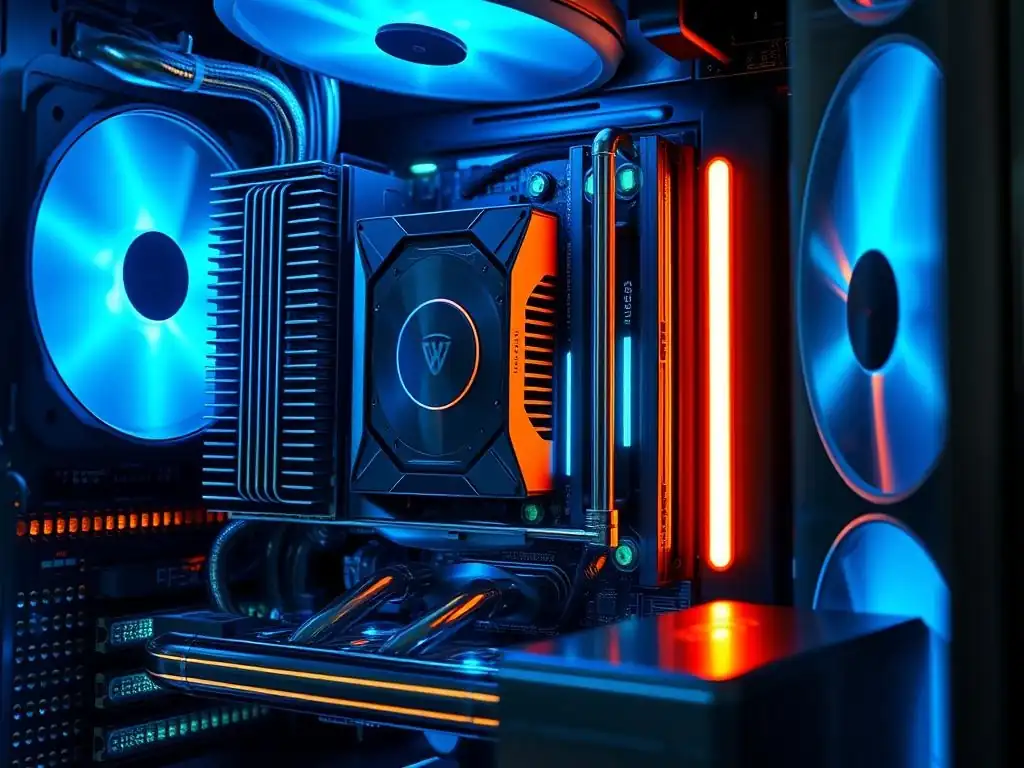
Welcome to UltimateLifeHacks, your one-stop shop for practical tips and tricks designed to supercharge your daily life! Are you tired of a sluggish PC overheating and impacting your productivity? We understand the frustration. Discover innovative solutions and learn how to cool down your PC efficiently in our latest Tech & Digital Hacks article – a game-changer for maintaining peak performance. Dive in and unlock the secrets to a smoother, more efficient digital experience!
- Understanding PC Overheating and its Consequences
- Effective Strategies for Cooling Down Your PC Efficiently
- Maintaining Optimal PC Temperatures: Long-Term Strategies
- Troubleshooting Common Cooling Problems
- Advanced Cooling Techniques for Extreme Overclocking
- Frequently Asked Questions
- Final Reflection: The Enduring Quest for Cool
- Unlock Your PC's Full Potential: Cool Down & Conquer!
Understanding PC Overheating and its Consequences
Overheating is a silent killer of computer performance and longevity. While a smoothly running, upgraded PC can significantly boost productivity, neglecting its thermal management can lead to frustrating slowdowns, unexpected shutdowns, and even irreversible hardware damage. This ultimate guide will equip you with the knowledge and practical strategies to effectively cool down your PC, ensuring peak performance and a longer lifespan for your valuable hardware investment.
We'll explore the dangers of overheating for both your CPU and GPU, and demonstrate how proactive cooling solutions can prevent system instability and data loss, ultimately saving you time, money, and frustration – the core tenets of UltimateLifeHacks. Learning to cool down your PC efficiently is not just about optimizing performance; it's about safeguarding your digital world.
The Dangers of High CPU Temperatures
The Central Processing Unit (CPU) is the brain of your computer. When it operates at excessively high temperatures, its performance significantly degrades. This isn't just a minor inconvenience; high CPU temperatures can lead to:
- Thermal Throttling: To prevent damage, your CPU will automatically reduce its clock speed, resulting in noticeable slowdowns and sluggish performance. Think laggy applications, freezing games, and generally frustrating delays. This is the CPU's self-preservation mechanism, but it severely impacts your system's responsiveness.
- System Instability: Extreme heat can cause random crashes, blue screen errors (BSODs), and unexpected shutdowns. This can lead to lost work, corrupted files, and significant interruptions to your workflow. Imagine the frustration of losing unsaved progress on an important project! 😩
- Permanent Hardware Damage: Prolonged exposure to high temperatures can permanently damage your CPU, requiring costly repairs or replacements. This is the worst-case scenario, and it’s entirely preventable with proper cooling management.
Maintaining optimal CPU temperatures is crucial for maintaining a responsive and reliable system. Regular monitoring of CPU temperatures using system monitoring software is highly recommended.
GPU Overheating and Performance Degradation
Your Graphics Processing Unit (GPU) is responsible for rendering images and graphics, crucial for gaming and video editing. Just like the CPU, overheating significantly impacts its performance. High GPU temperatures can manifest as:
- Reduced Frame Rates: In games, this translates to choppy gameplay and a less-than-ideal gaming experience. Imagine trying to play your favorite game only to experience frustrating stutters and lag.
- Graphical Glitches and Artifacts: Overheating can cause visual distortions, artifacts, and screen tearing, making your visuals unpleasant and potentially unplayable.
- System Instability (again!): Similar to the CPU, GPU overheating can contribute to system crashes and instability, leading to the same problems mentioned above: data loss and wasted time.
GPU cooling is equally, if not more, important than CPU cooling, especially for gamers and video editors who demand high graphical performance. A well-cooled GPU ensures smooth, glitch-free performance and prevents costly repairs.
Preventing System Instability and Data Loss from Heat
Preventing overheating requires a multi-pronged approach:
- Proper Case Ventilation: Ensure adequate airflow within your computer case. This often involves installing additional fans or upgrading to a case with better airflow design.
- Thermal Paste Application: Regularly applying new thermal paste between your CPU/GPU and the heatsink is crucial for efficient heat transfer. This simple step can significantly improve cooling performance.
- Cleaning: Dust accumulation acts as an insulator, trapping heat and hindering cooling. Regularly cleaning your computer's interior, especially the fans and heatsinks, is essential.
- Monitoring Software: Utilize system monitoring software to track CPU and GPU temperatures in real-time. This allows you to identify potential problems early on before they escalate.
By implementing these strategies, you can effectively cool down your PC, preventing overheating and ensuring its long-term health and optimal performance. Remember, a cool and efficient PC is a productive PC! And that's what UltimateLifeHacks is all about.
Effective Strategies for Cooling Down Your PC Efficiently
This section delves into practical, actionable strategies to effectively cool down your upgraded PC, ensuring optimal performance and longevity. We'll explore methods to improve airflow, manage fans strategically, and ultimately, keep your system running smoothly and efficiently. Mastering these techniques will directly contribute to a cooler, quieter, and more reliable PC experience, addressing the core need to cool down PC efficiently.
Optimizing Case Airflow for Better Cooling
Effective case airflow is paramount for efficient PC cooling. Poor airflow leads to heat buildup, thermal throttling, and potential component damage. Let's examine key aspects to optimize this critical element.
Choosing the Right PC Case for Maximum Ventilation
The PC case itself plays a significant role. Cases with ample ventilation holes, strategically placed intake and exhaust fans, and sufficient internal space are crucial. Consider cases specifically designed for high-airflow builds. Look for features like mesh front panels, removable side panels for easy access, and ample space for cable management to avoid obstructing airflow. A well-ventilated case provides the foundation for effective cooling. Avoid cases with restrictive designs or limited ventilation, as these can significantly impede airflow and lead to overheating. Proper case selection is the first step in successfully cooling down PC efficiently.
Strategic Component Placement for Improved Air Circulation
Even with a well-ventilated case, improper component placement can hinder airflow. Ensure that components, especially the CPU and GPU, have sufficient clearance for air to circulate freely. Avoid overcrowding components, and manage cables meticulously to prevent them from obstructing fan intakes and exhausts. Consider using cable ties and Velcro straps for neat cable management. Strategic component placement is crucial for maximizing the cooling potential of your case and ensuring that all components receive adequate airflow. Remember, air needs to flow freely to effectively cool down PC efficiently.
Implementing Effective Fan Management
Fan management is equally critical. A well-thought-out fan configuration, combined with appropriate fan control, can significantly impact your PC's temperature.
Selecting High-Performance PC Fans
Investing in high-quality PC fans is worthwhile. Look for fans with high static pressure (for radiators and restricted spaces) or high airflow (for open cases). Consider the size and number of fans needed based on your case and components. More fans aren't always better; proper placement and configuration are key. Higher CFM (cubic feet per minute) ratings generally indicate greater airflow capacity, directly contributing to cooling down PC efficiently.
Utilizing Fan Curves and Control Software
Manual fan control offers precise adjustments, allowing for customized fan speeds based on component temperatures. Software like SpeedFan, MSI Afterburner, or ASUS Fan Xpert allows you to create custom fan curves, ensuring that fans spin faster when temperatures rise and slow down when temperatures are lower. This reduces noise levels while maintaining effective cooling. Proper utilization of fan curves and control software provides a sophisticated approach to cooling down PC efficiently. Experimentation and monitoring will help you find the ideal balance between performance and noise. Remember, the goal is to maintain optimal temperatures without unnecessary fan noise.
Liquid Cooling Solutions for Advanced Thermal Management
Liquid cooling offers a significant upgrade over traditional air cooling, especially for high-performance PCs and overclocked CPUs. The principle is simple: a liquid coolant absorbs heat from the CPU or GPU, then transfers that heat to a radiator where it dissipates into the surrounding air. This method is far more efficient at heat transfer than air alone, allowing for significantly lower operating temperatures, even under heavy load.
The result is improved stability, preventing thermal throttling, and extending the lifespan of your components. The improved cooling allows for higher overclocking headroom, squeezing extra performance from your hardware. Choosing the right liquid cooling solution is crucial, however, as different systems cater to varying needs and budgets.
Factors to consider include the size of your case, the components you need to cool, your budget, and your level of technical expertise. Improper installation or maintenance can negate the benefits and even damage your system, so careful planning and execution are paramount.
AIO Liquid Coolers: Installation and Maintenance
All-in-one (AIO) liquid coolers are a popular choice for their ease of installation and maintenance. These pre-filled units come with a radiator, pump, and tubing all integrated into a single unit, simplifying the setup process considerably. Installation typically involves mounting the cooler onto the CPU, connecting the radiator to the case fans, and plugging the pump into the motherboard. AIO coolers are generally very user-friendly, requiring minimal technical knowledge.
However, regular maintenance is still crucial. This includes periodically checking the coolant level (if your AIO allows for this), ensuring the fans are clean and free from dust buildup, and monitoring the pump's performance. Dust accumulation can significantly reduce the cooler's efficiency.
Cleaning the radiator fins with compressed air is a simple yet effective way to maintain optimal performance. Ignoring maintenance can lead to decreased cooling performance and potential system instability. Consider replacing the thermal paste every 2-3 years for optimal heat transfer.
Custom Water Cooling Loops: A Comprehensive Guide
Custom water cooling loops offer unparalleled cooling performance and customization options, but they require a much higher level of technical expertise and investment. These systems involve assembling individual components, including a water pump, reservoir, radiator, tubing, and water blocks for the CPU and GPU. Designing and building a custom loop requires careful planning and attention to detail to ensure proper flow and prevent leaks. Leaks can be disastrous, potentially damaging your expensive components.
Properly bleeding the air from the system is crucial for optimal performance. This advanced cooling method offers superior thermal management, allowing for extreme overclocking and significantly lower temperatures under heavy load. However, the complexity and cost are substantial, making it a more suitable choice for experienced users who prioritize ultimate performance and customization. Thorough research and planning are essential before embarking on a custom loop project.
Utilizing External Cooling Solutions
While internal cooling solutions are crucial, external solutions can significantly boost overall cooling capacity, especially in high-temperature environments or with particularly powerful systems. External options offer a supplementary cooling approach, working in conjunction with internal components for optimal thermal management. They are particularly useful for reducing the internal case temperature, thus relieving the load on the internal cooling system and improving longevity. These solutions are also beneficial for systems that may lack sufficient internal airflow or have limited space for additional internal fans.
External Fan Docks for Enhanced Cooling
External fan docks provide a simple and effective way to increase airflow around your PC case. These docks typically house several fans that draw cool air from the surroundings and direct it towards the case. This supplemental airflow can significantly reduce the internal case temperature and improve the overall cooling performance, especially in situations where internal airflow is limited.
The ease of installation and relatively low cost make external fan docks an attractive option for many users. The effectiveness of an external fan dock will depend on factors such as the number and size of the fans, their placement relative to the PC case, and the ambient temperature.
External Radiator Units for Advanced Cooling
External radiator units offer a more powerful approach to supplemental cooling. These units typically house a large radiator and several fans, allowing for much more efficient heat dissipation than internal radiators alone. An external radiator unit can be connected to a water cooling loop (both AIO and custom), further enhancing its cooling capacity. This approach is particularly beneficial for high-end systems with significant heat output, helping to maintain lower operating temperatures and preventing thermal throttling.
However, external radiator units are generally more expensive and require more space than external fan docks. Placement and airflow management are also crucial for optimal performance. They represent a substantial investment but can be extremely effective in cooling high-performance systems.
Maintaining Optimal PC Temperatures: Long-Term Strategies
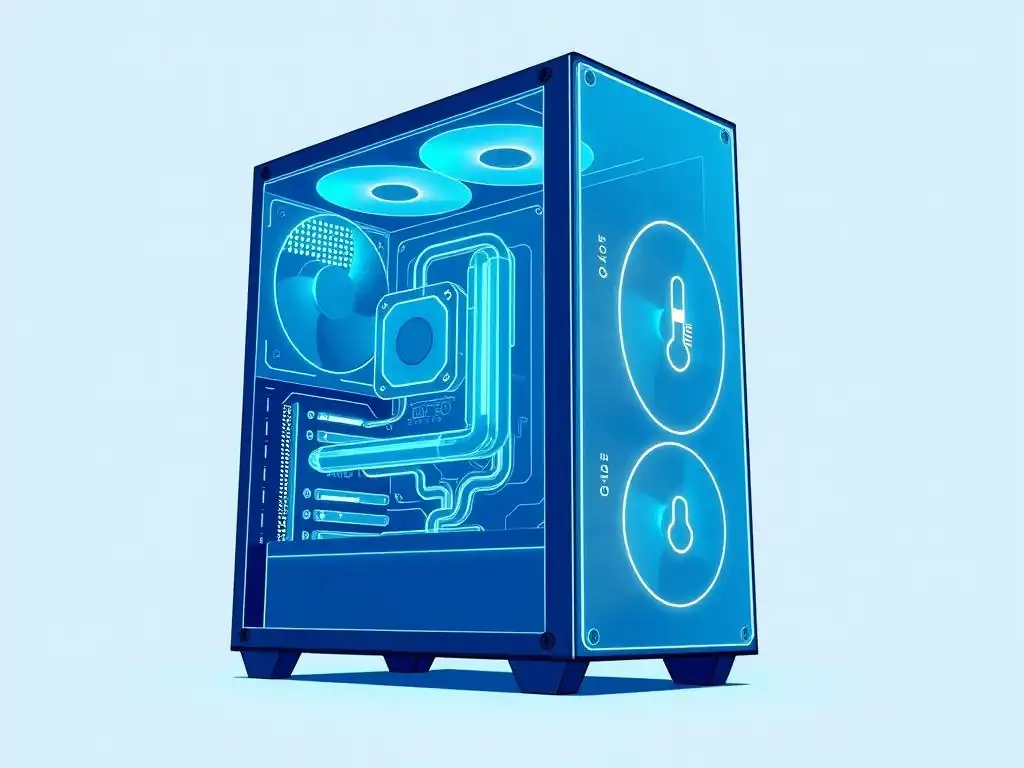
Maintaining a cool PC isn't just about immediate performance; it's about extending the lifespan of your hardware and preventing costly repairs down the line. Proactive cooling strategies are key to achieving this. Consistent, preventative maintenance significantly impacts your PC's ability to "cool down PC efficiently." Neglecting these strategies can lead to overheating, component failure, and ultimately, system instability. Let's explore some long-term solutions to keep your PC running smoothly.
Regular Cleaning and Dust Removal for Enhanced Cooling
Dust accumulation is a silent killer of PC performance and a major impediment to efficient cooling. Over time, dust particles clog fans, vents, and heatsinks, hindering airflow and causing temperatures to rise. Regular cleaning is crucial for preventing this build-up and ensuring optimal thermal performance. The frequency of cleaning depends on your environment; a dusty environment might require monthly cleaning, while a cleaner environment might allow for bi-monthly or even quarterly cleaning.
Preventative Maintenance Schedule for Optimal Performance
To effectively "cool down PC efficiently," establish a preventative maintenance schedule. This schedule should include regular cleaning, as outlined above, but also consider additional checks:
- Monthly: Visual inspection for dust accumulation. A quick wipe-down of exterior surfaces.
- Quarterly: Thorough internal cleaning, including removing dust from fans, heatsinks, and other components.
- Annually: Consider professional cleaning or a more comprehensive self-cleaning, potentially including replacing thermal paste on the CPU and GPU.
Sticking to a schedule ensures you catch problems early, preventing them from escalating into major issues. This proactive approach is far more effective and cost-efficient than dealing with a catastrophic failure.
Tools and Techniques for Effective Dust Removal
Effective dust removal requires the right tools and techniques. Avoid using compressed air cans indiscriminately, as this can damage delicate components. Instead, utilize the following:
- Compressed air (canned air): Use in short bursts, holding the can upright to avoid propellant liquid spraying onto components.
- Soft-bristled brush: Ideal for gently removing dust from hard-to-reach areas.
- Microfiber cloths: Excellent for wiping down surfaces and removing dust particles.
- Vacuum cleaner (with low suction setting): Use with extreme caution, keeping the nozzle a safe distance from components.
Remember to always power down your PC before undertaking any cleaning. Ground yourself to prevent static electricity from damaging components. Work in a well-lit area to ensure you can see all areas effectively.
Monitoring PC Temperatures with Software Tools
Regularly monitoring your PC's temperatures provides invaluable insights into its thermal performance. Software tools allow you to track component temperatures in real-time, alerting you to potential overheating issues before they cause damage. This is critical to effectively "cool down PC efficiently" proactively.
Selecting and Using PC Monitoring Software
Numerous software applications are available for monitoring PC temperatures. Choose a reputable program with a user-friendly interface and robust features. Some popular options include [specific software names pending]. These programs typically provide detailed temperature readings for various components, including the CPU, GPU, and motherboard. Properly installing and configuring the software is crucial for accurate readings. Follow the manufacturer's instructions carefully.
Interpreting Temperature Readings and Identifying Potential Issues
Understanding your PC's normal operating temperatures is crucial. Excessively high temperatures, consistently exceeding manufacturer-recommended limits, indicate a potential problem. Identifying the source of the problem requires careful analysis of temperature readings for individual components. For instance, consistently high CPU temperatures might indicate a failing CPU cooler, while high GPU temperatures might point to insufficient airflow around the graphics card.
If you encounter unusually high temperatures, consider taking preventative measures immediately, such as improving airflow or cleaning dust. Ignoring these warning signs could lead to irreversible hardware damage. Remember, proactive monitoring is key to keeping your PC running cool and efficiently.
Thermal Paste Application for Optimal Heat Transfer
Thermal paste is the unsung hero of PC cooling. This thin, electrically non-conductive compound sits between your CPU/GPU and the heatsink, filling microscopic gaps to ensure efficient heat transfer. Without proper thermal paste application, your processor will overheat, leading to throttling—a performance reduction designed to prevent damage—and potential system instability. Even a high-end cooling system will be rendered ineffective without a proper thermal paste application.
This is a crucial step that many overlook, leading to suboptimal performance and potential hardware damage. Think of it as the glue that binds your powerful processor to its cooling solution. A poor application results in air gaps which act as insulation, preventing heat from effectively transferring to the heatsink. This, in turn, causes higher temperatures and potentially shorter lifespans for your components.
Investing a few minutes in proper thermal paste application can significantly impact your system's longevity and performance. Don't underestimate the importance of this seemingly small detail! It's a critical step in maintaining optimal PC temperatures.
Choosing the Right Thermal Paste for Your CPU and GPU
The market offers a wide variety of thermal pastes, each with different characteristics. The choice depends on several factors, including your budget and the level of performance you require. While many high-end thermal pastes offer marginal improvements over more affordable options, choosing a reputable brand is key. Look for pastes with high thermal conductivity, measured in watts per meter-Kelvin (W/m·K).
A higher value indicates better heat dissipation. You also want to consider the viscosity; a paste that's too thick can be difficult to spread, while one that's too thin might not fill the microscopic gaps effectively. For most users, a mid-range thermal paste will provide excellent results without breaking the bank. Avoid extremely cheap options, as these often compromise on quality and performance.
Reading reviews and comparing specifications can help you make an informed decision. Remember, a small investment in quality thermal paste can significantly improve your cooling efficiency and extend the life of your components. Consider the reputation of the manufacturer and look for independent reviews to avoid unreliable products. Proper research is key to obtaining the best results for your specific needs and budget.
Proper Application Techniques for Maximum Efficiency
Applying thermal paste correctly is crucial for effective heat transfer. The goal is to create a thin, even layer across the entire surface of the CPU/GPU die, ensuring complete contact with the heatsink. Too much paste can hinder performance, while too little will leave air gaps, negating the purpose of the paste altogether. A common technique is the "pea-sized drop" method, where a small amount of paste is placed in the center of the CPU/GPU. When the heatsink is mounted, the pressure distributes the paste evenly.
However, for larger heat spreaders, a small cross or an "X" pattern can be more effective. Always refer to the manufacturer's instructions for your specific heatsink. Avoid using excessive pressure when mounting the heatsink, as this could damage the components. After mounting, visually inspect for any obvious issues, such as uneven paste distribution or air bubbles.
If necessary, carefully remove and reapply the paste. This process might require some practice, but mastering the technique will significantly improve your cooling performance and the overall health of your system. Remember to always ground yourself to prevent static electricity from damaging your components. A clean and well-lit workspace is also recommended to aid in the process.
Troubleshooting Common Cooling Problems
This section delves into the practical aspects of identifying and resolving common PC cooling issues. Understanding the root cause of overheating is crucial for implementing effective solutions and preventing future problems. Efficiently cooling down your PC involves a systematic approach, combining diagnosis with targeted solutions.
Diagnosing Overheating Issues: Identifying the Source of the Problem
Overheating is a common PC problem, often leading to performance throttling, system instability, and even hardware damage. Pinpointing the source of the heat is the first step towards a cool and efficient system.
Common Causes of Overheating in PCs
Several factors contribute to PC overheating. Let's examine the most prevalent culprits:
- Dust Accumulation: Dust acts as an insulator, trapping heat within the system. This is arguably the most common cause of overheating, especially in systems that haven't been cleaned regularly. A thick layer of dust can significantly reduce the efficiency of fans and heatsinks.
- Failing Fans: Fans are the primary mechanism for expelling hot air. A malfunctioning or failing fan will immediately impact cooling capacity. This can manifest as increased noise (a whirring or grinding sound) or a complete lack of airflow.
- Insufficient Airflow: Poor case design or cable management can restrict airflow, preventing effective heat dissipation. A congested case with poorly routed cables can hinder the movement of air, leading to localized hot spots.
- Overclocking: Pushing components beyond their factory specifications increases heat generation. While overclocking can enhance performance, it comes at the cost of increased thermal load. Careful monitoring and appropriate cooling solutions are essential.
- Faulty Heatsinks/Thermal Paste: Improperly applied thermal paste or a damaged heatsink will reduce heat transfer from the CPU and GPU, resulting in higher operating temperatures. This often requires reapplication of thermal paste or replacement of the heatsink.
- High Ambient Temperatures: The surrounding room temperature significantly influences PC temperatures. Operating a PC in a hot environment will naturally lead to higher internal temperatures.
Systematic Troubleshooting Steps to Resolve Heat Issues
A systematic approach is vital when troubleshooting overheating. Follow these steps for effective diagnosis and repair:
- Monitor Temperatures: Use monitoring software (e.g., HWMonitor, Core Temp) to track CPU and GPU temperatures under load. Compare these readings to the manufacturer's specifications to identify potential issues.
- Clean the System: Thoroughly clean the inside of your PC case, removing dust from fans, heatsinks, and other components using compressed air. This is often the simplest and most effective solution.
- Check Fan Functionality: Ensure all fans are spinning correctly. Replace any faulty fans immediately. Listen for unusual noises that might indicate bearing failure.
- Improve Airflow: Optimize cable management to ensure unobstructed airflow within the case. Consider adding more case fans or upgrading to a case with better airflow characteristics.
- Reapply Thermal Paste: If temperatures remain high despite cleaning and fan checks, consider reapplying thermal paste to the CPU and GPU. Ensure proper application techniques are followed.
- Reduce Overclocking: If you've overclocked your components, dial back the settings to reduce the thermal load.
- Address Ambient Temperature: If possible, improve the room's ventilation or operate the PC in a cooler environment.
Addressing Specific Cooling Challenges: Solutions and Workarounds
This section focuses on practical solutions for common cooling problems, providing actionable steps to improve your PC's thermal performance.
Fixing Fan Problems and Addressing Noise Issues
Fan failures are a major contributor to overheating. Addressing these issues requires careful attention to detail.
- Identifying Faulty Fans: Listen for unusual noises (grinding, whirring, clicking) which indicate bearing wear. Visual inspection can also reveal damaged blades or loose connections.
- Replacing Fans: Replacing a faulty fan is straightforward. Note the fan's specifications (size, voltage, airflow) before purchasing a replacement. Ensure proper installation to avoid vibration and noise.
- Noise Reduction: Excessive fan noise can be mitigated by using quieter fans (often denoted by dB(A) ratings) or by adjusting fan curves in the BIOS or using fan control software. This allows you to balance cooling performance with noise levels.
Dealing with Insufficient Airflow in Tight Spaces
Insufficient airflow is a common issue, especially in smaller cases or those with cluttered internal layouts.
- Cable Management: Proper cable management is crucial for maximizing airflow. Use cable ties or Velcro straps to neatly organize cables, preventing them from obstructing fans and heatsinks.
- Additional Fans: Adding more case fans can significantly improve airflow. Consider strategically placing fans to create an effective intake and exhaust system. (e.g., intake fans at the front, exhaust fans at the rear and top).
- Case Upgrade: If airflow remains poor despite optimization efforts, consider upgrading to a case with better airflow characteristics. Cases with mesh panels or improved ventilation designs are ideal for better cooling. Consider the case's dimensions and compatibility with your components before making a purchase.
Remember, proactively maintaining your PC's cooling system is key to preventing overheating and ensuring long-term stability and performance. Regular cleaning, monitoring, and timely repairs will keep your PC running smoothly and efficiently for years to come.
Advanced Cooling Techniques for Extreme Overclocking
This section delves into advanced cooling strategies crucial for pushing your PC's hardware to its absolute limits through extreme overclocking. We'll explore methods beyond standard air and liquid cooling, focusing on techniques that enable stable operation at significantly higher clock speeds and voltages. Successfully implementing these techniques requires a deep understanding of thermodynamics and a meticulous approach to system monitoring. Remember, pushing your hardware too far can lead to irreversible damage, so proceed with caution and always prioritize safety.
Advanced Cooling Methods for High-Performance Systems
High-performance systems demand high-performance cooling. While standard air coolers and AIO (All-in-One) liquid coolers are sufficient for many users, extreme overclocking necessitates more sophisticated solutions. These advanced methods often involve a combination of techniques to maximize heat dissipation.
For instance, a custom water cooling loop with multiple radiators, optimized airflow within the case, and carefully selected thermal paste can significantly improve cooling capacity. The importance of proper case airflow cannot be overstated; strategically placed fans and well-managed cable routing are critical for efficient heat removal. Failing to address these aspects can negate the benefits of even the most advanced cooling components.
Choosing the right thermal paste is also vital. High-quality thermal paste ensures optimal heat transfer between the CPU and cooler, improving performance and stability. Applying the paste correctly is just as crucial; uneven application can lead to hot spots and reduced cooling effectiveness.
Overclocking Safely: Monitoring Temperatures and Preventing Damage
Monitoring temperatures is paramount when overclocking. Ignoring temperature thresholds can lead to CPU throttling, system instability, or even permanent hardware damage. Utilizing monitoring software, such as HWMonitor or similar tools, allows you to track CPU, GPU, and other key component temperatures in real-time. Setting up alerts for critical temperature thresholds is an essential safety precaution. This allows for immediate intervention should temperatures exceed safe operating limits. Understanding the thermal design power (TDP) of your components is also vital. Exceeding the TDP consistently can lead to accelerated wear and tear, shortening the lifespan of your hardware.
Regularly cleaning your system's dust buildup is another crucial aspect of maintaining optimal cooling. Dust acts as an insulator, trapping heat and reducing cooling efficiency. A clean system, combined with effective cooling solutions and vigilant monitoring, minimizes the risk of damage from overclocking. Remember, prevention is always better than cure when it comes to protecting your expensive hardware investment.
Extreme Cooling Solutions: Cryogenic Cooling and Beyond
For those seeking the ultimate in cooling performance, extreme methods like cryogenic cooling present themselves. These methods involve using extremely low temperatures, often achieved through liquid nitrogen (LN2) or dry ice, to dramatically reduce component temperatures, enabling significantly higher overclocks. However, these techniques are inherently risky and require specialized knowledge and equipment. Improper handling of cryogenic substances can lead to severe injury or damage to your hardware. Furthermore, the complexity of these setups, coupled with the potential for unpredictable behavior, makes them unsuitable for casual overclockers. The cost involved in setting up a cryogenic cooling system is also substantial.
Managing Power Consumption and Heat Generation During Overclocking
Overclocking inevitably increases power consumption and heat generation. Efficient power management is therefore crucial for maintaining stability and preventing overheating. Understanding the power limits of your components is essential; exceeding these limits can damage your hardware. Utilizing power-saving features in your BIOS or operating system can help to mitigate power consumption and heat generation.
Furthermore, choosing a high-quality power supply unit (PSU) with sufficient wattage is crucial to support the increased power demands of overclocked components. A PSU with higher efficiency ratings (80+ Gold or Platinum) will also help minimize wasted energy and reduce heat output. Proper cable management within the PC case also contributes to efficient power distribution and improved airflow.
Managing Power Consumption and Heat Generation During Overclocking
Efficient power management is crucial for stable overclocking. While higher clock speeds deliver performance gains, they also significantly increase power consumption and heat generation. This section explores strategies to mitigate these effects and ensure long-term system stability.
Firstly, understanding the power limits of your components is crucial; exceeding these limits can lead to instability and potential hardware damage. Secondly, employing power-saving features in your BIOS and operating system can help to manage power consumption without significantly impacting performance. Finally, a high-quality power supply unit (PSU) with ample wattage and a high efficiency rating (80+ Gold or Platinum) is essential to support the increased power demands of overclocked components while minimizing wasted energy and heat generation.
Frequently Asked Questions
How can I quickly cool down my overheating PC?
The fastest way is to shut down your PC and let it sit for a while. You can also use a can of compressed air to clean out dust from the vents. For immediate relief, try turning on additional fans.
What are the most common causes of PC overheating?
Overheating often stems from dust buildup inside the case, hindering airflow. Insufficient cooling fans or a faulty CPU cooler can also be significant contributors. Lastly, overclocking your components pushes them beyond their thermal limits.
My PC is constantly overheating, even after cleaning. What should I do?
If cleaning doesn't resolve the issue, consider replacing your thermal paste on the CPU and GPU. You might need to upgrade to a more powerful CPU cooler or add additional case fans. In extreme cases, professional help may be necessary.
Are there any software solutions to help manage PC temperature?
Yes, many programs monitor CPU and GPU temperatures in real-time, alerting you to potential problems. Some even allow you to control fan speeds. However, software solutions are supplementary; addressing the root cause of overheating is crucial.
How can I prevent my PC from overheating in the future?
Regular dust cleaning is essential. Ensure adequate airflow around your PC case, avoiding placement in enclosed spaces. Monitor your component temperatures regularly and consider preventative maintenance like thermal paste replacement every few years.
Final Reflection: The Enduring Quest for Cool
The relentless pursuit of optimal PC performance hinges on effective cooling; a seemingly simple task, yet one with far-reaching implications for both individual productivity and the broader technological landscape. Ignoring this fundamental aspect can lead to frustrating crashes, reduced lifespan, and ultimately, a significant loss of time and money. The efficiency of our cooling solutions directly impacts our ability to harness the power of technology.
The impact of efficient cooling extends beyond the individual user experience. The demand for increasingly powerful computing necessitates innovative cooling solutions, driving advancements in materials science and engineering. Necessity is the mother of invention,
and the need to manage the heat generated by ever-more-powerful processors has spurred remarkable progress in this field. This constant push for improvement reflects a larger societal need for efficient and sustainable technology, a need that will only intensify as we move forward.
Consider the impact of overheating on your own system. Imagine the frustration of a sudden shutdown during a crucial task, or the gradual degradation of performance over time. You have the power to mitigate these issues. By implementing the cooling strategies outlined in this guide, you can not only extend the life of your PC but also enhance your overall computing experience. Take control of your digital environment; embrace the knowledge gained, and experience the difference a cool, efficient system can make.
Unlock Your PC's Full Potential: Cool Down & Conquer!
Thanks for reading our guide on PC cooling! You now have the knowledge to keep your system running smoothly and efficiently. Ready to put this knowledge into practice?
Here's what you can do next:
- Prioritize your cooling upgrade: Begin with the most impactful upgrade suggested in the article—whether it's a new case fan, applying new thermal paste, or installing a more powerful CPU cooler—and experience the performance difference. This single step can make a huge impact!
- Share your cooling journey: Tell us (and others!) on social media about your experiences. What challenges did you face? What were your results? Using the hashtag #UltimatePCCooling would be great!
- Explore advanced cooling techniques: Delve deeper into PC cooling by researching more advanced methods like liquid cooling or custom loop builds. These techniques can be incredibly effective, as briefly mentioned at the end of the article.
So, what's your next cooling project? Let's hear your thoughts in the comments below!