
The Secret Weapon Against Slow Computers: Disk Cleanup and Defragmentation

Tired of watching that spinning wheel of death? Is your computer slowing you down instead of helping you achieve your goals? At UltimateLifeHacks, we understand the frustration of sluggish technology. That's why we're diving deep into the problem of a slow computer disk in our latest Tech & Digital Hacks article. Discover the simple yet powerful techniques to speed up your system, reclaim valuable time, and regain control of your digital life. Learn how to unleash the hidden potential of your computer—read on to unlock the secrets!
- Understanding Slow Computer Performance: Identifying the Disk Bottleneck
- Disk Cleanup: The First Step to Speed Up a Slow Computer Disk
-
Defragmentation: Optimizing Your Hard Drive for Speed
- What is Disk Defragmentation and Why is it Important?
- How Defragmentation Improves Access Times and Boosts Performance
- When Should You Defragment Your Hard Drive? Understanding frequency needs for HDDs.
- The Defragmentation Process: A Detailed Explanation
- Defragmenting Your Hard Drive (Windows 10/11): A Step-by-Step Guide
- Defragmentation Alternatives for SSD Drives (Solid State Drives)
- Combining Disk Cleanup and Defragmentation for Maximum Performance
- Beyond Disk Cleanup and Defragmentation: Additional Tips to Speed Up a Slow Computer
- Frequently Asked Questions
- Final Reflection: Reclaiming Your Digital Speed
- Rediscover Your Computer's Speed: Take Action Now!
Understanding Slow Computer Performance: Identifying the Disk Bottleneck
A slow computer can be incredibly frustrating, disrupting workflow and hindering productivity. While many factors contribute to sluggish performance – insufficient RAM, outdated software, malware infections – a frequently overlooked culprit is the hard drive (or SSD) itself.
This article delves into the often-overlooked power of disk cleanup and defragmentation as secret weapons in your fight against a slow computer, specifically focusing on how to speed up a slow computer disk. We'll explore common causes of slowdowns related to disk space, teach you how to diagnose issues effectively, and explain the often misunderstood impact of disk fragmentation on your overall computer speed.
Mastering these techniques can significantly improve your computer's responsiveness and overall user experience, making your daily tasks smoother and more efficient. Learning how to effectively manage your disk space is a crucial skill for maintaining a high-performing computer, and this guide will equip you with the knowledge and tools to do just that.
A computer's performance is directly tied to the health and efficiency of its storage. When your hard drive or SSD is cluttered with unnecessary files, it can lead to noticeable slowdowns. Several common issues stem from insufficient disk space or disorganized files:
- Insufficient Free Space: Operating systems and applications require a certain amount of free space to function optimally. When your hard drive is nearly full, the system struggles to manage files, leading to delays in loading applications, saving files, and overall system responsiveness. Think of it like a crowded highway – the more cars (files), the slower the traffic (system performance).
- Temporary Files: Browsers, applications, and the operating system itself create temporary files that accumulate over time. These files often consume significant disk space without adding any value.
- Large Files: Storing excessively large files, such as high-resolution videos or uncompressed images, can impact performance, especially on slower hard drives.
- System Restore Points: While beneficial for recovery, numerous system restore points can consume considerable disk space.
- Downloaded Files: Downloads that are no longer needed occupy space and contribute to clutter.
Diagnosing Disk Space Issues: Using Windows Storage Sense and Disk Cleanup
Identifying the root cause of slowdowns related to disk space is crucial. Fortunately, Windows provides built-in tools to help:
- Windows Storage Sense: This feature automatically frees up space by deleting temporary files, removing files in the Recycle Bin, and compressing files. Enabling and configuring Storage Sense is a simple yet effective first step in optimizing disk space. You can adjust its settings to suit your preferences, determining how often it runs and which types of files to delete.
- Disk Cleanup: This utility identifies and removes unnecessary files, including temporary files, system files, and downloaded program files. Running Disk Cleanup regularly can significantly improve disk space and system performance. It's advisable to run this utility at least once a month, or even more frequently depending on your usage patterns. Remember to carefully review the list of files before deletion to avoid accidentally removing important data.
The Impact of Disk Fragmentation on Computer Speed: A Detailed Explanation
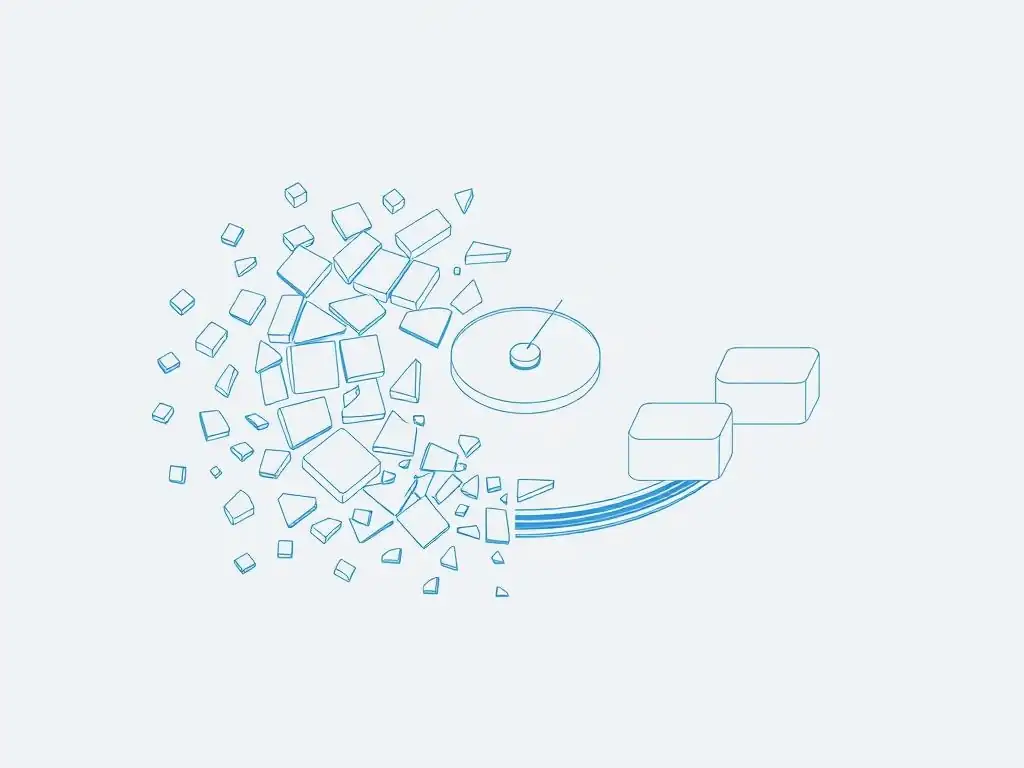
Disk fragmentation occurs when files are broken into smaller pieces scattered across the hard drive. This means the read/write head of the hard drive has to work harder to locate and assemble these fragments, leading to significantly slower access times. While less of a concern with Solid State Drives (SSDs), traditional hard disk drives (HDDs) are particularly susceptible to fragmentation. The more fragmented your hard drive, the longer it takes to load programs, access files, and perform other tasks.
Regular defragmentation (for HDDs) helps consolidate these scattered file fragments, improving access times and overall system performance. Note that SSDs generally do not require defragmentation, and attempting to defragment an SSD can even negatively impact its lifespan. Consider this when choosing your approach to disk optimization.
Disk Cleanup: The First Step to Speed Up a Slow Computer Disk
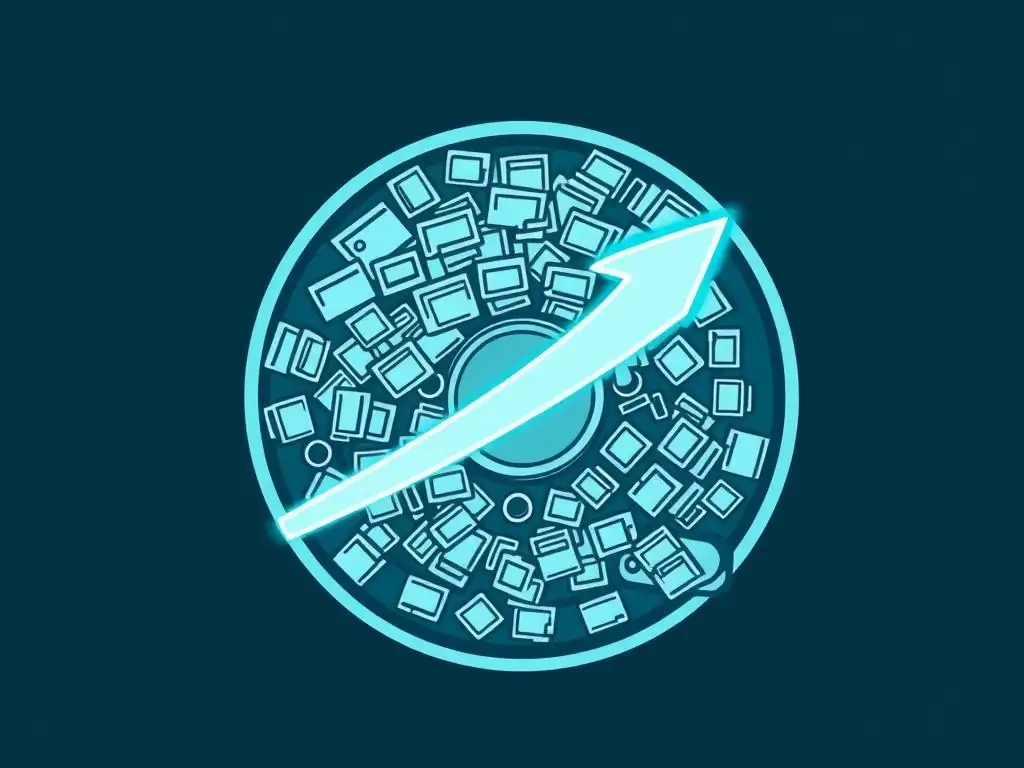
Disk cleanup is a crucial first step in the process of speeding up a slow computer disk. A cluttered hard drive, whether it's an HDD or an SSD, directly impacts performance. Files accumulate over time – temporary internet files, old system files, unnecessary downloads, and more – consuming valuable storage space and slowing down your system.
Regular disk cleanup helps reclaim this space and significantly improve your computer's responsiveness. Think of it as decluttering your digital home – removing the junk makes everything run smoother. This process is especially important for those seeking to speed up slow computer disk operations.
What is Disk Cleanup and How Does It Work?
Disk Cleanup is a built-in utility in most Windows operating systems designed to identify and remove unnecessary files from your hard drive. These files, often temporary in nature, can accumulate quickly and occupy significant storage space, leading to performance degradation. The utility works by scanning your system for various categories of files, such as temporary files, downloaded program files, system error memory dumps, and more. You then select the file types you want to remove, and the utility safely deletes them, freeing up valuable disk space.
This process doesn't affect your important files or programs. The result? A cleaner, more efficient system that contributes significantly to speed up slow computer disk performance. The improvement is often noticeable, especially on older machines or those with limited storage space.
Locating and Running the Disk Cleanup Utility (Windows 10/11)
Finding and running the Disk Cleanup utility in Windows 10 and 11 is straightforward. Here's how:
- Open File Explorer: You can do this by clicking the folder icon on your taskbar or pressing
Win + E. - Search for "Disk Cleanup": Type "Disk Cleanup" in the search bar located at the top right of the File Explorer window.
- Select your drive: The Disk Cleanup utility will appear in the search results. Click on it. You may be prompted to select the drive you wish to clean; typically, this will be your primary drive (usually C:).
- Wait for the scan: The utility will then scan your selected drive to identify files that can be safely removed. This process may take a few minutes, depending on the size of your drive and the number of files.
- Choose files to delete: Once the scan is complete, a window will appear showing various categories of files that can be deleted. Review the list carefully. Some options, like "Temporary Files" and "Recycle Bin," are generally safe to delete. Others, like "Downloaded Program Files," might require more careful consideration. Select the checkboxes next to the categories you wish to remove. Always double-check before proceeding.
- Click "Clean up system files": For a more thorough cleanup, click on "Clean up system files." This will perform a deeper scan and remove even more unnecessary files. This option often significantly contributes to speed up slow computer disk efforts.
- Confirm deletion: After selecting the files, click "OK" to confirm and begin the cleanup process. The utility will then delete the selected files, freeing up space on your hard drive.
Identifying and Removing Unnecessary Files: A Step-by-Step Guide
While the Disk Cleanup utility handles many common temporary files, you can manually identify and remove other unnecessary files to further speed up slow computer disk performance. Here's a guide:
- Downloads Folder: Regularly review your Downloads folder and delete files you no longer need. Many users let this folder become a digital dumping ground.
- Temporary Files (outside Disk Cleanup): Manually delete files in the
%temp%folder (access it by typing%temp%in the File Explorer address bar). Be cautious, as some files might be in use. - Old Program Files: Uninstall programs you no longer use. This frees up significant space and can improve performance. Use the "Add or Remove Programs" feature in the Windows Control Panel.
- Recycle Bin: Empty your Recycle Bin regularly. While it seems obvious, many forget this simple step.
- Large Files: Use a disk space analyzer tool to identify large files you might be able to delete or move to external storage.
Remember, before deleting anything, always back up important data! A little preventative care goes a long way in maintaining a healthy and fast computer. Regularly performing these steps will contribute significantly to keeping your computer running smoothly and efficiently, effectively addressing the challenge of a speed up slow computer disk.
Emptying the Recycle Bin and Temporary Files for Optimal Disk Space
Regularly emptying your Recycle Bin is a fundamental step in freeing up disk space and speeding up your computer. Many users forget this simple yet crucial task, allowing gigabytes of deleted files to accumulate and clog the system. These files, though deleted, still occupy space on your hard drive, hindering performance. Think of your Recycle Bin as a temporary holding area; it's not a permanent storage solution. Emptying it regularly ensures that these files are permanently removed, reclaiming valuable disk space.
Beyond the Recycle Bin, temporary files represent another significant source of disk clutter. These are files created by applications and the operating system for temporary storage. While often essential for smooth operation, they frequently remain on your hard drive long after they're needed. These can range from browser cache files (which store website data for faster loading) to application-specific temporary files used during installation or program execution. Leaving these files unchecked leads to unnecessary space consumption and can contribute to a sluggish system.
Most operating systems offer built-in tools to clean up these temporary files. Windows, for example, has the Disk Cleanup utility, which can be accessed by searching for it in the Start menu. This utility can identify and remove a substantial amount of temporary data, often reclaiming several gigabytes of space. Regularly utilizing this tool is a simple yet highly effective way to keep your disk space optimized and improve your computer's speed.
Remember, a clean disk is a fast disk! The frequency of cleaning will depend on your usage, but at least once a month is a good starting point. For heavier users, a weekly cleanup might be beneficial. Consider scheduling this task as a recurring event in your calendar to ensure you don't forget.
Advanced Disk Cleanup Techniques: Using Third-Party Tools
While built-in tools like Disk Cleanup are effective, third-party applications offer more comprehensive disk cleaning capabilities. These tools often go beyond basic temporary file removal, identifying and eliminating various types of unnecessary files that the standard utilities might miss. For instance, some advanced disk cleaners can detect and remove obsolete registry entries, duplicate files, and even leftover remnants from uninstalled programs. These lingering files, though invisible to the average user, can significantly impact system performance. Moreover, these advanced tools often provide more granular control over the cleaning process, allowing users to select specific file types for removal or exclude certain folders from the cleaning operation.
This level of customization ensures that essential files remain untouched while unnecessary data is efficiently eliminated. Choosing the right third-party tool is crucial. Research and compare different options, reading user reviews and considering features like real-time monitoring, scheduling options, and secure data deletion capabilities. Remember to always download software from trusted sources to avoid malware.
The use of third-party tools should supplement, not replace, the regular use of your operating system’s built-in cleaning utilities. A combined approach, using both built-in and advanced tools, provides the most comprehensive and effective disk cleanup strategy for a truly fast and efficient computer. This strategy minimizes the risk of accidentally deleting important files while maximizing the benefits of a clean and optimized system. Always back up your important data before using any new cleaning software, just in case.
Defragmentation: Optimizing Your Hard Drive for Speed
This section dives deep into disk defragmentation, a crucial process for speeding up your slow computer, especially if you're using a traditional Hard Disk Drive (HDD). Understanding defragmentation is key to optimizing your computer's performance and extending its lifespan. We'll explore what it is, how it works, and when you should utilize this powerful tool to reclaim your system's speed.
What is Disk Defragmentation and Why is it Important?
Disk defragmentation is a process that reorganizes fragmented files on your hard drive. Think of your hard drive as a filing cabinet. Over time, as you save, delete, and modify files, these files become scattered throughout the cabinet, like misplaced documents. This scattering slows down access times because the read/write heads of your hard drive have to jump around to different locations to assemble a single file. This is fragmentation.
Defragmentation acts like a meticulous librarian, neatly gathering all the scattered parts of each file and placing them together in contiguous locations. This makes it significantly faster for your computer to access and retrieve the information it needs, resulting in a noticeable improvement in overall system performance. The impact is most significant on HDDs, as SSDs (Solid State Drives) don't benefit from defragmentation in the same way. Defragmentation is a critical step in the process of how to speed up a slow computer disk.
How Defragmentation Improves Access Times and Boosts Performance
The primary benefit of defragmentation is the reduction in access time. When files are fragmented, the read/write head of your HDD spends more time seeking the various pieces of a file, leading to noticeable delays. Defragmentation minimizes this seek time by bringing all parts of a file together. This translates to faster loading times for applications, quicker file access, and a more responsive overall system.
Consider this example: Imagine opening a large photo editing file. If the file is highly fragmented, the application will experience significant delays as it waits for the various parts to be retrieved from different locations on the hard drive. After defragmentation, the same file opens almost instantaneously because the data is now located in one contiguous block. This improvement in access times directly translates to a more responsive and efficient system, significantly contributing to speeding up your slow computer disk.
When Should You Defragment Your Hard Drive? Understanding frequency needs for HDDs.
The frequency of defragmentation depends primarily on your usage patterns and the type of hard drive you have. For HDDs, regular defragmentation is recommended, although the optimal frequency is debated. Generally, running a defragmentation utility once a month or every few months is a good starting point for most users. However, if you frequently create, modify, and delete large files, you might need to defragment more often – perhaps every two weeks.
Factors influencing defragmentation frequency include:
| Factor | Impact on Defragmentation Frequency |
|---|---|
| Frequent large file transfers | More frequent defragmentation needed |
| Number of applications installed | May require more frequent defragmentation |
| Amount of free disk space | Less free space increases fragmentation, necessitating more frequent defragmentation |
| Type of hard drive (HDD vs. SSD) | SSDs do not require defragmentation; HDDs do. |
Remember to always monitor your disk's health and performance. If you notice a significant decrease in system speed, running a defragmentation utility could be beneficial. Modern operating systems often include built-in tools that automate this process, making it convenient and effortless to keep your HDD optimized and your computer running smoothly. This is a crucial aspect of learning how to speed up a slow computer disk.
The Defragmentation Process: A Detailed Explanation
Defragmentation is a crucial process for maintaining the speed and efficiency of your hard disk drive (HDD). HDDs store data in clusters, and over time, frequent file saving and deleting can lead to fragmentation. This means that the different parts of a single file become scattered across the disk, forcing the read/write heads to jump around to access all the necessary pieces.
This significantly slows down file access and overall computer performance. Think of it like having a library where books are strewn randomly across different shelves instead of being organized by subject. Finding a specific book would take much longer!
Defragmentation works by reorganizing these scattered file fragments and placing them contiguously on the disk. This reduces the time the read/write heads spend searching for data, resulting in faster file access and a noticeable improvement in your computer's responsiveness. The process involves analyzing the disk's structure to identify fragmented files, then moving those fragments to adjacent locations to create a more streamlined data layout.
The result is a more efficient and faster hard drive. The effectiveness of defragmentation is directly proportional to the level of fragmentation present on the drive; a highly fragmented drive will see a more significant performance boost after defragmentation than a mildly fragmented one. Regular defragmentation, therefore, is a preventative measure to avoid significant performance degradation.
Defragmenting Your Hard Drive (Windows 10/11): A Step-by-Step Guide
Speeding up a slow computer often involves addressing disk fragmentation. Here's how to defragment your hard drive in Windows 10 and 11:
- Open File Explorer: Click the File Explorer icon on your taskbar.
- Access This PC: In the left-hand pane, click "This PC".
- Right-Click Your Hard Drive: Right-click on your hard drive (usually labeled "C:").
- Properties: Select "Properties" from the context menu.
- Tools Tab: Click on the "Tools" tab.
- Optimize and Defragment Drive: Under "Optimize and Defragment Drive," click "Optimize".
- Select Drive and Optimize: Choose the drive you want to defragment (usually C:) and click "Analyze". Windows will assess the level of fragmentation. If fragmentation is significant (above 10%), click "Optimize" to begin the defragmentation process. This might take some time, depending on the size of your hard drive and the level of fragmentation. Avoid using your computer extensively during the optimization process.
Remember, regular scheduling of this process is key to preventing significant fragmentation buildup. Windows typically has a built-in scheduler, but you can also manually run the optimization whenever you notice a decline in computer performance. Always ensure you have sufficient free space on your hard drive before running the defragmentation utility, as this can improve its efficiency.
Defragmentation Alternatives for SSD Drives (Solid State Drives)
Unlike traditional HDDs, Solid State Drives (SSDs) don't require defragmentation. In fact, defragmenting an SSD can actually reduce its lifespan and performance. SSDs use flash memory, which is significantly faster and more durable than HDDs. The way data is written and accessed on an SSD is inherently different, making the traditional concept of defragmentation unnecessary and potentially harmful. The process of constantly rewriting data to consolidate fragmented files puts unnecessary stress on the limited write cycles of an SSD.
Instead of defragmentation, focus on maintaining sufficient free space on your SSD. Aim for at least 20% free space to ensure optimal performance. Regularly deleting unnecessary files, uninstalling unused programs, and emptying the Recycle Bin can significantly improve your SSD's performance and extend its lifespan.
While there might be third-party tools claiming to optimize SSDs, these are generally unnecessary and could potentially be detrimental. Sticking to basic disk maintenance practices – cleaning up unnecessary files and keeping ample free space – is the best approach for maintaining the speed and health of your SSD. Therefore, for SSDs, the focus should be on prevention rather than cure.
Combining Disk Cleanup and Defragmentation for Maximum Performance
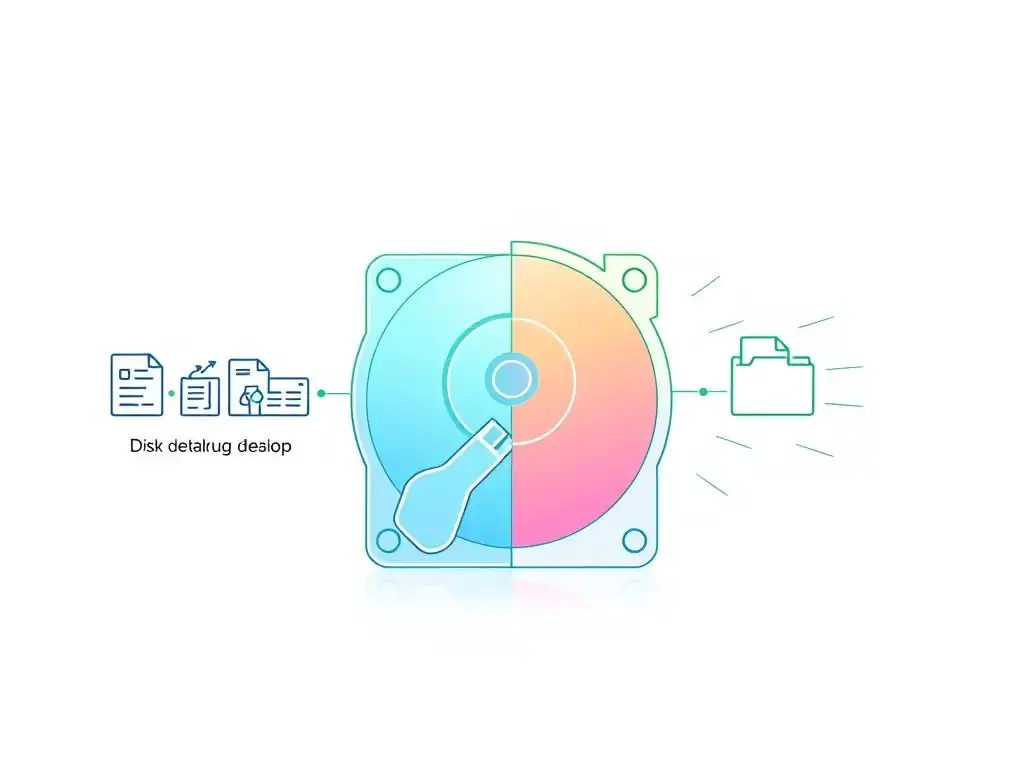
This section explores the powerful synergy between disk cleanup and defragmentation in optimizing your computer's speed. While often considered separate processes, combining these techniques provides a more comprehensive solution for addressing the root causes of a sluggish system. Many users might only utilize one method, neglecting the potential performance gains from a combined approach. This oversight can lead to suboptimal results and a less efficient system than could be achieved.
Think of it like this: cleaning your house (disk cleanup) removes clutter and unnecessary items, while organizing your belongings (defragmentation) ensures everything is easily accessible. Together, they create a much more efficient and functional space – or in this case, a faster computer. We'll delve into the specifics of how these techniques work together to effectively speed up a slow computer disk.
A Synergistic Approach: The Benefits of Combining Techniques
Disk cleanup focuses on removing temporary files, unnecessary system files, and other digital debris that accumulate over time. This frees up valuable disk space and reduces the workload on your hard drive. However, even with a clean drive, fragmented files can significantly slow down access times. Defragmentation addresses this by reorganizing files, placing related pieces together for faster retrieval.
When combined, these processes dramatically improve performance. For example, consider a scenario where you have a large number of temporary internet files clogging your drive and numerous fragmented program files. A simple disk cleanup might resolve some of the slowdown, but significant performance improvements will only be realized after defragmentation consolidates the remaining files.
This results in quicker application loading times, faster boot times, and an overall smoother user experience. The combined effect is far greater than the sum of its parts, providing a noticeable boost to your computer's speed. The synergy lies in the complementary nature of each process – cleanup creates space, and defragmentation optimizes access to that space.
Step-by-Step Guide: Cleaning and Defragmenting for Optimal Results
Optimizing your disk for speed requires a systematic approach. Here's a step-by-step guide to effectively clean and defragment your hard drive, maximizing its performance and addressing the "speed up slow computer disk" challenge head-on:
- Initiate Disk Cleanup: Access the Disk Cleanup utility (search for it in your system's search bar). Select the drive (usually C:) you want to clean. The utility will analyze and present a list of files to delete. Carefully review the options, ensuring you're comfortable deleting the selected files. Remember, this process removes temporary files, which are typically safe to delete.
- Select Files for Removal: Choose the file types you wish to remove. This often includes temporary files, downloaded program files, and recycle bin contents. The total space reclaimed will be displayed before you confirm the deletion.
- Initiate Defragmentation: After the disk cleanup is complete, open the defragmentation utility (search for "Optimize Drives" in your system's search bar). Select the same drive you cleaned and click "Analyze". The utility will assess the level of fragmentation. If fragmentation is significant (above 10%), click "Optimize" to begin the process. Note that this process can take a considerable amount of time, depending on the size of your drive and the level of fragmentation. Avoid using your computer during this process to ensure optimal results.
- Post-Optimization Verification: Once the defragmentation is complete, restart your computer. You should notice a noticeable improvement in your system's responsiveness and application loading times. Regularly monitoring your drive's health and repeating this process ensures sustained optimal performance.
Maintaining Optimal Disk Performance: A Regular Maintenance Schedule
Consistent maintenance is crucial for maintaining optimal disk performance. Think of it like regular car maintenance—preventative measures prevent major issues down the line. A regular schedule ensures your computer remains responsive and avoids the frustration of a sluggish system. The frequency of this maintenance depends on your usage patterns.
For heavier users, a monthly schedule might be necessary. For less intensive users, quarterly or even bi-annual maintenance may suffice. However, it's always advisable to monitor your disk space and fragmentation levels regularly. Tools are available to monitor drive health and alert you to potential issues, allowing for proactive maintenance.
By establishing a routine and monitoring your system's health, you can proactively address potential performance bottlenecks and maintain a fast, efficient computer, ensuring you effectively address the "speed up slow computer disk" challenge long-term. Remember, proactive maintenance is far more efficient than reactive troubleshooting. A well-maintained system translates to increased productivity and a more enjoyable computing experience.
Beyond Disk Cleanup and Defragmentation: Additional Tips to Speed Up a Slow Computer
This section delves into strategies beyond the basic disk cleanup and defragmentation to significantly improve your computer's performance and address the persistent issue of a "speed up slow computer disk". While those initial steps are crucial, optimizing other areas can yield substantial speed improvements. We'll explore software optimization, hardware upgrades, and software maintenance to comprehensively tackle sluggish performance.
Additional software optimization techniques: Removing unnecessary startup programs
Many applications automatically launch when you start your computer, consuming valuable resources and slowing down boot times. Disabling unnecessary startup programs can dramatically improve the responsiveness of your system. This is particularly relevant when addressing the query "speed up slow computer disk" as unnecessary programs often contribute to disk overload.
Consider these steps to identify and remove these resource hogs:
- Task Manager (Windows): Press
Ctrl + Shift + Escto open the Task Manager. Navigate to the "Startup" tab. Here, you'll see a list of programs configured to start with Windows, along with their startup impact (high, medium, low). You can disable programs with a high impact to see immediate improvements. Be cautious, however; disabling essential programs can lead to system instability. - System Configuration (Windows): Type
msconfigin the search bar and press Enter. This opens the System Configuration utility. Go to the "Startup" tab. Similar to the Task Manager, you can disable unnecessary startup items here. Remember to reboot your computer after making changes. - Third-party startup managers: Several third-party applications provide more detailed analysis and control over startup programs. These tools often offer more granular control and provide insights into program resource usage. Carefully research and select a reputable program before using it.
A well-maintained startup list contributes significantly to a faster, more responsive computer experience, directly impacting your ability to "speed up slow computer disk" by reducing unnecessary disk activity at startup.
Hardware upgrades to consider: Increasing RAM
Insufficient Random Access Memory (RAM) is a common culprit behind slow computer performance. RAM acts as your computer's short-term memory, storing data the system needs to access quickly. When RAM is full, the system resorts to using the hard drive (or SSD) as virtual memory, leading to significant slowdowns – a major factor in the "speed up slow computer disk" challenge.
Upgrading your RAM is often a cost-effective solution. Consider these points:
- Determine your current RAM: Check your computer's specifications to find out how much RAM you currently have installed and what type (DDR3, DDR4, etc.). This information is usually found in the system properties (search for "System Information" in the Windows search bar).
- Choose compatible RAM: Ensure the new RAM is compatible with your motherboard and system. Using incompatible RAM can damage your system.
- Installation: While relatively straightforward, installing RAM requires some technical knowledge. If you're not comfortable doing it yourself, seek professional help. Improper installation can damage your computer.
Increasing your RAM can lead to a noticeable improvement in overall system performance, especially when dealing with multitasking and resource-intensive applications. This directly alleviates pressure on your hard drive, effectively contributing to "speed up slow computer disk".
Software updates and driver maintenance: Keeping Windows and drivers up-to-date
Outdated software and drivers are frequently overlooked contributors to slow computer performance. Outdated drivers, in particular, can cause conflicts and inefficiencies, impacting disk access speeds and contributing to the "speed up slow computer disk" problem. Regular updates are crucial for maintaining optimal performance and security.
Here's how to stay current:
- Windows Updates: Regularly check for and install Windows updates. These updates often include performance improvements and security patches.
- Driver Updates: Check the websites of your hardware manufacturers for the latest drivers for your graphics card, network adapter, and other peripherals. Outdated drivers can significantly impact system performance and stability. Consider using driver update utilities, but choose reputable ones carefully, as some can install unwanted software.
- Regularly scan for malware: Malware can significantly impact system performance, including disk access speeds. Run regular scans with a reputable antivirus or anti-malware program.
Consistent software and driver updates are essential preventative measures, ensuring your system runs smoothly and efficiently, addressing the "speed up slow computer disk" issue proactively.
Frequently Asked Questions
What causes my computer to run slowly?
A slow computer is often caused by a cluttered hard drive. Too many temporary files, unnecessary programs, and fragmented data can significantly impact performance. Disk cleanup and defragmentation can help resolve this.
How does disk cleanup help speed up my computer?
Disk cleanup removes unnecessary files, such as temporary internet files, downloaded program files, and system files that are no longer needed. This frees up valuable hard drive space and improves overall system responsiveness.
What is disk defragmentation, and why is it important?
Disk defragmentation reorganizes fragmented files on your hard drive, placing them in contiguous locations. This allows the computer to access data more efficiently, resulting in faster loading times and improved overall performance. It's less crucial for SSDs.
Is disk defragmentation necessary for Solid State Drives (SSDs)?
No, defragmentation is generally not recommended for SSDs. SSDs don't suffer from the same fragmentation issues as traditional hard disk drives (HDDs). Attempting defragmentation could even reduce the lifespan of your SSD.
Where can I find tools to perform disk cleanup and defragmentation?
Most operating systems (like Windows and macOS) include built-in disk cleanup and defragmentation utilities. You can typically find these in your system settings or through a search. Third-party tools are also available.
Final Reflection: Reclaiming Your Digital Speed
The relentless march of data leaves its mark, slowing down our computers and frustrating our productivity. But the solution isn't always a costly upgrade; often, the answer lies in the simple act of cleaning and optimizing our hard drives. This seemingly minor task can dramatically improve performance, transforming a sluggish machine into a responsive workhorse.
The impact of digital clutter extends far beyond individual frustration. Our reliance on technology for work, communication, and entertainment means a slow computer directly impacts our efficiency and overall well-being. Time is the most valuable asset we have, and a slow computer robs us of it, one frustrating click at a time.
This simple truth underscores the importance of proactive maintenance, not just for individual users, but for the collective productivity of our increasingly digital society. The ease of disk cleanup and defragmentation makes it a powerful tool accessible to everyone, regardless of technical expertise.
You now possess a secret weapon against the frustrating slowdowns that plague so many computers. Take control of your digital experience. Schedule regular disk cleanups and defragmentations (or optimize your SSDs). Experience the joy of a responsive system, and reclaim the time and energy previously lost to digital lag. The power to boost your computer's performance is in your hands – use it wisely.
Rediscover Your Computer's Speed: Take Action Now!
Thanks for learning how to boost your computer's performance! You now have the knowledge to combat frustrating slowdowns. Ready to put your new skills to the test?
- Prioritize Disk Cleanup: Begin by thoroughly cleaning your disk to remove unnecessary files. This simple step often dramatically improves performance!
- Schedule Regular Defragmentation: Automate hard drive defragmentation to maintain optimal performance. This will keep your computer running smoothly.
- Share your success in speeding up your computer with friends—help them reclaim their computer's speed, too!
What's the first step you'll take to enjoy a faster, more responsive computer today?