Simple Changes, Big Impact: Optimize Your Digital Workspace for Success
😊 Unlock peak productivity! This article reveals simple tweaks to dramatically improve your digital workspace efficiency. Learn how small changes yield massive…
Read article
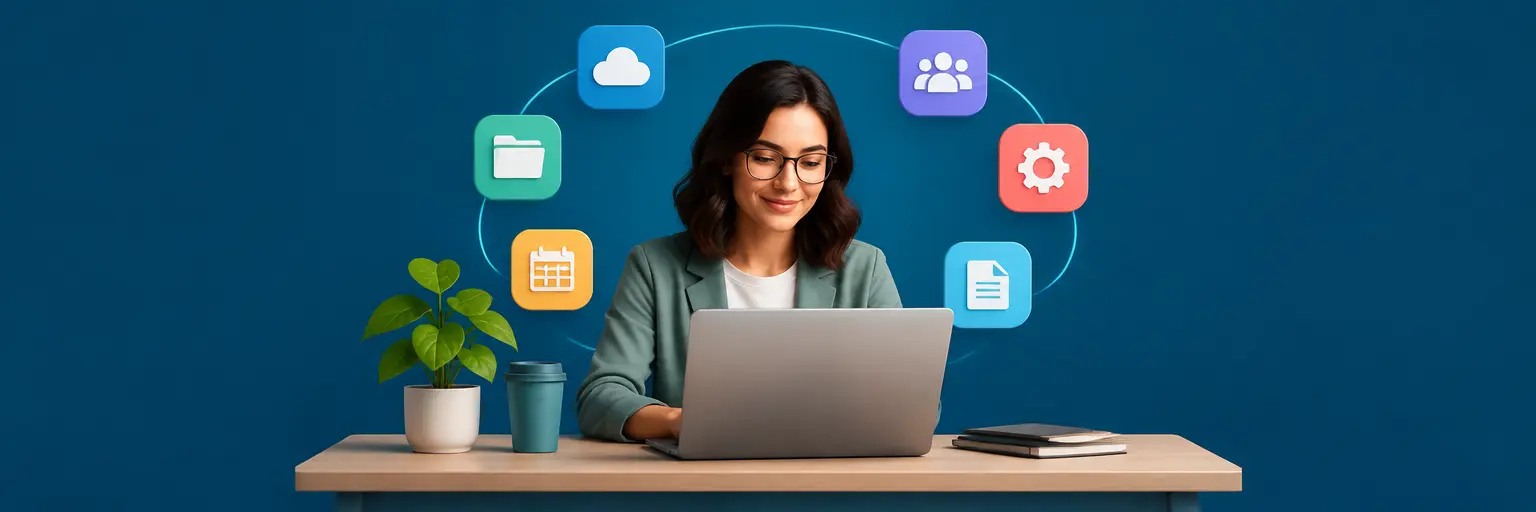
Unlock a smarter way to work by transforming your digital workspace into a command center for speed, clarity, and focus. Whether you’re drowning in browser tabs, juggling endless notifications, or losing files in a chaotic folder system, optimizing your digital environment is the ultimate productivity hack. Streamline your daily tasks with automated workflows, decluttered desktops, and smart tool integrations that slash wasted minutes and mental fatigue. From mastering keyboard shortcuts and tab management to adopting a single-pane-of-glass dashboard, these actionable tips help you reduce context switching, prioritize high-impact work, and reclaim hours every week. Perfect for remote workers, freelancers, and busy professionals, this guide delivers practical, copy-paste-ready strategies to make your tech work for you—not against you. Turn friction into flow, boost your output, and feel calmer with every click. 🚀⚡
😊 Unlock peak productivity! This article reveals simple tweaks to dramatically improve your digital workspace efficiency. Learn how small changes yield massive…
Read article
😊 Conquer digital chaos! This article reveals pro tips to optimize digital workspace efficiency, boosting productivity and reclaiming your time. Learn to…
Read article
😊 Unlock effortless efficiency! Discover surprisingly easy digital productivity hacks to streamline your workflow and reclaim your time. Simple strategies for maximizing…
Read articleYour digital workspace is the command center for productivity—yet most people tolerate scattered files, endless tabs, and distracting notifications that quietly eat hours each week. Optimizing your digital workspace means reshaping your desktop, folders, apps, and browser habits into a lean, intuitive system that supports deep focus and rapid task completion. This subcategory of Digital Workflow on UltimateLifeHacks delivers actionable, tech-agnostic strategies to declutter, automate, and personalize your virtual environment. Expect practical fixes that work within minutes, not complex overhauls, so you can reclaim time and mental energy today.
A cluttered desktop mirrors a cluttered mind. Start by moving every icon off your desktop and into a structured folder system using a simple rule: three levels deep maximum—e.g., Projects > ClientName > Assets. Rename files with consistent naming conventions (YYYY-MM-DD_Project_Title) so search tools locate them instantly. Your desktop should hold only active shortcuts or temporary files, ideally zero icons. This reduces visual noise and accelerates your morning startup routine by eliminating the “where did I save that?” hunt.
Next, implement a weekly 10-minute cleanup ritual: archive old downloads, merge duplicate folders, and delete screenshot debris. Use cloud storage sync judiciously—only for active files, not as a dumping ground. For Windows and Mac, enable Quick Access or Finder Favorites for your top five folders. The payoff is measurable: fewer clicks to every file, lower cognitive load during switching tasks, and a clean slate that signals “work mode” to your brain. You’ll also reduce accidental overwrites and version confusion, which are silent killers of workflow efficiency.
Browser tab overload is the most common digital workspace saboteur. Adopt the “one window, five tabs” rule: keep only the active task’s tabs open, and use bookmark folders or read-later tools (like Pocket or Raindrop) for everything else. Install a tab suspender extension (e.g., OneTab) to collapse inactive tabs into a list, cutting memory usage by up to 60%. Also, turn off non-essential push notifications—both browser and system-level—except calendar, messaging, and email flags. Batch-check these at fixed intervals (e.g., 10:00, 14:00, 17:00) to preserve focus blocks.
Use browser profiles or containers to separate personal, work, and client contexts, each with its own extensions and logged-in accounts. This prevents accidental cross-contamination and speeds up switching between roles. For heavy researchers, create a dedicated “research” profile with no social media extensions. You’ll notice fewer distractions, faster page loads, and a calmer visual field. Pair this with a single bookmark bar containing only your top five daily tools—everything else lives in folders or is searched via address bar shortcuts.
Automation is the ultimate life hack for digital workspace optimization. Start with email triage: create filters that auto-label newsletters, receipts, and low-priority threads, then skip your inbox to a “Read Later” folder. For file management, use folder actions (Mac) or Hazel (Windows) to auto-rename screenshots, move PDFs into dated folders, and compress large uploads. Keyboard shortcuts are free automation: learn your top 15 (e.g., Ctrl+Shift+T to reopen tab, Win+Arrow to snap windows) and you will save dozens of minutes weekly.
Next, leverage trigger-based automation tools like IFTTT or Zapier for cross-app workflows—e.g., save email attachments to Dropbox, log time tracks to a spreadsheet, or send daily summary digests to your phone. Even simple scripts (like a batch renamer for downloads) can eliminate recurring manual work. The key is to start small: pick one repetitive task that annoys you most, automate it, then iterate. Over a month, you will free up at least one full workday’s worth of clicks and typing, which you can redirect to high-value projects or rest.
Your digital workspace should support deep work, not fragment it. Begin by turning off all visual alerts—red badges, blinking icons, and popup teasers—across your OS and apps. Use focused workspace modes: Windows Focus Assist or macOS Do Not Disturb schedule blocks (e.g., 9–11 AM) to mute everything except urgent calls. Place your phone face-down and out of arm’s reach; a simple physical barrier often works better than any app. Also, set your desktop wallpaper to a neutral color or a serene image to reduce eye strain and visual chatter.
Adopt a single “inbox zero” principle for digital inputs: your email, chat, task manager, and downloads folder should each have one clear entry point and one processing time. Use the “2-minute rule”—if a digital task takes under 2 minutes, do it immediately; otherwise, schedule it to a dedicated block. For repeated work patterns, create custom keyboard macros (e.g., using AutoHotkey or Alfred) to insert templates, open app sets, or paste common responses. The goal is to make your digital workspace feel like a serene cockpit—every tool visible, every noise silenced, every action intentional.
Optimization is not a one-time event; it’s a habit. Schedule a 30-minute weekly digital detox, preferably every Friday afternoon, to review your workspace: delete unused apps, close dormant projects, reorganize desktop icons, and update your bookmark folders. Also, clear your browser’s download folder and archive files older than 90 days to cloud storage. This ritual prevents gradual buildup of digital clutter that erodes your newfound efficiency over weeks.
During the detox, also audit your notification settings—many apps sneakily re-enable alerts after updates. Check your startup items and disable any non-essential programs that slow boot time. Finally, review your automation workflows for any broken triggers or outdated rules, and adjust based on changing priorities. By dedicating this small recurring time slot, you ensure your digital workspace remains fast, intuitive, and aligned with your current goals. Consistency beats intensity; a little maintenance each week keeps your digital life hacking sharp and your productivity peak.
Most users notice an immediate reduction in visual clutter and faster file access within the first day. Full productivity gains—like fewer distractions and better focus—typically materialize within 3–5 days as you adapt to new routines. Automations deliver compounding benefits within a week.
No, the core strategies rely on built-in OS features, free extensions, and native shortcuts. For advanced automation, free tiers of Zapier or IFTTT cover most needs. Paid tools like Hazel or Alfred are optional and only worth it if you handle heavy file workflows.
Clearing your desktop to zero icons and organizing files into a three-level folder system. This single action removes the primary source of visual noise and speeds up every future file search. Pair it with a browser tab limiter for compounding effect.
Conduct a thorough review during your weekly digital detox, and do a quick spot-check after any major app update. Apps often reset preferences during updates, so a monthly scan ensures your focus remains protected. For critical apps, keep only essential alerts on.
Absolutely. Assign each monitor a dedicated role—e.g., one for primary work, one for reference materials, one for communication. Use virtual desktops (Windows) or Spaces (Mac) to group related windows per task. Keep toolbars clean and use snap assists to arrange windows without dragging.