Effortless Digital Workflow: How to Automate Tasks and Maximize Results
😊 Streamline your daily grind! Learn how to automate tasks within your digital workflow, maximizing efficiency and reclaiming precious time. Discover practical…
Read article
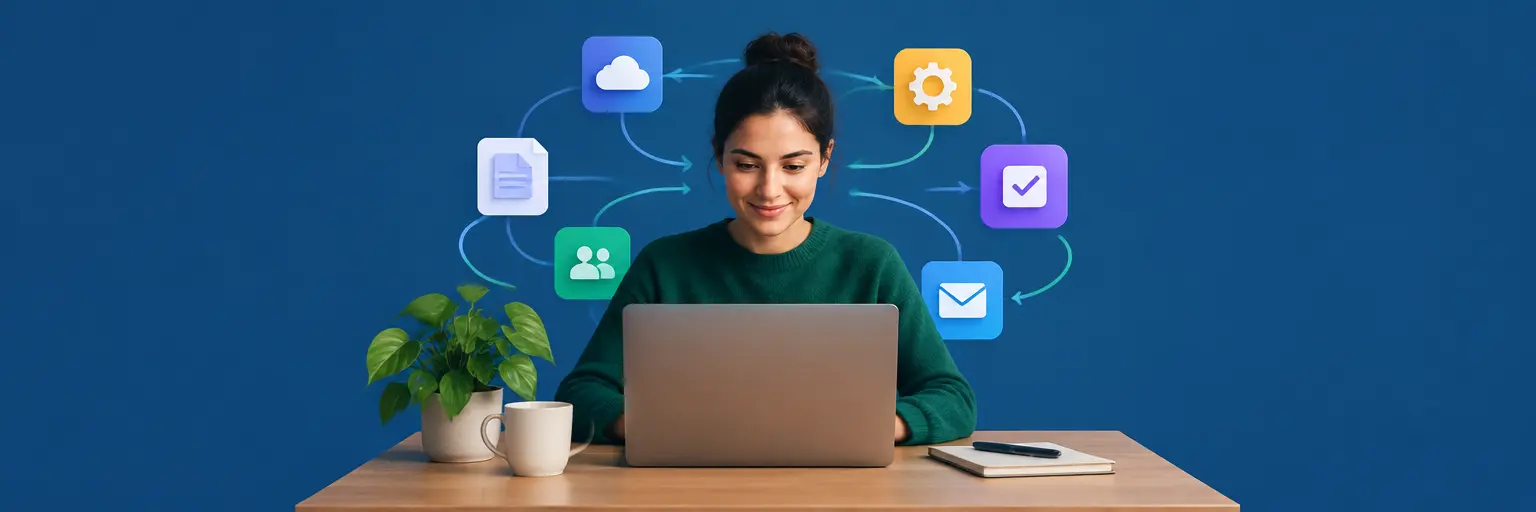
Unlock the true potential of your daily grind with Improving Digital Workflow, your go-to guide for streamlining tasks, automating repetitive actions, and eliminating digital clutter. In a world where every second counts, mastering your online processes isn’t just a luxury—it’s a necessity for peak productivity. Whether you’re juggling project management tools, email overload, or file chaos, this resource delivers actionable, step-by-step hacks to transform fragmented routines into a seamless, high-velocity system. Discover how to leverage smart integrations, optimize keyboard shortcuts, and design intuitive dashboards that put you back in control. Say goodbye to wasted time and hello to focused, efficient execution. From automating data entry to centralizing communication, every tip is crafted to reduce friction and boost your output—so you can reclaim hours every week. Perfect for remote workers, entrepreneurs, and busy professionals, these strategies are proven to cut task time by up to 40% while improving accuracy and collaboration. Dive in to turn your digital workspace into a well-oiled machine, letting technology work *for* you, not against you.

😊 Streamline your daily grind! Learn how to automate tasks within your digital workflow, maximizing efficiency and reclaiming precious time. Discover practical…
Read article
🤔 Drowning in digital clutter? This article unveils proven optimize digital workflow hacks to conquer chaos. Reclaim your time and boost productivity…
Read article
😊 Conquer digital chaos! This article reveals proven strategies to optimize digital workflow efficiency, boosting your productivity and reclaiming valuable time. Learn…
Read article
🤔 Drowning in digital chaos? This article reveals practical strategies to optimize digital workflow efficiency, boosting productivity and reclaiming your time. Learn…
Read article
😊 Drowning in digital tasks? This article reveals simple strategies to optimize digital workflow efficiency, boosting productivity and reclaiming your valuable time.…
Read articleWelcome to the Improving Digital Workflow subcategory at UltimateLifeHacks. Here, we focus on actionable strategies, tools, and mindset shifts that help you automate repetitive tasks, reduce digital clutter, and create a seamless flow between apps, files, and communication. Whether you’re a remote worker, student, or entrepreneur, these hacks will transform how you manage your digital life, saving you hours each week. Expect practical, step-by-step guidance that you can implement immediately, all designed to boost efficiency and lower stress.
Automation is the cornerstone of a modern digital workflow. In this section, we dive deep into tools like Zapier, Make, and IFTTT to connect your favorite apps—think Gmail, Slack, Trello, and Google Sheets—so that routine actions happen without your manual input. You’ll learn how to set up “if this, then that” rules, such as automatically saving email attachments to Dropbox or creating calendar events from form submissions. By eliminating mundane clicks, you reclaim mental energy for high-value tasks.
Beyond the tools, we cover automation etiquette: how to avoid over-automating, which can lead to messy data or missed nuances. You’ll discover real-world examples, cost-free setups, and troubleshooting tips for common errors. Expect a beginner-friendly approach that scales to advanced workflows, ensuring your automation grows with your needs. This section is your launchpad for a hands-off, yet fully controlled, digital environment.
Digital clutter is a silent productivity killer. Here, we teach you a folder architecture that mirrors your mental model, using consistent naming conventions, color-coded tags, and a “zero inbox” philosophy for your desktop and cloud drives. Learn to set up a project-based hierarchy where every file is reachable within three clicks. We also cover advanced search tricks using Spotlight, Windows Search, or tools like Everything, so you stop wasting time looking for that elusive PDF.
We’ll explore sync strategies across devices, using tools like Dropbox, Google Drive, or OneDrive, along with versioning best practices to prevent file conflicts. You’ll also get tips on regular digital decluttering schedules and how to archive old projects without losing future reference. The result? A clean, logical system that feels intuitive, reduces anxiety, and boosts your confidence in finding anything instantly.
Your calendar is more than a meeting schedule—it’s a visual representation of your priorities. In this section, we show you how to implement time blocking to allocate dedicated slots for deep work, emails, and breaks. You’ll learn the “Eat the Frog” method, where your most challenging task gets the first block of the day. We also cover how to use digital assistants like Google Calendar’s smart scheduling or Calendly for seamless meeting setup, reducing back-and-forth emails.
Beyond scheduling, we tackle the art of saying no to unnecessary meetings and using asynchronous communication tools like Loom or Notion to cut meeting overload. You’ll discover weekly review rituals where you plan your next sprint and adjust blocks based on energy patterns. With these hacks, your calendar becomes a proactive tool for focus, not just a passive record of obligations.
Notifications are the death of deep focus. Here, we guide you through a notification audit: turning off non-essential alerts, batching messages, and using “Do Not Disturb” modes effectively across all devices. You’ll learn how to use focus apps like Freedom or Forest to block distracting websites during work hours. We also emphasize the role of digital minimalism—keeping only essential apps on your home screen and using web versions for others to reduce temptation.
Beyond technical fixes, we address mental strategies like attention residue—how switching tasks costs cognitive energy—and how to create a distraction-free workspace both physically and digitally. Expect a step-by-step plan to reclaim your attention span over 30 days, including habit cues and reward systems. By cutting the noise, you’ll enter a flow state more easily and complete tasks in half the time.
With millions of apps, choosing the wrong stack is a common pitfall. This section helps you build a cohesive digital toolkit based on your specific needs—whether that’s project management, note-taking, or communication. We compare popular tools like Notion, Todoist, ClickUp, and Evernote, highlighting their strengths and limitations for different use cases. You’ll learn to avoid app hoarding by adopting the “one tool per core function” rule, and how to migrate data between apps safely.
We also discuss micro-stacks—small, free combinations like Google Workspace + Trello + Slack—that cover 80% of workflows without a steep learning curve. Plus, we share our favorite hidden features, keyboard shortcuts, and integrations that save minutes daily. By the end, you’ll have a personalized app stack that feels lightweight, powerful, and fully integrated, reducing cognitive load and enhancing team collaboration if you work with others.
The fastest win is disabling non-essential push notifications on your phone and desktop. Most people lose 20+ minutes daily to interruptions. Spend 10 minutes in your settings to keep only urgent alerts (calls, direct messages from key people). Then, schedule two “check-in” times for email and messages. This simple change immediately boosts focus and lowers stress.
It depends on your style. For simplicity, combine them in one tool like Notion or ClickUp, which lets you embed notes inside tasks. If you prefer minimalism, use a dedicated task app (Todoist) and a separate notes app (Obsidian) but link them via tags. Avoid more than two tools for this—otherwise, you’ll waste time switching contexts.
Start with free tiers of Zapier (100 tasks/month), Make (1,000 operations/month), or IFTTT (unlimited simple applets). Prioritize high-frequency, low-complexity automations like saving email attachments to Google Drive or posting new Instagram content to Twitter. As your workflow grows, consider a paid plan only when you’ve proven the automation saves you at least an hour weekly.
Use a shared cloud drive with a consistent folder structure: e.g., “Projects / [Year] / [Client Name] / [Deliverables]”. Name every file with a date prefix (YYYYMMDD_FileDescription). Add a “________ARCHIVE” subfolder per project for completed items. Set up shared shortcuts on each member’s desktop. Schedule a monthly cleanup to delete duplicates or move no-longer-needed files.
Conduct a thorough review every 90 days, but also do a quick 5-minute weekly ritual every Monday. In the weekly check, list what felt slow or frustrating, and brainstorm one small fix. In the quarterly review, evaluate your app stack, automate a new repetitive task, and declutter your calendar. This cadence keeps your system lean and aligned with changing priorities.