How to Automate Tedious Tasks: A StepbyStep Guide for Digital Efficiency
😊 Reclaim your time! This guide shows you how to automate tedious tasks easily, boosting productivity and freeing you from mundane routines.…
Read article
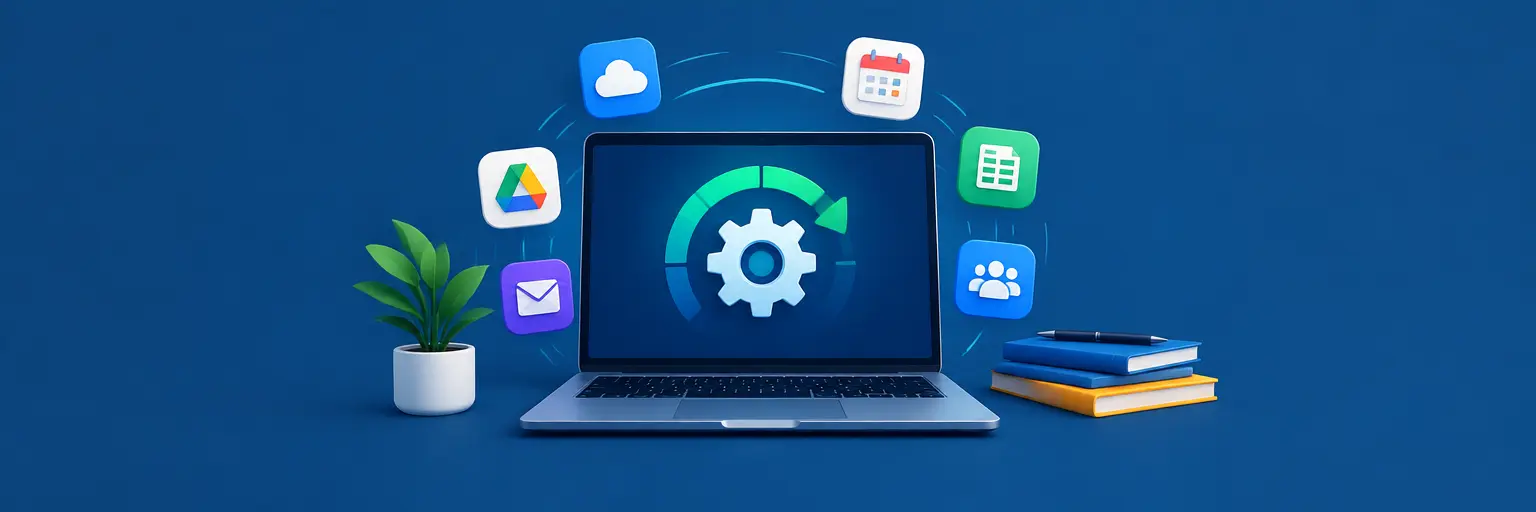
Unlock hidden hours in your day by mastering the art of digital tool optimization—not just using apps, but engineering them to work for you. From automating repetitive tasks and decluttering your virtual workspace to leveraging keyboard shortcuts and integrating cross-platform workflows, this is your playbook for maximum output with minimum effort. Stop fighting your tech and start turning every click, swipe, and notification into a precision move toward peak productivity.

😊 Reclaim your time! This guide shows you how to automate tedious tasks easily, boosting productivity and freeing you from mundane routines.…
Read article
😊 Unlock hidden productivity with simple software tweaks! This article reveals essential adjustments to speed up your workflow, boosting efficiency and reclaiming…
Read article
😊 Drowning in digital clutter? This guide provides practical strategies to conquer your chaotic digital life and learn to organize digital files…
Read articleWelcome to the ultimate resource for transforming your digital workspace into a lean, high-performing machine. Optimizing digital tools and software is not just about installing apps; it’s about strategically configuring your tech stack, automation, and workflows to eliminate friction and boost output. On UltimateLifeHacks, we focus on actionable, real-world strategies that save you hours each week. Here, you’ll discover how to master your browser, streamline communication platforms, automate repetitive tasks, and integrate powerful utilities—all with the goal of achieving peak digital efficiency. Whether you’re a remote worker, entrepreneur, or student, these hacks will help you reclaim your most valuable asset: time.
Your web browser is the gateway to most of your digital work, yet it often becomes a chaotic swamp of open tabs and sluggish performance. Optimizing your browser involves using extensions like OneTab or Tab Wrangler to automatically consolidate unused tabs, reducing memory usage and visual clutter. Furthermore, mastering keyboard shortcuts for tab switching, reopening closed tabs, and using “pin tabs” for essential apps like Gmail or Slack can cut navigation time dramatically.
Beyond basic hygiene, leverage productivity extensions such as Grammarly for writing, Dark Reader for eye strain, and LastPass for password autofill. Creating custom search shortcuts (e.g., typing “yt” for YouTube) via bookmark keyword rules lets you jump to any site without typing full URLs. These small tweaks compound into a browser that feels instant, reliable, and seamlessly tailored to your daily routines—transforming a common pain point into a core strength of your digital efficiency stack.
Repetitive tasks—like renaming files, moving data between apps, or posting to social media—are silent time thieves. Automation platforms like Zapier or Make allow you to connect your favorite apps and create “if this, then that” workflows without coding. For instance, automatically save email attachments to cloud storage, or send a Slack notification when a new lead fills a form. Each automation removes manual effort, freeing your mental energy for high-value projects.
For local automation, AutoHotkey (Windows) or Keyboard Maestro (macOS) can turn complex sequences of clicks and keystrokes into a single hotkey. Also, consider using text expansion tools like TextExpander to insert standard replies, code snippets, or your full address instantly. By systematically identifying your top three repetitive actions and automating them, you can realistically save 30–60 minutes daily—a substantial boost to your personal productivity and overall life satisfaction.
Email remains the biggest productivity killer for most professionals. Optimizing your email client is essential: use Snooze features, categorize with labels, and set up filters to automatically sort newsletters, receipts, and social notifications into folders. Adopt the “touch it once” rule—if an email takes under two minutes to answer, do it immediately; otherwise, schedule a weekly block for deep responses. This prevents inbox paralysis and constant context switching.
Beyond email, streamline team communication by setting clear guidelines for Slack or Teams: use status updates to signal deep work, create dedicated channels for projects, and mute non-essential notifications. Integrate Calendly to eliminate back-and-forth scheduling, letting people book time directly into your calendar. These practices reduce internal friction and ensure that your digital tools serve as enablers rather than interruptions, making your workday smoother and more focused on substantive output.
Spreadsheets are ubiquitous but often underutilized. Optimizing spreadsheet efficiency starts with learning key formulas like VLOOKUP, INDEX/MATCH, and SUMIFS to automate data analysis instead of manual copying. Use data validation and conditional formatting to create clear, error-resistant sheets. For collaboration, leverage Google Sheets’ Named Ranges and pivot tables to summarize thousands of rows in seconds, drastically cutting report preparation time.
In document processing, master keyboard shortcuts for Word or Google Docs (e.g., Ctrl+Shift+C for formatting paint) and utilize built-in templates for recurring reports, proposals, or meeting notes. Also, integrate cloud-based tools like Notion or Evernote to turn scattered documents into a searchable knowledge base. By optimizing these core office tools, you not only speed up individual tasks but also improve data accuracy and team alignment—cornerstones of digital efficiency in any workflow.
Optimization isn’t only about speed—it’s also about security and reliability. Configuring your software settings can prevent data loss and cyber threats. Enable two-factor authentication (2FA) everywhere, use a password manager to generate strong unique passwords, and routinely update apps to patch vulnerabilities. For performance, disable startup programs that bog down your system, clear temporary files with CCleaner, and upgrade to an SSD if possible—these tweaks yield a noticeably faster boot and app launch times.
Additionally, optimize your operating system’s virtual memory and power settings for balanced performance, and use cloud backup services like Backblaze to automate file protection. For developers or power users, learning to use command-line tools (like PowerShell or Terminal) for bulk file operations can be a game-changer. By taking control of your system’s background processes and security posture, you create a stable, resilient digital environment that minimizes downtime and maximizes your ability to work without technical distractions.
Start by auditing your most-used apps for speed and usability—uninstall unused ones, enable dark mode for battery life, and clear caches. Next, set up automated backups and enable 2FA for security. Finally, adopt one keyboard shortcut or one automation per week to build sustainable habits.
Tools like Zapier and Make have visual interfaces where you connect triggers and actions from a dropdown. For example, create a workflow that sends new email attachments to Dropbox. You only need to set up each step once; the tool runs in the background, freeing you from manual data transfers.
Yes, absolutely. A password manager like Bitwarden or 1Password autofills login forms, saves you from resets, and ensures unique passwords. This reduces time spent on login issues and protects your accounts, which indirectly boosts productivity by avoiding security breaches.
Implement the “Two-Minute Rule” for quick replies and batch processing for longer emails. Create filters to auto-label and archive newsletters. Also, schedule two specific times per day to check email—ideally at 10 AM and 3 PM—rather than keeping your inbox open constantly.
Do a quarterly review. For each tool, ask: “Am I using 80% of its features? Does it integrate with my primary apps?” If not, replace it or find a shortcut. Also, check for new updates or alternative tools that may offer better performance. Regular pruning prevents app bloat and keeps your system lean.