Digital Efficiency and Digital Detox: Take a Break From Technology
🤔 Feeling overwhelmed by technology? A digital detox isn't about abandoning tech entirely, but strategically disconnecting to boost focus and creativity. Digital…
Read article
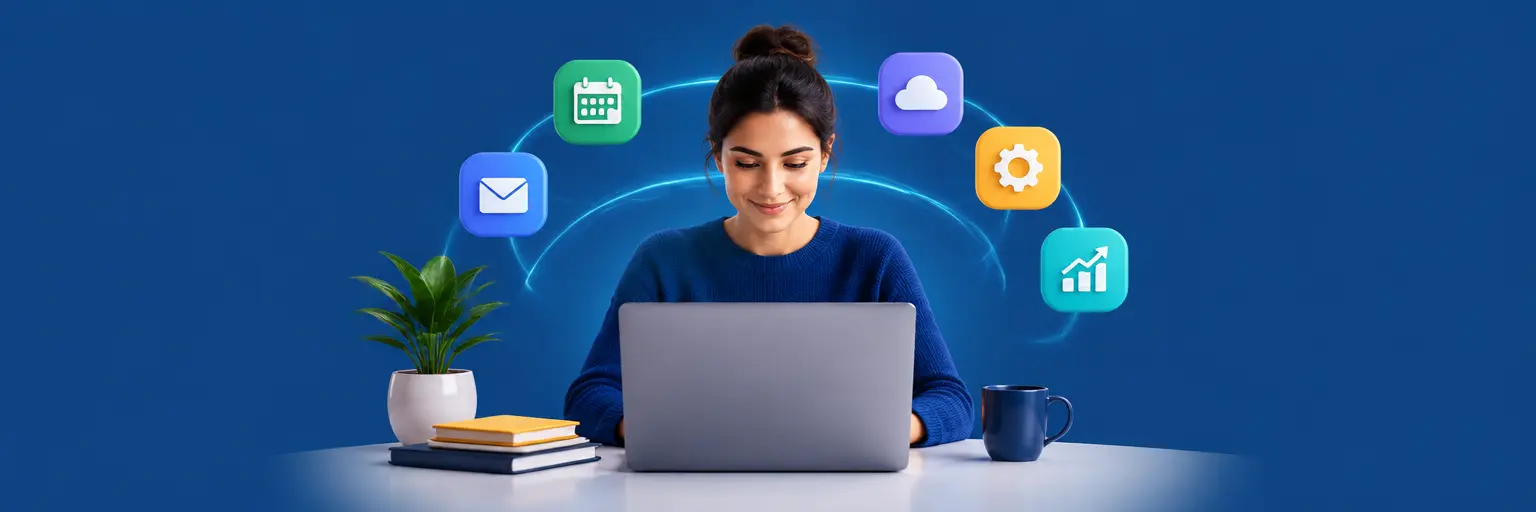
Unlock the hidden potential of your daily grind with Enhancing Digital Efficiency—your ultimate playbook for smarter, faster, and leaner tech habits. In a world buzzing with notifications, endless tabs, and cluttered apps, mastering your digital environment isn’t just a luxury—it’s a necessity. Discover powerful productivity hacks that streamline workflows, automate repetitive tasks, and declutter your screen so you can focus on what truly matters. From keyboard shortcuts that shave seconds off every action to clever app organization and browser extensions that do the heavy lifting, these time-saving strategies turn chaos into calm. Learn to batch process emails, schedule social media in minutes, and harness cloud tools for instant collaboration—all without overwhelm. Whether you’re a busy professional, student, or creative, these practical tips help you reclaim hours each week, reduce digital fatigue, and boost output with minimal effort. Dive in and transform your devices from distractions into powerful allies of productivity—one small, smart tweak at a time. Start optimizing today and feel the difference in your focus, speed, and peace of mind.

🤔 Feeling overwhelmed by technology? A digital detox isn't about abandoning tech entirely, but strategically disconnecting to boost focus and creativity. Digital…
Read article
🤔 Master your online presence without the overwhelm! This article reveals practical strategies to manage social media efficiently, boosting productivity and freeing…
Read article
🤔 Unlock your potential with science-backed productivity techniques! This article reveals how digital tools and a scientific understanding of work habits can…
Read article
😊 Streamline your workflow and boost productivity by optimizing your software update process. Regular updates prevent glitches, enhance security, and keep your…
Read article
🤔 Boost your digital efficiency! This article tackles common tech-related roadblocks, offering practical solutions to overcome digital productivity obstacles and reclaim valuable…
Read article
😊 Unlock your productivity potential! Learn how to improve efficiency with technology, streamlining your daily routines and maximizing your time. Discover practical…
Read article
😊 Master fast online research techniques to supercharge your productivity! This article reveals simple, effective strategies for quickly finding the information you…
Read articleWelcome to Enhancing Digital Efficiency, a core pillar of UltimateLifeHacks focused on transforming how you interact with technology. In a world overflowing with apps, notifications, and endless tabs, true productivity comes from intentional digital habits. Here, you’ll discover actionable strategies to streamline your workflows, reduce digital clutter, and reclaim hours every week—all without buying new software or learning complex coding. Whether you’re a busy professional, a student, or a parent juggling schedules, these hacks are designed to make your devices work for you, not against you.
Email and instant messages are the top productivity killers, with the average person checking them over 50 times daily. This section dives into advanced inbox management techniques like Inbox Zero, batch processing, and setting up smart filters. You’ll learn how to unsubscribe from noise, create priority labels, and use built-in snooze features to handle messages at set times. Expect practical scripts for quick replies and templates that cut your response time in half. By automating routine sorting, you free mental energy for deep work.
Beyond email, we tackle Slack, Teams, and text notifications. Discover how to batch message checks, mute non-essential channels, and use “do not disturb” modes strategically. These hacks reduce context switching—the enemy of focus—by up to 40%, according to productivity studies. You’ll leave with a personalized notification audit checklist and a 5-step plan to reclaim your attention span within a week.
Automation is the secret weapon of digital efficiency, and you don’t need to be a programmer to use it. Here, we explore no-code tools like IFTTT, Zapier, and built-in shortcuts on iOS/Android. You’ll learn to automate file backups, social media posting, email sorting, and even data entry between apps. For example, set up a recipe that saves email attachments to your cloud drive automatically, or one that sends a reminder when a project deadline approaches. These micro-automations can save 5–10 hours monthly.
We also cover browser extensions that automate repetitive tasks—like form filling, tab grouping, and password management. Expect step-by-step guides with visual examples for setting up your first three automation workflows. By delegating mundane tasks to machines, you reduce errors and increase consistency. This section is perfect for anyone tired of manual copy-pasting or repetitive clicks, offering immediate wins in your daily digital routine.
Digital clutter directly correlates with slower retrieval and higher stress. This subsection focuses on creating a universal folder structure that works across your computer, phone, and cloud drives. Learn the PARA method (Projects, Areas, Resources, Archives) to classify everything in minutes. We’ll share file-naming conventions that make search instant—like using dates and project codes. You’ll also discover how to leverage desktop search tools like Everything or Spotlight to find any file in under 2 seconds.
We then dive into cloud aggregation—managing Google Drive, Dropbox, OneDrive, and iCloud from one dashboard. Avoid the “where did I save that?” panic by setting up a single access point via tools like CloudHQ or MultCloud. Expect a comparison table of storage plans, sync strategies, and offline access hacks. With these systems, you’ll never lose a document again, and your backup routine becomes automatic, protecting you from data loss disasters.
Your device’s home screen is your digital gateway; most people waste minutes searching for icons. This section teaches app-launching hacks: use gesture controls, voice commands, and widget-based dashboards to reduce taps. On desktop, we cover virtual desktops, snap layouts, and keyboard shortcut mastery. For example, learn to switch windows with Alt+Tab versus mouse—saving seconds per switch, which adds up to hours yearly. We also discuss reducing visual noise by hiding unused dock icons and disabling animations.
Beyond layout, we optimize system performance—cleaning storage, managing startup programs, and using lightweight alternatives like browser-based apps. Expect a checklist to declutter your taskbar/menu bar, plus tweaks for battery and data usage. By customizing your workspace to match your workflow, you reduce friction and increase flow state. These adjustments are reversible and take under 30 minutes to implement, making them the lowest-hanging fruit for immediate digital efficiency.
Searching the web or your local files is often slower than necessary. This section reveals advanced Google operators (site:, filetype:, intitle:) and how to combine them for precise results in seconds. You’ll learn to create custom search engines in your browser for specific websites, saving tabs and time. For researchers, we cover reference managers like Zotero and learning to use citation plugins. We also explore AI-assisted search tools that summarize articles and videos, giving you the gist without reading everything.
On the local side, we show how to use desktop search utilities to find emails, chats, and files across all apps. Master the art of Boolean searches in Gmail and Outlook. Expect a cheat sheet of shortcuts for common queries, plus tips on saving recurring searches as bookmarks. By the end, you’ll cut your research time by 30–50%, making you faster at work, school, or personal projects. These skills compound—the more you use them, the better you become at efficient information retrieval.
Sometimes, enhancing efficiency means removing features. This section advocates for a digital minimalist approach: delete apps you haven’t used in 30 days, turn off non-human notifications, and schedule “notification fasting” periods. You’ll learn to batch social media checks to specific times, using website blockers during deep work. We provide a 7-day declutter challenge that reduces screen time by an hour daily. Beyond productivity, this practice lowers anxiety and improves sleep quality, as constant pings fragment your attention.
We also cover setup of focused work environments—using browser profiles for separate tasks, enabling grayscale mode to reduce temptation, and creating physical barriers like phone cradles. Expect strategies to handle FOMO (fear of missing out) and reclaim your leisure time. This isn’t about going offline entirely; it’s about intentional usage. By cutting the noise, you amplify signal—every notification you allow matters more, and your focus becomes laser-sharp.
No, most hacks use built-in features or user-friendly no-code tools. We provide step-by-step instructions with screenshots, so even beginners can implement them in minutes. Start with basic email filters and keyboard shortcuts, then move to automation later.
Many users report saving 5–10 hours per week within the first two weeks after adopting batch processing, automation, and decluttering. Simple changes like disabling notifications yield immediate focus improvements, while complex systems take a few days to feel natural.
We carefully recommend trusted, well-reviewed services like Zapier and native OS features. Always enable two-factor authentication and review permissions. Never automate sensitive financial transactions unless you’re experienced. Your data stays encrypted in transit and at rest with major providers.
We cover cross-device sync strategies using cloud storage and browser profiles. You’ll learn to maintain a single source of truth for files and bookmarks. Use your tablet for reading and your PC for heavy work, but sync your clipboard and passwords for seamless transitions.
Absolutely. Most optimizations are reversible. We advise backing up your current settings before making major changes. For example, export your email labels or screenshot your home screen layout. You can always revert to your original workflow with minimal friction.