Mastering Creative Software Online: Video Editing Software Tutorials Online
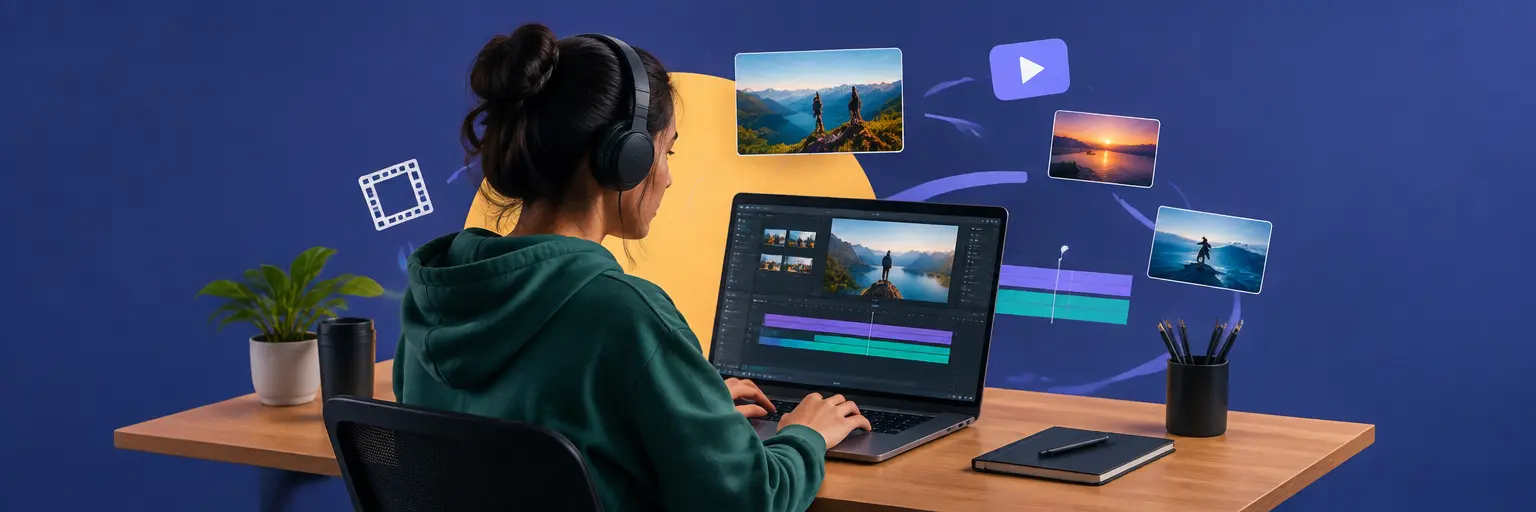
Welcome to UltimateLifeHacks’ dedicated hub for video editing software tutorials online. Here, we transform the often-overwhelming world of creative software into practical, time-saving life hacks that boost your productivity and output quality. Whether you are trimming a family clip or producing professional content, these tutorials focus on efficient workflows, keyboard shortcuts, and automation—so you spend less time fighting software and more time creating. Every lesson is tailored to help you master tools faster, avoid common pitfalls, and integrate video editing seamlessly into your daily routine.
🎬 Choosing the Right Video Editing Tool for Your Workflow
Not all editing software fits every project. In this section, we dissect popular options like Adobe Premiere Pro, DaVinci Resolve, Final Cut Pro, and free tools like Shotcut. We focus on core features that impact speed: proxy workflows, timeline customization, and export presets. You’ll learn quick decision frameworks—such as which software handles 4K on modest hardware or which offers the fastest auto-reframe tools for social media. Our aim is to help you avoid the “software rabbit hole” and pick a tool that aligns with your specific video type and editing frequency. By matching software to your needs, you save hours of learning curve frustration.
Each tutorial includes real-world performance benchmarks and side-by-side comparisons of UI layouts. We also highlight hidden “lifehack” settings—like enabling GPU acceleration or customizing workspace presets—that dramatically reduce rendering times. Expect practical guidance on migrating between tools if you’re switching platforms. This subcategory isn’t about feature lists; it’s about smart selection. We show you how to test a trial version in under 30 minutes using our “five-task check” method. That way, you make an informed choice without wasting a weekend on unproductive experimentation.
⌨️ Speed Editing Secrets: Keyboard Shortcuts & Macro Hacks
The fastest editors don’t move their mouse much; they rely on keyboard shortcuts and custom macros. Here, we teach you the top 20 shortcuts that cut editing time by 30–50% across major platforms. You’ll get printable cheat sheets and setup instructions for creating your own macro sequences in DaVinci Resolve or Premiere Pro—like one-touch color grading or auto-adding captions. We also cover how to remap keys to fit your natural workflow, turning repetitive actions into instant commands. This is pure productivity hacking: minimal effort, maximum output, and less repetitive strain.
Beyond shortcuts, we explain how to use playback proxies and timeline organization templates to avoid lag-induced waiting. You’ll learn to create “edit bins” quickly and color-code clips for instant visual scanning. We also dive into using third-party apps like AutoHotkey or Keyboard Maestro to automate entire sequences—like exporting multiple versions in one click. These tutorials are designed for busy professionals and hobbyists alike who want their software to feel like an extension of their thoughts, not a bottleneck.
🎥 Essential Transitions & Motion Graphics Made Easy
Dynamic transitions and motion graphics often require expensive plugins or deep animation knowledge. This section breaks down simple, effective alternatives using built-in tools in your editing software. You’ll learn how to create smooth zoom transitions, luma fades, and text animations in under five minutes—no After Effects required. We provide step-by-step walkthroughs for using keyframes intelligently to animate scale, position, and opacity, giving your videos a polished, professional feel. These tricks are perfect for vlogs, tutorials, and quick social media edits where speed matters more than intricate VFX.
We also cover free template resources and how to adapt them to your brand style. For example, we show you how to modify a downloadable text overlay to match your color palette in seconds. Additionally, we explore the “match cut” technique for seamless storytelling, which is a favorite lifehack among professional YouTubers. By mastering these motion basics, you eliminate the need for external animation software, saving both money and learning time. Expect concise video clips within each tutorial (linked externally) that illustrate exact mouse paths and timeline adjustments.
🛠️ Troubleshooting & Performance Boosts Without Breaking the Bank
Nothing kills productivity like a frozen timeline or endless export loops. Here, we address the most common software crashes, speed lags, and codec issues with practical, budget-friendly fixes. You’ll learn how to clear cache files, manage media storage, and adjust playback resolution to avoid stutter—even on standard laptops. We also share hidden settings like enabling “hardware encoding” for export, which can cut render times by up to 70%. Our troubleshooting guide is built from community feedback and official documentation, distilled into simple checklists you can run in under 90 seconds.
Beyond fixes, we teach you preventative maintenance routines—like weekly project folder cleanup and automatic backups using free cloud storage. We also cover how to use system monitors to identify bottlenecks (CPU vs. GPU vs. RAM) so you know whether to upgrade hardware or just adjust settings. These lifehacks prevent mid-project disasters and keep your creative flow uninterrupted. For those on a strict budget, we highlight open-source tools that mimic paid performance, such as using HandBrake for fast compression or LosslessCut for quick trimming without re-encoding.
📱 Mobile Video Editing Hacks for On-the-Go Productivity
Sometimes you need to edit from your phone or tablet—during commutes or while traveling. This section focuses on mobile-first video editing apps like CapCut, InShot, and LumaFusion. We compare their speed, export quality, and ease of use, providing shortcuts for achieving professional results without a desktop. You’ll learn how to use built-in auto-captions, smart cropping for vertical formats, and multi-track timeline management on a small screen. These tutorials are ideal for content creators who need quick social stories or ads while away from their main workstation.
We also share file transfer lifehacks—like using Wi-Fi Direct or cloud apps to move projects between phone and desktop seamlessly, avoiding re-editing. Discover how to set up custom export presets on mobile to match platform requirements (e.g., Instagram Reels vs. YouTube Shorts) in one tap. For advanced users, we explore external storage via USB-C and recording directly into the app for higher quality. By mastering mobile editing, you free up your creative time and stay responsive even when your laptop is packed away.
Frequently Asked Questions
What is the best video editing software for beginners?
For absolute beginners, we recommend CapCut (mobile/desktop) or Shotcut (free desktop) because they have simple interfaces and one-click auto-editing features. They also offer abundant free tutorials online. Avoid expensive tools like Premiere Pro until you understand basic cutting, transitions, and export settings. Start with free software to build confidence, then upgrade when you need advanced color grading or motion graphics.
How can I speed up video export without lowering quality?
Enable hardware encoding in your software’s export settings—it uses your GPU to render faster. Also, export to H.264 with a reasonable bitrate instead of ProRes, and avoid unnecessary effects during preview. Additionally, close background apps and use a fast SSD for media storage. These steps can reduce export times by 50–70% while preserving visual fidelity.
Do I need a powerful computer for 4K video editing?
Not necessarily. Use proxy editing—create lower-resolution copies of your 4K clips for editing, then switch back to original for export. Most software (Premiere, DaVinci) supports proxies automatically. A mid-range laptop with 16GB RAM and a decent graphics card can handle 4K proxy workflows smoothly. This lifehack saves you from buying an expensive editing rig.
Can I learn video editing entirely for free online?
Yes, absolutely. Platforms like YouTube, UltimateLifeHacks, and free official software tutorials (e.g., DaVinci Resolve’s training) offer comprehensive lessons. Combine these with free tools like Shotcut or DaVinci Resolve (which has a robust free version) to practice without spending a cent. The catch is discipline—set a weekly goal to follow one tutorial and practice for 30 minutes.
How do I make my videos look professional with minimal effort?
Focus on three key hacks: (1) Use LUTs (color presets) for instant cinematic grading—download free ones online. (2) Add motion blur or smooth transitions—use “dip to black” or zoom cuts sparingly. (3) Improve audio: clean voiceovers with free tools like Audacity’s noise reduction. A crisp sound and consistent color instantly boost perceived quality more than flashy effects.