Digital Organization Tips: Email Management & Organization
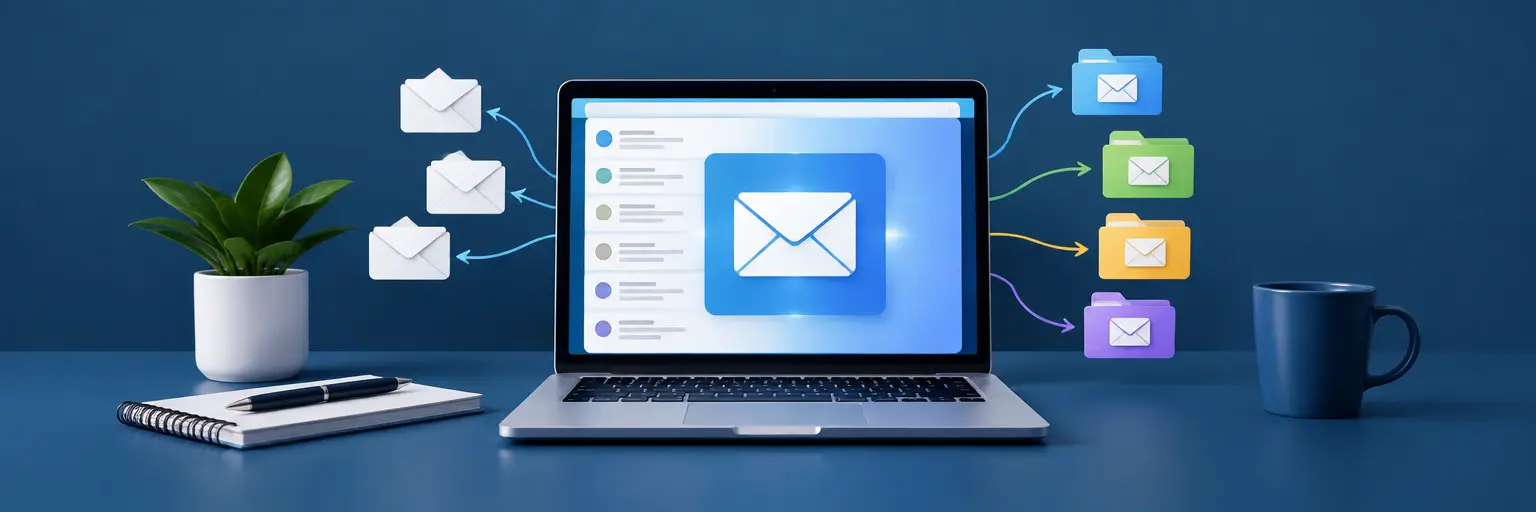
Struggling with an overflowing inbox, missed deadlines, or endless scrolling through unread messages? The Digital Organization Tips: Email Management & Organization subcategory on UltimateLifeHacks is your go-to resource for transforming chaotic email habits into a streamlined, stress-free system. Here, you’ll discover actionable productivity hacks, inbox-zero strategies, and automation tools that save you hours weekly. Whether you’re a professional juggling work emails or a student managing multiple accounts, this guide covers everything from folder structuring to spam reduction—all designed to boost efficiency and reclaim your mental clarity.
📥 Inbox Zero Mastery: From Overwhelm to Control
Inbox Zero isn’t just a trend—it’s a lifestyle. This section teaches you the five-step decision framework (delete, delegate, respond, defer, do) to process emails in under two minutes each. You’ll learn how to batch-check your inbox at set intervals (e.g., 9 AM, 1 PM, 4 PM) instead of reacting to every ping, which reduces context-switching and boosts focus. We also explore the “touch it once” rule, where you immediately archive or act on every email, preventing pile-ups. By the end, you’ll have a personalized routine that turns your inbox from a source of anxiety into a manageable task list.
Additionally, we dive into snooze and schedule features across Gmail, Outlook, and Apple Mail to delay non-urgent messages until you’re ready. You’ll learn how to use labels, stars, and priority markers effectively—not as decoration but as active triage tools. For visual learners, we include screenshots of ideal inbox layouts and before/after examples. Remember: the goal isn’t to check emails less, but to process them faster with zero residue. This section alone can shave 3-5 hours off your weekly email time.
⚙️ Automation & Filters: Let Your Inbox Work for You
Why manually sort repetitive emails when you can automate? This H3 reveals the power of email filters—rules that automatically label, archive, forward, or delete incoming messages based on sender, subject, or keywords. You’ll learn to create “VIP filters” for bosses or clients, redirecting their emails to a priority folder with push notifications. We also cover unsubscribe automation using tools like Unroll.me or Clean Email, which batch-removes you from spam lists—saving 20–30 minutes per week. For power users, we introduce Zapier or IFTTT integrations that sync emails with your calendar, CRM, or task manager (e.g., turning an order confirmation into a Trello card).
Beyond basic filters, we tackle boomerang emails—scheduling replies to send later or returning emails to your inbox if no response is received. You’ll also learn to set up “Do Not Disturb” hours for auto-replies, perfect for deep work sessions. Our step-by-step tutorials for Gmail’s “Create Filter” and Outlook’s “Rules” will ensure you never miss a key message again. With automation in place, you can reduce manual email handling by up to 70%, freeing mental bandwidth for high-value tasks.
🗂️ Smart Folder Structures & Labeling Systems
Cluttered inboxes often stem from poor organization. Here’s how to build a hierarchical folder system that mirrors your life: primary folders like “Work,” “Personal,” “Finances,” and “Projects,” with subfolders for specific clients or events. We explain the “archive versus delete” dilemma—archiving keeps everything searchable without visual clutter, while deleting is for junk. You’ll learn to apply color-coded labels (e.g., red for urgent, blue for informational) that make scanning effortless. We also share templates for naming conventions, such as “YYYY-MM-DD_Project” to sort chronologically, and how to use “Smart Folders” in Apple Mail or “Multiple Inboxes” in Gmail for automatic segregation.
Another critical tip is the one-in, one-out rule: for every new subscription you join, unsubscribe from an old one. This prevents inbox bloat at the source. We also cover how to set up a “Pending” folder for waiting-on responses, and a “Read-Later” folder for newsletters—but with strict limits (max 10 items) to avoid procrastination. By structuring your labels like a filing cabinet, you’ll find any email in under 3 seconds, a key productivity benchmark. This system works across all devices, syncing seamlessly via IMAP or Exchange.
📧 Email Etiquette & Response Efficiency
Speed isn’t everything—clarity matters. This H3 teaches you to craft concise, actionable emails that cut negotiation time. Use subject lines that state the action, e.g., “[Action Needed] Approval for Q3 Budget,” and lead with the single most important request in the first sentence. We show you template snippets for common replies (e.g., meeting rescheduling, status updates) to save keystrokes. You’ll also master the “inverted pyramid” style, where you put the conclusion upfront, reducing back-and-forth emails by 40%. For sensitive topics, we cover polite phrasing and when to pick up the phone instead.
Additionally, we address the CC/BCC trap—why over-CC’ing leads to reply-all chaos. Learn to set a rule: only CC if they must act, not just for visibility. We also tackle “reply expectation times” and how to set boundaries (e.g., no emails after 7 PM) using auto-responders. For busy professionals, we recommend two-sentence replies for non-critical messages, deferring longer discussions to meetings. By implementing these etiquette hacks, you’ll not only respond faster but also build a reputation as a clear, decisive communicator—a huge career asset.
📱 Managing Multiple Accounts & Cross-Platform Sync
Juggling personal and work email? This section is for you. We discuss using email aggregators like Gmail’s “Send Mail As” feature or Outlook’s “Connected Accounts” to unite all inboxes into one view, without duplicates. You’ll learn to set per-account notification rules—only vibrating for VIP senders, muting newsletters. For mobile users, we explore dedicated apps like Spark, Airmail, or Microsoft Outlook for iOS/Android, which offer unified smarts: swipe actions, read receipts, and speed reader modes. We also cover alias creation (e.g., name+shopping@gmail.com) to track which sites spam you—then filter or block them easily.
Cross-platform sync ensures you never miss an email on the go. We explain IMAP vs. POP3 and why IMAP is superior for multi-device access. Learn to configure server settings correctly to avoid duplicates or missing messages. For advanced users, we introduce cron jobs or third-party sync tools like Sync2 or MailStore to backup emails to cloud drives. We also address the challenge of offline access—using desktop clients like Thunderbird that mirror your server folders. By consolidating all accounts into a single, organized workspace, you can cut email-checking time by 50% and avoid the mental load of switching apps.
Frequently Asked Questions
How long does it take to achieve Inbox Zero with these tips?
Most users see significant improvement within 2-3 days if they dedicate 30–60 minutes to initial cleanup. However, maintaining Inbox Zero requires daily habit changes—like batch processing and using filters. Expect a full routine to feel natural after about two weeks. You’ll notice a 30–50% reduction in daily email time.
What’s the best email automation tool for beginners?
For beginners, start with built-in filters in Gmail or Outlook—they’re free and require no coding. Once comfortable, try Unroll.me for bulk unsubscribes and Zapier for cross-app integrations. Advanced users might prefer Clean Email or SaneBox for AI-powered sorting, but those have subscription costs.
Can I use these techniques with Yahoo Mail or ProtonMail?
Yes, most strategies work universally. Filters and labels exist in Yahoo Mail, while ProtonMail offers folders and labels, though automation is more limited. For Apple Mail, use Smart Mailboxes and Rules. The core principles—batch processing, archiving, and prioritizing—apply to any email client, though exact steps may vary.
How do I avoid missing important emails when using filters?
Set up a “High Priority” label that bypasses filters and triggers notifications. Also, create an “Unprocessed” folder that catches any email without a label—check this daily. Review your filters monthly to adjust for new senders. Use the “Star” feature as a manual override for urgent messages.
What’s the quickest way to clean a backlog of 5,000 emails?
Don’t try to read everything. Use keyword search to delete bulk newsletters (e.g., “unsubscribe”), then select all from non-priority senders and archive them. Next, process only emails from the last 7 days. Use batch actions in Gmail’s “All Mail” view—select all, then mark as read and archive. It takes about an hour, not days.