Is Your Antivirus Enough? Advanced Strategies for Deep Malware Cleansing
🤔 Beyond basic antivirus, safeguard your digital life. This article reveals advanced deep malware cleaning strategies for total system protection, boosting your…
Read article
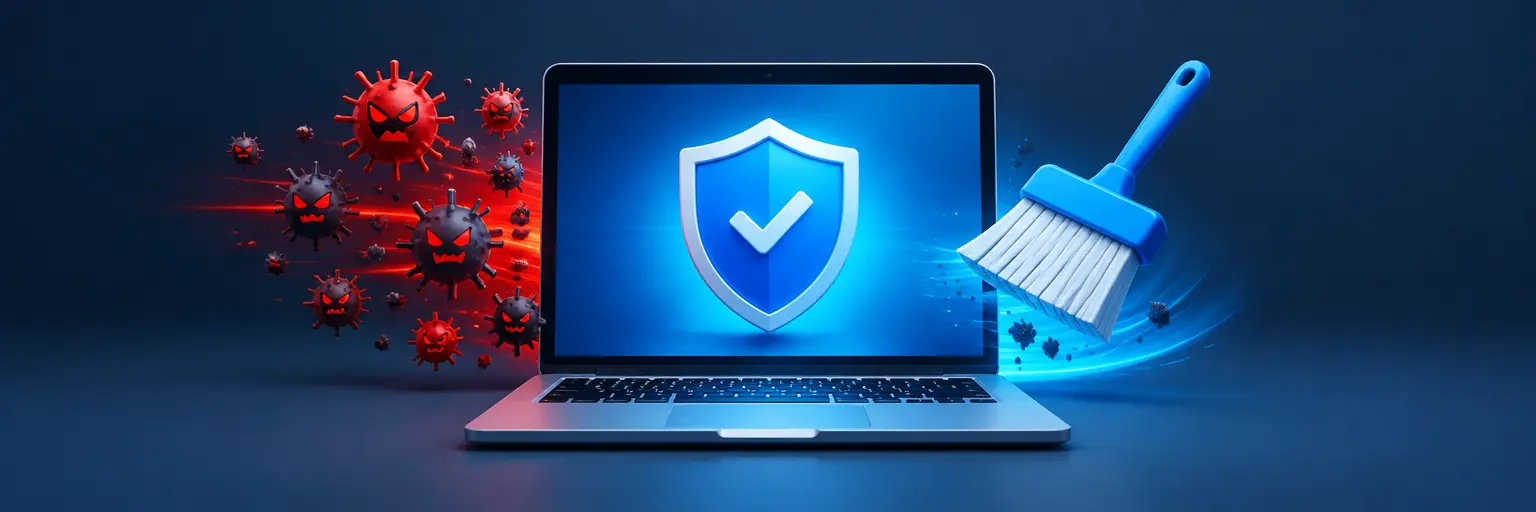
Is your computer crawling, freezing, or bombarding you with pop-ups? 🐌💻 Before you rage-quit and buy a new device, know that hidden malware or stubborn viruses are often the real culprits behind sluggish performance. Our targeted malware and virus removal hacks are designed to restore your PC’s speed, boost responsiveness, and protect your personal data—all without costly tech support. From spotting sneaky background processes to using powerful, free cleaning tools, we’ll guide you through a simple, step-by-step digital detox that revives your machine in minutes. Say goodbye to frustrating lags and hello to faster boot times, smoother multitasking, and a more secure system—because a clean computer is a happy computer. 🚀✨ Start optimizing today and reclaim the blazing performance you deserve!

🤔 Beyond basic antivirus, safeguard your digital life. This article reveals advanced deep malware cleaning strategies for total system protection, boosting your…
Read article
🤔 Is malware slowing your computer to a crawl? Learn how to swiftly regain control and remove computer malware quickly, boosting your…
Read articleWelcome to the ultimate guide for reclaiming your computer’s speed and reliability through effective malware and virus removal. At UltimateLifeHacks, we know that a sluggish system drains your productivity and patience. This subcategory delivers practical, step-by-step life hacks to detect, eliminate, and prevent digital threats, ensuring your device runs like new. From free tools to manual cleanup techniques, you’ll discover actionable strategies to boost performance, protect personal data, and streamline your daily tech routine—all without needing advanced IT skills.
Before you can fix a problem, you must recognize it. Malware often hides in plain sight, masquerading as harmless slowdowns or pop-ups. Common red flags include sudden system freezes, excessive hard drive activity, unexpected browser toolbars, or a surge in ads even on trusted sites. You might also notice your internet connection becoming slower or your antivirus being disabled without your intervention. By learning these telltale signs, you can act swiftly, preventing minor annoyances from escalating into data breaches or hardware damage.
To accurately diagnose, use a combination of built-in tools like Task Manager (Windows) or Activity Monitor (macOS) to spot high CPU or memory usage from unknown processes. Additionally, check your startup programs and browser extensions—these are frequent malware hideouts. Keeping a log of when issues first appeared helps correlate suspicious downloads or emails. This proactive detection approach not only saves you hours of frustration but also ensures your productivity remains uninterrupted, aligning perfectly with our mission of efficient daily routines.
You don’t need expensive subscriptions to combat malware effectively. Leading free tools like Malwarebytes, Bitdefender, and Kaspersky Security Cloud offer robust real-time protection and on-demand scans. These programs excel at detecting spyware, ransomware, and adware that traditional antivirus might miss. For a lightweight option, consider Windows Defender—built into Windows 10 and 11—which now rivals paid solutions when properly configured. Pairing two complementary tools (one for real-time, one for manual scans) creates a layered defense without slowing your system.
When using these tools, always download directly from official websites to avoid fake versions that deliver malware. Run a full scan weekly, and schedule automatic updates for virus definitions to stay ahead of new threats. For maximum benefit, boot your computer into Safe Mode before scanning—this prevents malware from interfering with the removal process. These hacks transform your device into a fortress while keeping performance optimizations front and center, so you spend less time troubleshooting and more time achieving your goals.
Sometimes automated tools miss deeply embedded infections, especially rootkits or browser hijackers. Manual removal requires precision but is a valuable life hack for tech-savvy users. Begin by disconnecting from the internet to halt data transmission, then navigate to your Program Files and AppData folders to locate suspicious folders—check file creation dates and digital signatures. Next, use System Configuration (msconfig) to disable unknown startup entries, and reset your browser settings to default, clearing all extensions and cache.
For persistence, inspect registry entries via Regedit (Windows) or use terminal commands in macOS to list launch daemons. Be cautious and back up your data first, as incorrect deletions can destabilize your OS. After manual removal, restart and run a full scan to verify cleanliness. This method not only eliminates malware but also gives you a deeper understanding of your system, enhancing your overall tech fluency. By mastering these steps, you reclaim control and ensure long-term performance gains, whether you’re a remote worker or a casual user.
Once malware is gone, your computer may still suffer from leftover junk files, fragmented drives, or bloated startup programs. Optimize performance by using built-in utilities like Disk Cleanup, which removes temporary files and system cache. Defragment your hard drive (or trim SSDs) to speed up file access. Additionally, disable unnecessary background apps from Task Manager, and consider upgrading RAM or switching to an SSD if your budget allows—both yield dramatic speed boosts. These post-cleanup adjustments ensure your device operates at peak efficiency.
Implementing a regular maintenance schedule—weekly scans, monthly disk cleanups, and quarterly hardware checks—prevents future slowdowns and malware infiltration. Use browser extensions like uBlock Origin to block malicious ads, and enable software updates automatically for your OS and apps. This holistic approach not only boosts speed but also extends your computer’s lifespan. By integrating these habits into your routine, you’ll notice smoother multitasking, faster boot times, and reduced frustration, fully aligning with UltimateLifeHacks’ promise of practical productivity improvements.
The best cure is prevention. Adopt safe browsing habits, such as avoiding suspicious email attachments, using strong unique passwords, and enabling two-factor authentication. Always download software from reputable sources and verify checksums when possible. Additionally, keep your operating system and all applications updated, as patches often fix security vulnerabilities. Installing a firewall (like pfSense or simple Windows Firewall) adds an extra shield against unauthorized access, while a VPN encrypts your traffic on public Wi-Fi.
Regularly review your installed programs and browser extensions, removing anything you no longer use, as outdated software becomes a prime target. Educate household members or colleagues about phishing scams—many malware infections originate from human error. By building a culture of cybersecurity awareness, you minimize the risk of re-infection and maintain a consistently high-performing computer. These preventative life hacks require minimal effort but deliver exponential returns in time saved and data protected, making them indispensable for any productivity-driven lifestyle.
A virus is a type of malware that replicates by attaching to files, while malware is any malicious software, including ransomware and worms. Spyware specifically monitors your activity and collects data without consent. For removal, antivirus handles viruses, while anti-malware tools address broader threats. Always use both for complete protection.
For average users, a weekly full system scan is sufficient, but schedule real-time protection daily. If you download files frequently or visit less reputable sites, increase scans to every few days. After any unusual system behavior, run an immediate scan to catch infections early.
Yes, residual junk files, altered system settings, or corrupted registry entries can persist. That’s why performance tuning post-cleanup is essential. Running Disk Cleanup, updating drivers, and restarting your device usually restores speed. If issues remain, consider a system restore point or professional diagnosis.
Absolutely, when downloaded from official sources. Reputable free versions like Malwarebytes and Bitdefender offer solid protection without hidden costs. However, avoid unknown brands or aggressive pop-ups. For maximum safety, pair free antivirus with a trusted anti-malware scanner and keep both updated.
Disconnect from the network immediately, then reboot into Safe Mode. Do not pay the ransom, as payment doesn’t guarantee recovery. Use offline recovery tools like Microsoft’s Windows Defender Offline or restore from a backup. For future protection, maintain regular encrypted backups to an external drive or cloud service.