Ditch the Paper: Mobile Apps That Will Revolutionize Your NoteTaking
😊 Stop wrestling with paper! Discover the best note-taking mobile apps to streamline your workflow, boost productivity, and conquer your to-do list.…
Read article
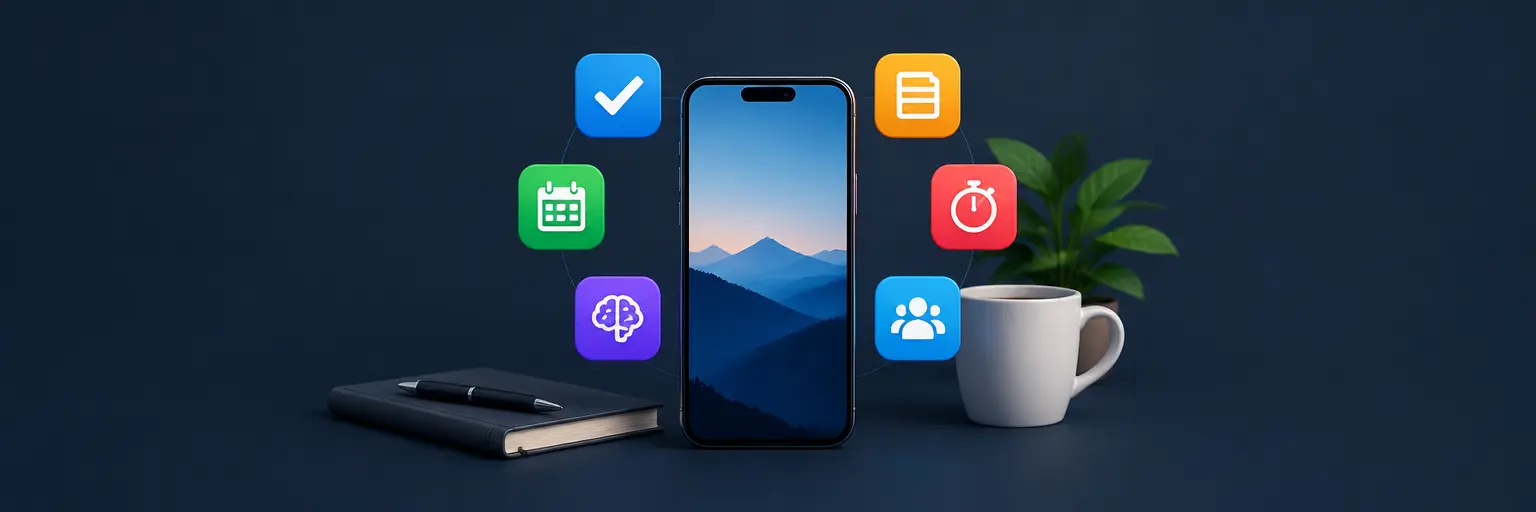
Unlock your phone’s true potential with clever smartphone hacks and mobile productivity apps that turn your device into a powerful pocket assistant. From automating repetitive tasks to mastering focus with time-blocking tools, these tech-savvy tricks help you save hours every week, streamline workflows, and cut digital clutter. Whether you’re a busy professional, student, or creator, discover must-have apps for note-taking, task management, file scanning, and password security—all optimized for speed and ease. Say goodbye to endless scrolling and hello to effortless efficiency with practical, real-world tips that fit your daily routine.
😊 Stop wrestling with paper! Discover the best note-taking mobile apps to streamline your workflow, boost productivity, and conquer your to-do list.…
Read article
😊 Drowning in tasks? This guide reveals the best productivity mobile apps to streamline your workflow, conquer your to-do list, and reclaim…
Read articleYour smartphone is more than a screen-scrolling device; it’s a powerful productivity tool waiting to be unleashed. In this subcategory of Tech & Digital Hacks, we demystify the best mobile productivity apps, hidden settings, and automation tricks that turn your phone into a personal assistant. Whether you’re a busy professional, a student juggling deadlines, or a parent managing a chaotic schedule, these smartphone hacks will help you reclaim hours each week. We focus on practical, actionable tips that work on both iOS and Android, prioritizing apps that are free or low-cost and that genuinely reduce friction in your daily workflows.
Effective task management is the cornerstone of productivity, and your phone offers apps like Todoist, TickTick, and Microsoft To Do that outshine paper lists. These tools sync across devices, allow natural language input (e.g., "Call mom tomorrow at 9am"), and integrate with calendar apps. You can set recurring tasks, prioritize with color-coded labels, and use location-based reminders—so you never forget to buy groceries when passing the store. The key hack is to limit yourself to one task manager and use its "quick add" widget on your home screen for frictionless capture.
Beyond basic checklists, explore Kanban-style boards within apps like Trello or Asana to visualize project stages. For busy mornings, use the "Today" view to focus only on three must-do items. A powerful productivity hack is to enable weekly reviews using your phone’s calendar reminder—spend 10 minutes every Sunday clearing completed tasks and adjusting priorities. This habit, supported by mobile apps, reduces decision fatigue and keeps your brain from holding unnecessary mental load.
Automation is the ultimate smartphone hack. Apple’s Shortcuts app and Android’s Tasker or MacroDroid let you create custom voice commands and triggers. For instance, you can set an automation that turns on Do Not Disturb, opens your work email, and starts a focus playlist when you say "Start work." Similarly, use location triggers: when you leave the office, your phone can automatically send a "Driving home" text to your spouse. These micro-automations save dozens of taps daily, making your routine seamless.
For cross-app wizardry, IFTTT (If This Then That) connects thousands of services—like saving email attachments to cloud storage or backing up new camera photos to Google Drive automatically. The hack is to document your most repeated 5 actions (e.g., adding to a shopping list, logging water intake) and then build a shortcut for each. Even a simple "good night" voice command that dims screen, sets alarm, and plays white noise gives you a calm, efficient wind-down. Start small, test one automation per week, and soon your phone handles busywork while you focus on high-impact tasks.
Your smartphone’s home screen is a distraction minefield. The mobile productivity apps hack here is to adopt a "one-page minimal" setup: keep only essential apps on the first screen, and bury social media folders on the second page. Use app timers (Screen Time on iOS, Digital Wellbeing on Android) to set daily limits for distracting apps like Instagram or TikTok. When the timer hits, the app icon grays out, reminding you to switch to something productive. This simple digital boundary is proven to increase focus and reduce mindless scrolling.
Another effective declutter hack is to turn off all non-human notifications—only allow calls, texts, and calendar alerts to disturb you. Batch-check email and news apps at specific times (e.g., 10am, 2pm, 5pm) instead of reacting instantly. Also, disable notification badges on social icons to reduce anxiety. For a deeper clean, use the "Offload Unused Apps" feature on iOS or "Uninstall unused apps" on Android to free storage and mental clutter. With a tidy digital space, your phone becomes a tool for intention, not distraction.
Nothing kills productivity like a dead phone. Maximize battery and speed with smartphone hacks like enabling Low Power Mode (iOS) or Battery Saver (Android) during long commutes or meetings. Disable background app refresh for non-essential apps—this alone can extend battery life by 20%. Also, turn off 5G when not needed; LTE is often sufficient and consumes less power. For speed, clear your phone’s RAM by rebooting weekly and uninstall bloatware that runs in the background. Use a lightweight launcher (like Nova Launcher) to speed up Android animations.
For heavy users, carry a fast-charging power bank and use the "optimized charging" feature that learns your sleep schedule to charge slower at night, preserving battery health. Another productivity boost: use app loading times to your advantage—place your most-used productivity apps (calendar, notes, password manager) on the home screen’s bottom row for one-thumb access. Also, disable "Parallax" or "Motion" effects that spend CPU cycles (iOS: Reduce Motion; Android: Turn off animations). These tiny tweaks compound into a faster, longer-lasting, more reliable device.
Productivity includes protection. Use your phone’s built-in password manager (iCloud Keychain, Google Smart Lock) or a third-party app like Bitwarden to generate and autofill strong, unique passwords. Enable two-factor authentication on all primary accounts (email, banking, cloud). For privacy, check app permissions regularly—revoke location, microphone, and camera access for apps that don’t need it. Use App Lock (Android) or Screen Time restrictions (iOS) to protect sensitive apps like banking from prying eyes.
A smart hack is to set your phone to auto-wipe after 10 failed passcode attempts (iOS: "Erase Data" toggle) and enable "Find My Device" (Android) or "Find My iPhone" for remote locking and location. Also, use a VPN when on public Wi-Fi to encrypt your traffic—many productivity apps handle sensitive data. For extra security, create a guest fingerprint or guest mode for friends who borrow your phone. By locking down your digital life, you remove the anxiety of breaches, allowing you to focus on your tasks with full mental bandwidth.
Start with Microsoft To Do for tasks, Google Calendar for scheduling, and Notion for notes—all free with robust sync. Also try Any.do for reminders, and LastPass (free tier) for password management. These cover 80% of productivity needs without a subscription.
Use Apple’s Shortcuts app (iOS 13+) or Tasker’s preset profiles (Android). Both offer a visual "if-then" builder. For cross-platform, IFTTT has a simple "this happens, then do that" interface. Just choose templates or record your own triggers.
Yes. Research shows each distraction costs up to 23 minutes of re-focus time. By turning off all non-human notifications (emails, news, social), you reduce interruptions and protect your deep work sessions. You can always check messages on your own schedule.
No, most hacks actually save battery. Disabling background app refresh, reducing motion effects, and using low power mode extend battery life. Automation apps like Shortcuts run only when triggered, so they have negligible power cost.
Update weekly or enable auto-updates. Developers patch security holes and add efficiency features. However, avoid updating the day of a big release if you rely heavily on an app—wait a few days for bug fixes to mature. Also, uninstall apps you haven’t used in 30 days to reduce clutter.