Portable Monitors: Your Key to Dual-Screen Productivity on the Go
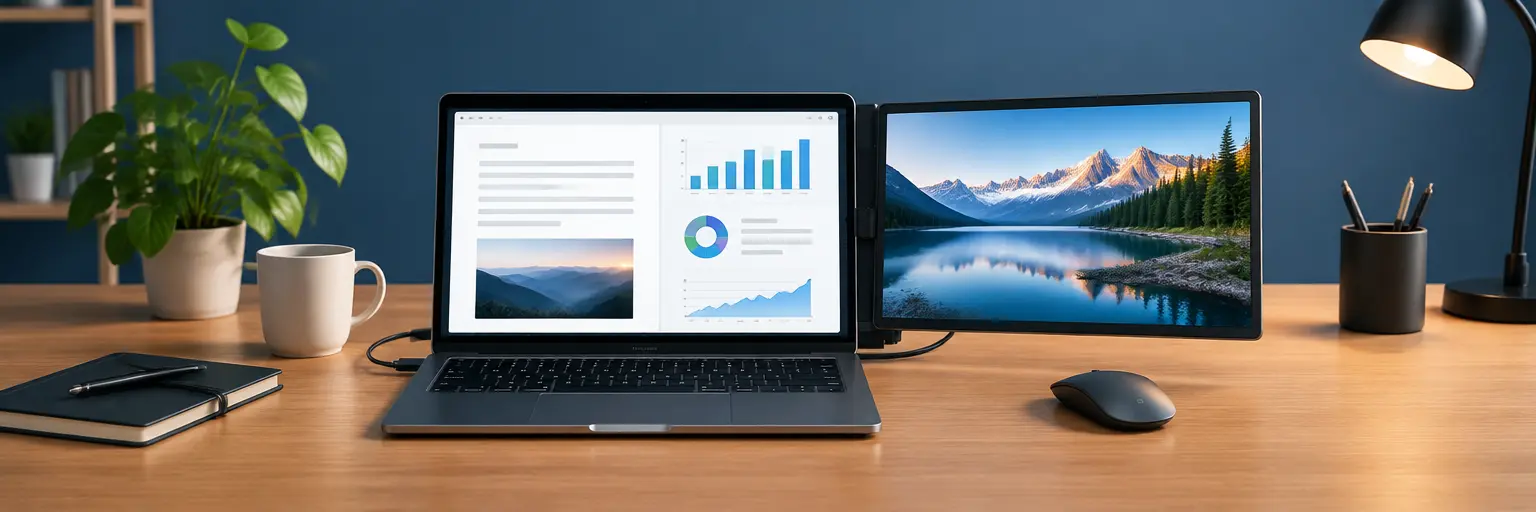
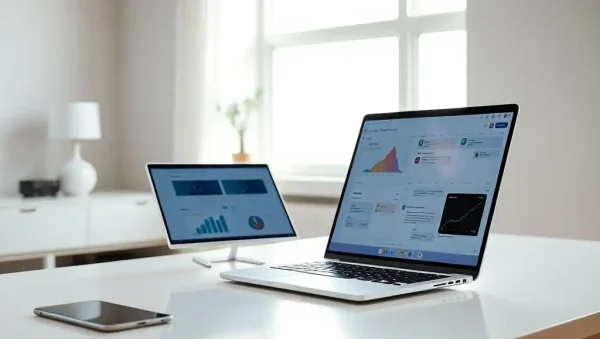
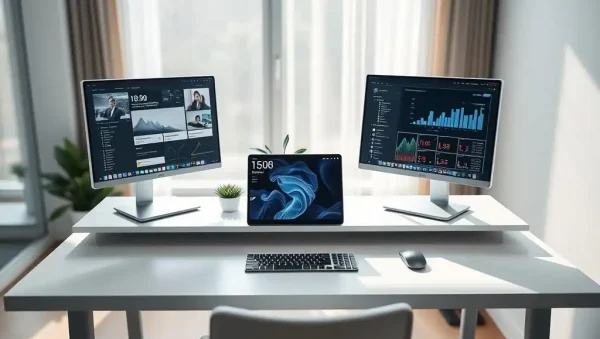
In today's flexible work environment, your home office isn't always a fixed desk—it’s a moving target. Portable monitors have emerged as the ultimate productivity hack for professionals who crave the efficiency of a dual-screen setup without being tethered to a bulky workstation. By expanding your digital canvas, these lightweight devices allow you to compare documents, manage multiple apps, and streamline your workflow whether you’re at a coffee shop, in a home office nook, or traveling. Below, we break down the best tech gadgets for home office productivity, focusing on portable monitors that transform any space into a command center. Discover how to choose, use, and maximize these game-changing displays to reclaim your time and focus.
🎯 Why Portable Monitors Are a Non-Negotiable Productivity Tool
Dual-screen productivity isn’t just a luxury; it’s a scientifically backed way to reduce context switching, which can waste up to 23 minutes per task. A portable monitor gives you that second screen anywhere, letting you keep your primary work on your laptop while your secondary screen holds your email, chat, or reference materials. This simple split dramatically cuts down on alt-tabbing and increases your ability to stay in a flow state. For any home office setup that mixes remote work with travel, this device bridges the gap between mobility and deep work efficiency.
Unlike traditional desk monitors, portable options are slim, often weighing under two pounds, and plug in via a single USB-C cable for both power and video. This means zero setup fuss—just plug, play, and organize your windows. Many models now feature touchscreens and magnetic mounts, allowing you to attach them to your laptop’s lid or use them as a standalone drafting device. Whether you’re a coder reviewing logs, a writer researching on one side and typing on the other, or a data analyst comparing spreadsheets, the physical act of seeing two screens simultaneously keeps your brain in a single, focused context.
⚡ Key Specs to Look For: Resolution, Brightness, and Connectivity
Not all portable monitors are created equal, and picking the wrong specs can hinder rather than help. For crisp text and clear charts, prioritize at least a 1080p (Full HD) resolution, though 4K models are available for photorealistic work. Brightness is equally critical—look for a peak of 300 nits or higher, so you can work near a window without squinting. Connectivity is the dealbreaker: ensure the monitor supports USB-C with DisplayPort Alt Mode, which transmits video and power in one cable. If you use an older laptop, ensure you have the appropriate HDMI or Mini-DisplayPort adapter to avoid compatibility headaches.
Battery efficiency is another hidden gem. Many portable monitors draw power from your laptop, but some have built-in batteries that allow them to run independently, useful for presentations or when your laptop’s battery is low. A low-latency refresh rate (60Hz or higher) is fine for productivity, but if you occasionally edit video, look for 120Hz for smoother scrolling. Finally, consider the physical build—an aluminum chassis feels premium but adds weight, while plastic is lighter and more travel-friendly. Weigh your need for durability against portability, and always check for a built-in stand or a detachable smart cover to prop the screen at an ergonomic angle.
🖥️ Top Portable Monitor Models That Boost Home Office Efficiency
The market offers a range of standout devices, each tailored to different productivity needs. The Lenovo ThinkVision M14 is a classic for business travelers—its ultra-thin profile and 4mm bezel provide a near-seamless dual-screen experience. For creative professionals, the ASUS ZenScreen Touch MB16AMT brings a responsive touchscreen and a built-in battery, letting you use gesture controls and work offline. Meanwhile, the LG Gram +view stands out with its 16-inch, 16:10 ratio that gives extra vertical space for reading documents and scrolling through endless code lines—a real boon for frequent writers and analysts.
If budget is a concern, the Uperfect 15.6-inch 1080p monitor offers impressive color accuracy at a fraction of the cost, while the SideTrak Swivel clips directly onto your laptop lid for a zero-footprint desk setup. Many of these models come with free software that lets you control display settings, including blue-light filters and power-saving modes, extending your session comfort. When selecting, read user reviews focusing on build quality and cable reliability, as a loose USB-C connection can cause flickering that kills productivity. Always test the monitor with your specific laptop model before committing to ensure a perfect handshake between hardware.
🔄 How to Set Up a Dual-Screen Workspace with a Portable Monitor
Maximizing your portable monitor requires a smarter setup than just plugging it in. First, choose your primary and secondary roles: keep your main task (like writing or coding) on your laptop’s larger display and put your communication tools (Slack, Teams, email) on the portable screen to reduce distractions. Next, configure your operating system’s display settings—on Windows, press Win+P to select “Extend”; on macOS, go to System Settings > Displays and arrange the screens physically to match your desk layout. Use the “Make This My Main Display” option to manage which screen holds your dock or taskbar.
For ergonomics, align the top of both screens at eye level to avoid neck strain. A mobile monitor stand or a stack of books under the portable unit can help match heights. Use a keyboard shortcut or a tool like PowerToys FancyZones for Windows or Rectangle for macOS to snap windows into predefined zones, so you don’t waste time resizing. Also, consider pairing the monitor with a wireless mouse and keyboard—using your laptop’s trackpad while your arm reaches across to the second screen is awkward. Finally, invest in a high-quality, short USB-C cable (under 1 meter) to reduce signal degradation and ensure a stable connection, especially if you’re using an adapter.
🌟 Real-World Life Hacks for Maximizing Portable Monitor Utility
Beyond the basic dual-screen setup, portable monitors unlock creative productivity hacks. One powerful technique is using the second screen as a virtual whiteboard for brainstorming—keep a blank note-taking app open and sketch out ideas while you work on a document on your main screen. Another hack is to use the portable monitor as a dedicated video conferencing screen; place it closer to your camera to maintain eye contact with meeting participants while you take notes on your laptop. This personal setup reduces your risk of "zombie stare" and improves communication focus.
For multitaskers, split the portable monitor into vertical orientation using a stand—this is a game-changer for reading long legal documents or coding. Many monitors come with free software that allows a half-brightness dimming mode for late-night work, reducing eye fatigue. Travelers can use the monitor as a second display for their smartphone or tablet, turning a short flight into a productive session. Finally, if you’re a designer, use the portable monitor to preview your work on a second screen at a different color profile, while your main screen shows the live work—this aids in color-grading accuracy and saves you from exporting test files repeatedly.
💡 Avoiding Common Issues: Battery Drain, Glare, and Cable Management
Portable monitors are incredibly useful, but they come with their own set of pitfalls. The most common offender is battery drain—if the monitor draws power from your laptop, expect your battery to deplete faster. To mitigate this, use a powered USB hub or connect the monitor to its own power adapter if it supports one. Also, some laptops have limited USB-C power output, so check your specs; if the laptop outputs only 5V, you may need an external power source. Glare is another issue, especially with glossy screens—choose a matte-finish panel or position your setup away from direct light, or use a privacy filter if working in bright spaces.
Cable management can quickly turn into a tangled mess, so use Velcro ties or a cable organizer fixed to your desk or bag. Always route the USB-C cable away from moving parts like laptop hinges. To combat connection drops, unplug and replug the cable, or switch to a different USB-C port if your laptop has multiple. Also, ensure your operating system’s display drivers are updated; Windows can sometimes fail to detect a second display after sleeping, and a quick driver refresh or reboot resolves it. Finally, keep the monitor’s firmware updated (if supported) to fix compatibility bugs that can degrade refresh rates or color output.
Frequently Asked Questions
Can a portable monitor work with any laptop or smartphone?
Most portable monitors work with any laptop that has a USB-C port supporting DisplayPort Alt Mode or an HDMI port. For smartphones, you’ll need a USB-C to USB-C cable, but only some Android phones support video output; iPhones require a Lightning-to-HDMI adapter. Always check your device's video output capability before purchasing, and buy a monitor that matches your primary device’s ports.
Is a 4K portable monitor worth the extra cost for productivity?
Only if you work with high-resolution images, 4K video, or need to view detailed graphs and small text without zooming. For typical tasks like email, writing, or web browsing, 1080p is perfectly crisp and far easier on battery life. A 4K panel also demands more GPU power, so an older laptop might struggle to drive it smoothly, leading to lag.
How do I prevent my laptop battery from draining too fast with a portable monitor?
Use the monitor’s own power adapter if it has one, or connect it to a powered USB hub that supplies external power. Lower the monitor’s brightness to around 70% and disable any power-hungry features like touch-screen input or built-in speakers. Some monitors also have a low-power mode in their menu. If your laptop has a USB-C port with high power delivery (PD), make sure the monitor negotiates power correctly.
Can I use a portable monitor as a primary display for a desktop PC?
Yes, as long as your desktop’s GPU has an HDMI or DisplayPort output, you can use a portable monitor as a primary display. However, it’s generally not recommended for daily desktop use due to its smaller size and lower refresh rates compared to dedicated desktop monitors. It’s better to use it as a secondary display for emails or monitoring tools, keeping your main desktop monitor for heavy tasks.
What is the ideal screen size for a portable monitor to be productive?
Between 14 and 16 inches is ideal—anything smaller than 14 inches makes split-screen work cramped, while larger than 16 inches defeats the portability purpose. A 15.6-inch model offers the best balance, matching most laptop screens, and supports full 1080p resolution comfortably. If you travel via plane often, a 14-inch is easier to fit in a backpack, but expect a slightly tighter viewing area.