The Ergonomic Solution for Muscle Tension: Optimizing Your Posture and Setup
😊 Conquer muscle tension and boost productivity with an ergonomic setup. This guide reveals simple, practical adjustments to your workspace, providing muscle…
Read article

Transform your workspace into a powerhouse of comfort and efficiency with ergonomic home office furniture—the ultimate life hack for boosting focus, preventing fatigue, and reclaiming your productivity. 🌟 By prioritizing spinal alignment, dynamic seating, and adjustable surfaces, you can slash distracting aches and pains while sharpening mental clarity. Our curated picks blend science-backed design with sleek aesthetics, ensuring every hour at your desk fuels energy instead of draining it. From sit-stand desks that keep you moving to lumbar-support chairs that hug your posture, these solutions are tailored for remote workers, freelancers, and anyone craving a smarter setup. Embrace the ripple effect: better ergonomics means fewer breaks, sharper decision-making, and a healthier you—all without sacrificing style. Ready to upgrade your daily grind? Start with these proven favorites and feel the difference from your first click. 💻✨

😊 Conquer muscle tension and boost productivity with an ergonomic setup. This guide reveals simple, practical adjustments to your workspace, providing muscle…
Read article
🤔 Transform your workday with an ergonomic desk! Boost productivity and well-being by optimizing your workspace. Improved posture and comfort lead to…
Read article
😊 Combat workday fatigue and boost productivity! Ergonomic breaks, incorporating simple movements, revitalize your body and mind, preventing strain and enhancing focus.…
Read article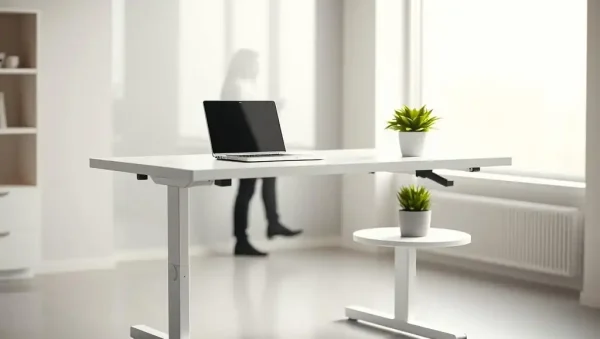
😊Transform your workspace with our guide to adjustable standing desks! Discover the best standing desk for ergonomics, boosting productivity and well-being. Optimize…
Read article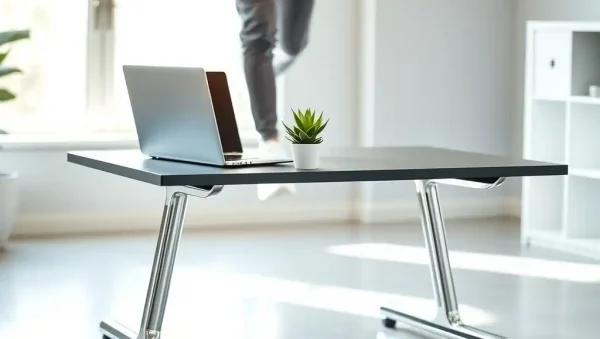
🤔 Combat fatigue and boost productivity with an ergonomic standing desk! Discover surprising ergonomic standing desk benefits, including increased energy, improved focus,…
Read article
😊 Chronic headaches plaguing you? This guide reveals how a properly designed ergonomic workspace can prevent headaches and boost productivity. Optimize your…
Read article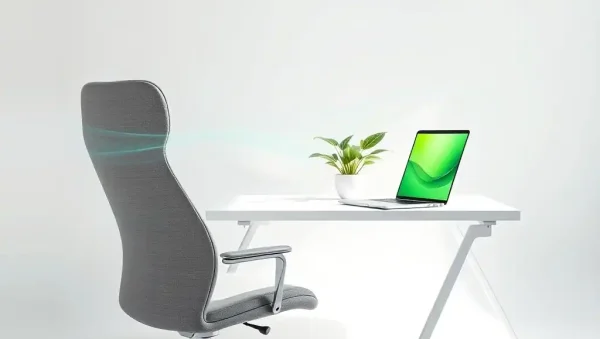
😊 Conquer workspace fatigue and boost productivity! This article reveals simple, effective ergonomic workspace fatigue solutions to optimize your setup for peak…
Read articleWhen you spend eight-plus hours at a desk, your chair and desk aren't just furniture—they’re the foundation of your energy, focus, and long-term health. The Ergonomic Home Office Furniture subcategory at UltimateLifeHacks is your guide to selecting and setting up gear that supports natural posture, reduces strain, and boosts output. We cut through marketing fluff to show you which adjustable chairs, standing desks, monitor arms, and footrests actually deliver measurable comfort. Whether you’re battling back pain, combating fatigue, or simply want to upgrade your WFH setup, these evidence-based recommendations help you work smarter, not sorer.
Your chair is the most critical investment in your home office. Look for lumbar support that moves with you, adjustable seat depth (so your knees stay at 90 degrees), and armrests that support your forearms without hunching your shoulders. A good chair doesn’t just feel nice—it reduces pressure on your spine by up to 40% compared to a standard dining chair. We recommend prioritizing breathable mesh backs for airflow and a tilt mechanism that allows a slight recline (100–110 degrees) to ease disc pressure. Avoid “gaming chairs” with aggressive bolsters; they often lack proper pelvic support. Instead, test chairs with a weight capacity that matches your body and a warranty of at least 5 years.
Don’t forget the importance of seat cushion firmness. Medium-firm foam or high-density mesh prevents “bottoming out” that leads to hip pain. If you’re on a budget, consider a high-quality ergonomic chair like the IKEA Markus or the HON Ignition, both under $500 and widely reviewed for office use. For premium options, the Steelcase Gesture or Herman Miller Aeron adjust to nearly every body type—but only if you dial in the settings. Our quick tip: sit with your feet flat, knees at hip height, and your lower back pressed firmly against the lumbar pad. If you can slide two fingers between the front edge of the seat and your calves, the depth is correct.
Static sitting for six hours increases the risk of metabolic slowdown and back stiffness. A height-adjustable standing desk lets you alternate between sitting and standing every 30–45 minutes, which improves circulation and focuses. Key specs to check: a lift range from 22 to 48 inches (to fit users from 4’10” to 6’4”), dual motors for smooth motion, and a sturdy frame that doesn’t wobble at standing height. Memory presets are a game-changer—they let you switch positions with one touch, eliminating the friction of manual cranking. We also recommend a desk with a cable tray and grommet holes to keep your setup tidy and reduce visual clutter.
When you stand, set the desk height so your elbows rest at a 90-degree angle when typing, and your monitor’s top bezel is at eye level. Use a small anti-fatigue mat (e.g., an ultra-thin PVC mat) to cushion your feet and knees. If a full standing desk is out of budget, try a desk converter like the Vari 40-inch—a compact riser that sits on your existing desk and gives you 15 inches of lift. Remember: the goal isn’t to stand all day (that has its own risks), but to build a rhythm. Alternate every 30 minutes, and do a 2-minute stretch at each transition. Our top picks under $400: Flexispot E5 and Uplift V2—both have excellent stability and quiet motors.
Most home offices suffer from one neck-straining mistake: the laptop screen is too low. An ergonomic monitor arm or laptop stand raises your display so the top third of the screen sits at eye level, preventing the dreaded “tech neck” and eye fatigue. A single-arm mount can hold up to 20 pounds and swivel, tilt, and rotate 360 degrees, giving you full control over your viewing angle. For dual monitors, choose a clamp-style arm with two gas-spring joints—it allows independent height and depth adjustments, so you can position the primary screen directly in front of you and the secondary at a 20-degree angle. This setup reduces neck rotation by up to 50%.
For laptops, a simple aluminum riser with a 15-degree tilt is often enough if you’re using the built-in keyboard, but for extended work, pair it with a separate external keyboard and mouse as we recommend. Heavier-duty arms (with 4-inch pole extensions) suit ultrawide monitors, but make sure your desk edge has at least 0.5 inches of clearance for a C-clamp. Cable management clips are included on most arms—use them to run cables along the arm, keeping your space free of tangles. If you’re renting and can’t drill, >look for a grommet-mount base. The key metric: your eyes should rest slightly below the top bezel, with your chin level and shoulders relaxed.
Standard flat keyboards force your wrists to bend outward, leading to carpal tunnel discomfort. An ergonomic keyboard—split or tented—allows your hands to rest in a natural, handshake position. Look for models with a curved key layout, a built-in palm rest, and adjustable tilt legs (0, 4, and 8 degrees). A split keyboard like the Logitech ERGO K860 separates the left and right halves, letting you angle them to match your shoulder width. For mice, a vertical mouse (e.g., Anker’s vertical model) keeps your hand at a 57-degree angle, reducing forearm pronation and ulnar nerve tension. Trackballs are another option if you have limited desk space—they let you move the cursor with your thumb or index finger without moving your arm.
The best practice is to alternate between an ergonomic keyboard and a standard one occasionally to avoid muscle adaptation to a single shape. Also, position the keyboard so the “B” key is centered directly in front of your navel, and keep a close-to-typing angle (elbows at 90 degrees, wrists flat). If you already feel numbness, invest in a gel wrist rest—but use it only for breaks, not regular typing, as it can compress nerves. Our pick for beginners: the Perixx PERIBOARD-512 split keyboard (~$30) and the Logitech MX Vertical Mouse (~$100). Both are affordable, highly rated, and reduce awkward wrist angles by at least 20%.
Most ergonomic guides stop at the chair and desk, but your feet and legs are equally important. A footrest (fixed or adjustable) ensures your feet rest flat, preventing dangling legs that compress the back of your thighs and impede blood flow. Use a footrest when your seat is too high for your desk, or if you’re shorter than average. A rocker-style footrest with a textured surface encourages micro-movements—gentle ankle wiggles that activate calf muscles and reduce stiffness. For standing desks, a balance board or anti-fatigue mat with a slight incline (like the Ergodriven Topo) engages your core subtly throughout the day. These accessories cost between $20 and $60 and pay for themselves in avoided visits to the physiotherapist.
Additionally, consider a lumbar cushion if your chair’s support is inadequate, and an under-desk keyboard tray (if you’re in a fixed-height desk) to bring the input devices to the correct height. A simple cardboard box can work as a temporary footrest—place it at a 20-degree angle. For the ultimate setup, add a document holder at eye level to avoid looking down repeatedly for papers. The chain is: feet flat → knees at 90 degrees → hips slightly open → elbows at 90 degrees → wrists neutral → eyes aligned with top of screen. Break any link, and you’ll feel it within an hour. With these affordable add-ons, you finish the ergonomic puzzle without buying a whole new desk.
You can get a solid ergonomic chair for $200–$400 (e.g., IKEA Markus, HON Ignition). Premium chairs like Steelcase or Herman Miller cost $800–$1,500 but offer longer warranties and better adjustability. Buy used from office liquidators to save 50%. The key is to prioritize adjustable lumbar and seat depth—not brand name—so test before committing.
Yes, but only if you alternate positions. Standing every 30–45 minutes reduces disc pressure by 30% and improves blood flow. However, standing all day can strain knees and feet. Pair a standing desk with an anti-fatigue mat and a footrest for sitting breaks. Start with 15-minute standing intervals and gradually increase.
If you use an external monitor, a monitor arm is superior—it adjusts height, tilt, and distance easily. A laptop stand alone raises your screen but doesn’t let you position the secondary screen independently. For dual setups, use a monitor arm for the main display and a simple riser for the secondary. If you only use a laptop, a stand is sufficient.
Absolutely. Use a stack of books to raise your laptop to eye level, a rolled-up towel as a lumbar cushion, and a cardboard box as a footrest. Buy a vertical mouse (~$20) and a split keyboard (~$30) from budget brands. These DIY hacks reduce wrist and neck strain by 60% for less than $60.
Chairs generally last 5–10 years with heavy daily use, but foam cushioning compresses after 3–4 years. Desks and monitor arms are built to last 10+ years if motors and gas springs are serviced. Replace any component that no longer holds its adjustment (e.g., a chair that sinks). Regular cleaning and tightening of bolts can extend lifespan.