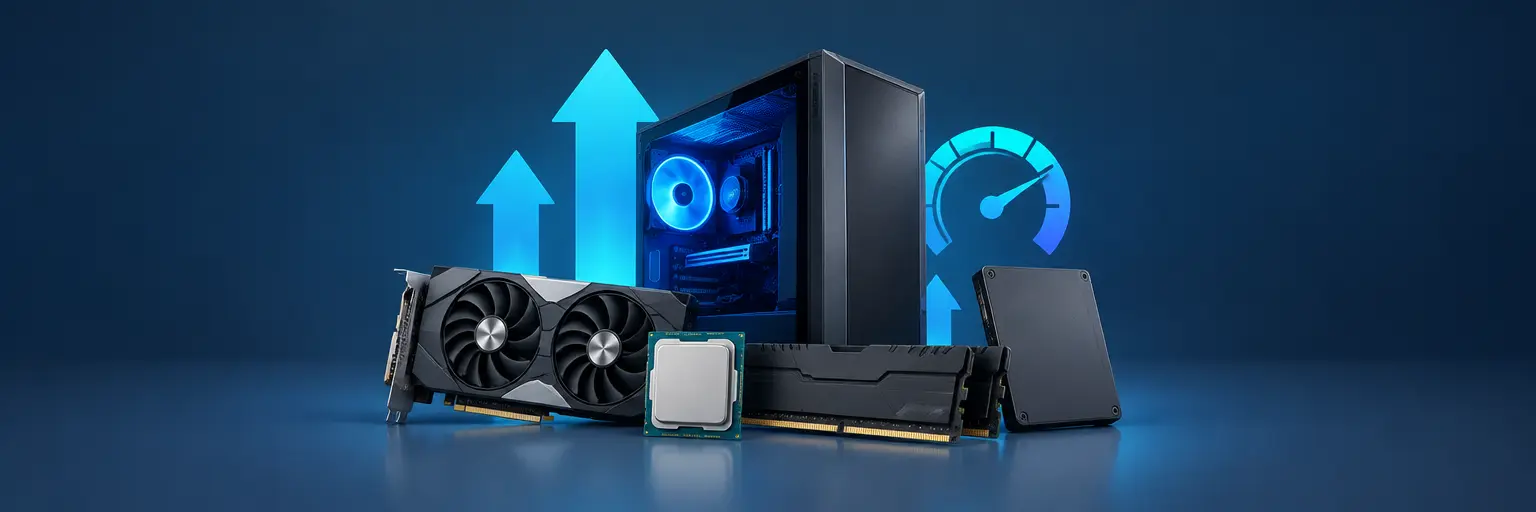
Hardware Upgrades for Performance: Unlock Your Computer’s True Speed
If your PC feels sluggish, freezes during multitasking, or takes ages to boot, you don’t always need a new machine. Strategic hardware upgrades can dramatically boost speed, responsiveness, and longevity at a fraction of the cost. Under UltimateLifeHacks, this subcategory dives into practical, hands-on improvements that turn an aging desktop or laptop into a productivity powerhouse. From storage swaps to memory boosts and beyond, these tech hacks are designed for everyday users who want maximum efficiency without complex technician skills.
💾 Upgrade to an SSD: The Single Biggest Speed Leap
Replacing a traditional hard disk drive (HDD) with a solid-state drive (SSD) is the most impactful hardware upgrade for any computer. An SSD uses flash memory, eliminating mechanical read/write delays. You’ll see boot times drop from minutes to seconds, and applications open nearly instantly. For laptops, this also reduces heat and battery drain, extending your device’s daily usability. Whether you choose a SATA SSD or a faster NVMe model, the difference is night and day—this alone can make a five-year-old PC feel brand new.
Beyond raw speed, SSDs improve system stability and reduce file corruption risks during power loss. For productivity-focused users, this means faster file transfers, smoother video editing, and quicker software updates. Most upgrades are plug-and-play: clone your old drive using free software, then swap it physically. On desktops, installation takes under 20 minutes; on laptops, check compatibility with your port type (M.2 vs. 2.5-inch). Budget-conscious shoppers can find 500GB SSDs under $50, making this a high-ROI life hack.
🧠 Boost RAM: Conquer Multitasking and Memory-Hungry Apps
Running dozens of browser tabs, spreadsheets, and design tools all at once often exposes insufficient RAM (Random Access Memory). When your system runs out, it uses a slower storage-based “virtual memory,” causing lag and stutters. Upgrading RAM—whether from 8GB to 16GB or 16GB to 32GB—removes this bottleneck. Modern operating systems and productivity software like Adobe Creative Cloud or Chrome-based workflows thrive with more memory. It’s one of the cheapest, most user-friendly upgrades, often requiring just a screwdriver and careful slot alignment.
For desktops, RAM upgrades are straightforward: check your motherboard’s supported type (DDR4 or DDR5) and maximum capacity. Laptop upgrades are easier than ever, with many models offering accessible bottom panels. After installation, your system will handle heavier workloads, reduce app crashes, and improve overall responsiveness. A 16GB kit costs roughly $40–$80, delivering an immediate efficiency gain. Pair this with an SSD, and you’ve solved 90% of common performance complaints without touching a CPU or GPU.
🔋 Battery & Power Management: Extend Performance Beyond the Wall
Most performance issues aren’t just hardware—they’re power delivery failures. A degraded battery forces your laptop to throttle CPU speed to conserve energy, making everything feel slower. Upgrading or recalibrating your battery, plus using proper power settings, restores full performance. On desktops, an underpowered or aging power supply unit (PSU) can cause crashes and stutters under load. Replacing a low-quality PSU with an 80+ Bronze or Gold rated unit ensures stable voltage to all components, preventing hidden slowdowns.
This subcategory also covers smart power hacks like enabling “High Performance” power plans on Windows or “Low Power Mode” on macOS for sustained tasks. For laptops, a fresh battery can double effective uptime, letting you work longer without charging. Additionally, cleaning dust from fans and heat sinks improves thermal headroom, preventing thermal throttling—a silent killer of CPU/GPU performance. These tweaks cost little but yield noticeable speed improvements, especially for older machines.
🖥️ GPU & Graphics Card Optimization: Speed Up Creative Workflows
Graphics processing units (GPUs) aren’t just for gamers. Video editors, 3D modelers, and even heavy spreadsheet users benefit from a capable discrete GPU. Upgrading from integrated graphics to a dedicated card (e.g., from Intel UHD to NVIDIA GTX 1650) accelerates rendering, encoding, and visual effects. For productivity, this means faster exports in Premiere Pro, smoother real-time previews in Blender, and quicker chart rendering in Excel with GPU-accelerated features. This is a more expensive upgrade but delivers transformative speed for specific tasks.
Before buying, check your case size, power supply wattage, and motherboard PCIe slot availability. A mid-range card like the RTX 3050 or AMD RX 6600 offers excellent value for creative work. Beyond hardware, this section explains how to enable GPU acceleration in apps, update drivers for maximum performance, and adjust system settings to prioritize your GPU. You’ll also learn to monitor VRAM usage to avoid overloading the card. For non-gamers, a modest GPU upgrade can outpace a full CPU replacement in relevance for media tasks.
🧊 Cooling Upgrades & Thermal Paste: Prevent Silent Throttling
Heat is the enemy of sustained performance. When your CPU or GPU exceeds safe temperatures, they automatically reduce clock speeds—this is called thermal throttling, and it makes your PC feel slower over time. Upgrading cooling solutions, such as adding an aftermarket CPU cooler, improving case airflow with extra fans, or replacing worn-out thermal paste, restores stable high-speed operation. For laptops, a cooling pad can lower temperatures by 5–10°C, allowing your processor to maintain boost frequencies longer.
These upgrades are cheap and highly effective. A $20 tower cooler often outperforms a stock cooler by 20–30% in thermals. Reapplying thermal paste—a 15-minute task—can reduce CPU temps by up to 10°C if the original paste has dried out. Clean dust filters and re-route cables for better airflow. This “invisible” upgrade directly improves responsiveness in long-running tasks, like compiling code, rendering video, or running virtual machines. It also extends component lifespan, making it a smart productivity investment.
🔌 External Hardware Accelerators: eGPU & USB-C Docks
For laptop users who need desktop-level performance, external GPU (eGPU) enclosures and USB-C docks are game-changers. An eGPU lets you connect a desktop graphics card via Thunderbolt 3 or 4, instantly boosting graphics power for rendering, simulation, or driving multiple 4K monitors. Meanwhile, a high-quality USB-C dock consolidates peripherals, storage, and network connections, freeing your system from overhead and improving data transfer speeds. These are perfect for hybrid workers who want a single laptop for both office and intensive creative sessions.
Performance gains depend on your port bandwidth and the card chosen, but even a modest eGPU can double graphics performance for many tasks. Docks, while not as flashy, reduce CPU overhead from managing multiple low-speed USB devices, leading to snappier responses. This subcategory guides you through compatibility checks, power delivery requirements, and driver setup. It also covers budget alternatives like using a Thunderbolt NVMe drive for faster scratch disk access. These upgrades convert a portable laptop into a full workstation in minutes.
Frequently Asked Questions
Which hardware upgrade gives the most noticeable performance boost for the least money?
Swapping your HDD for an SSD is the single most impactful upgrade. It cuts boot times from 30–60 seconds to under 10, loads programs instantly, and dramatically improves file system responsiveness. A 500GB SATA SSD costs under $50 and takes less than 20 minutes to install, making it the best value for any computer.
Do I need to upgrade both RAM and SSD, or is one sufficient?
For most everyday productivity, an SSD alone removes the biggest bottleneck. However, if you constantly run 15+ browser tabs or heavy multi-app workflows, adding RAM (from 8GB to 16GB) will prevent slowdowns. Start with an SSD, then upgrade RAM if you still experience lag under multitasking.
Can I upgrade a laptop’s hardware without professional help?
Yes, many laptops have accessible RAM slots and M.2 SSD slots. Check your model’s service manual online. For RAM, just snap out the old module and push in a new one. For SSDs, clone your drive first. If you’re unsure, watch a YouTube teardown video—most upgrades take under an hour.
Will upgrading my GPU improve non-gaming tasks like video editing or data analysis?
Absolutely. Modern video editors like DaVinci Resolve and Premiere Pro use GPU acceleration for effects and exports. Data tools like Tableau and power BI can also leverage GPU for rendering large dashboards. Even large Excel files with charts benefit from a dedicated GPU. However, for basic office work, this upgrade is overkill.
How do I know if my computer is thermal throttling instead of having weak hardware?
Download a free temperature monitor like HWiNFO or SpeedFan. If your CPU or GPU exceeds 85°C under moderate load and clock speeds drop, you’re throttling. Reapply thermal paste, clean fans, and improve case airflow. After cooling, you may see performance gains up to 30% without any new parts.