The Secret Weapon Against Slow Computers: Disk Cleanup and Defragmentation
😊 Is your computer sluggish? Learn how simple disk cleanup and defragmentation can dramatically speed up your slow computer disk, boosting your…
Read article
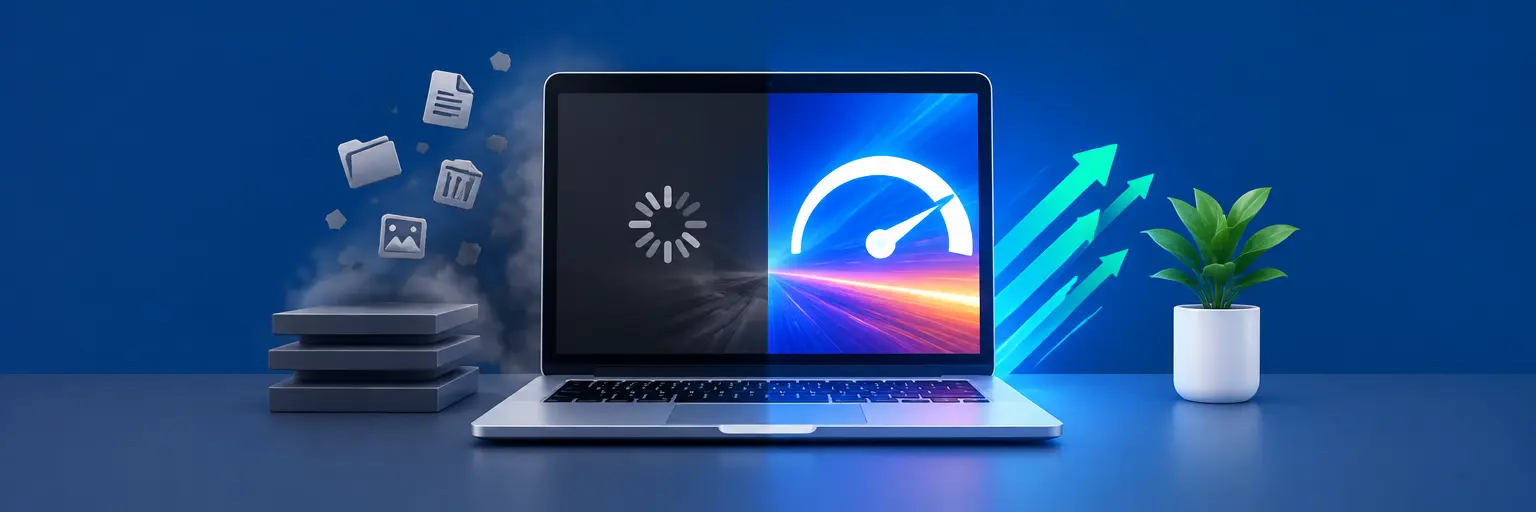
Is your computer crawling at a snail’s pace, turning every simple task into a test of patience? 🐌 Don’t rush to buy a new machine just yet. In this guide, we’ll show you proven, hands-on hacks to speed up a slow computer—from clearing hidden junk files and disabling startup bloat to optimizing virtual memory and cooling down your CPU. Whether you’re dealing with a sluggish Windows laptop or a tired desktop, these practical performance tweaks will breathe new life into your device in minutes. Discover free tools, quick settings changes, and simple maintenance routines that slash boot times, boost responsiveness, and extend your hardware’s lifespan. Stop wasting time on endless loading spinners—unlock the full speed of your machine today with these easy, tech-savvy fixes! 🚀💻
😊 Is your computer sluggish? Learn how simple disk cleanup and defragmentation can dramatically speed up your slow computer disk, boosting your…
Read article
🤔 Is your computer sluggish? You're likely overlooking a simple, yet powerful, solution: regular disk cleanup. Boosting speed up computer performance is…
Read article
🤔 Is your computer dragging its feet? This article reveals how to pinpoint and fix slow computer root cause issues, boosting your…
Read articleIs your PC crawling through everyday tasks? A sluggish system isn’t just annoying—it quietly steals hours of your productivity each week. In this subcategory of Tech & Digital Hacks, we dive deep into actionable, safe, and proven methods to revive your machine’s speed. From clearing digital clutter to tweaking hidden system settings, each sub-topic below is designed to help you reclaim that “new PC” feeling without spending a dime. Whether you’re a home user or a remote worker, these efficiency hacks will transform your daily routine.
One of the biggest culprits behind a slow computer is the army of programs launching automatically when you boot up. Many apps install themselves as startup residents, eating RAM and CPU in the background. By using Task Manager (Windows) or Activity Monitor (Mac), you can identify and disable high-impact startup items with one click. This simple step can cut boot time by 50% or more.
Beyond startup, background processes like cloud sync tools, updater agents, and browser extensions silently drain resources. We’ll guide you through creating a lean autostart list, killing unnecessary tasks, and setting up a routine to review them monthly. Pro tip: Keep your antivirus and essential drivers enabled, but disable everything else you don’t actively use. This is the fastest win for most users.
A full hard drive is a slow hard drive—especially if it’s a traditional mechanical disk. When less than 15% of your storage is free, your system struggles to write temporary files and virtual memory, causing severe lag. Start by using built-in tools like Disk Cleanup (Windows) or Storage Management (macOS) to remove temp files, old updates, and cache. For deeper cleaning, we’ll show you safe manual deletions and third-party utilities that are respectful of your data.
For HDDs, running a defragmentation (or “Optimize Drives” on Windows) helps reorder fragmented files for quicker access. For SSDs, skip defragging—it reduces lifespan. Instead, we’ll explain how to enable TRIM and ensure your drive’s firmware is up to date. Remember: Keeping 20% of your SSD empty is ideal for performance, so consider moving large media files to an external drive.
Software tweaks can only go so far. If your computer is more than four years old and still running an HDD, the single most effective speed upgrade is swapping to an SSD. This change can make boot times drop from minutes to seconds and apps launch almost instantly. We’ll guide you through compatibility checks, cloning your current drive, and installation steps for both laptops and desktops—even if you’re a beginner.
Adding more RAM is the second-best upgrade, especially if you regularly multitask with many browser tabs, spreadsheets, or creative software. We’ll help you determine the right type (DDR4, DDR5, etc.) and capacity for your motherboard, plus how to install it safely. This combo—SSD + RAM—is the ultimate “speed hack” that can extend your device’s life by another 3–5 years, saving you the cost of a new machine.
Modern operating systems love fancy animations—fade-ins, shadows, transparency—but they cost CPU and GPU cycles. For older or integrated graphics, disabling these visual effects can free up significant processing power. On Windows, you can quickly switch to “Adjust for best performance” in System Properties. On macOS, reducing motion and transparency in Accessibility settings yields similar gains without losing usability.
Power settings also play a hidden role. “Balanced” or “Power Saver” modes throttle your CPU to conserve energy. Switching to “High Performance” (Windows) or enabling “Prefer performance over battery life” (macOS) can instantly boost responsiveness. Warning: This increases heat and battery drain, so balance it based on whether you’re plugged in or on the go. We’ll also share tweaks for cooling pads and thermal paste if overheating is your bottleneck.
Sometimes your slow computer isn’t just “old”—it might be infected with adware, cryptocurrency miners, or hidden junkware. These malicious processes run silently, draining CPU and network bandwidth. We’ll show you how to perform a full malware scan using built-in Windows Defender or trusted third-party tools like Malwarebytes. Also, we’ll teach you how to check for suspicious browser extensions that hijack performance.
Outdated or corrupt drivers—especially graphics, chipset, and network drivers—are another frequent cause of inexplicable lag. We’ll walk you through safe driver updates via Device Manager or official manufacturer sites, avoiding sketchy “driver updater” scams. Keeping your OS fully updated also patches performance bugs. Our golden rule: Never download drivers from pop-ups; always verify the source. This section will leave you with a clean, secure, and speedy system.
At least once a week. Restarting clears memory leaks, stops background processes that accumulate over time, and applies critical updates. For maximum performance, shut down completely overnight if you don’t use hibernate, especially after heavy multitasking sessions.
Only if you have an old mechanical hard drive and no SSD. ReadyBoost uses a USB flash drive as additional cache, but gains are minor today. If your system already runs on an SSD, ReadyBoost offers zero benefit. Using it on modern hardware is safe but pointless.
Most CPUs throttle around 90°C (194°F). Sustained temperatures above 85°C reduce lifespan. If yours hits that, clean the fans, replace thermal paste, or use a cooling pad. Keep laptops on hard surfaces to improve airflow.
It frees disk space, but not much for speed unless your drive is critically full (under 10% free). Restore points are rarely the bottleneck. Instead, focus on disabling hibernate file (hiberfil.sys) if you never use sleep mode—it can free several gigabytes.
No, but it can make web and cloud apps feel sluggish. However, a bad network driver or malware that sends traffic can cause system-wide lag. Run a speed test to rule out network, and if your computer is slow even offline, the issue is local resources, not the internet.