The Secret Weapon for Super Productivity: Workflow Apps You Need Now
😊 Unlock unparalleled productivity with the best workflow apps for productivity! This article reveals the top apps to streamline your tasks, boost…
Read article
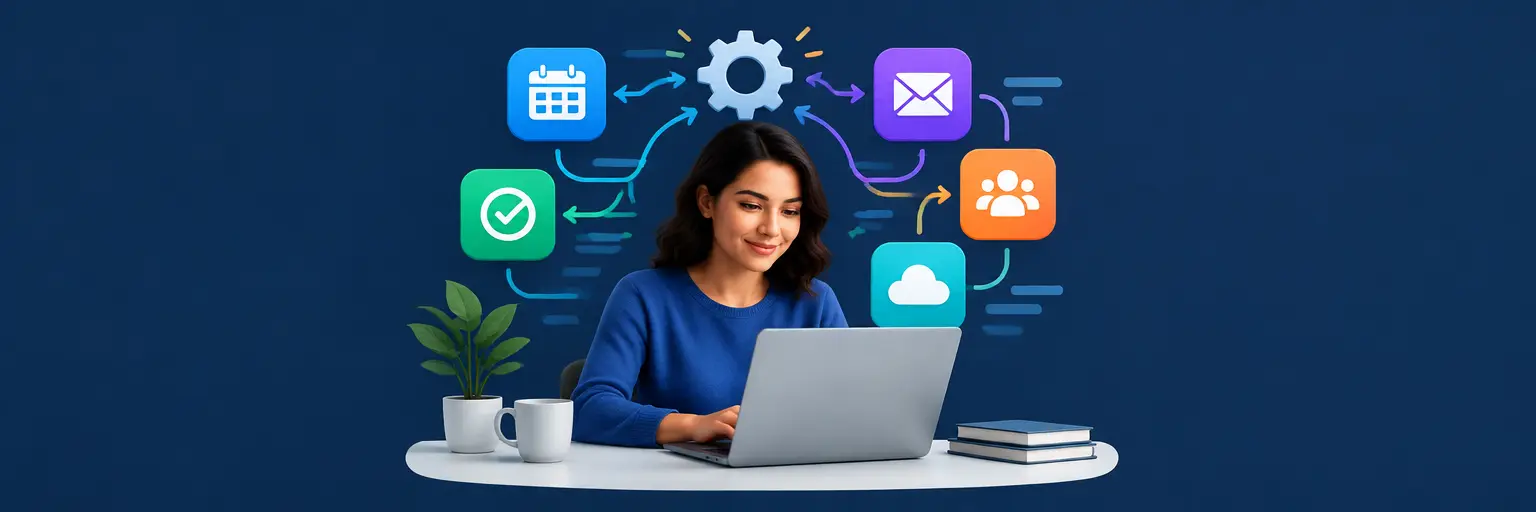
Master automation and workflow apps to reclaim hours every day, streamline repetitive tasks, and let technology handle the busywork. From connecting your favorite tools with smart triggers to building no-code workflows that run on autopilot, these digital hacks transform how you work, boost efficiency, and free up mental space for what truly matters. Perfect for busy professionals and productivity enthusiasts aiming to optimize daily routines and achieve more with less effort.
😊 Unlock unparalleled productivity with the best workflow apps for productivity! This article reveals the top apps to streamline your tasks, boost…
Read article
🤔 Drowning in tasks? Discover the best workflow apps for productivity, transforming your chaotic schedule into a streamlined success. These game-changing apps…
Read article
😊 Drowning in daily tasks? Stop wasting precious time! Discover how Automate tasks productivity apps can revolutionize your efficiency, freeing you to…
Read articleWelcome to the ultimate hub for Using Productivity Apps: Automation & Workflow Apps at UltimateLifeHacks. Here, we transform chaotic schedules into streamlined systems by leveraging the power of digital tools. This subcategory is your roadmap to mastering task automation, intelligent workflow management, and time-saving integrations. Whether you are a busy professional, a student, or a home organizer, you will discover actionable strategies to reduce manual work, minimize errors, and reclaim precious hours daily. Dive in to unlock practical hacks that turn your smartphone or computer into a powerful efficiency engine.
This section demystifies the two giants of no-code automation: IFTTT (If This Then That) and Zapier. Learn how to connect over 700 apps effortlessly, creating “applets” or “zaps” that run repetitive tasks in the background. Expect step-by-step tutorials on syncing your email, calendar, and social media to eliminate manual copying and data entry. You’ll also discover trigger-and-action logic to build custom chains, such as saving email attachments to cloud storage or posting new Instagram photos to Twitter automatically.
Beyond basics, we explore advanced filters, multi-step workflows, and error handling. You’ll understand when to choose IFTTT for simple, fast connections versus Zapier’s powerful, multi-step processes. Practical examples include automating daily weather reports, logging expenses from bank notifications, and syncing project updates across teams. By the end, you’ll have a personal automation toolkit that works 24/7, freeing you from mundane, repetitive digital chores.
Here, we dive into mobile-specific automation using Apple Shortcuts for iOS and Tasker for Android. These apps go beyond simple “if-then” rules, enabling deep system-level control. For Apple users, we cover building custom Siri commands, automating morning routines (turning on lights, reading news, and starting a coffee maker), and creating shareable shortcuts for quick actions. Android enthusiasts will appreciate Tasker’s ability to automate Wi-Fi toggling based on location, silent phone modes during meetings, and even battery-saving profiles.
Expect detailed walkthroughs on variables, loops, and conditional logic, transforming your phone into a proactive assistant. We also address common pitfalls like battery drain, permission conflicts, and troubleshooting errors. Real-world use cases include auto-replying to texts while driving, saving screenshots to a sorted folder, or generating daily to-do lists from your calendar. This section empowers you to build bespoke solutions that fit your unique lifestyle, making every swipe and tap count.
This H3 focuses on visual workflow platforms that combine databases, boards, and calendars into one cohesive workspace. Notion excels at all-in-one note-taking, project tracking, and documentation with customizable templates. Airtable blends spreadsheet ease with database power, perfect for content calendars, inventory, or CRM. Monday.com offers vibrant, color-coded boards ideal for team collaboration. We compare their strengths, pricing, and learning curves to help you pick the right tool for your needs.
We provide migration tips from messy spreadsheets to structured workflows, including automation triggers within these platforms—like moving tasks to “Done” and notifying stakeholders. Expect advanced formulas, linked records, and dashboard creation for crystal-clear progress tracking. You’ll also learn to embed automation tools (like Zapier) to push data between these platforms and external apps. Whether you’re planning a wedding, managing a freelance business, or organizing a family schedule, this guide shows you how to build a visual command center that reduces friction and increases clarity.
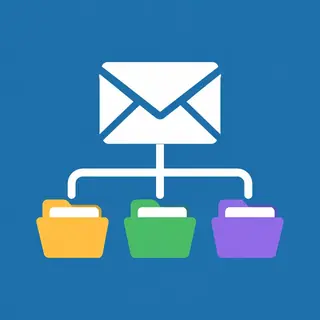
Email remains a top productivity drain, so this section attacks it head-on with automation hacks for Gmail, Outlook, and calendar apps. Discover how to create intelligent filters that automatically label, archive, or forward emails based on sender, subject, or keywords. We explore Gmail add-ons like Sortd and Clean Email to batch-process notifications and newsletters. Calendar automation includes syncing events across Google Calendar, Outlook, and Apple Calendar using tools like Calendly for effortless meeting booking without back-and-forth emails.
We also cover email-to-task integration—turning flagged emails into actionable to-dos in Trello, Asana, or Notion automatically. Expect templates for “email digests,” where all non-urgent messages are bundled into a single daily summary. Learn to schedule sending times, set follow-up reminders, and auto-respond to common inquiries, slashing your inbox time by 50%. By implementing these hacks, you’ll maintain a clean, prioritized inbox that demands far less attention, allowing you to focus on high-impact work.
For tech-savvy readers, this section introduces API connectors, webhooks, and custom JavaScript/Python scripts inside automation tools. We explain how to use Make (formerly Integromat) for complex data transformations and error-handling loops. Expect tutorials on pulling data from Google Sheets, sending custom Slack messages, or running scheduled reports. We teach the basics of webhooks to connect apps that lack direct integrations, giving you unlimited flexibility.
We also discuss low-code scripting with Google Apps Script to automate Google Workspace tasks—like generating PDFs from Sheets or auto-filling Docs. For those ready to level up, we provide safe practices for using browser extensions like Tampermonkey to automate web actions. Each guide includes copy-paste sample scripts and step-by-step deployment instructions. By learning these advanced methods, you’ll break free from preset limitations and craft fully tailored automations that solve your most unique workflow bottlenecks.
For beginners, start with IFTTT since it’s simple, free, and has pre-built applets. Zapier is also beginner-friendly but has a steeper learning curve and a free tier limited to 100 tasks per month. You can also try Apple Shortcuts for iOS or Google Assistant Routines for basic phone automation. These tools require no coding and provide visual interfaces to connect apps quickly.
No, automation handles repetitive, rule-based tasks, but not tasks needing human judgment, creativity, or complex decision-making. For example, it can send daily reminders but cannot write a strategic plan. Use automation to free up time for high-value thinking and personal interactions, which still require your expertise. Set realistic expectations to avoid frustration.
Most reputable automation tools (Zapier, Make, IFTTT) use encryption and follow strict privacy policies. However, always review permissions and limit data access to what’s necessary. Avoid automating banking credentials or health records unless you’re certain of compliance. Enable two-factor authentication and audit your connected apps regularly to minimize risks.
Typical users save 2–5 hours per week by automating emails, scheduling, and data entry. For example, automating meeting scheduling can save 15 minutes per meeting, and email filters save 10 minutes daily. Advanced users leveraging scripts can save over 10 hours weekly. The key is starting small, measuring impact, then expanding automation gradually.
No, most automation apps are no-code. IFTTT and Zapier use dropdowns and triggers—no programming needed. For Apple Shortcuts and Tasker, basic logic is helpful but optional. If you want custom scripts, we provide copy-paste code examples with instructions. You can achieve 90% of goals without writing a single line of code.